For the complete documentation index, see llms.txt. This page is also available as Markdown.

Add a WhatsApp payment method

Step by step: add a card to your WhatsApp account in Meta so Meta keeps delivering your agent's messages on a direct line.

On a direct line, Meta charges you for delivering WhatsApp messages. That means the WhatsApp account itself needs a payment method. A card somewhere else in your Meta account, for example on your ad accounts, is not enough: the card has to be assigned to the WhatsApp account.

Dapta charges the agent from your credits, and Meta charges delivery to this card. They are two separate things, each in its own place. See WhatsApp billing for rates and currencies.

Is your line a legacy line? Then there is nothing to do here. On legacy lines delivery is already included in your Dapta credits.

The screenshots below were taken with Meta Business Suite in Spanish. Meta shows the same screens in your language, so the button names may read slightly differently.

Before you start

You need
Why

Full control of the business portfolio in Meta

Only people with full control can add payment methods and assign them to the WhatsApp account.

A company debit or credit card

In this example Meta accepts Visa and Mastercard. Depending on your country it may show other options.

Your legal business name, registered address and tax ID

Meta asks for them to issue the invoice.

Allow about five minutes. Dapta cannot add the card for you: Meta requires the business itself to do it.


Step by step

Step 1: Open the WhatsApp accounts in your portfolio.

Go to business.facebook.com. Click the gear icon (Settings) in the sidebar, then open Accounts → WhatsApp accounts.


Step 2: Pick the WhatsApp account you connected to Dapta and check its payment method.

Select your line's WhatsApp account in the list. It opens on the Summary tab. Scroll down to Payment method:

  • If it says No payment method found, the account cannot pay for delivery yet. Go on to step 3.

  • If a card is already listed, the account already has a payment method and there is nothing else to do.

Click Payment settings.

WhatsApp account in Meta Business Suite showing no payment method, with the Payment settings button highlighted
The WhatsApp account has no payment method yet. Payment settings takes you to its billing.

Step 3: Click Add payment method.

Billing and payments opens directly on the WhatsApp account: its name is at the top, next to the back arrow. Under Payment methods you will see that none has been added. Click Add payment method.

Billing and payments for the WhatsApp account, with a zero balance and the Add payment method button highlighted
The WhatsApp account's billing. Its name at the top tells you the card is going to this account.

Step 4: Check the location and currency, then choose the card.

In Add payment information, check Business location and currency (in the example: Colombia, Colombian peso COP). Meta calculates and bills delivery charges in that currency, so fix it with Edit if it is wrong.

Under Add payment method, select Debit or credit card and click Next.

Add payment information dialog with the business location and currency and the Debit or credit card option
Confirm the country and currency before you continue.

Step 5: Enter the card details and choose which accounts can use it.

Fill in the name on the card, the card number, the expiry date (MM/YY) and the CVV.

Then, under Which accounts can use this card?, choose one:

Option
When to choose it

All accounts in this business portfolio

You want to use the same card for other WhatsApp accounts or other accounts in the portfolio. People with full control can assign it to each account later.

Only this account

You want the card to pay for this WhatsApp account only.

Either way, the card is assigned to the WhatsApp account you started from. Click Save.

Debit or credit card form with the card fields and the choice between all accounts in the portfolio or only this account
The card details, and which accounts in the portfolio can use it.
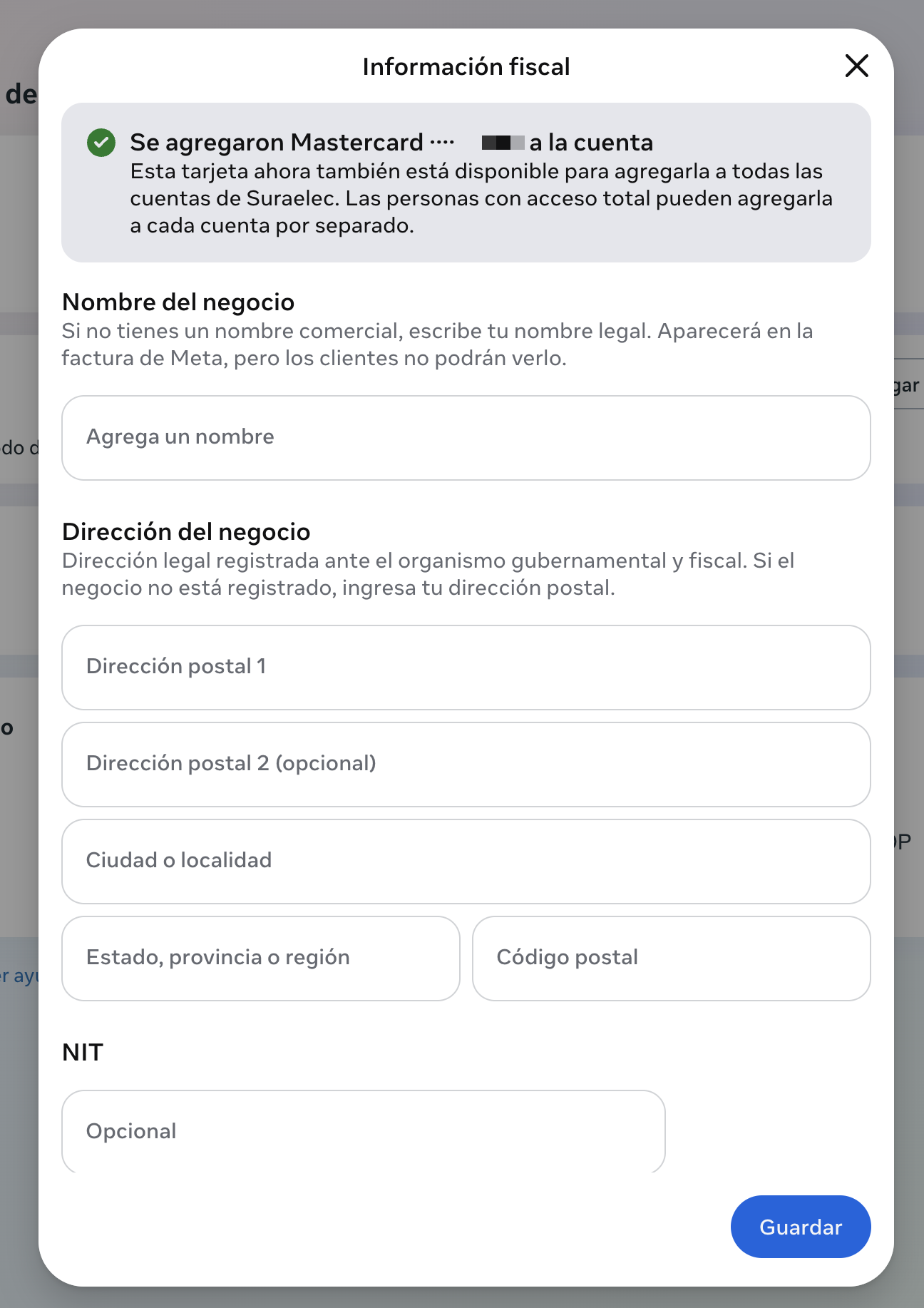
Step 6: Fill in the tax information.

At the top you will see a confirmation that the card was added to the account. Fill in the tax information Meta uses for the invoice:

  • Business name: your legal business name as registered. It appears on Meta's invoice, but your customers do not see it.

  • Business address: the registered legal address. If the business is not registered, your postal address.

  • Your tax ID (NIT in Colombia, for example). Meta marks it optional. Include it if you need the invoice to carry your company's tax ID.

Click Save.

Tax information dialog with the card-added confirmation and fields for the business name, address and tax ID
The card is added. The tax information for the invoice is what's left.
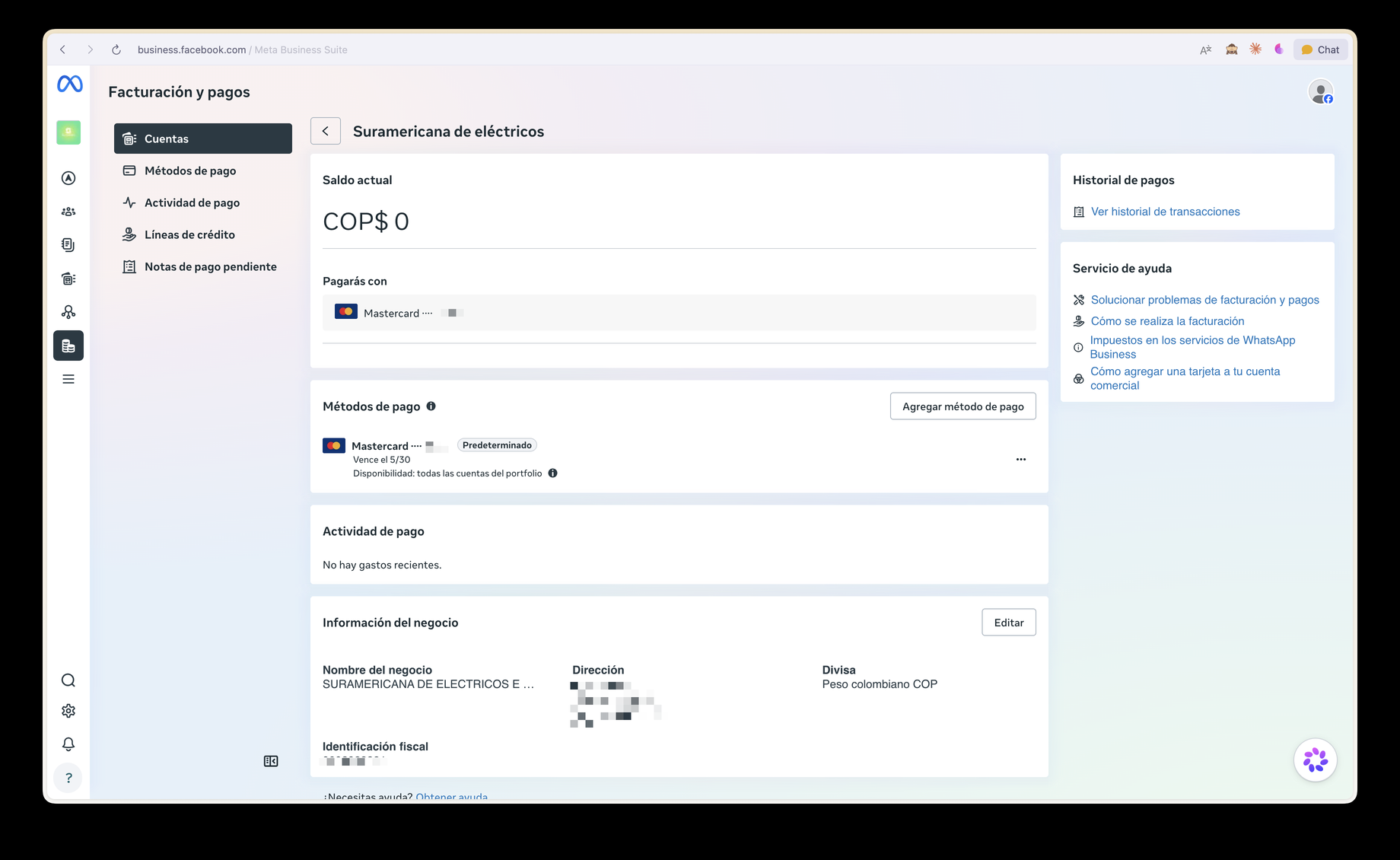
Step 7: Confirm the card in Billing and payments.

Back in Billing and payments, the WhatsApp account shows the card under You'll pay with. Under Payment methods it is marked Default, with its expiry date and availability.

Billing and payments for the WhatsApp account showing the card as the one you pay with and as the default method
The card is the WhatsApp account's default payment method.
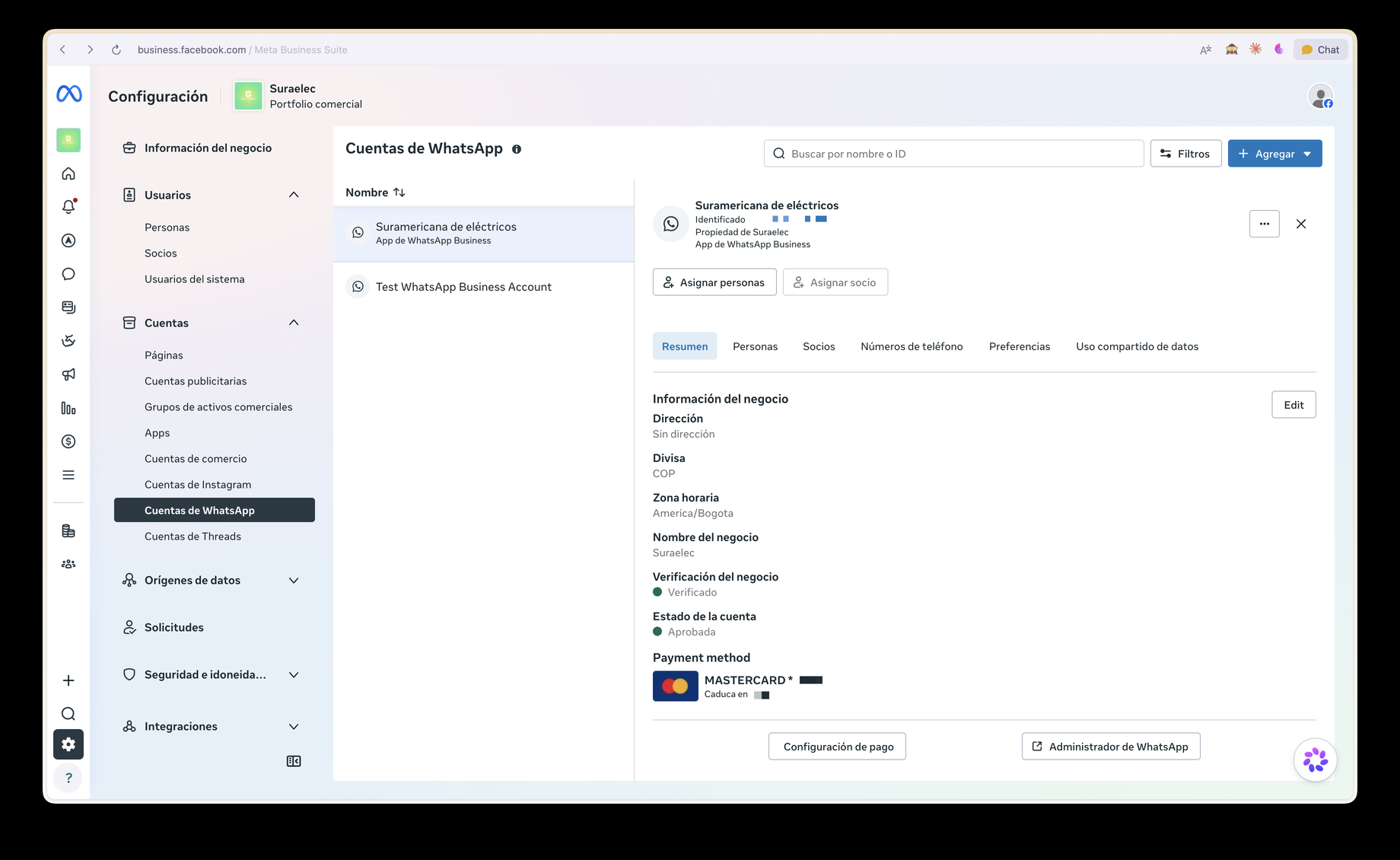
Step 8: Check that the WhatsApp account now has the payment method.

This is the step that confirms it worked. Go back to Settings → Accounts → WhatsApp accounts and open the same account. Payment method should no longer say No payment method found: the card is listed with its expiry date.

WhatsApp account summary with Payment method showing a Mastercard
Done: the WhatsApp account has its payment method.

If the card still does not show under Payment method, you added it to the portfolio but not to this WhatsApp account. Start again from step 2, going in through the right account's Payment settings.


After you add the card

  • In Dapta, if the line showed Payment issue in Meta, check it again. Once Meta accepts the payment method, your agent replies again.

  • Keep the card current. If it expires or Meta cannot charge it, Meta stops delivering messages and your agent cannot reply. Update it on this same screen before it expires.

  • Review the charges under Payment activity and View transaction history, on the same Billing and payments page.

What usually goes wrong

What you see
What it usually is

Payment settings is missing, or you cannot add the card

You do not have full control of the portfolio. Ask whoever manages it for access, or ask them to follow these steps.

The card is listed under the portfolio's payment methods, but the WhatsApp account still says No payment method found

The card was added from another account and is available, but not assigned. Go in through the WhatsApp account's Payment settings and assign it.

Meta declines the card

The bank blocked the online or international charge. Authorise it with your bank or use another card.

The currency is not your business's

Check Business location and currency before you save the card (step 4).

Messages stop going out with no error in Dapta

The card expired or a charge failed. Check Payment activity and update the payment method.

Prepare your Meta accountConnect your Agent with WhatsApp

Last updated