> For the complete documentation index, see [llms.txt](https://docs.dapta.ai/llms.txt). Markdown versions of documentation pages are available by appending `.md` to page URLs; this page is available as [Markdown](https://docs.dapta.ai/ai-text-agents/channels/prepare-your-meta-account.md).
# Prepare your Meta account
Everything to have ready on Meta's side before you connect WhatsApp to Dapta, so the connection goes through on the first attempt.
WhatsApp belongs to Meta, so connecting a number to Dapta means Meta has to recognise your business first. Almost every failed connection is one of the items on this page being missing — not a problem with Dapta.
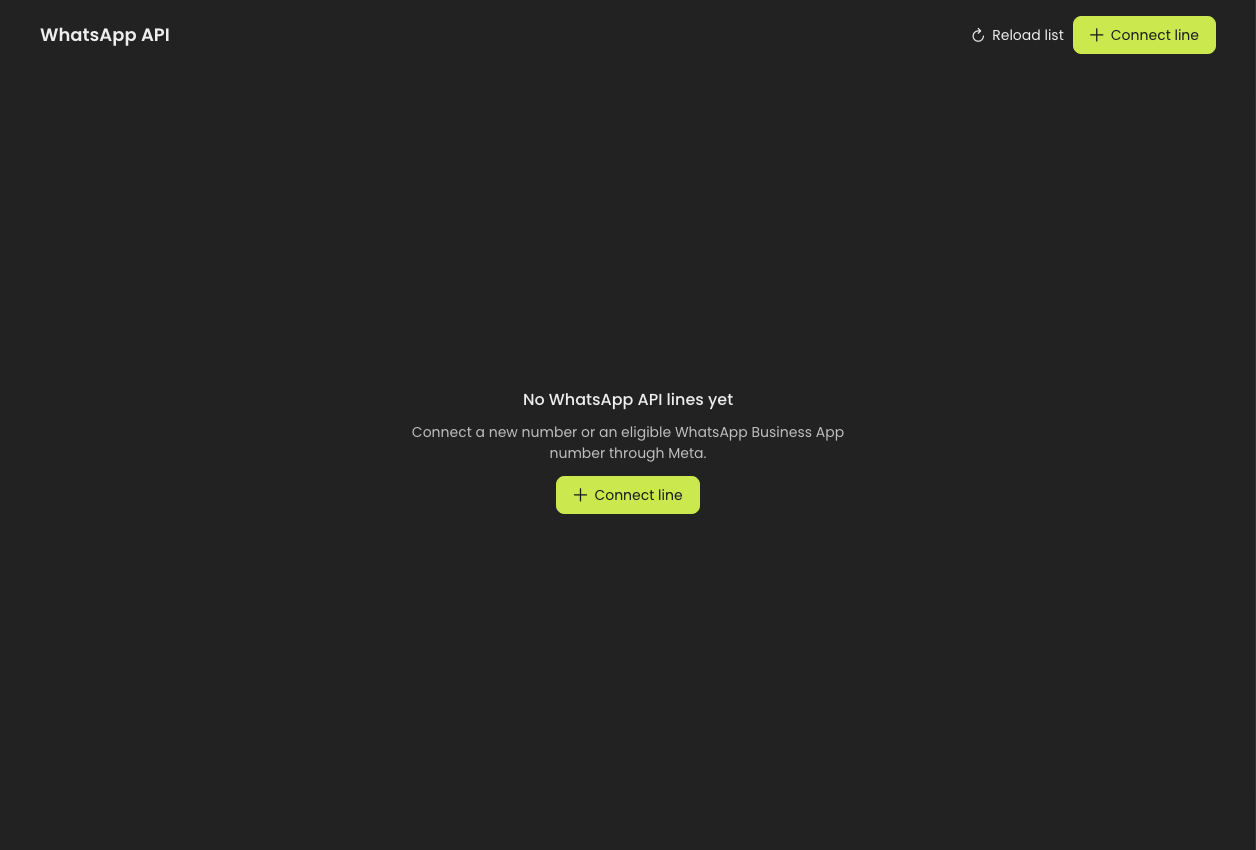
WhatsApp numbers before any number is connected — where the setup below starts.
Go through the checklist, then come back and [connect the line](/ai-text-agents/channels/connect-your-agent-with-whatsapp.md). Set aside about thirty minutes. Business verification, if you have not done it before, can take Meta a few days to review, so start that part early.
## The dialog Dapta shows you
When you connect another number, Dapta first shows a **Before you connect** dialog. Your first number goes straight to Meta from **Continue with Meta**, with the same requirements listed under **What you'll need**. This is what the dialog says, and what each part actually means.
| Dapta shows | What it means |
| ------------------------------------------------------------------------------------------ | ----------------------------------------------------------------------------------------------------------------------------------------------------------------------------------------------------------------------------- |
| **Requirement:** you must be an admin of the Meta business where you'll connect the number | Meta only shows the businesses your Facebook account administers. Without admin access, the connection cannot finish — see [a Meta account that administers your business](#1-a-meta-account-that-administers-your-business). |
| **New number** | A number that is not on WhatsApp yet. It works only in Dapta, and you verify it with an SMS or a call during sign-up. Have the phone in your hand — see [the right phone number](#4-the-right-phone-number). |
| **WhatsApp Business number** | The number you already use in the WhatsApp Business app. You keep using the app on your phone, your agent replies from the same number, and you scan a QR code with the phone. |
| **How to add the payment method** | Meta's page asks for the WhatsApp payment method during the connection. The link opens [Add a WhatsApp payment method](/ai-text-agents/channels/add-whatsapp-payment-method.md). |
Click **Continue** and Meta's window opens as a pop-up. If your browser blocks it, the connection stops before it starts and nothing explains why, so allow pop-ups for `app.dapta.ai` first. Bought a number from Dapta? Click **Book a session** in the same dialog: our team connects it with you.
{% hint style="info" %}
The dialog covers who can connect and which number. The rest of this page covers what Meta checks on top of that — the website, the display name, business verification and the payment method.
{% endhint %}
## The full checklist
| # | What you need | Where |
| - | ------------------------------------------------------------------------ | ------------------------------------------------------------------------- |
| 1 | A Meta account that administers your business | [business.facebook.com](https://business.facebook.com) |
| 2 | A business portfolio, with you as admin | Meta Business Suite → **Business settings** |
| 3 | A business website or business Instagram profile | Your own site |
| 4 | A phone number that is free to use for this | Your phone |
| 5 | The WhatsApp two-step PIN for that number, or two-step turned off | The WhatsApp app on the phone |
| 6 | A display name customers will recognise | Decide it before you start |
| 7 | Business verification (start it early) | Meta Business Suite → **Security Centre** |
| 8 | A payment method assigned to the WhatsApp account, if the line is direct | Meta Business Suite → **Settings → WhatsApp accounts → Payment settings** |
***
## 1. A Meta account that administers your business
Use the Facebook account that already manages your company's pages and ads — not a personal account you made for this. During the connection Dapta opens a Meta window, and Meta will only show you businesses this account can administer.
If the person who owns the business account is not you, either get **Full control** of the portfolio, or have them sit with you for the ten minutes the connection takes.
## 2. A business portfolio
A **business portfolio** (Meta used to call it Business Manager) is the container that holds your pages, ad accounts and WhatsApp account. If your company runs ads, you already have one.
To check or create it, open [business.facebook.com](https://business.facebook.com) and look at **Business settings**. You need to appear there with **Full control**. Without that, Meta will not let the connection finish, and the error you get back will not say so clearly.
{% hint style="info" %}
One portfolio can hold several WhatsApp numbers — a sales line and a support line, for example. You do not need a new Meta account per number.
{% endhint %}
## 3. A website or business Instagram profile
Meta asks for a public address that shows the business is real. A website with your company name, what you sell and a way to contact you is enough; a business Instagram profile also works.
Have the URL ready to paste. A site that is offline, still "coming soon" or unrelated to the business name is the most common reason a WhatsApp account is restricted straight after it is created.
## 4. The right phone number
Pick the number first, because changing it afterwards is much harder than choosing well now.
**A number works if:**
* You can receive an SMS or a phone call on it right now, to read the verification code.
* It is a normal mobile or landline number in international format.
* It is not already connected to WhatsApp through another platform or provider.
**Think twice about:**
| Number | What to know |
| ---------------------------------------- | ------------------------------------------------------------------------------------------------------------------------------------------------------------------------------------- |
| **Your WhatsApp Business number** | This is the best case. It can keep working on the phone after it is connected — see [Connect your Agent with WhatsApp](/ai-text-agents/channels/connect-your-agent-with-whatsapp.md). |
| **A personal WhatsApp number** | Not a good idea. Business messaging on a personal number means losing the personal account and its chat history. Use a different number. |
| **A number already connected elsewhere** | It has to be released by the current provider before it can be connected here. Ask support before you touch anything. |
| **A brand-new number** | Fine, and often the cleanest option — but nobody has it saved yet, so plan how customers will find it. |
| **Short codes and some virtual numbers** | Meta does not accept them. Use a real number. |
{% hint style="warning" %}
**Keeping the WhatsApp Business app? Turn off Meta Business Agent first.**
Meta has its own AI assistant inside WhatsApp Business. If it is switched on for your number, turn it off before you connect the line — Dapta's onboarding requires it, and your Dapta agent becomes the AI that answers on that number. Your team can still reply by hand from the app exactly as before.
{% endhint %}
{% hint style="warning" %}
Do not delete a WhatsApp account or remove a number from Meta to "clear the way". It is almost never necessary, it destroys the chat history, and it does not make a blocked connection succeed. If a number is rejected, ask Dapta support what the actual reason is first.
{% endhint %}
## 5. The two-step verification PIN
If two-step verification is switched on for that number in WhatsApp, registration fails without the six-digit PIN. Either have the PIN to hand, or turn two-step off in the app before you start — in WhatsApp, under **Settings → Account → Two-step verification**.
Nothing tells you this is the problem at the time. The registration simply does not complete, which is why it is worth checking beforehand.
## 6. Your display name
The display name is what customers see at the top of the chat. Meta reviews it, and rejects names that do not match the business.
* Use your business name, or your business name plus what the line is for: `Acme`, `Acme Support`.
* Do not use a phone number, an email address, a URL, or a generic word on its own like "Sales" or "Store".
* It should match the name on your website and your other Meta assets.
You can ask Meta to change it later, but each change goes back through review, so it is worth getting right the first time.
## 7. Business verification
Meta verifies that your company is a real registered business. An unverified account can still send messages, but at the lowest limits — and some capabilities stay closed until verification passes.
Start it in Meta Business Suite, under **Security Centre**. Have ready:
* Your legal business name, exactly as it is registered.
* The registered address and a phone number.
* A document that proves it: certificate of incorporation, a tax document, a business licence or a utility bill in the company's name.
The name on every document has to match the name on the portfolio, character for character. A mismatch is the usual reason verification is rejected, and Meta's review can take several days — so start this before the day you planned to go live.
## 8. A payment method on the WhatsApp account
This one depends on how the number is connected.
* **A direct line** — the way every new number connects. Meta charges you for delivering messages, so **the WhatsApp account** needs its own payment method. **Dapta cannot add this for you**: Meta requires the business itself to do it. Without a valid payment method your agent cannot reply: in **WhatsApp numbers**, a banner says **Agent replies are blocked: add a payment method**, and the number shows **Payment needed**.
* **A legacy line** — nothing to do. Delivery is already inside your Dapta credits and there is no Meta account to top up.
{% hint style="warning" %}
**A card on your Meta account is not enough.** If you already pay for ads with a card, that card is not assigned to the WhatsApp account automatically. Add the payment method **from the WhatsApp account itself**, under **Settings → Accounts → WhatsApp accounts → Payment settings**.
{% endhint %}
To check whether you already have one, open that WhatsApp account in Meta Business Suite and look at **Payment method** on the **Summary** tab. If it says **No payment method found**, it still needs one.
A WhatsApp account with no payment method. Start from Payment settings.
Follow the step-by-step guide with screenshots in [Add a WhatsApp payment method](/ai-text-agents/channels/add-whatsapp-payment-method.md). It takes about five minutes.
See [WhatsApp billing: legacy and direct lines](/ai-text-agents/channels/whatsapp-billing-and-meta-charges.md) for rates, currencies and what changes on 1 October 2026, and [what Dapta adds](/ai-text-agents/dapta-and-whatsapp.md) for the short version.
***
## What usually goes wrong
| What you see | What it usually is |
| ----------------------------------------------------- | -------------------------------------------------------------------------------------------------------------------------------------------------------------------------------- |
| The Meta window never opens | Pop-ups are blocked for `app.dapta.ai`. Allow them and try again. |
| No business appears in the Meta window | The Facebook account you logged in with does not administer the portfolio. |
| "This number is already registered" | The number is connected to WhatsApp through another platform, and has to be released there first. |
| Verification code never arrives | Wrong country code, or the number cannot receive SMS. Try the voice-call option. |
| Registration completes, then stalls | Two-step verification is on and the PIN was not supplied. |
| Connected, then restricted within days | The display name or the website does not match the business, or the first messages went to people who never asked for them. |
| The WhatsApp account says **No payment method found** | The card is on the portfolio or your ad accounts, but not on the WhatsApp account. See [Add a WhatsApp payment method](/ai-text-agents/channels/add-whatsapp-payment-method.md). |
| **Agent replies** shows **Payment needed** in Dapta | The WhatsApp account has no payment method, or Meta could not charge it. See [Add a WhatsApp payment method](/ai-text-agents/channels/add-whatsapp-payment-method.md). |
| Messages you start stop going out | Check **Business-initiated** for the number in **WhatsApp numbers**. It names the cause: a payment issue, low quality in Meta, or Meta limiting the conversations you start. |
Once all eight items are in place, you are ready.
{% content-ref url="/pages/anfdTczN1uZyNz5LkS0L" %}
[Connect your Agent with WhatsApp](/ai-text-agents/channels/connect-your-agent-with-whatsapp.md)
{% endcontent-ref %}
---
# Agent Instructions
This documentation is published with GitBook. GitBook is the documentation platform designed so that both humans and AI agents can read, navigate, and reason over technical content effectively. Learn more at gitbook.com.
## Querying This Documentation
If you need additional information that is not directly available in this page, you can query the documentation by asking a question.
Perform an HTTP GET request on the following URL with the `ask` and `goal` query parameters:
```
GET https://docs.dapta.ai/ai-text-agents/channels/prepare-your-meta-account.md?ask=&goal=
```
`ask` is the immediate question: it should be specific, self-contained, and written in natural language.
`goal` is what the user is ultimately trying to achieve, the reason they need the answer. Sharing it helps GitBook give you a better, more relevant answer. A goal is most helpful when it describes the outcome the user wants rather than restating the question. For example, with `ask=how do I create an API token`, a goal like `automate deployments from our CI pipeline` lets GitBook tailor the answer to that use case.
The response will contain a direct answer to the question and relevant excerpts and sources from the documentation.
Use this mechanism when the answer is not explicitly present in the current page, you need clarification or additional context, or you want to retrieve related documentation sections.