# Inbox

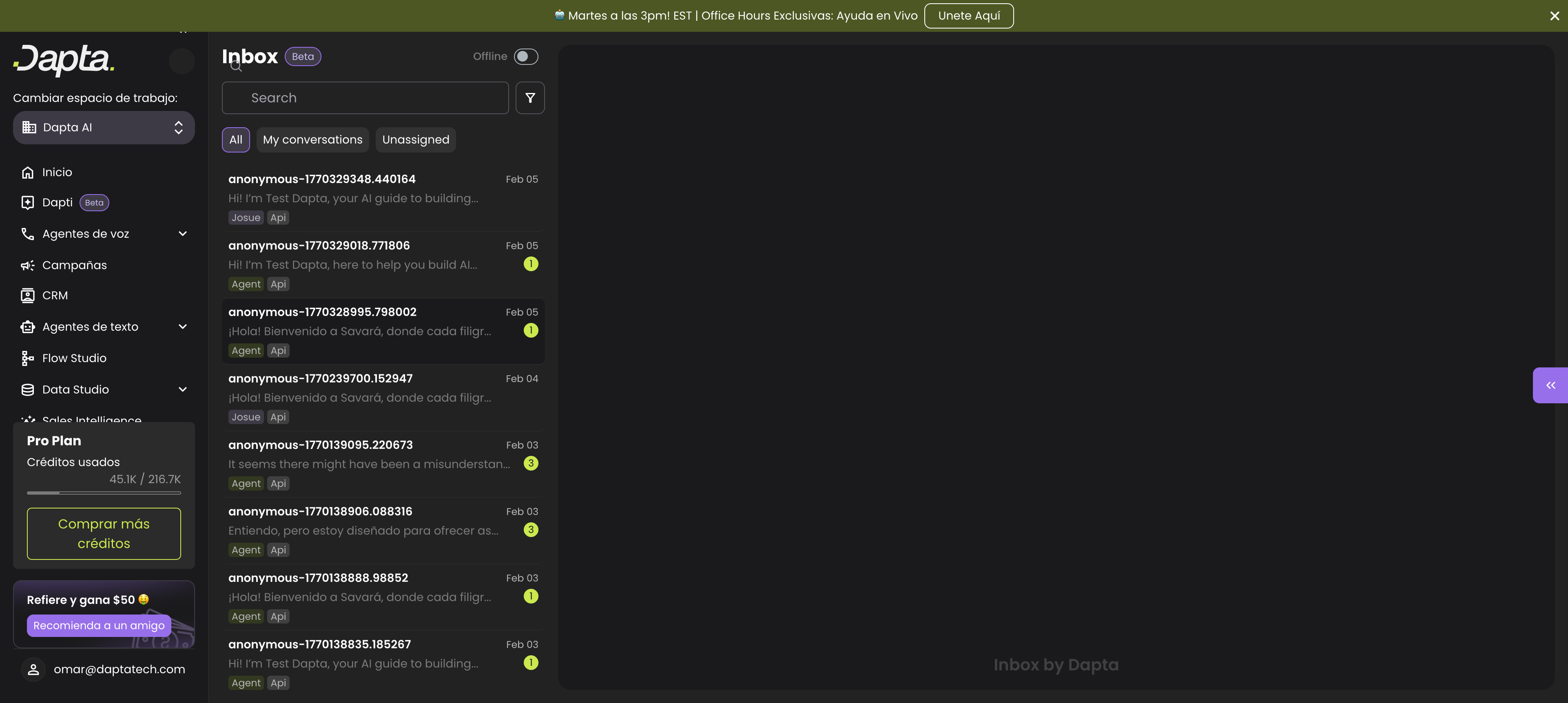
The Inbox lets you manage every conversation your text agents are having, across all connected channels, from a single screen.

Navigate to **Text Agents > Inbox** in the left sidebar.

<figure><img src="https://3835013762-files.gitbook.io/~/files/v0/b/gitbook-x-prod.appspot.com/o/spaces%2FCy5rSNtQmtqYCGzJlNEB%2Fuploads%2Fgit-blob-32bcf708ec1f1d263e7ef5533b55d093d8789e4b%2Finbox-overview.png?alt=media" alt=""><figcaption><p>The Inbox showing all conversations with filters and search</p></figcaption></figure>

***

## Inbox Layout

The Inbox is split into two panels:

* **Left panel** — The conversation list with search, filters, and quick-filter tabs
* **Right panel** — The selected conversation's message thread with assignment controls

***

## Availability Status

At the top of the Inbox, next to the title, you will see an **Online / Offline** toggle.

* **Online** — You are available to receive assigned conversations
* **Offline** — You will not receive new conversation assignments

{% hint style="info" %}
The availability toggle is only active if an admin has added you to a **handover pool**. If you see the toggle disabled, ask your workspace admin to add you.
{% endhint %}

***

## Conversation List

Each conversation in the list shows:

* **Contact name** — The profile name or anonymous identifier of the user
* **Date** — When the last message was sent
* **Message preview** — A truncated preview of the most recent message
* **Unread badge** — A count of unread messages (if any)
* **Assignment tag** — Shows who the conversation is assigned to (a team member name or "Agent" if the AI is handling it)
* **Channel tag** — The source channel (e.g., "api", "widget", "whatsapp")

Click on any conversation to open it in the right panel.

***

## Search and Filters

### Search

Use the **Search** bar at the top of the conversation list to find conversations by contact name or message content.

### Quick-Filter Tabs

Below the search bar, three tabs let you quickly filter conversations:

| Tab                  | Shows                                           |
| -------------------- | ----------------------------------------------- |
| **All**              | Every conversation across all channels          |
| **My conversations** | Only conversations assigned to you              |
| **Unassigned**       | Conversations that have no team member assigned |

### Advanced Filters

Click the **filter icon** next to the search bar to open the filter panel.

<figure><img src="https://3835013762-files.gitbook.io/~/files/v0/b/gitbook-x-prod.appspot.com/o/spaces%2FCy5rSNtQmtqYCGzJlNEB%2Fuploads%2Fgit-blob-0c1eee092925133cdbbdb4a8bc8d6df4c59d00e8%2Finbox-filter-panel.png?alt=media" alt="" width="563"><figcaption><p>Filter panel with source and assignment options</p></figcaption></figure>

You can filter by:

* **Source** — Select which channels to show:
  * **Widget** — Conversations from the web chat widget
  * **WhatsApp** — Conversations from WhatsApp Business
* **Assigned to** — Select specific team members to show only their conversations

Click **Clear filters** to remove all active filters.

***

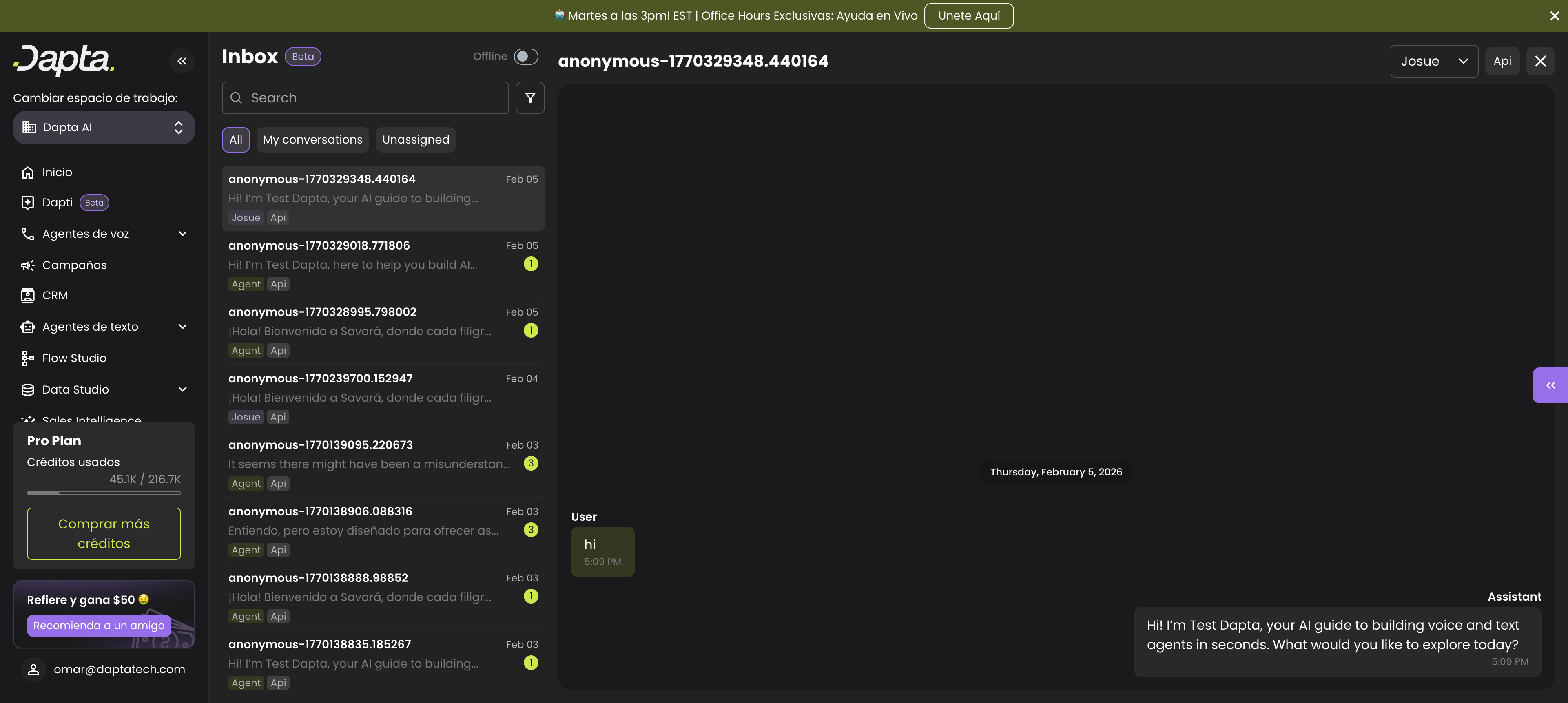
## Conversation Detail

When you select a conversation, the right panel shows the full message thread.

<figure><img src="https://3835013762-files.gitbook.io/~/files/v0/b/gitbook-x-prod.appspot.com/o/spaces%2FCy5rSNtQmtqYCGzJlNEB%2Fuploads%2Fgit-blob-92a46f114e071b55574d4552ea8bf228dc9da9db%2Finbox-conversation-detail.png?alt=media" alt=""><figcaption><p>A conversation open in the Inbox showing messages, assignment, and channel info</p></figcaption></figure>

### Header

The conversation header displays:

* **Contact name** — The user's profile name or anonymous identifier
* **Assign dropdown** — A dropdown to assign or reassign the conversation to a team member
* **Channel tag** — The source channel (e.g., "api", "widget")
* **Close conversation button** — Closes the conversation when it is resolved

### Messages

Messages are displayed chronologically with:

* **Sender label** — "assistant" for agent messages, "user" for customer messages
* **Message content** — The full text of the message, with markdown support
* **Timestamp** — The time each message was sent
* **Date separators** — Visual dividers between messages sent on different days

When your agent executes an **action** during a conversation, the Inbox displays a tool call card showing the action name, status (executing, completed, or failed), parameters, and result.

### Attachments

The Inbox supports media attachments:

* **Images** — Displayed as clickable thumbnail previews
* **Files** — Shown as downloadable cards with the file name, type, and size
* **Voice messages** — Shown with an audio player and optional transcription

***

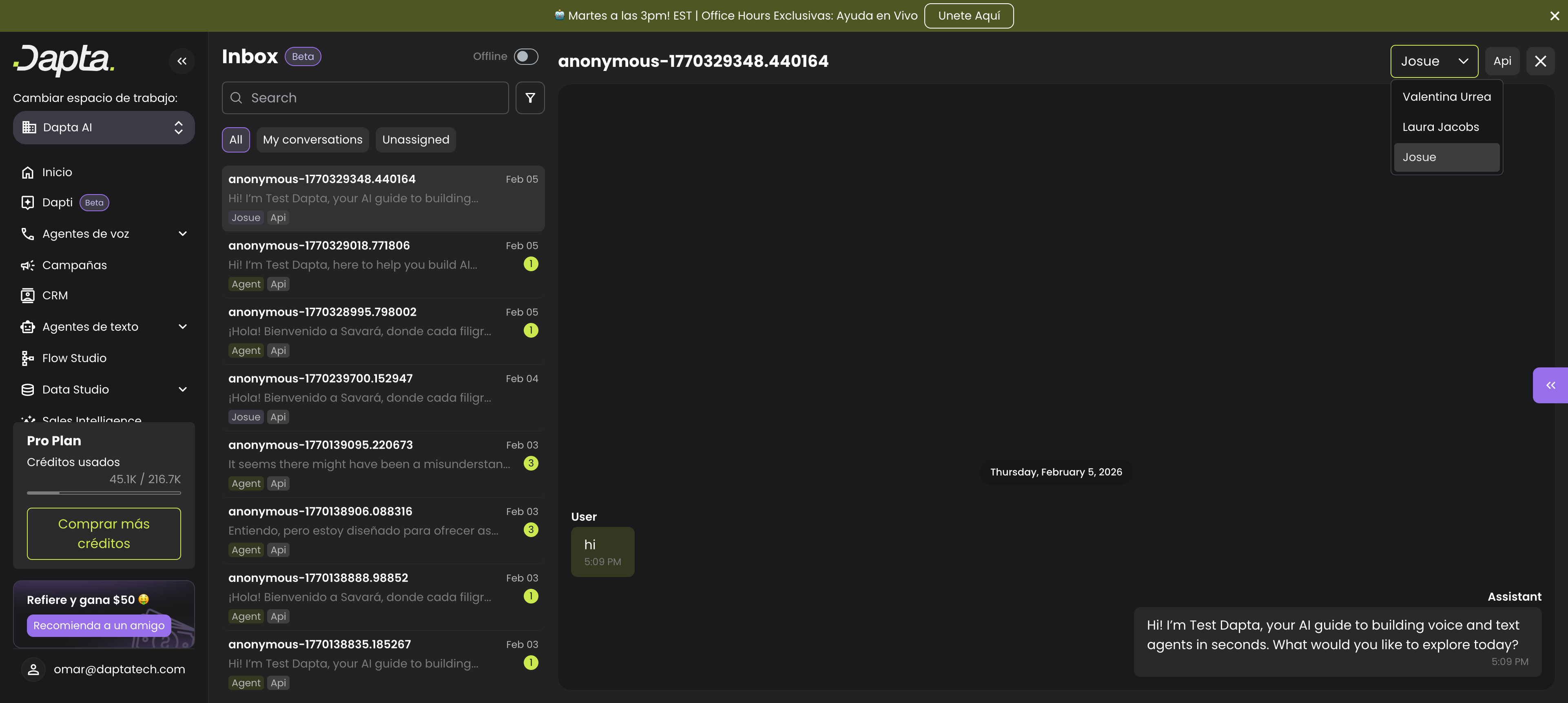
## Assigning Conversations

You can assign a conversation to any team member in your workspace.

<figure><img src="https://3835013762-files.gitbook.io/~/files/v0/b/gitbook-x-prod.appspot.com/o/spaces%2FCy5rSNtQmtqYCGzJlNEB%2Fuploads%2Fgit-blob-5a7f40d35358af9363016d9220faf100919744ec%2Finbox-assign-dropdown.png?alt=media" alt="" width="563"><figcaption><p>The assign dropdown showing available team members</p></figcaption></figure>

**To assign a conversation:**

1. Open the conversation by clicking on it in the list.
2. Click the **assign dropdown** in the conversation header.
3. Select the team member you want to assign it to.

The assignment tag in the conversation list will update to show the new assignee.

{% hint style="warning" %}
You can only assign open conversations. Once a conversation is closed, the assign dropdown is no longer available.
{% endhint %}

***

## Responding to Conversations

If a conversation is open and assigned to you, a **message input** appears at the bottom of the conversation.

* Type your message and press **Enter** to send.
* Press **Shift + Enter** to add a new line without sending.

{% hint style="info" %}
You can only send messages in conversations that are assigned to you and are still open.
{% endhint %}

### WhatsApp 24-Hour Policy

For WhatsApp conversations, messaging is subject to the WhatsApp Business 24-hour policy:

* You can send free-form messages only within **24 hours** of the customer's last message.
* After 24 hours, the send button is disabled. You must use an approved **message template** to re-engage the customer.

***

## Closing Conversations

To close a resolved conversation:

1. Open the conversation.
2. Click the **close** button (X icon) in the conversation header.

Once a conversation is closed:

* The message input is disabled
* The assign dropdown is hidden
* A lock icon is displayed in place of the close button