> For the complete documentation index, see [llms.txt](https://docs.dapta.ai/llms.txt). Markdown versions of documentation pages are available by appending `.md` to page URLs; this page is available as [Markdown](https://docs.dapta.ai/ai-text-agents/setting-up-your-text-agent/text-agent-actions.md).
# Text Agent Actions
Create API actions that call another webhook, or Transfer to a human actions that hand a conversation to a person or a team inside Dapta and set the message the customer receives at that moment.
{% hint style="info" %}
**Want the agent to book meetings?** That is its own action, **Schedule appointments (Dapta Calendars)**. See [Schedule Appointments with dCal](/ai-text-agents/setting-up-your-text-agent/schedule-appointments-with-dapta-calendars.md).
{% endhint %}
## What types of Actions can a text agent use?
A text agent can use several types of action. This page covers two of them: an API action that connects the agent to another webhook or endpoint using instructions and optional parameters you define, and a **Transfer to a human** action that hands the conversation to a member or a team of your workspace, based on the instructions you give it.
### Add Actions
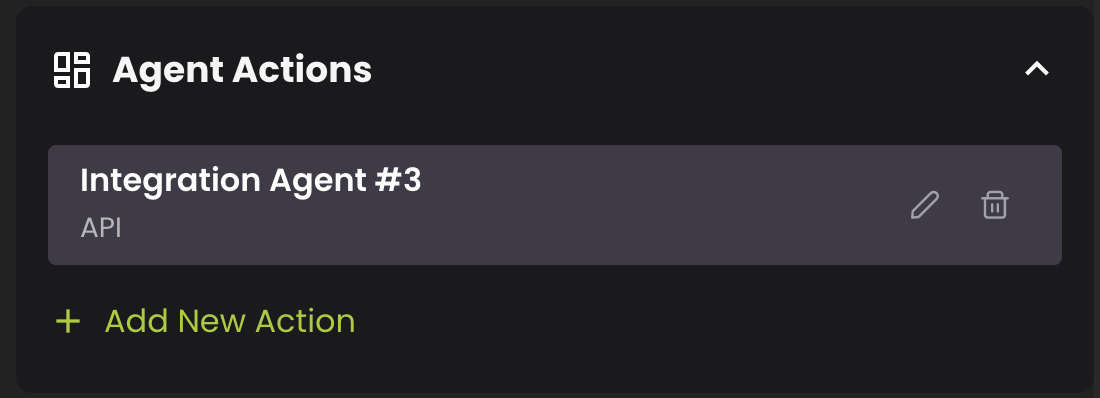
To add a new Action, go to "Settings, scroll down to the “Agent Actions” section, and click on **“+ Add New Action”.**
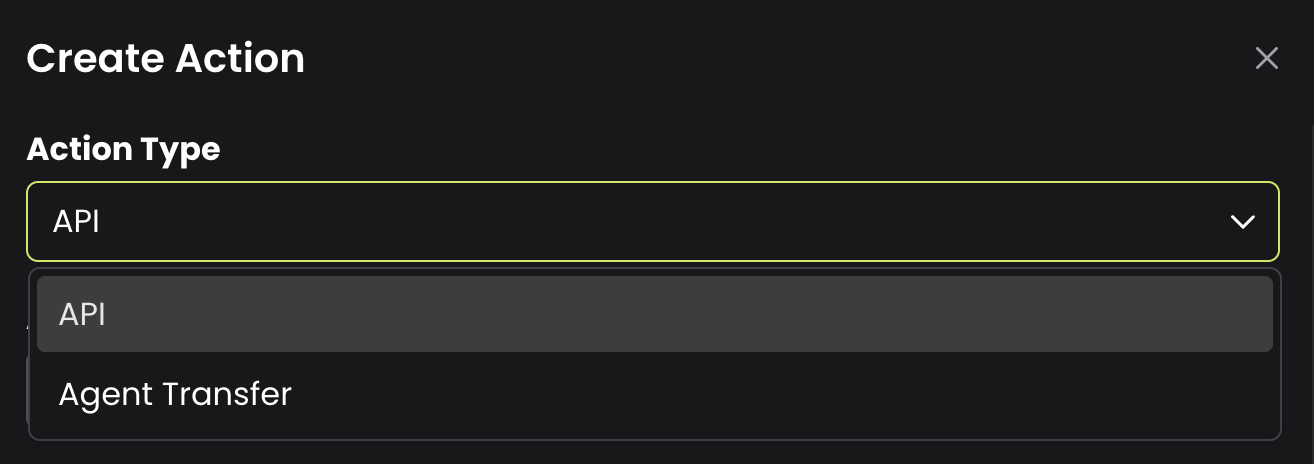
Choose the type of action from the list that opens. This page covers these two:
* **Custom Action:** Integrate with another webhook/endpoint. Its form is titled **API Action**.
* **Transfer to a human:** Hand the conversation to a person in your workspace.
**Transfer agent** is a different action: it passes the conversation to another AI agent, not to a person.
Let’s break them down one by one:
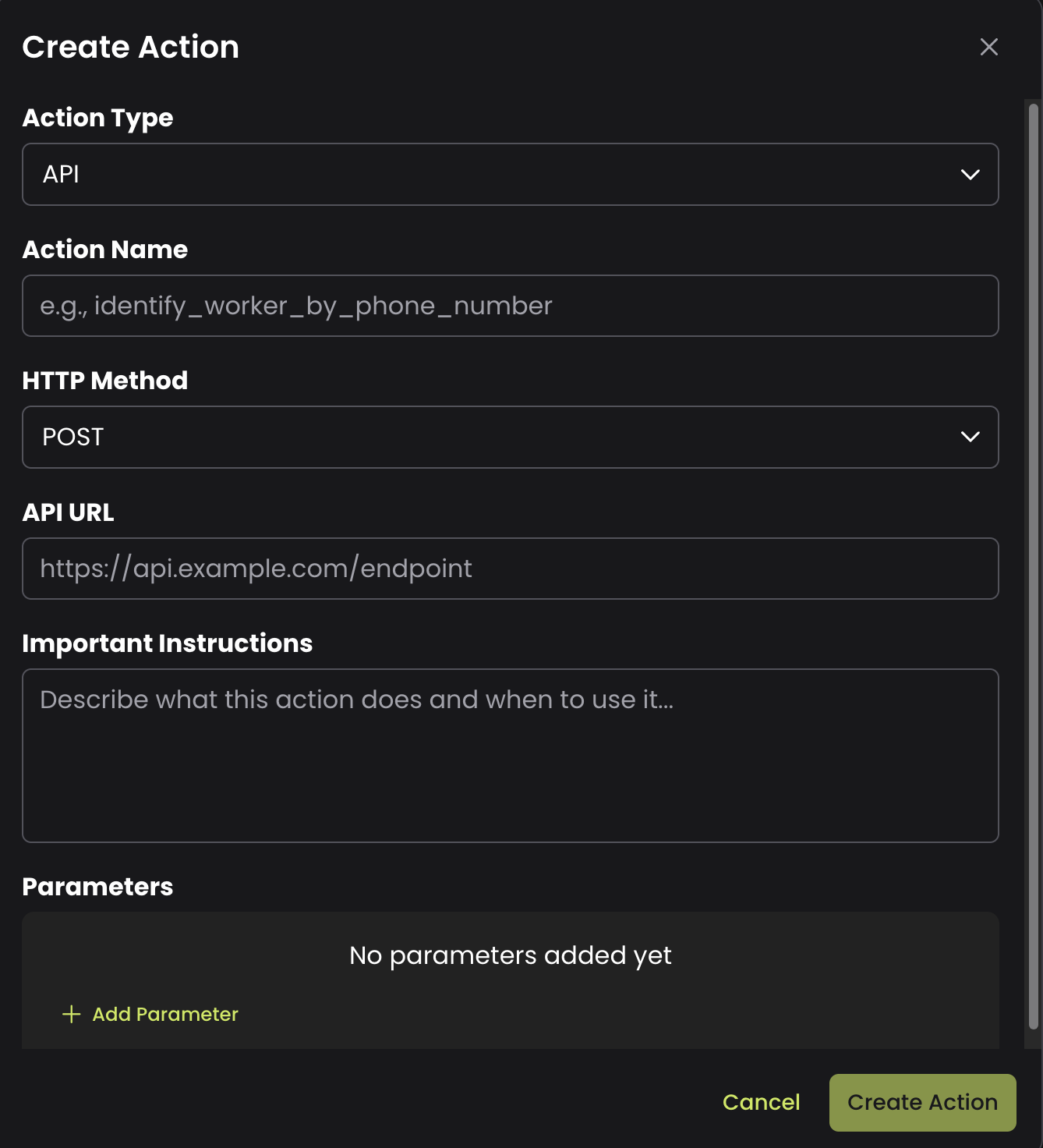
#### **1. API**
This type of action allows you to connect with other tools via API.
* **Name**: Give your “Action” a Name.
* **HTTP Method:** Choose the method; you can review HTTP methods [HERE.](https://blog.postman.com/what-are-http-methods/)
* **API URL:** Paste the URL here. This URL helps connect the API with the resource being requested.
* **Important Instructions:** Describe the instructions this action should perform. Be very clear and specific, including scenarios and examples of the actions the agent will carry out.
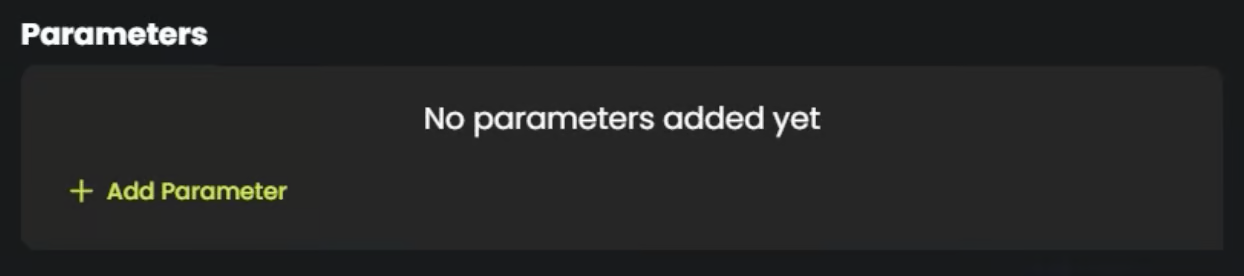
* **Parameters (Opctional):** Dapta gives you the option to add parameters to your Action.
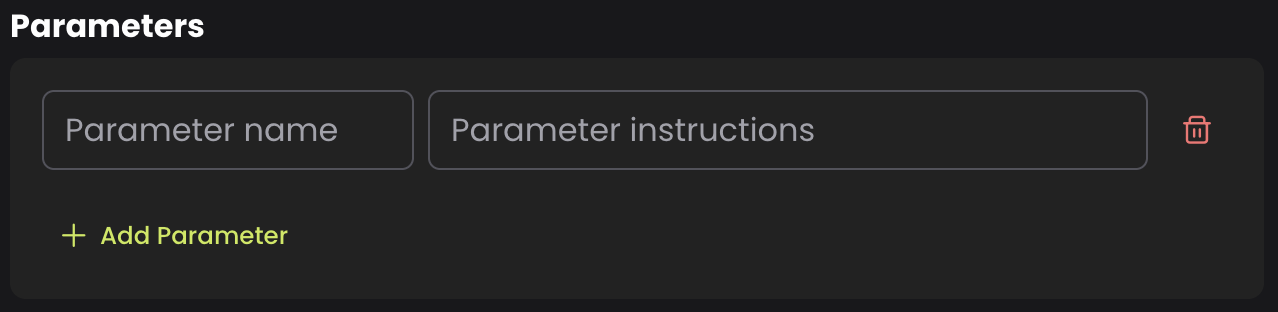
* To add a parameter, simply click on “+ Add Parameter”, enter the parameter name, and provide the respective instructions for that parameter.
* To delete a parameter, press the trash icon “🗑️” to the right of each added parameter.
* To Finish adding the Action, click the button: “Create Action".
#### **2. Transfer to a human**
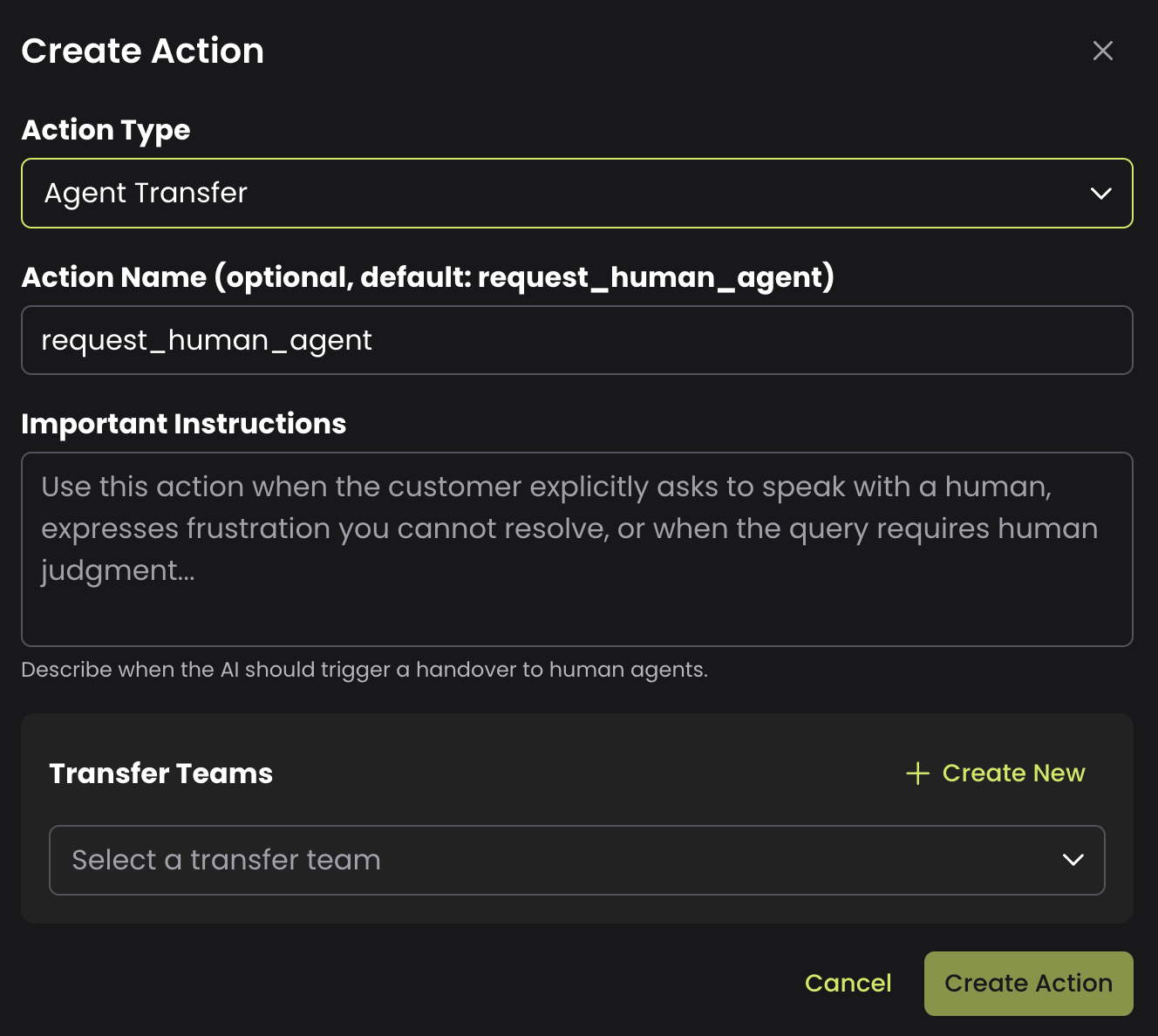
This action hands the conversation to a person in your workspace, based on the instructions you give the agent. As soon as the agent hands over, the AI stops replying and the person continues the conversation in [Inbox](/ai-text-agents/inbox.md).
* **Action Name:** Give your “Action” a name. By default, the name is `request_human_agent`.
* **Important Instructions:** Describe when the AI should hand the conversation to a person. Be very clear and specific, including scenarios and examples.
* **Transfer To:** Choose **Member** to send every handover to one person you pick, or **Team** to send it to a transfer team.
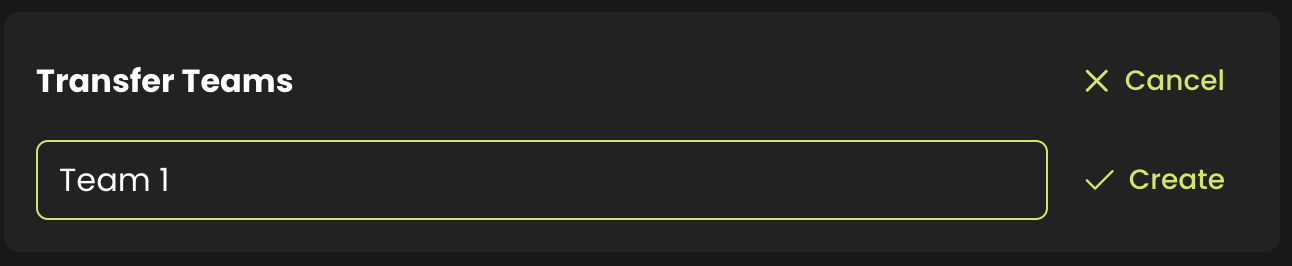
With **Team**, pick a team under **Transfer Teams** or create one. Once a team is selected, **Assignment Strategy** decides who receives each conversation: **Fixed** assigns to each team member in the same order, regardless of how many chats they have, and **Balanced** assigns to whoever has the fewest active chats on the team.
To create a team:
1. Click **Create New Team**.\
2. In **New Transfer Team**, give the team a **Team Name**.
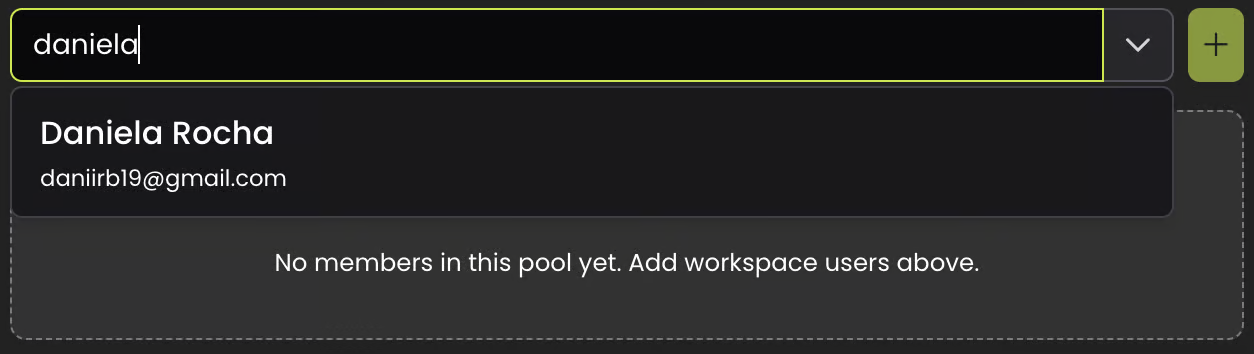
3. Under **Team Members**, search for members of your workspace and select each one to add them.\
4. You will see the members appear as you add them.
5. Click **Create Team**.
**Message to the customer at handover**
Choose what the customer receives when the conversation passes to a person. What they get at that moment comes from this setting, not from your prompt.
| Option | What the customer receives |
| ----------------- | -------------------------------------------------------------------------------------------------------- |
| **Silent** | No message. |
| **Fixed message** | Exactly the text you write in **Handover message**. The field is required for this option. |
| **AI-generated** | A short notice of one or two sentences that the AI writes, depending on whether an advisor was assigned. |
**Unavailability message:** sent whenever no advisor could be assigned, for example when nobody on the team is online. The AI still stops replying, and the conversation waits for a person under **Unassigned** in Inbox.
{% hint style="warning" %}
Transfer actions created before this setting existed are **Silent**: the customer receives no message at handover until you open the action and choose **Fixed message** or **AI-generated**.
{% endhint %}
Click **Create Action** to finish. The action you just created now appears in the **Agent Actions** section.
---
# Agent Instructions
This documentation is published with GitBook. GitBook is the documentation platform designed so that both humans and AI agents can read, navigate, and reason over technical content effectively. Learn more at gitbook.com.
## Querying This Documentation
If you need additional information that is not directly available in this page, you can query the documentation by asking a question.
Perform an HTTP GET request on the following URL with the `ask` and `goal` query parameters:
```
GET https://docs.dapta.ai/ai-text-agents/setting-up-your-text-agent/text-agent-actions.md?ask=&goal=
```
`ask` is the immediate question: it should be specific, self-contained, and written in natural language.
`goal` is what the user is ultimately trying to achieve, the reason they need the answer. Sharing it helps GitBook give you a better, more relevant answer. A goal is most helpful when it describes the outcome the user wants rather than restating the question. For example, with `ask=how do I create an API token`, a goal like `automate deployments from our CI pipeline` lets GitBook tailor the answer to that use case.
The response will contain a direct answer to the question and relevant excerpts and sources from the documentation.
Use this mechanism when the answer is not explicitly present in the current page, you need clarification or additional context, or you want to retrieve related documentation sections.