> For the complete documentation index, see [llms.txt](https://docs.dapta.ai/llms.txt). Markdown versions of documentation pages are available by appending `.md` to page URLs; this page is available as [Markdown](https://docs.dapta.ai/ai-voice-agents/agent-actions/send-whatsapp-template.md).
# Send WhatsApp Template
Let your voice agent send a pre-approved WhatsApp template to the contact during a phone call — for example a registration form, a follow-up link, or key information the contact asked for.
With this action, your voice agent can send a WhatsApp message to the contact while the call is happening. The message is one of your pre-approved WhatsApp templates, so the contact receives it instantly — no need to wait for the call to end.
Common use cases:
* Send a registration or sign-up form when the contact shows interest.
* Share a link with more information the contact asked about.
* Confirm details in writing while still on the call.
{% hint style="info" %}
**Before you start**, you need two things:
1. A **WhatsApp channel** connected to your workspace.
2. A **message template** approved by Meta. Only approved templates can be sent.
If you don't have them yet, the action setup will guide you to create them.
{% endhint %}
{% hint style="info" %}
The agent sends templates on **outbound calls**, the ones it places. On inbound calls and web calls it doesn't send them.
{% endhint %}
### Step-by-Step Guide
#### **Step 1: Select Your Agent**
* Navigate to your agent list and select the voice agent you want to add the action to.
#### **Step 2: Access Agent Actions**
* Once inside the agent, go to the **Settings** tab.
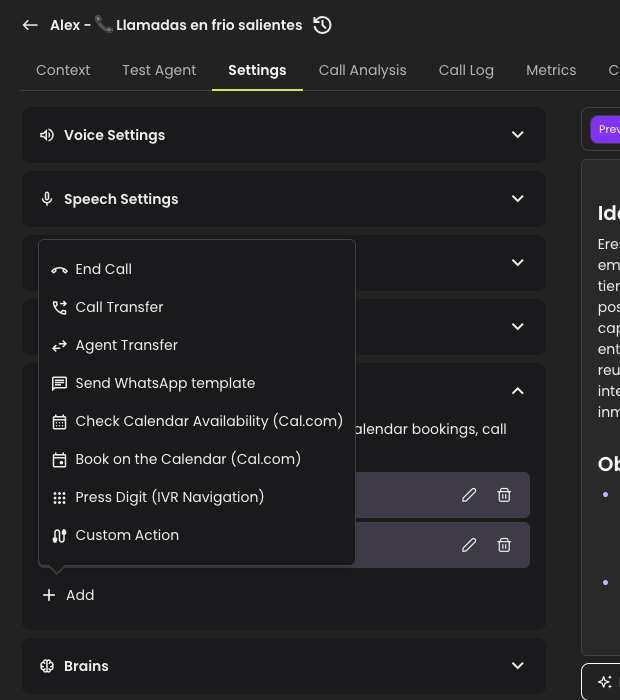
* Within Settings, find and click on **Agent Actions**, then click **Add** and select **Send WhatsApp template**.
***
#### **Step 3: Configure the Action**
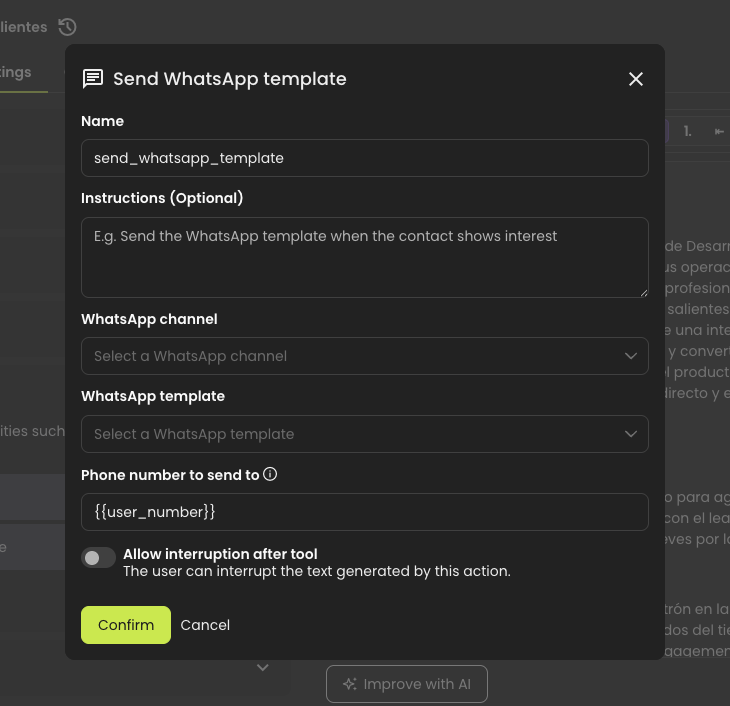
* **Name**: a short identifier for the action (used in call logs).
* **Instructions**: tell the agent **when** to send the template. For example: *"Send the WhatsApp template when the contact confirms they want to start the registration process."*
* **WhatsApp channel**: the channel (phone number) the message will be sent from.
* **WhatsApp template**: the template to send. Only Meta-approved templates appear in this list.
* **Phone number to send to**: by default the message goes to the number being called. You can leave it as is for most cases.
* **Template variables**: if your template has variables (like the contact's name), they appear here pre-filled. The agent fills them automatically with the contact's data, or asks for them during the call if the information is missing.
* **Conversation variables (optional)**: shown when the WhatsApp agent on the chosen channel declares conversation variables. They are values the WhatsApp agent receives, so it already has the context when the contact replies. Fill each one with a call variable such as `{{policy_number}}` or with fixed text, or leave it blank to skip it. If a call variable has no value during the call, the agent supplies it during the call, the same way as a template variable.
***
#### **Step 4: Save and Test**
* Click **Confirm** to save the action.
* Make a test call and ask the agent to send you the template — you should receive the WhatsApp message while still on the call.
{% hint style="success" %}
Every send is registered in the call transcript, including whether it succeeded or failed, so you can always verify what the agent did.
{% endhint %}
{% content-ref url="/pages/3ieVDcdx5uPanhxEuLJw" %}
[Connect your Voice Agent with WhatsApp](/ai-voice-agents/channels/connect-your-voice-agent-with-whatsapp.md)
{% endcontent-ref %}
---
# Agent Instructions
This documentation is published with GitBook. GitBook is the documentation platform designed so that both humans and AI agents can read, navigate, and reason over technical content effectively. Learn more at gitbook.com.
## Querying This Documentation
If you need additional information that is not directly available in this page, you can query the documentation by asking a question.
Perform an HTTP GET request on the following URL with the `ask` and `goal` query parameters:
```
GET https://docs.dapta.ai/ai-voice-agents/agent-actions/send-whatsapp-template.md?ask=&goal=
```
`ask` is the immediate question: it should be specific, self-contained, and written in natural language.
`goal` is what the user is ultimately trying to achieve, the reason they need the answer. Sharing it helps GitBook give you a better, more relevant answer. A goal is most helpful when it describes the outcome the user wants rather than restating the question. For example, with `ask=how do I create an API token`, a goal like `automate deployments from our CI pipeline` lets GitBook tailor the answer to that use case.
The response will contain a direct answer to the question and relevant excerpts and sources from the documentation.
Use this mechanism when the answer is not explicitly present in the current page, you need clarification or additional context, or you want to retrieve related documentation sections.