> For the complete documentation index, see [llms.txt](https://docs.dapta.ai/llms.txt). Markdown versions of documentation pages are available by appending `.md` to page URLs; this page is available as [Markdown](https://docs.dapta.ai/ai-voice-agents/channels/connect-your-voice-agent-with-whatsapp.md).
# Connect your Voice Agent with WhatsApp
A WhatsApp Business line linked to a Voice Agent can place and receive calls, once Meta's messaging volume and a Text Agent warm-up period are met.
Connecting a WhatsApp Business line to your Voice Agent allows it to receive and make voice calls through WhatsApp. Once connected, customers can call your agent directly from WhatsApp, and your agent can place outbound calls to WhatsApp numbers.
{% hint style="warning" %}
**Important:** Meta requires a minimum number of text messages to be exchanged on a WhatsApp Business line before enabling voice calls. We strongly recommend connecting a **Text Agent** to the line first and exchanging messages before linking a Voice Agent. This ensures the line is fully activated for calls.
{% endhint %}
## Prerequisites
Before you begin, make sure you have the following:
* **A Dapta Voice Agent** already created and configured.
* **A WhatsApp Business line** already connected through Dapta — either from the [Text Agent WhatsApp setup](/ai-text-agents/channels/connect-your-agent-with-whatsapp.md) or from this Channels panel.
* **A phone number** that is **not** already registered with another WhatsApp account.
* **Access to the phone number** to receive a verification code via SMS.
* **Pop-ups allowed** in your browser for the Dapta site.
* **A valid business website or Instagram Business profile URL** — Meta requires this to avoid blocks on your WhatsApp Business Account.
### Meta Prerequisites
In order to enable WhatsApp Business Calling on your sender, your WhatsApp business account needs to have a messaging limit of at least **2,000 business-initiated conversations** in a rolling 24-hour period. To achieve this limit, you need to complete [Meta's Business Verification](https://www.facebook.com/business/help/2058515294227817).
{% hint style="info" %}
If you haven't connected a WhatsApp line yet, follow the step-by-step guide below. If you already have a line connected (e.g., from your Text Agent), you can skip directly to [Linking a Voice Agent to an Existing Line](#linking-a-voice-agent-to-an-existing-line).
{% endhint %}
***
## Accessing Voice Agent Channels
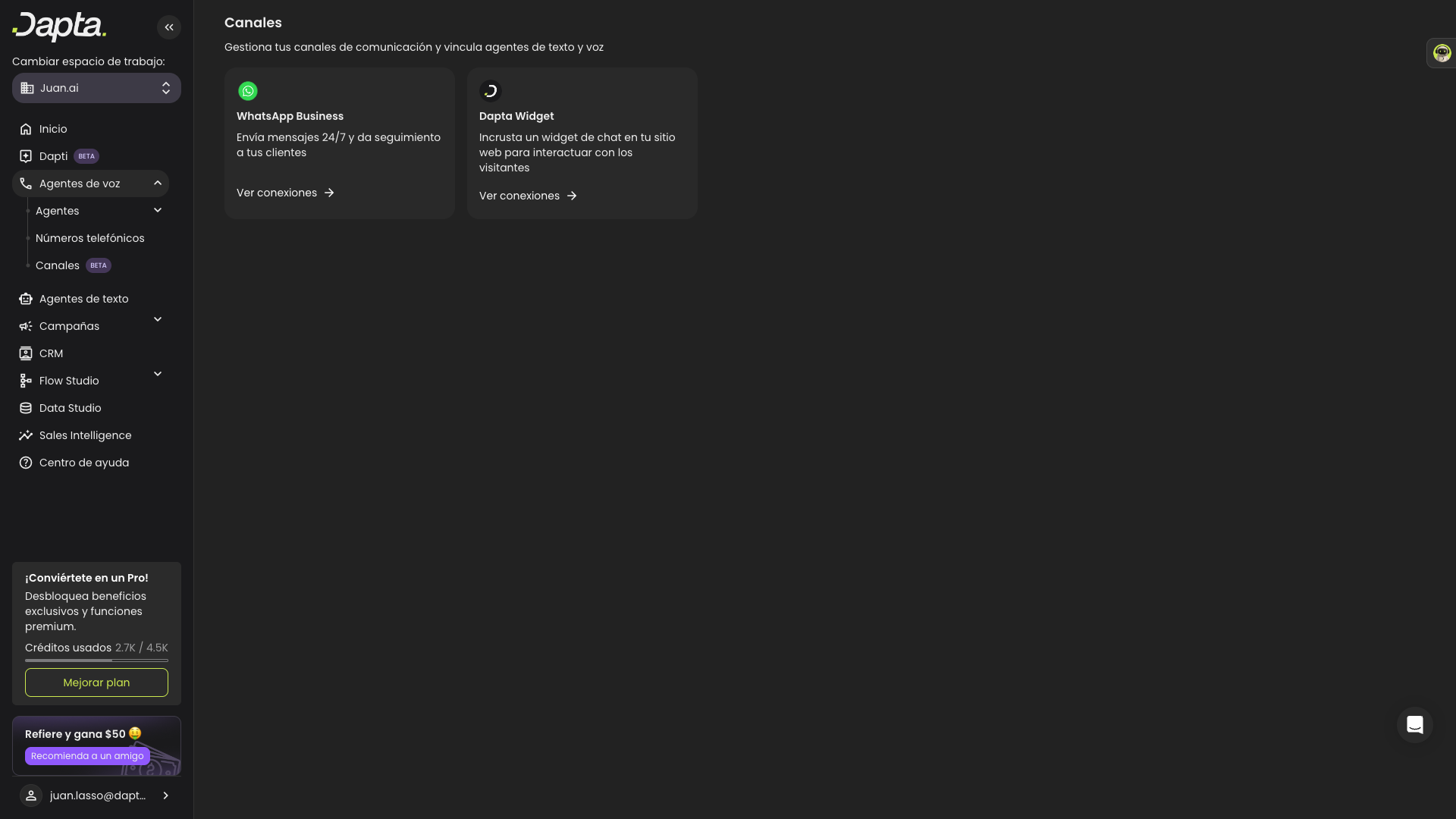
**Step 1:** In the left sidebar, click on **Voice Agents** to expand the menu. You will see three sub-items: **Agents**, **Phone Numbers**, and **Channels**.
***
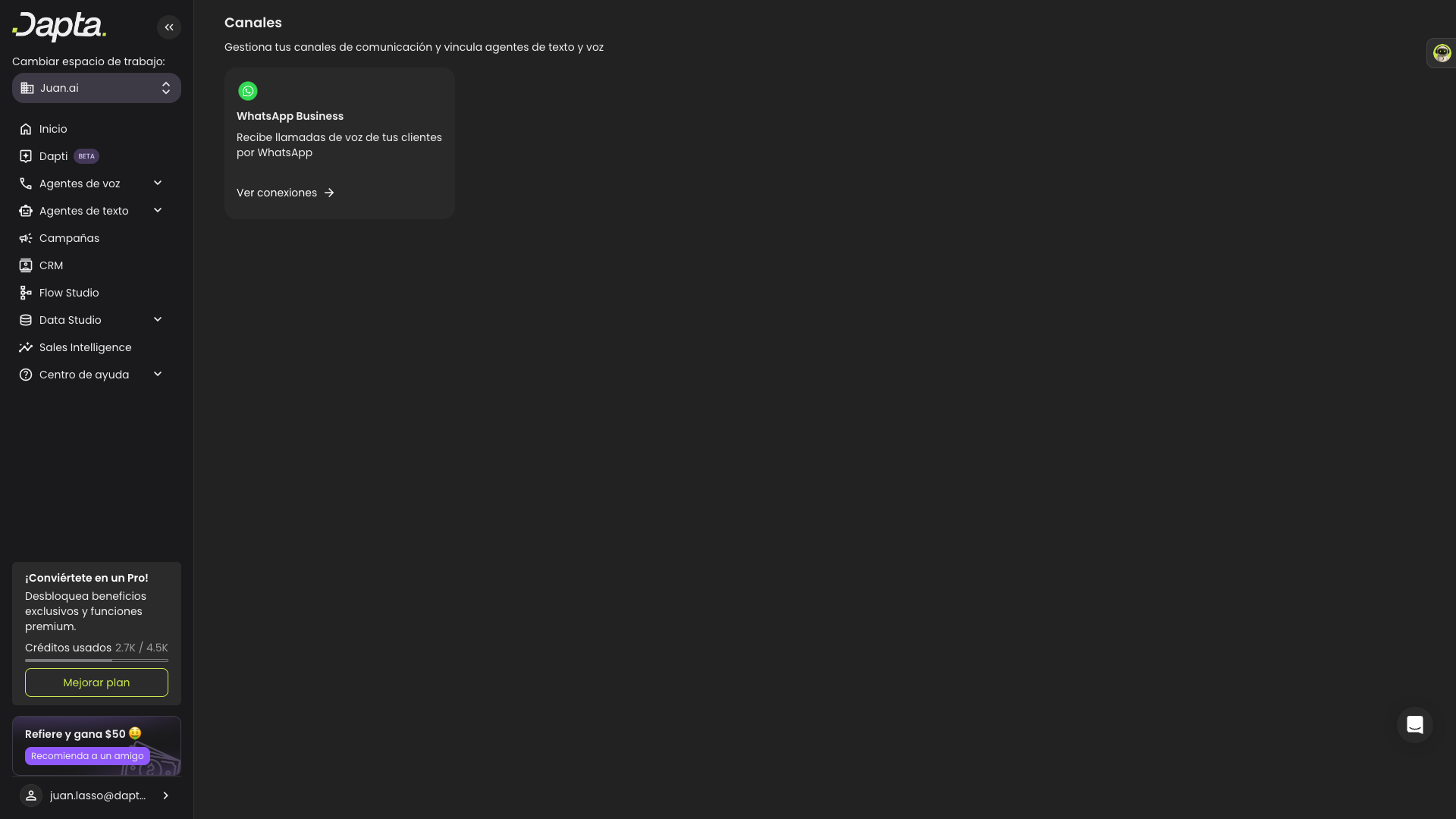
**Step 2:** Click on **Channels**. You will see the Channels overview page with the available channel cards. Click on the **WhatsApp Business** card or the **View Connections** link.
***
**Step 3:** You will see the WhatsApp connections list showing all your connected lines. Each line displays its **Name**, **Number**, **Status**, linked **Text Agent**, linked **Voice Agent**, and **Creation Date**.
***
## Connecting a New WhatsApp Line
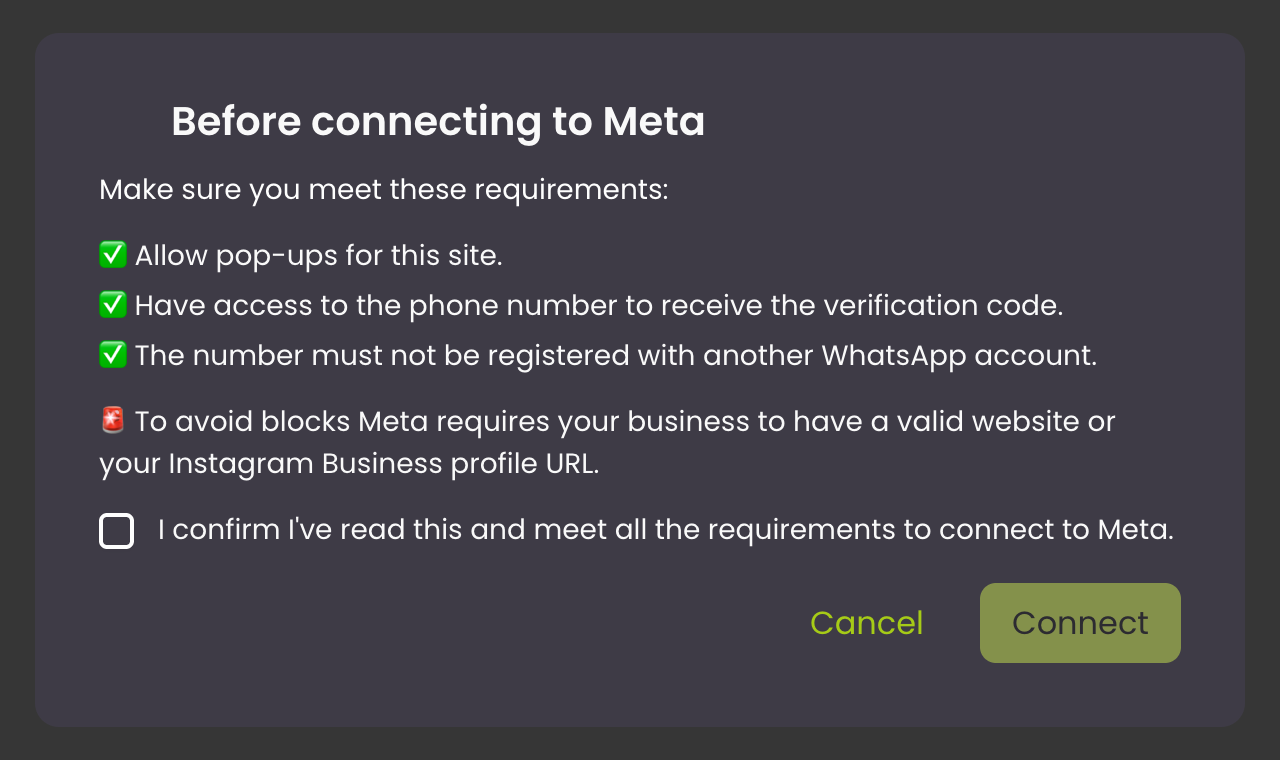
**Step 4:** Click the **New WhatsApp Line** button in the top-right corner. A requirements modal will appear.
Review the requirements checklist:
* Allow pop-ups for this site.
* Have access to the phone number to receive the verification code.
* The number must not be registered with another WhatsApp account.
* Your business must have a valid website or Instagram Business profile URL.
Check the confirmation box and click **Connect**.
***
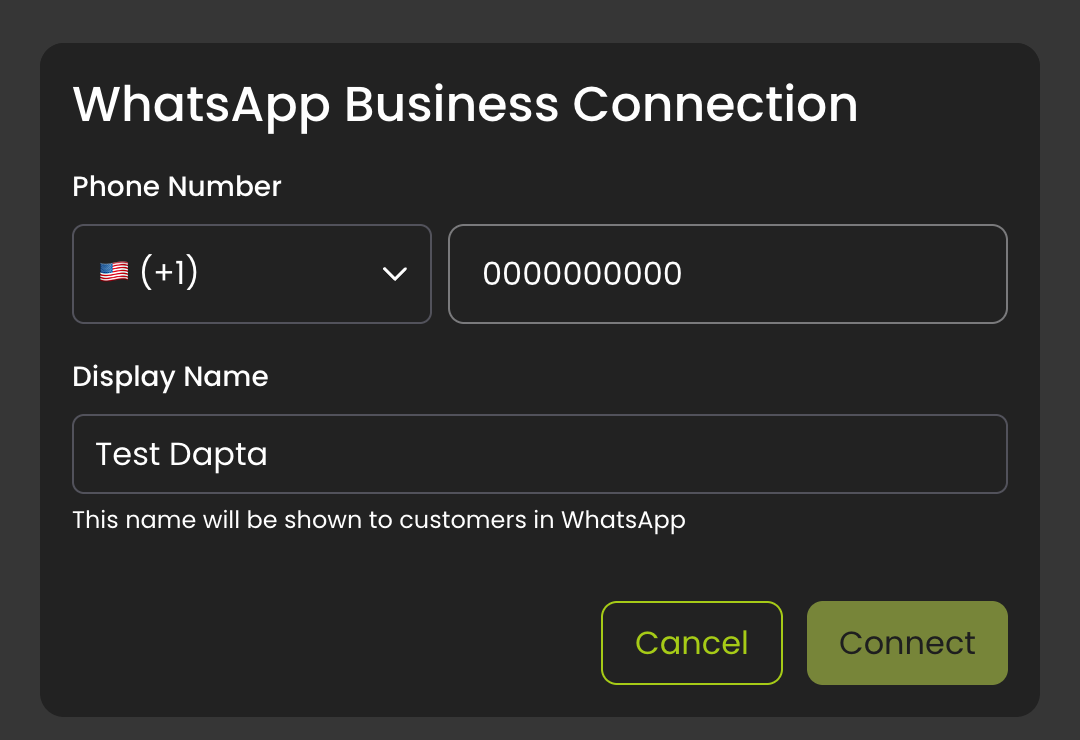
**Step 5:** In the **WhatsApp Business Connection** modal, fill in:
* **Phone Number** — Select your country code from the dropdown and enter your phone number.
* **Display Name** — This is the name your customers will see on WhatsApp. It is pre-filled with your agent's name, but you can change it (max 64 characters).
Click **Connect** to proceed.
***
**Step 6:** A **Meta Embedded Signup** popup will open in a new browser window. Follow the steps in the popup to:
1. Log in to your Facebook/Meta account.
2. Create or select a **Meta Business Account**.
3. Create or select a **WhatsApp Business Account (WABA)**.
4. Register your phone number.
{% hint style="info" %}
If the popup doesn't appear, make sure pop-ups are allowed for this site in your browser settings.
{% endhint %}
***
**Step 7:** Once the Meta signup is complete, the popup will close automatically and Dapta will register your WhatsApp sender. You will see a **success screen** confirming your connection with the phone number displayed.
Click **Done** to finish.
***
## Linking a Voice Agent to an Existing Line
If you already have a WhatsApp line connected (for example, one you set up for a Text Agent), you can link a Voice Agent to it directly from the connections list.
**Step 1:** In the WhatsApp connections list, find the line you want to use and click the **edit icon** (pencil) on the right side of the row.
**Step 2:** In the edit panel, select the **Voice Agent** you want to link from the dropdown.
**Step 3:** Click **Save** to confirm the link.
{% hint style="warning" %}
**Reminder:** Make sure the line has exchanged text messages before linking a Voice Agent. Meta requires a minimum of text message activity on the line before enabling WhatsApp voice calls. Connect a Text Agent first, exchange some messages, and then link your Voice Agent.
{% endhint %}
***
## Connecting with an Existing WhatsApp Business Account
If your Dapta account already has a **WhatsApp Business Account (WABA)** linked from a previous connection, the process is slightly different:
1. Follow **Steps 1 through 5** as described above.
2. Instead of the Meta popup, you will receive a **6-digit verification code** via SMS to the phone number you entered.
3. Enter the code in the **verification modal** and click **Verify**.
4. Dapta will register the sender and display the success screen once complete.
> **Tip:** If you don't receive the verification code, click **Resend Code** to have it sent again.
***
## After Connecting
Once connected, each line in the connections list will show:
| Field | Description |
| ----------------- | ----------------------------------------------------------- |
| **Name** | The display name for the WhatsApp line |
| **Number** | The connected phone number |
| **Status** | Current connection status (`Online`, `Creating`, `Offline`) |
| **Text Agent** | The Text Agent linked to this line (if any) |
| **Voice Agent** | The Voice Agent linked to this line (if any) |
| **Creation Date** | When the line was first connected |
{% hint style="info" %}
Your Voice Agent will start handling WhatsApp calls automatically once the status shows **Online** and the line has been activated for voice by Meta. It may take some time after the initial text message activity.
{% endhint %}
***
## Troubleshooting
| Issue | Solution |
| ----------------------------------- | ----------------------------------------------------------------------------------------------------------------------- |
| Meta popup is blocked | Allow pop-ups for `app.dapta.ai` in your browser settings and try again |
| Phone number already registered | Deregister the number from your existing WhatsApp account first |
| Verification code not received | Click **Resend Code** and check that you have signal on the phone number |
| Connection stuck on "Creating" | Wait a few minutes — the registration can take up to 60 seconds. If it persists, try disconnecting and reconnecting |
| Voice calls not working | Ensure the line has had sufficient text message activity first. Meta requires text messages before enabling voice calls |
| Meta requires business verification | Make sure your Meta Business Account has a valid website or Instagram Business profile URL configured |
---
# Agent Instructions
This documentation is published with GitBook. GitBook is the documentation platform designed so that both humans and AI agents can read, navigate, and reason over technical content effectively. Learn more at gitbook.com.
## Querying This Documentation
If you need additional information that is not directly available in this page, you can query the documentation dynamically by asking a question.
Perform an HTTP GET request on the current page URL with the `ask` query parameter, and the optional `goal` query parameter:
```
GET https://docs.dapta.ai/ai-voice-agents/channels/connect-your-voice-agent-with-whatsapp.md?ask=&goal=
```
`ask` is the immediate question: it should be specific, self-contained, and written in natural language.
`goal` is optional and describes the broader end goal you are ultimately trying to accomplish on behalf of the user. GitBook uses it to tailor the answer towards what is most useful for that goal.
The response will contain a direct answer to the question and relevant excerpts and sources from the documentation.
Use this mechanism when the answer is not explicitly present in the current page, you need clarification or additional context, or you want to retrieve related documentation sections.