> For the complete documentation index, see [llms.txt](https://docs.dapta.ai/llms.txt). Markdown versions of documentation pages are available by appending `.md` to page URLs; this page is available as [Markdown](https://docs.dapta.ai/ai-voice-agents/how-to-create-your-first-campaign-in-dapta/managing-your-campaign.md).
# Managing your sequence
The sequence detail page's Settings, Call Logs, Contact List, and Metrics tabs cover schedules, disconnect reasons, and connection and success rates.
After creating a sequence you land on the detail page, which gives you full control and visibility over its execution. This guide covers everything you can do from the sequence detail page and the sequence list.
***
## Sequence Detail Page
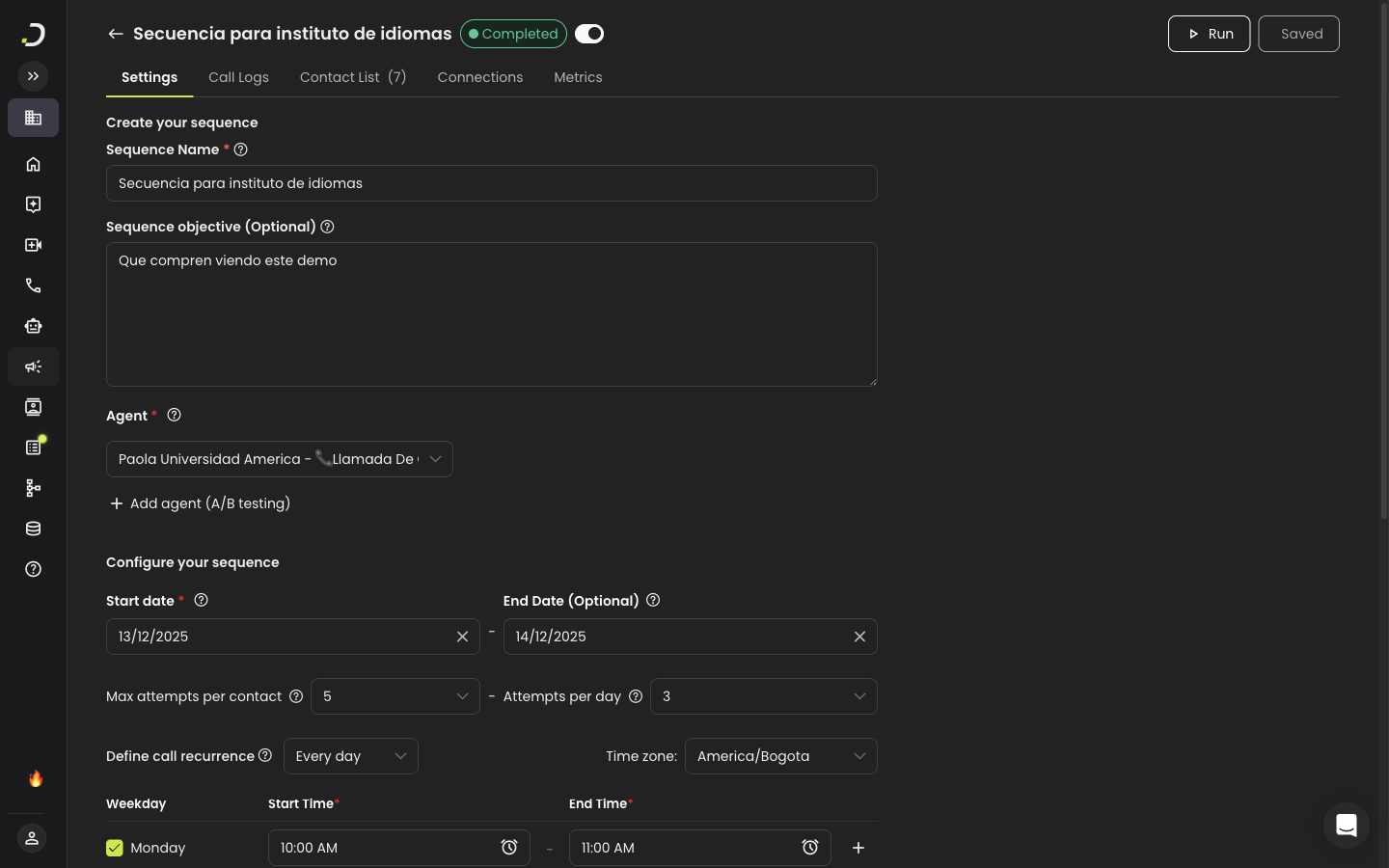
The detail page includes four tabs: **Settings**, **Call Logs**, **Contact List**, and **Metrics**.
At the top of the page you will find:
* A **status capsule** showing the current sequence status.
* An **Active** toggle to enable or disable scheduled execution.
* A **Run** button to manually trigger the sequence for testing.
* A **Save Changes** button (on the Settings tab) that activates when you have unsaved edits.
{% hint style="info" %}
The **Active** toggle is disabled until you set a **Start Date** on the sequence. Configure your schedule first, then activate.
{% endhint %}
***
## Settings Tab
The **Settings** tab lets you view and edit all sequence configuration after creation. It is divided into three sections:
### Basic Data
* **Sequence Name** — Edit the name that identifies your sequence.
* **Sequence Objective** — Update the optional description.
* **Agent** — Change the voice agent assigned to this sequence.
### Schedule & Attempts
All the same fields from the creation wizard (start/end dates, calling days, weekly schedule, time zone, country, max attempts, attempts per day) are available here for editing. See [Create a sequence — Step 2](/ai-voice-agents/how-to-create-your-first-campaign-in-dapta/create-a-campaign.md#step-2-configure-your-sequence) for details on each field, including when the **Country** dropdown appears for multi-country time zones.
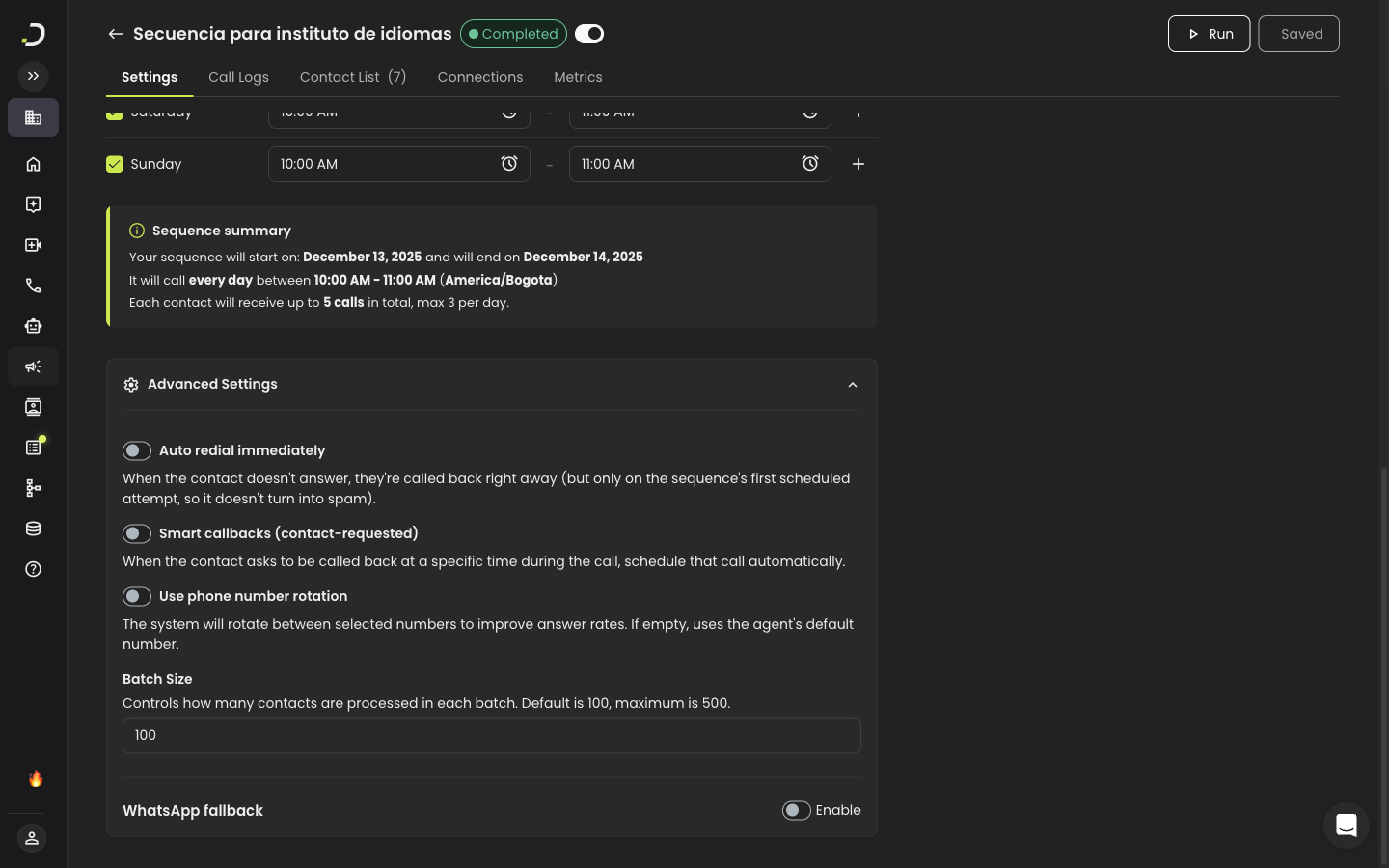
### Sequence summary
Once your dates and weekly schedule are filled in, a **Sequence summary** card appears at the bottom of the section. It restates your configuration in plain language so you can sanity-check it before saving:
> ℹ️ **Sequence summary** Your sequence will start on: April 27, 2026 It will call **Monday to Friday** between **08:00 AM - 06:00 PM** (America/Phoenix) Each contact will receive up to **5 calls** in total, max 1 per day.
### Advanced Settings
Expand the **Advanced Settings** accordion at the bottom of the Settings tab to access:
* **Batch Size** — Controls how many contacts are processed per batch. Set a value between 1 and 500 (default is 100).
* **Phone Number Rotation** — Toggle this on to rotate between multiple outbound phone numbers. Once enabled, select the numbers you want to use from the dropdown. Each number displays its nickname and SIP trunk status.
* **WhatsApp fallback** — Send an approved WhatsApp template to contacts the call attempt you choose doesn't reach. See [WhatsApp fallback](/ai-voice-agents/how-to-create-your-first-campaign-in-dapta/whatsapp-fallback.md).
{% hint style="warning" %}
Changes are not saved automatically. Click **Save Changes** in the top-right corner after making edits. If you try to navigate away with unsaved changes, a warning will appear.
{% endhint %}
***
## Call Logs Tab
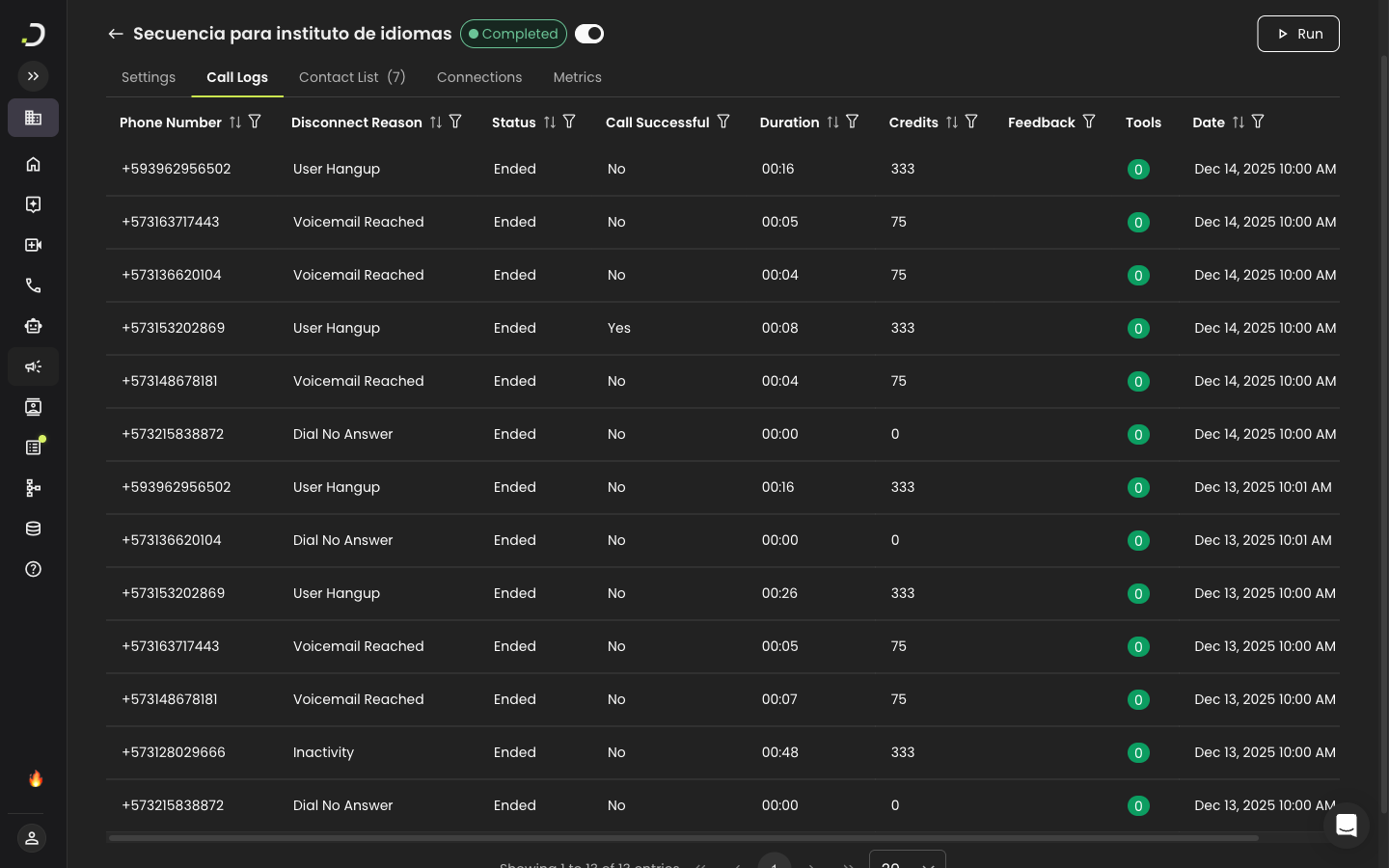
The **Call Logs** tab shows a detailed record of every call attempt made by the sequence.
### Table columns
| Column | Description |
| --------------------- | ------------------------------------------------------------------------------------------------------------------------------------------------ |
| **Phone Number** | The contact's phone number. Searchable. |
| **Disconnect Reason** | Why the call ended (e.g., User Hangup, Voicemail Reached). Filterable — see [Disconnect Reasons reference](#disconnect-reasons-reference) below. |
| **Status** | The call's processing status. See the status table below. |
| **Call Successful** | Whether the call achieved its intended goal. Filterable by Yes/No. |
| **Duration** | Length of the call. Filterable by duration. |
| **Credits** | Credits consumed by the call. |
| **Feedback** | Per-call feedback you've left. See [Feedback](#feedback) below. |
| **Tools** | Number of tools or actions the agent invoked during the call. |
| **Date** | When the call was placed. Filterable by date. |
### Call statuses
| Status | Description |
| ----------------------- | ----------------------------------------------------- |
| **queued** | Call is waiting to be placed. |
| **created** | Call record has been created in the system. |
| **registered** | Call has been registered with the telephony provider. |
| **in\_progress** | Call is currently active. |
| **ended** | Call completed normally. |
| **not\_connected** | Call was placed but did not connect to the contact. |
| **error** | An error occurred during the call. |
| **failed\_rate\_limit** | Call was not placed because a rate limit was reached. |
### Disconnect Reasons reference
The **Disconnect Reason** column tells you why each call ended. Click the filter icon on the column header to filter by a specific reason. The full list:
| Code | What it means |
| -------------------------------------- | -------------------------------------------------------------------------------- |
| `dial_no_answer` | The contact's phone rang but no one picked up. |
| `dial_busy` | The contact's line was busy. |
| `dial_failed` | The dial attempt failed before the call could connect. |
| `voicemail_reached` | The call connected to the contact's voicemail system. |
| `user_hangup` | The contact answered and hung up before the conversation ended. |
| `agent_hangup` | The agent ended the call (typically when its objective was met). |
| `user_declined` | The contact actively declined the call (for example, sent it to voicemail). |
| `inactivity` | The call ended because no one was speaking for an extended period. |
| `max_duration_reached` | The call hit the maximum allowed duration and was cut off. |
| `call_transfer` | The call was transferred to another number or agent. |
| `marked_as_spam` | The call was flagged as spam by the carrier or recipient. |
| `invalid_destination` | The phone number is not valid or not reachable. |
| `concurrency_limit_reached` | Too many simultaneous calls were in progress; this one was deferred. |
| `telephony_provider_unavailable` | The telephony provider was temporarily unreachable. |
| `telephony_provider_permission_denied` | The telephony provider rejected the call (often a permissions or routing issue). |
| `error_no_audio_received` | The call connected but no audio was received from the other side. |
| `error_asr` | A speech recognition error occurred during the call. |
| `error_dapta` | A Dapta-side error interrupted the call. |
| `error_unknown` | The call ended due to an unclassified error. |
### Call analysis data
Each call log includes analysis data that is generated after the call ends:
* **Call Successful** — Whether the agent completed its intended task. The agent itself decides this based on its prompt and conversation outcome (for example, "appointment booked", "lead qualified"). Filterable by **Yes** / **No**.
* **User Sentiment** — The detected emotional tone of the contact during the call. Typical values are **Positive**, **Neutral**, and **Negative**. Detected automatically from the conversation.
* **In Voicemail** — Whether the call reached a voicemail system.
* **Call Summary** — An AI-generated summary of the conversation.
* **Dynamic Variables** — Values that were passed into the agent for this call (for example, the contact's name or company), pulled from the CRM at dial time.
* **Custom Analysis Data** — Any additional values the agent extracted during the call, based on your agent's analysis configuration.
### Feedback
Each call row includes a **Feedback** column where you can rate the call. Click the icon to leave a thumbs up, thumbs down, or a written comment. Feedback is useful for QA reviews and for iterating on your agent's prompt — it does not affect call execution.
### Actions
* **Search** — Filter the logs by phone number or contact.
* **Download as Excel** — Export all call logs. The exported file includes the call analysis data, dynamic variables, and any custom analysis fields as additional columns. Its **Recording URL** column follows each agent's **Public call link** switch: a link that plays the recording when the switch is on, or a link to the call inside Dapta, which opens after sign-in, when it is off. See [Configure Call – Public Call Link](/ai-voice-agents/how-to-set-up-your-ai-voice-agent/voice-agent-settings-guide/configure-call-public-call-link.md).
* **Refresh** — Reload the logs list.
* **View call detail** — Click the eye icon on any row to open the full call history for that contact in a new tab.
***
## Contact List Tab
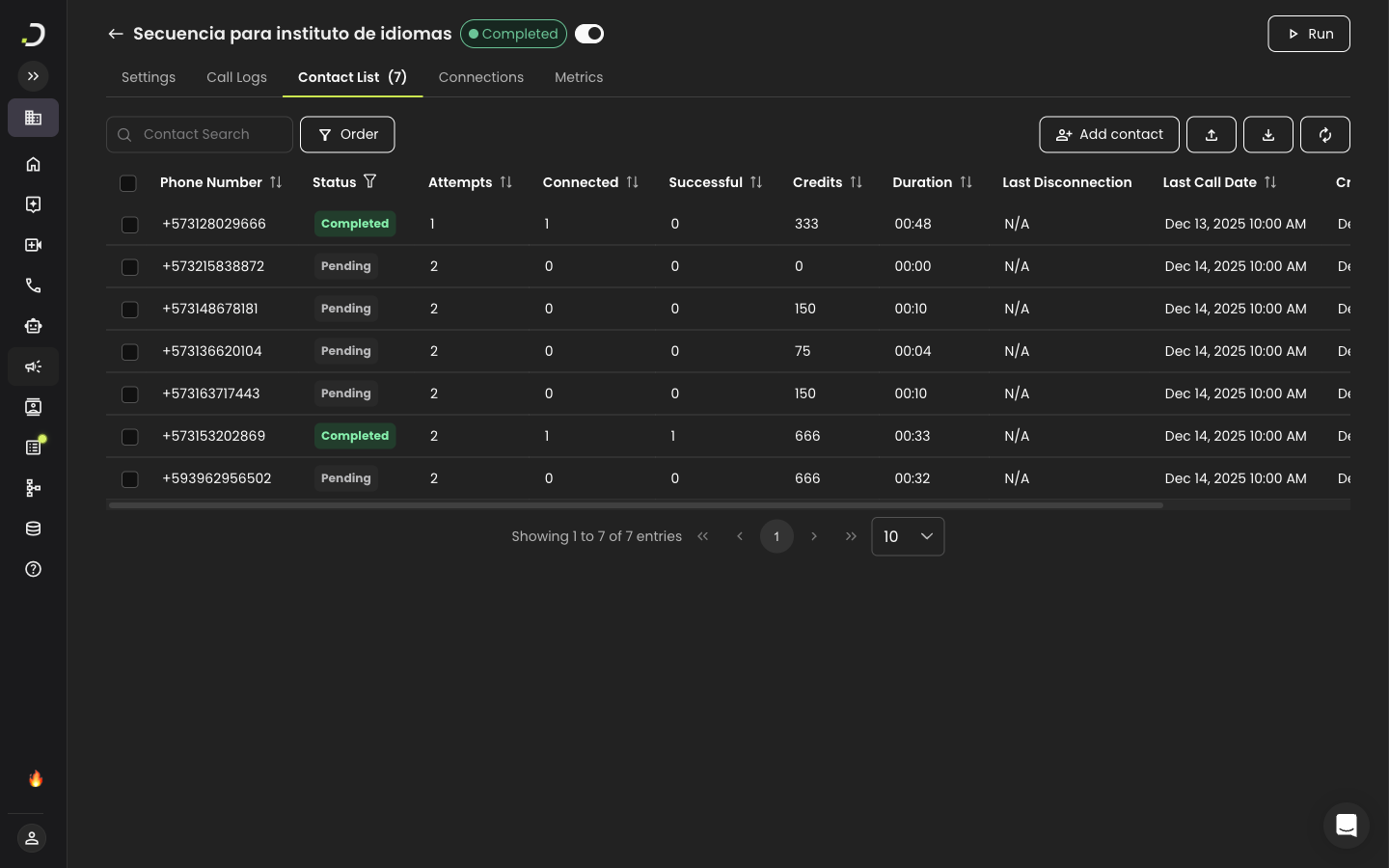
The **Contact List** tab displays all contacts enrolled in the sequence.
### Table columns
| Column | Description |
| ---------------------- | -------------------------------------------------------- |
| **Phone Number** | The contact's phone number. |
| **Attempts** | Total call attempts for this contact, including retries. |
| **Connected** | Number of attempts that connected. |
| **Successful** | Number of calls marked as successful by the agent. |
| **Credits** | Total credits consumed for this contact. |
| **Duration** | Total call duration across all attempts. |
| **Last Disconnection** | The disconnect reason from the most recent call. |
| **Last Call Date** | When the most recent call was placed. |
| **Created At** | When the contact was added to the sequence. |
### Row actions
Click the three-dot menu on any contact row to access:
* **Edit Contact** — Opens the CRM contact editor where you can update the contact's details. The contact's notes and properties are in the [CRM](/crm.md).
* **Copy Contact ID** — Copies the contact's unique ID to your clipboard.
* **Remove from Sequence** — Removes the contact from this sequence. This does not delete the contact from your CRM.
### Bulk actions
* **Import CSV/XLSX** — Click the import button to upload a new file and add more contacts to the sequence. This opens the same property mapping interface used during sequence creation.
* **Download as Excel** — Export the full contact list including all mapped fields.
* **Refresh** — Reload the contacts list.
> **💡 Tip:** Click any contact row to jump directly to the Call Logs tab filtered by that contact, showing all their call attempts.
***
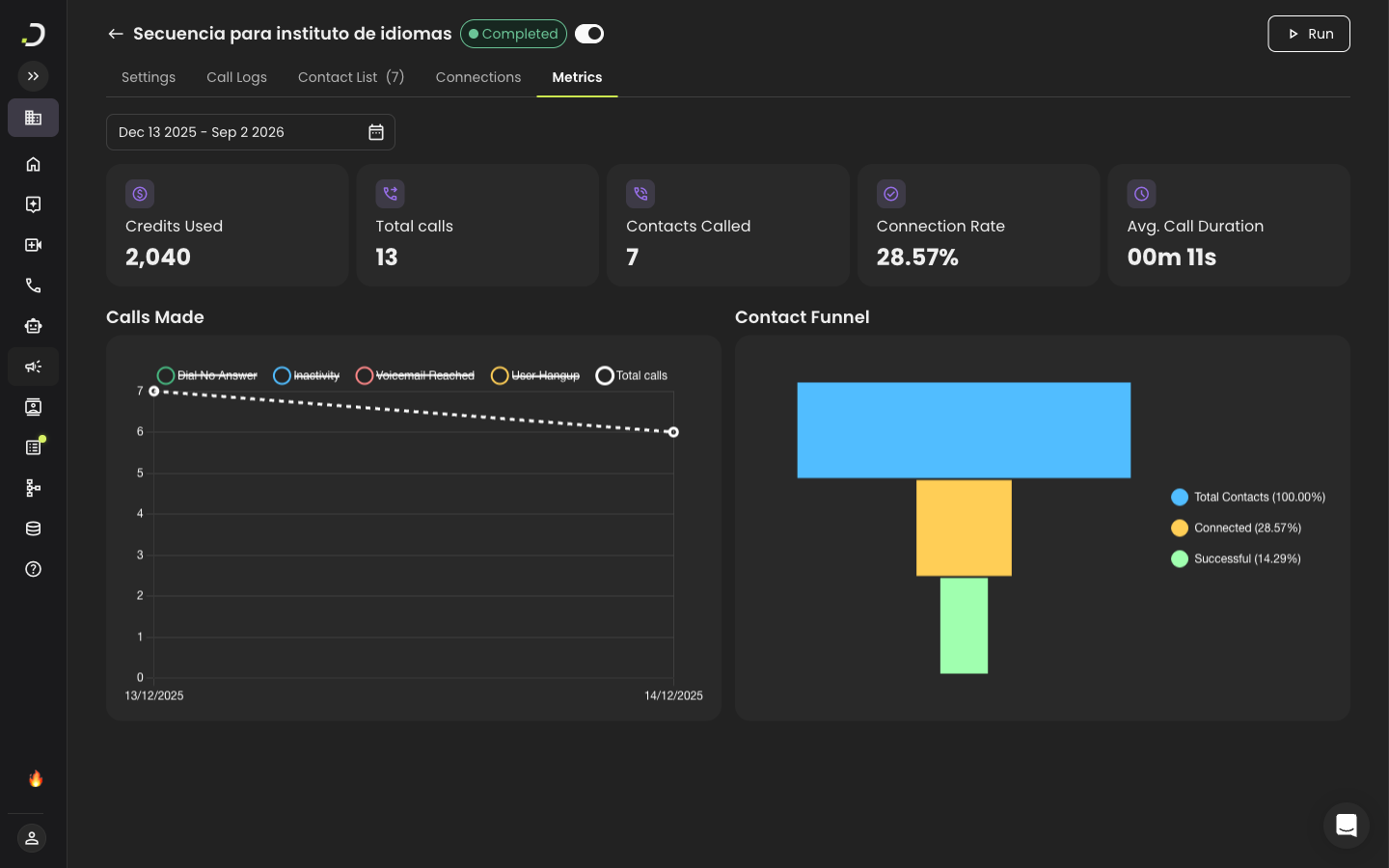
## Metrics Tab
The **Metrics** tab gives you a complete performance overview of your sequence. Use the date range picker at the top to filter the data — by default it is set from your sequence's start date to today.
### KPI Cards
Five summary cards are displayed at the top:
* **Credits Used** — Total credits consumed by the sequence.
* **Total Calls** — Number of call attempts made.
* **Contacts Called** — Unique contacts that were dialed.
* **Connection Rate** — Percentage of contacts that answered. Calculated as **(Contacts who answered ÷ Total Contacts) × 100**.
* **Avg. Call Duration** — Average length of connected calls.
### Calls Made Chart
A line chart showing the number of calls made per day, broken down by disconnect reason. Hover over any data point to see a detailed breakdown. Click any label in the legend to show or hide that line.
### Contact Funnel
A horizontal funnel visualization showing:
* **Total Contacts** — Everyone in the sequence.
* **Connected** — Contacts who answered the call, with percentage of total.
* **Successful** — Contacts where the agent marked the call as successful, with percentage of total.
{% hint style="info" %}
A large gap between **Connected** and **Successful** may indicate issues with your agent's prompt or conversation flow. A large gap between **Total Contacts** and **Connected** may suggest calling at suboptimal times or dialing invalid numbers.
{% endhint %}
***
## Sequence List Actions
Back on the sequences list page, each sequence row has a three-dot menu with the following actions:
### Edit
Opens the sequence for editing. If the sequence does not have a start date configured yet, it opens directly in the creation wizard at the scheduling step. Otherwise, it opens the sequence detail page.
### Duplicate
Creates a copy of the sequence with all its settings (name, agent, schedule, calling rules). The copy is created with:
* The name appended with **(Copy)**.
* The **Active** toggle set to **off**.
* No contacts — you need to import contacts into the new sequence separately.
### Delete
Permanently deletes the sequence. This action **cannot be undone**. A confirmation dialog will appear before deletion.
{% hint style="warning" %}
Deleting a sequence removes all its call logs and contact associations. Make sure to export any data you need before deleting.
{% endhint %}
***
## Search and Sort
The sequence list page includes:
* A **search bar** to filter sequences by name.
* A **sort button** to change the list order — sort by **Name** (alphabetical) or by **Creation Date** (default, newest first).
---
# Agent Instructions
This documentation is published with GitBook. GitBook is the documentation platform designed so that both humans and AI agents can read, navigate, and reason over technical content effectively. Learn more at gitbook.com.
## Querying This Documentation
If you need additional information that is not directly available in this page, you can query the documentation by asking a question.
Perform an HTTP GET request on the following URL with the `ask` and `goal` query parameters:
```
GET https://docs.dapta.ai/ai-voice-agents/how-to-create-your-first-campaign-in-dapta/managing-your-campaign.md?ask=&goal=
```
`ask` is the immediate question: it should be specific, self-contained, and written in natural language.
`goal` is what the user is ultimately trying to achieve, the reason they need the answer. Sharing it helps GitBook give you a better, more relevant answer. A goal is most helpful when it describes the outcome the user wants rather than restating the question. For example, with `ask=how do I create an API token`, a goal like `automate deployments from our CI pipeline` lets GitBook tailor the answer to that use case.
The response will contain a direct answer to the question and relevant excerpts and sources from the documentation.
Use this mechanism when the answer is not explicitly present in the current page, you need clarification or additional context, or you want to retrieve related documentation sections.