> For the complete documentation index, see [llms.txt](https://docs.dapta.ai/llms.txt). Markdown versions of documentation pages are available by appending `.md` to page URLs; this page is available as [Markdown](https://docs.dapta.ai/ai-voice-agents/voice-agent-metrics.md).
# Voice Agent Metrics
Understand your Voice Agent's performance with the Metrics tab — track call volume, connection rates, credit usage, and call outcome breakdowns.
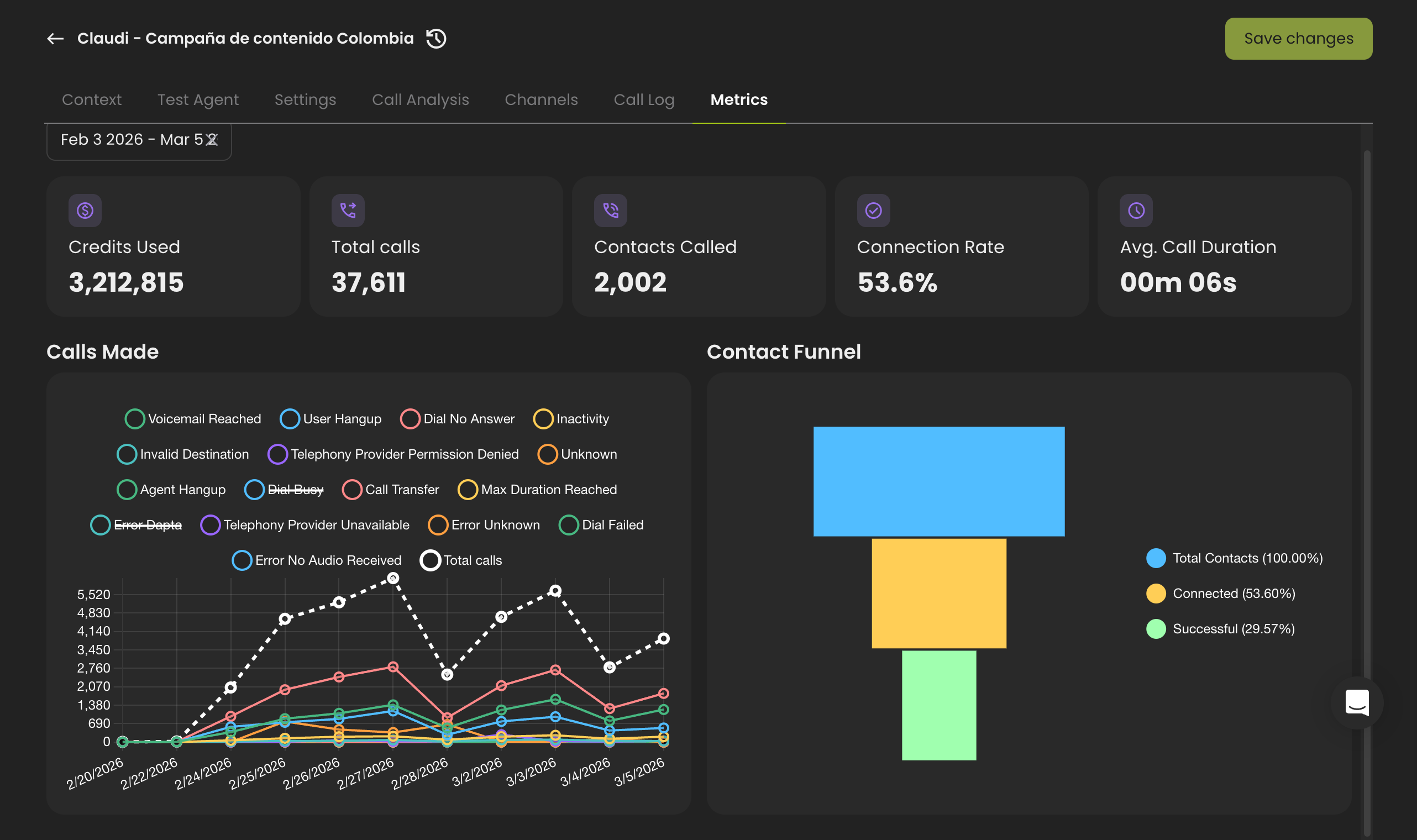
The **Metrics** tab gives you a real-time overview of how your Voice Agent is performing. It shows key performance indicators, a daily call breakdown by outcome, and a contact conversion funnel — all filterable by date range.
To access it, open any Voice Agent and click the **Metrics** tab in the top navigation bar.
***
## Date Range Filter
At the top of the Metrics tab, a **date picker** lets you select a custom date range. By default, it shows the **last 30 days**. You can:
* Click the date range field to select a start and end date.
* Click **Clear** to remove the filter and show all available data.
All metrics, charts, and the funnel update automatically when you change the date range.
***
## KPI Cards
The top row displays five summary cards for the selected date range:
| Metric | Description |
| ---------------------- | ----------------------------------------------------------------------------------------------------------------------------------------------- |
| **Credits Used** | Total credits consumed by this agent's calls during the selected period. Each call consumes credits based on duration and voice provider costs. |
| **Total Calls** | The total number of call attempts made by this agent, including calls that did not connect. |
| **Contacts Called** | The number of unique contacts dialed. A single contact may have multiple call attempts. |
| **Connection Rate** | The percentage of contacts that had at least one connected call. Calculated as: (contacts with a connected call / total contacts) x 100. |
| **Avg. Call Duration** | The average duration of all calls, displayed in minutes and seconds (e.g., `01m 46s`). |
***
## Calls Made Chart
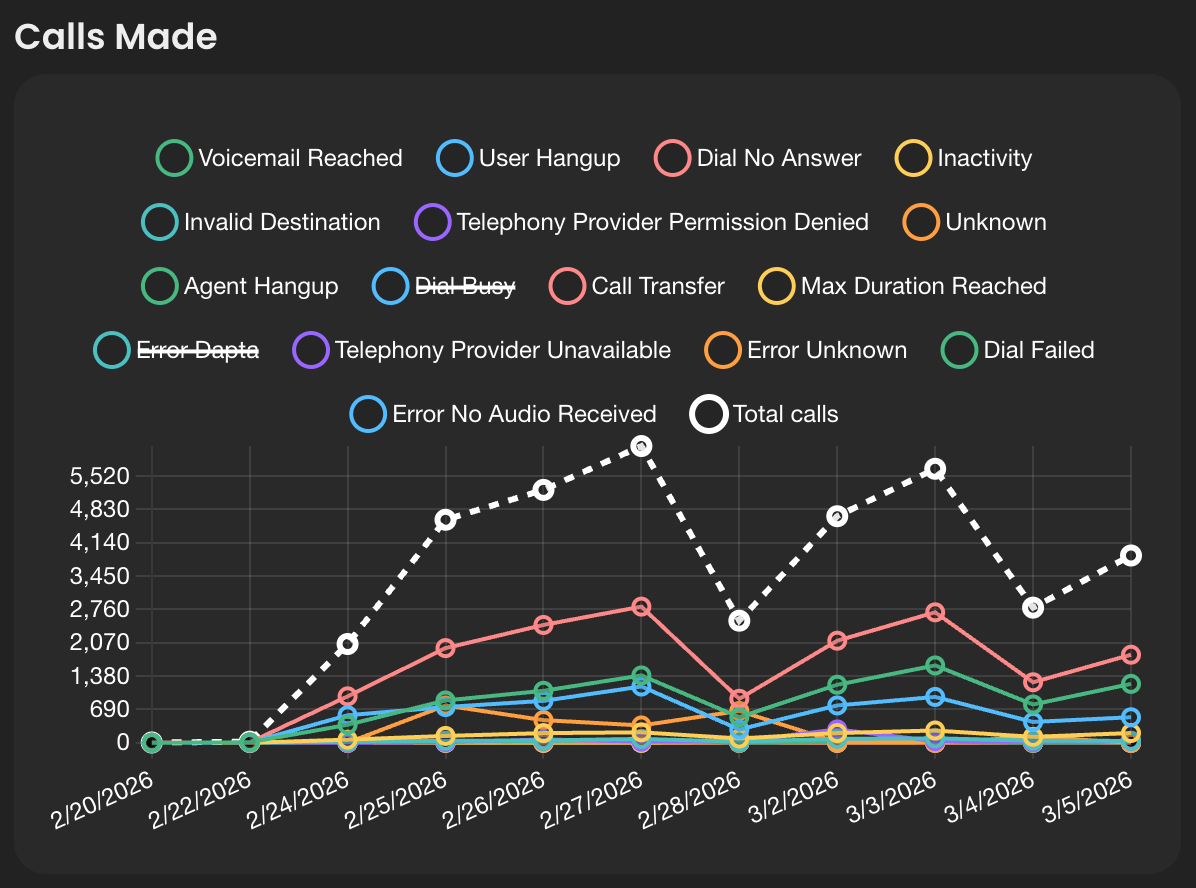
The **Calls Made** line chart shows daily call volume over the selected date range. A white dashed line represents **Total Calls** per day. Each colored line represents a specific **disconnection reason** — the reason a call ended.
Click any label in the legend to show or hide that specific line on the chart. By default, only **Total Calls** is visible; the individual disconnection reasons are hidden until you click them.
### Disconnection Reasons
Each call ends with a disconnection reason. These are the possible outcomes:
| Reason | Description |
| ---------------------------------------- | --------------------------------------------------------------------------------------------------------------------------------------------------------------------------------------------------------------------------------------------------------------------- |
| **User Hangup** | The person being called hung up the phone. This is the most common outcome for connected calls. |
| **Agent Hangup** | The AI agent ended the call. This typically happens when the agent completes its task (e.g., finishes a survey, confirms an appointment) or triggers an **End Call** action. |
| **Call Transfer** | The call was successfully transferred to another number using the **Transfer Call** agent action. |
| **Voicemail Reached** | The call reached a voicemail system. The agent either left a message or hung up, depending on your [Voicemail Detection](/ai-voice-agents/how-to-set-up-your-ai-voice-agent/voice-agent-settings-guide/conversation-settings-voicemail-detection.md) settings. |
| **Inactivity** | The call was disconnected due to silence. Neither the agent nor the contact spoke for the configured silence timeout. See [End Call on Silence](/ai-voice-agents/how-to-set-up-your-ai-voice-agent/voice-agent-settings-guide/configure-call-end-call-on-silence.md). |
| **Max Duration Reached** | The call hit the maximum allowed duration and was automatically ended. See [Max Duration](/ai-voice-agents/how-to-set-up-your-ai-voice-agent/voice-agent-settings-guide/configure-call-max-duration.md). |
| **Dial No Answer** | The call was placed but the contact did not pick up (rang until timeout). |
| **Dial Busy** | The contact's line was busy. |
| **Dial Failed** | The call could not be placed due to a dialing error (e.g., invalid number format). |
| **Invalid Destination** | The phone number is not a valid or reachable destination. |
| **Telephony Provider Permission Denied** | The telephony provider blocked the call, typically due to regulatory restrictions or insufficient permissions on the phone number. |
| **Telephony Provider Unavailable** | The telephony provider is temporarily unavailable or experiencing issues. |
| **Error Dapta** | An internal error occurred on Dapta's side during the call. |
| **Error ASR** | An Automatic Speech Recognition (ASR) error occurred — the system failed to process the audio. |
| **Error No Audio Received** | The call connected but no audio was received from the contact's side. |
| **Error Unknown** | The call ended for an unidentified reason. |
| **Concurrency Limit Reached** | The call was dropped because the maximum number of simultaneous calls was reached. |
| **Marked as Spam** | The call was flagged as spam by the carrier or the contact's device. |
| **User Declined** | The contact actively declined the incoming call. |
{% hint style="info" %}
High volumes of **Dial No Answer**, **Voicemail Reached**, or **Dial Busy** are normal for outbound sequences. If you see frequent **Error Dapta** or **Telephony Provider** errors, contact Dapta support.
{% endhint %}
***
## Contact Funnel
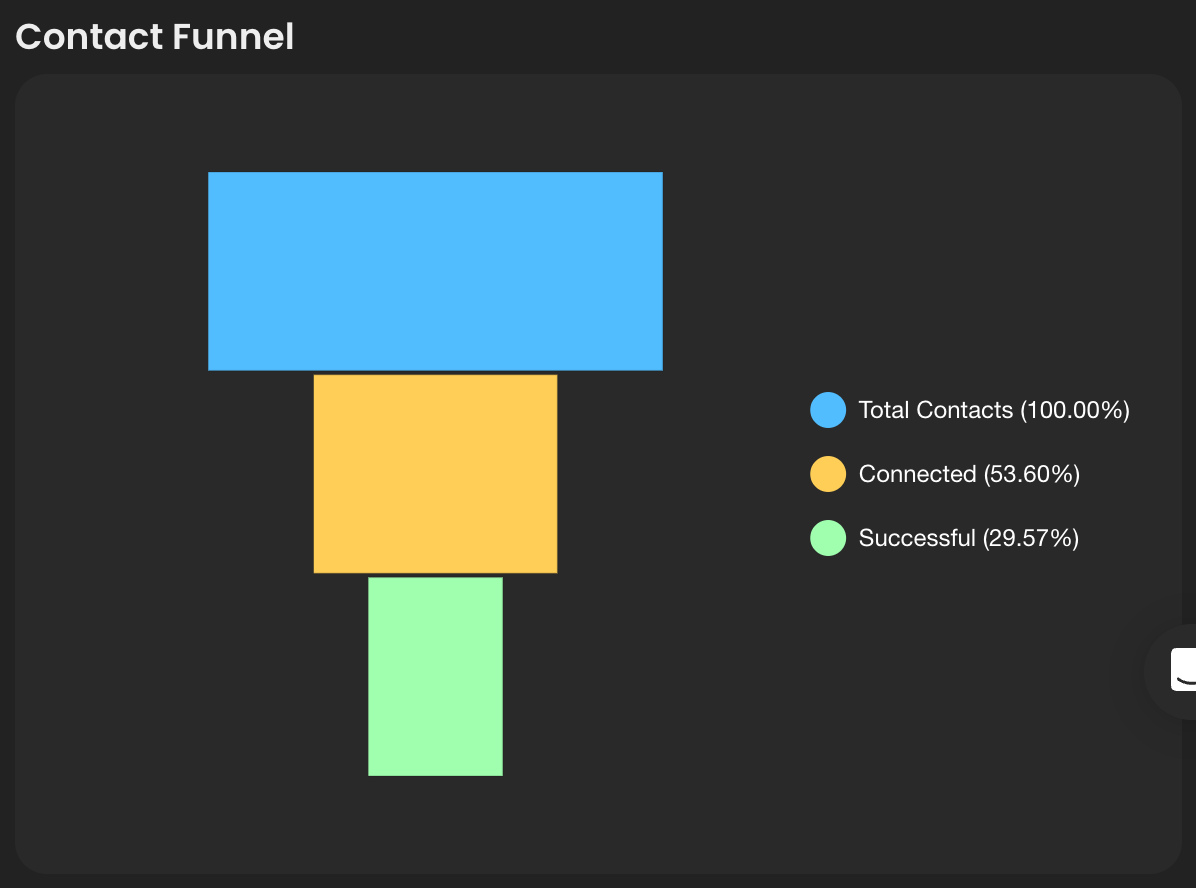
The **Contact Funnel** shows how contacts progress through three stages, visualized as a funnel chart with percentages relative to total contacts.
| Stage | Description |
| ------------------------- | ----------------------------------------------------------------------------------------------------------------------------------------------------------------------------------------------------------------------------------------- |
| **Total Contacts** (100%) | The total number of unique contacts the agent attempted to call during the selected period. |
| **Connected** | Contacts where at least one call was answered (the contact picked up). Shown as a percentage of total contacts. |
| **Successful** | Contacts where at least one call was marked as successful. A successful call means the agent completed its intended task (e.g., delivered a message, booked an appointment, completed a survey). Shown as a percentage of total contacts. |
{% hint style="info" %}
The funnel helps you identify where contacts drop off. A large gap between **Connected** and **Successful** may indicate issues with your agent's prompt or conversation flow. A large gap between **Total Contacts** and **Connected** may suggest calling at suboptimal times or dialing invalid numbers.
{% endhint %}
---
# Agent Instructions
This documentation is published with GitBook. GitBook is the documentation platform designed so that both humans and AI agents can read, navigate, and reason over technical content effectively. Learn more at gitbook.com.
## Querying This Documentation
If you need additional information that is not directly available in this page, you can query the documentation dynamically by asking a question.
Perform an HTTP GET request on the current page URL with the `ask` query parameter, and the optional `goal` query parameter:
```
GET https://docs.dapta.ai/ai-voice-agents/voice-agent-metrics.md?ask=&goal=
```
`ask` is the immediate question: it should be specific, self-contained, and written in natural language.
`goal` is optional and describes the broader end goal you are ultimately trying to accomplish on behalf of the user. GitBook uses it to tailor the answer towards what is most useful for that goal.
The response will contain a direct answer to the question and relevant excerpts and sources from the documentation.
Use this mechanism when the answer is not explicitly present in the current page, you need clarification or additional context, or you want to retrieve related documentation sections.