> For the complete documentation index, see [llms.txt](https://docs.dapta.ai/llms.txt). Markdown versions of documentation pages are available by appending `.md` to page URLs; this page is available as [Markdown](https://docs.dapta.ai/dapta-forms/account.md).

# Workspaces, Team & Account

Everything that is not a form lives in Account settings, behind the profile button at the bottom of the left menu: Workspaces, Brand kit, Notifications and Public page. Your workspaces are the same wo

Forms, submissions and analytics fill the left menu. Everything about **you** and **your team** sits one click away, behind the profile button in the bottom left corner.

***

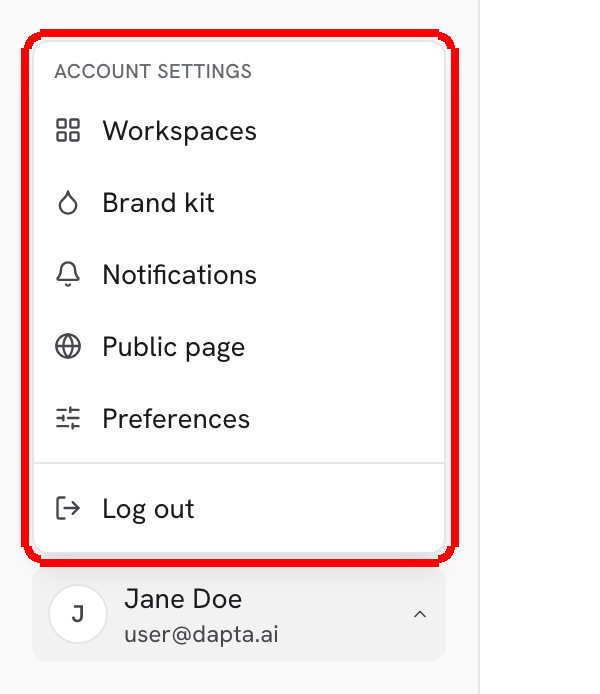
**Step 1:** Click your name and email at the bottom of the left menu. The menu that opens is titled **Account settings**.

<figure><img src="https://3835013762-files.gitbook.io/~/files/v0/b/gitbook-x-prod.appspot.com/o/spaces%2FCy5rSNtQmtqYCGzJlNEB%2Fuploads%2Fgit-blob-c027abcb97ef2a3ee92011a49df96a6448c3a90a%2Fforms-account-readme-01-profile-menu.png?alt=media" alt="The account menu opened from the profile button, listing Workspaces, Brand kit, Notifications, Public page and Log out"><figcaption><p>The profile button opens the account menu. <strong>Log out</strong> sits at the bottom, after a separator.</p></figcaption></figure>

***

**Step 2:** Pick any of the four entries. They are also tabs inside the page, so once you are in you can move between them without going back to the menu.

<figure><img src="https://3835013762-files.gitbook.io/~/files/v0/b/gitbook-x-prod.appspot.com/o/spaces%2FCy5rSNtQmtqYCGzJlNEB%2Fuploads%2Fgit-blob-62628be691a9825ef272311e13f55218fff38f7d%2Fforms-account-readme-02-account-settings.png?alt=media" alt="The Account settings page with the Workspaces, Brand kit, Notifications and Public page sub navigation highlighted on the left"><figcaption><p><strong>Account settings</strong> opens on <strong>Workspaces</strong>. The four sections are always in the left column.</p></figcaption></figure>

| Section           | What you do there                                                                                      |
| ----------------- | ------------------------------------------------------------------------------------------------------ |
| **Workspaces**    | See every workspace you belong to, switch into one, rename it, and manage its members and invitations. |
| **Brand kit**     | The workspace look: logo, colors, font and controls that new forms start from.                         |
| **Notifications** | The two emails sent when a form is submitted, for the whole workspace.                                 |
| **Public page**   | Your own page at your handle, plus your read only identity details.                                    |

> **💡 Tip:** **Brand kit** and **Notifications** act on the workspace you are currently in, so they show a **Managing: {workspace}** chip. **Workspaces** lets you manage any workspace you administer without switching into it.

***

## Your workspaces are your Dapta workspaces

Dapta Forms does not have a separate team list. A workspace in Forms is the same workspace you use in the rest of Dapta, with the same people and the same roles. That means:

* Signing in with your Dapta account brings your workspaces with you. Nothing to set up.
* Renaming a workspace here renames it everywhere in Dapta.
* The **Workspace ID** shown on a workspace page is the same ID the Dapta app shows.
* Ownership is not transferred from Forms. That happens in the Dapta app.

Forms is free, so there is nothing to buy, no plans and no seat limits to worry about when you add people.

***

## In this section

* [Workspaces](/dapta-forms/account/workspaces.md): the switcher, creating a workspace, **Open** vs **Manage**, renaming, the Workspace ID.
* [Members & roles](/dapta-forms/account/members-and-roles.md): what Owner, Admin and Member can do, adding people, changing roles, deactivating and removing.
* [Invitations](/dapta-forms/account/invitations.md): pending invitations, **Resend**, how someone accepts, how to retract one.
* [Notification emails (account templates)](/dapta-forms/account/notifications.md): the **New submission notice** and the **Respondent confirmation**.
* [Public page & identity](/dapta-forms/account/public-page-and-identity.md): publish your handle page and read your identity details.
* [Appearance](/dapta-forms/account/appearance.md): work in dark or light mode.

## What's next

* [Brand kit (workspace-wide)](/dapta-forms/design/brand-kit.md): the look every new form in this workspace starts from.
* [Connections (account level)](/dapta-forms/connect/connections.md): connect HubSpot and Calendly once for the whole workspace.
* [Security & Privacy](/dapta-forms/security-and-privacy.md): who can see what, and how to delete data.


---

# Agent Instructions
This documentation is published with GitBook. GitBook is the documentation platform designed so that both humans and AI agents can read, navigate, and reason over technical content effectively. Learn more at gitbook.com.

## Querying This Documentation
If you need additional information that is not directly available in this page, you can query the documentation dynamically by asking a question.

Perform an HTTP GET request on the current page URL with the `ask` query parameter, and the optional `goal` query parameter:

```
GET https://docs.dapta.ai/dapta-forms/account.md?ask=<question>&goal=<endgoal>
```

`ask` is the immediate question: it should be specific, self-contained, and written in natural language.
`goal` is optional and describes the broader end goal you are ultimately trying to accomplish on behalf of the user. GitBook uses it to tailor the answer towards what is most useful for that goal.

The response will contain a direct answer to the question and relevant excerpts and sources from the documentation.

Use this mechanism when the answer is not explicitly present in the current page, you need clarification or additional context, or you want to retrieve related documentation sections.
