> For the complete documentation index, see [llms.txt](https://docs.dapta.ai/llms.txt). Markdown versions of documentation pages are available by appending `.md` to page URLs; this page is available as [Markdown](https://docs.dapta.ai/dapta-forms/account/invitations.md).

# Invitations

Follow up on people who were invited to a workspace but have not accepted yet: read the Invitations tab, resend an invitation, know what accepting actually means, and retract one you no longer want.

When you add someone to a workspace, they do not appear as a full member straight away. They sit on the **Invitations** tab until they sign in for the first time. This page is how you keep an eye on that waiting list.

***

## Open the Invitations tab

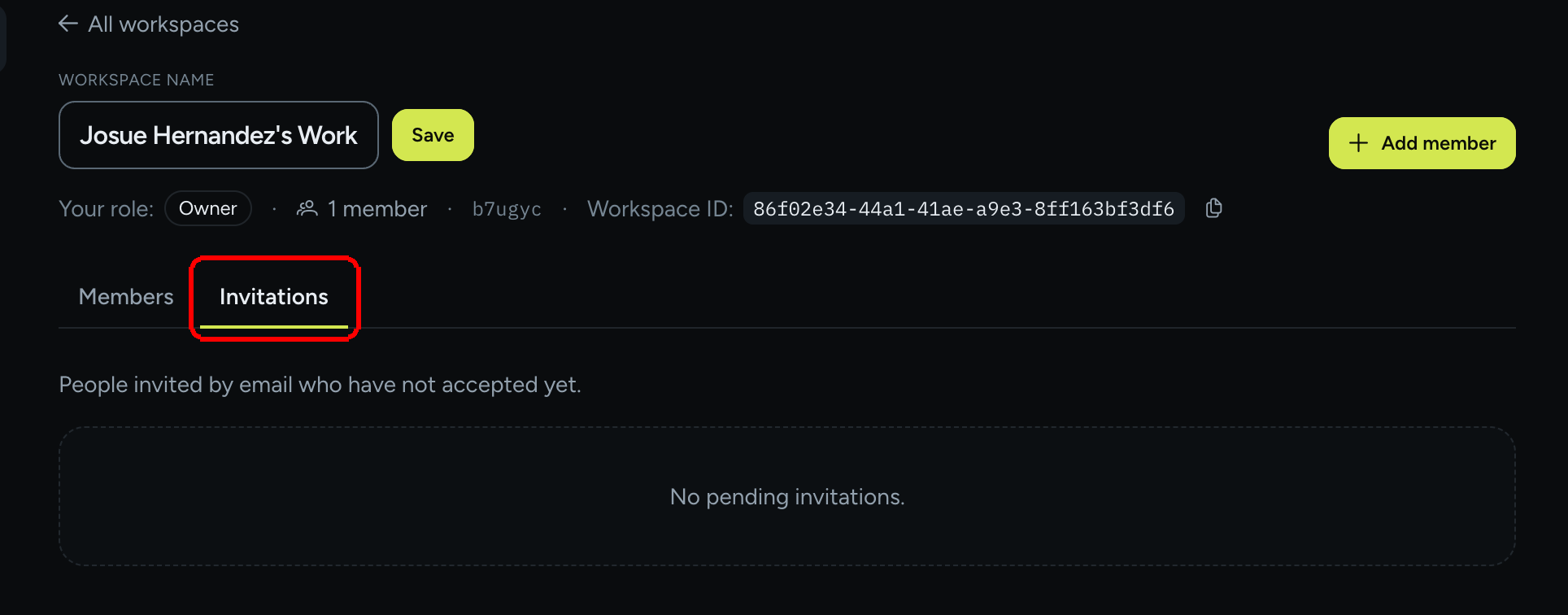
**Step 1:** Open **Account settings**, stay on **Workspaces**, click **Manage** on the workspace, then click the **Invitations** tab next to **Members**.

<figure><img src="https://3835013762-files.gitbook.io/~/files/v0/b/gitbook-x-prod.appspot.com/o/spaces%2FCy5rSNtQmtqYCGzJlNEB%2Fuploads%2Fgit-blob-3fe22c17bb269ec6d69a23cc9d1e2131416b9a21%2Fforms-invitations-01-invitations-tab.png?alt=media" alt="A workspace page on the Invitations tab, showing the subtitle People invited by email who have not accepted yet and the empty state No pending invitations"><figcaption><p><strong>Invitations</strong> holds everyone invited by email who has not accepted yet. When nobody is waiting you see <strong>No pending invitations.</strong></p></figcaption></figure>

When someone is waiting, a small count appears on the tab itself and the list becomes a table:

| Column        | What it shows                                             |
| ------------- | --------------------------------------------------------- |
| **Email**     | The address the invitation was sent to.                   |
| **Status**    | Always **Pending** on this tab.                           |
| **Sent**      | The date the invitation went out.                         |
| **Expires**   | The date it stops working. After that, invite them again. |
| (last column) | **Resend**, when that invitation can be sent again.       |

Only owners and admins can open this tab. A plain member sees **Only admins and owners of this workspace can manage its members.** instead.

***

## How an invitation starts

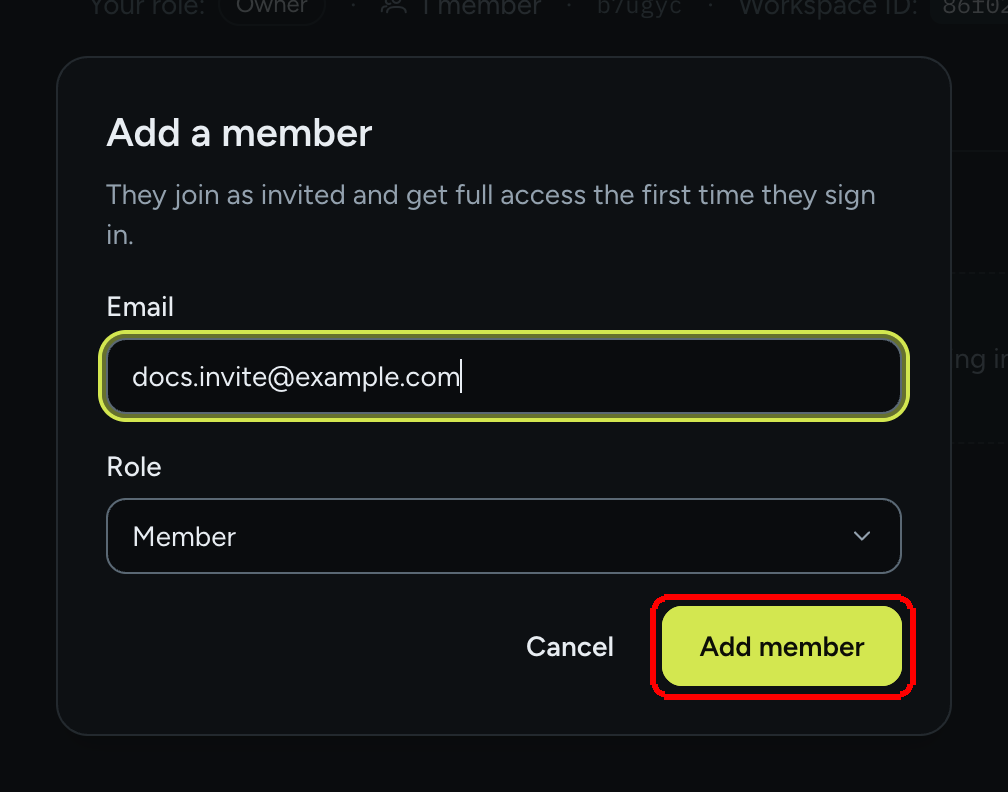
**Step 2:** Invitations are created on the **Members** tab. Click **Add member**, type the email, pick **Member** or **Admin** and click **Add member**.

<figure><img src="https://3835013762-files.gitbook.io/~/files/v0/b/gitbook-x-prod.appspot.com/o/spaces%2FCy5rSNtQmtqYCGzJlNEB%2Fuploads%2Fgit-blob-c32c03de0b60d6b7359ddd4150714de2b2c4ac9f%2Fforms-invitations-02-add-member-dialog.png?alt=media" alt="The Add a member dialog with an email filled in and the Add member button highlighted"><figcaption><p>Adding a member is what sends the invitation. Until they accept, they live on the <strong>Invitations</strong> tab.</p></figcaption></figure>

The invitation email comes from Dapta, not from your form. It invites them to your Dapta account, which is what gives them access to this workspace in Forms.

***

## Resend an invitation

**Step 3:** If the email never arrived or got buried, click **Resend** on that row. You get **Invitation sent again.** If something goes wrong you get **Could not resend the invitation.**, so wait a moment and try once more.

Before resending, ask them to check their spam folder and confirm the address on the row is the one they actually use to sign in. A typo is the most common reason an invitation never lands.

***

## What accepting means

There is no accept button in an email that magically finishes the job. Accepting is simply the invited person opening the workspace:

1. They go to [forms.dapta.ai](https://forms.dapta.ai) and sign in with their Dapta account, using the invited address.
2. The workspace shows up in their workspace list with an **Invited** badge and an **Open** button.
3. They click **Open**. That is the moment they join.

From then on they appear on the **Members** tab with the status **Active**, and their row disappears from **Invitations**.

> **💡 Tip:** They keep the role you picked when you added them, so you do not have to set it again after they accept.

***

## Retract an invitation

Changed your mind, or sent it to the wrong address? Go back to the **Members** tab, find their row (its status reads **Invited**), open the three dots menu and choose **Remove member**. Confirm with **Remove this member? They will lose access to this workspace.**

The row leaves both tabs and the invitation stops working. Any admin can retract a pending invitation, while removing someone who has already accepted is reserved for the owner.

***

## What's next

* [Members & roles](/dapta-forms/account/members-and-roles.md): the roles you can give, and the row actions.
* [Workspaces](/dapta-forms/account/workspaces.md): switching workspaces, **Open** vs **Manage**, the Workspace ID.


---

# Agent Instructions
This documentation is published with GitBook. GitBook is the documentation platform designed so that both humans and AI agents can read, navigate, and reason over technical content effectively. Learn more at gitbook.com.

## Querying This Documentation
If you need additional information that is not directly available in this page, you can query the documentation dynamically by asking a question.

Perform an HTTP GET request on the current page URL with the `ask` query parameter, and the optional `goal` query parameter:

```
GET https://docs.dapta.ai/dapta-forms/account/invitations.md?ask=<question>&goal=<endgoal>
```

`ask` is the immediate question: it should be specific, self-contained, and written in natural language.
`goal` is optional and describes the broader end goal you are ultimately trying to accomplish on behalf of the user. GitBook uses it to tailor the answer towards what is most useful for that goal.

The response will contain a direct answer to the question and relevant excerpts and sources from the documentation.

Use this mechanism when the answer is not explicitly present in the current page, you need clarification or additional context, or you want to retrieve related documentation sections.