> For the complete documentation index, see [llms.txt](https://docs.dapta.ai/llms.txt). Markdown versions of documentation pages are available by appending `.md` to page URLs; this page is available as [Markdown](https://docs.dapta.ai/dforms/account/preferences.md).
# Preferences (language)
Choose the language you read dForms in. Preferences belong to you, not to the workspace: your choice follows your account into every workspace and every browser you sign in from.
**Preferences** is the part of **Account settings** that is about you rather than the workspace. It holds the language you read dForms in.
***
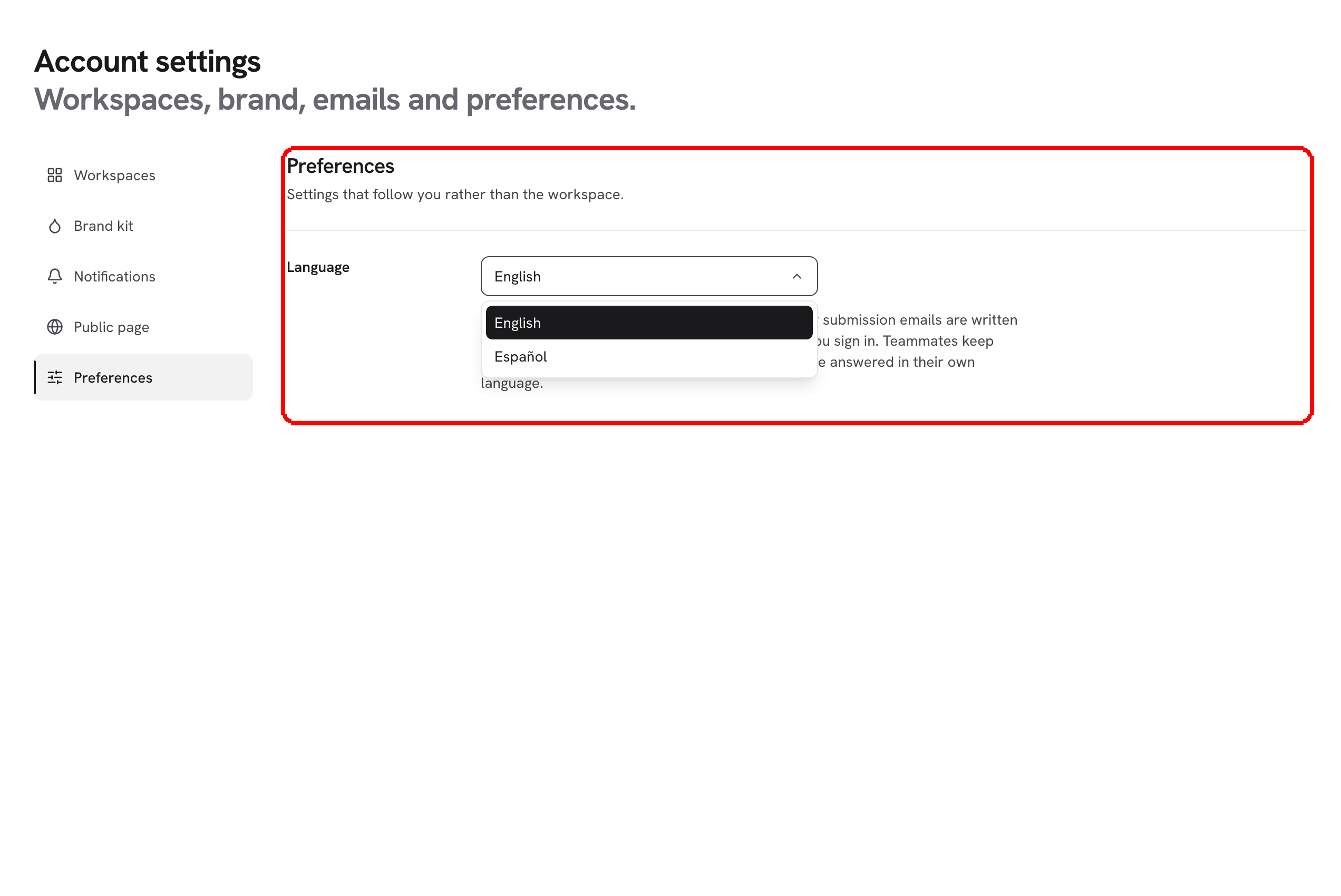
**Step 1:** Click your name at the bottom of the left menu and choose **Preferences** under **Account settings**. You can also open **Account settings** and click **Preferences** in its sub-menu. The page reads **Preferences** / **Settings that follow you rather than the workspace.**
One setting, one select. Each language is written in its own words.
***
**Step 2:** Pick a language under **Language**: **English** or **Español**. Each option is written in its own language, so you can find yours even when you cannot read the page. There is nothing to save: the dashboard switches as soon as you pick. If the change cannot be saved, the previous language stays selected and you see *Your language could not be saved. Please try again.*
***
## What your language changes
| Where | What changes |
| --------------------- | -------------------------------------------------------------------------------------------------------------------------------------------------------------------------------------------------------- |
| The dashboard | Every screen of the admin, in every workspace you open. Your teammates keep their own choice. |
| Other browsers | Your choice is saved to your account, so signing in on another browser brings it back. |
| New forms | A form you create starts in your language: its **Language** setting under **Design** is set to it. Existing forms keep theirs. See [Language & button text](/dforms/design/language-and-button-text.md). |
| CSV downloads | The headers that are not questions, and the **Status** values, in a CSV you download. See [Export to CSV](/dforms/results/export-csv.md). |
| New submission notice | If you are the workspace owner, the default wording of the **New submission notice** is in your language. See [Notification emails](/dforms/account/notifications.md). |
***
## What it does not change
* What respondents see. A public form speaks the language of its own **Language** setting; on **Auto** it follows each visitor's browser. See [Language & button text](/dforms/design/language-and-button-text.md).
* The **Respondent confirmation** email. It goes out in the language the respondent saw the form in.
* The theme. That is the toggle at the bottom of the left menu. See [Appearance](/dforms/account/appearance.md).
> **💡 Tip:** **Preferences** is not limited to admins and shows no **Managing** chip: every member of every workspace chooses their own language.
## What's next
* [Workspaces, Team & Account](/dforms/account.md): the other pages behind the profile menu.
* [Appearance](/dforms/account/appearance.md): work in dark or light mode.
* [Language & button text](/dforms/design/language-and-button-text.md): the language your respondents see.
---
# Agent Instructions
This documentation is published with GitBook. GitBook is the documentation platform designed so that both humans and AI agents can read, navigate, and reason over technical content effectively. Learn more at gitbook.com.
## Querying This Documentation
If you need additional information that is not directly available in this page, you can query the documentation by asking a question.
Perform an HTTP GET request on the following URL with the `ask` and `goal` query parameters:
```
GET https://docs.dapta.ai/dforms/account/preferences.md?ask=&goal=
```
`ask` is the immediate question: it should be specific, self-contained, and written in natural language.
`goal` is what the user is ultimately trying to achieve, the reason they need the answer. Sharing it helps GitBook give you a better, more relevant answer. A goal is most helpful when it describes the outcome the user wants rather than restating the question. For example, with `ask=how do I create an API token`, a goal like `automate deployments from our CI pipeline` lets GitBook tailor the answer to that use case.
The response will contain a direct answer to the question and relevant excerpts and sources from the documentation.
Use this mechanism when the answer is not explicitly present in the current page, you need clarification or additional context, or you want to retrieve related documentation sections.