> For the complete documentation index, see [llms.txt](https://docs.dapta.ai/llms.txt). Markdown versions of documentation pages are available by appending `.md` to page URLs; this page is available as [Markdown](https://docs.dapta.ai/dapta-forms/account/public-page-and-identity.md).

# Public page & identity

Turn on the public page at your Dapta Forms handle, write the headline and the about paragraph, and read the identity block that shows your name, email, handle, account code and vanity slug.

Your public page is a single page at your handle that lists the forms you want people to find. It is off until you turn it on, and it is the same handle that appears in every public form URL.

This page also holds **Your identity**, the read-only block that tells you exactly which name, handle and account code the outside world sees.

***

**Step 1:** Click your name at the bottom of the left menu, then choose **Public page** under **Account settings**.

***

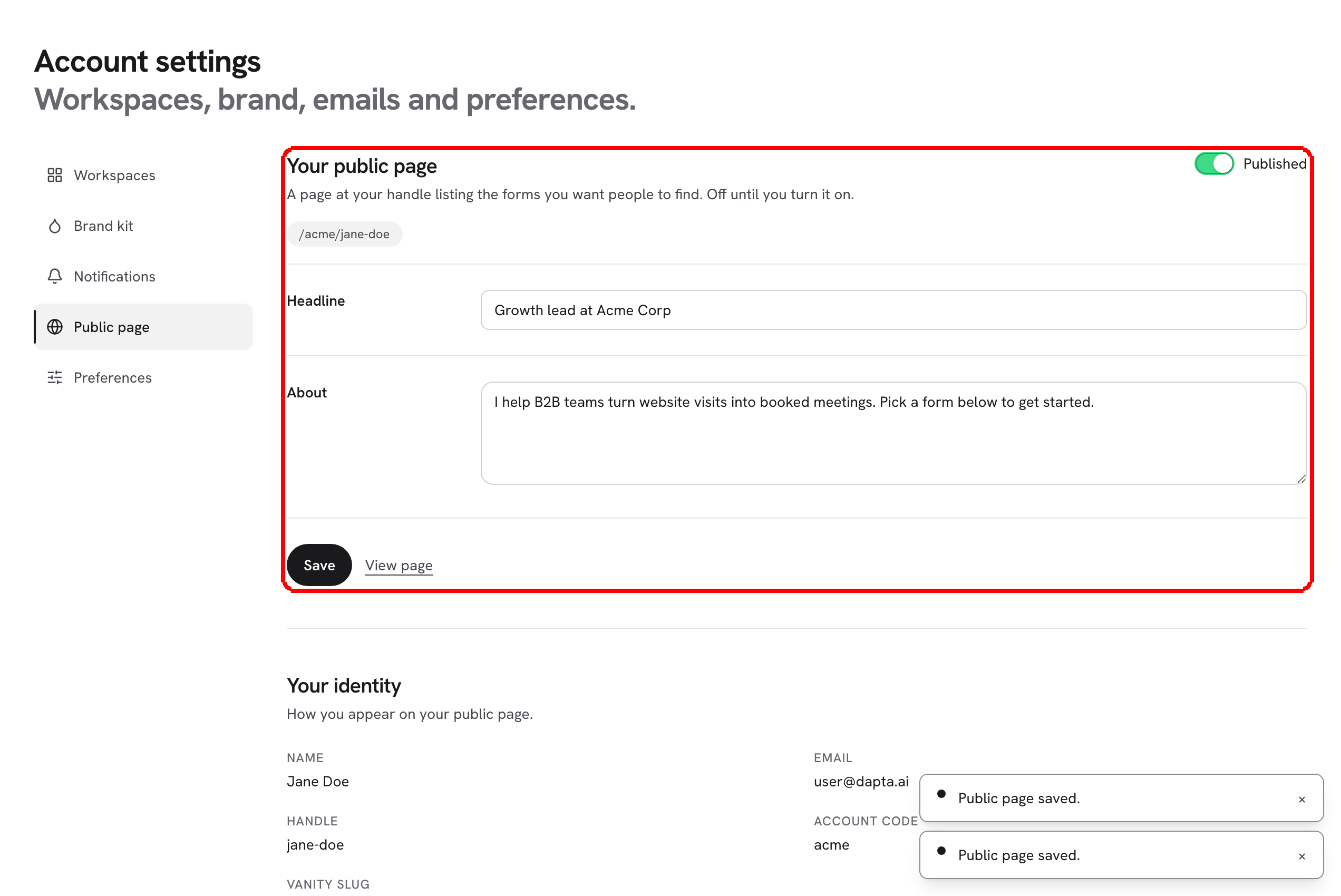
**Step 2:** Turn the **Published** switch on. The path just under the description (for example `/k7m2xq/alex`) is where the page will live. While the switch is off, that address returns nothing.

<figure><img src="https://3835013762-files.gitbook.io/~/files/v0/b/gitbook-x-prod.appspot.com/o/spaces%2FCy5rSNtQmtqYCGzJlNEB%2Fuploads%2Fgit-blob-698cd76b2ca949ec3198bc556a94d58d8b678b23%2Fforms-public-page-and-identity-01-settings.png?alt=media" alt="The Your public page card with the Published switch on, the Headline field, the About box and the Save button"><figcaption><p><strong>Published</strong> turns the page on. <strong>Headline</strong> and <strong>About</strong> are the only copy you write.</p></figcaption></figure>

***

**Step 3:** Fill in the two fields and click **Save**. You will see the confirmation **Public page saved.**

| Field        | Placeholder                          | What it is for                                            |
| ------------ | ------------------------------------ | --------------------------------------------------------- |
| **Headline** | What you help people with            | One line under your name. Keep it to a short sentence.    |
| **About**    | A short paragraph about what you do. | A paragraph under the headline, before the list of forms. |

Next to **Save** there is a **View page** link that opens the live page in a new tab.

> **💡 Tip:** Only published forms appear in the list on your public page. A form you have created but never published stays private. If nothing is published yet, the page shows **Nothing published yet.**

***

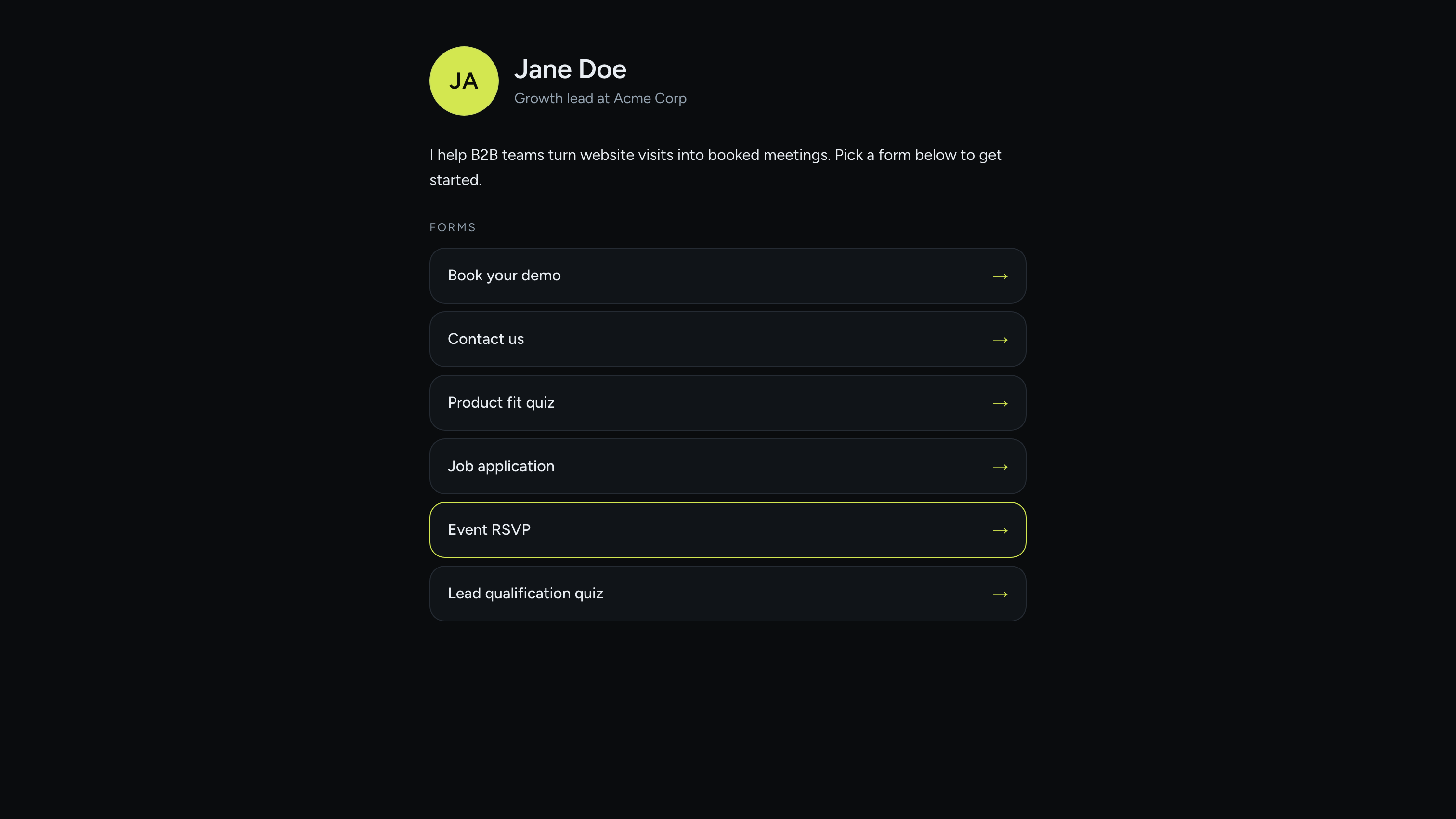
**Step 4:** Open the page to check it. It shows your initials or avatar, your name, the headline, the about paragraph, and then every published form as a row you can click.

<figure><img src="https://3835013762-files.gitbook.io/~/files/v0/b/gitbook-x-prod.appspot.com/o/spaces%2FCy5rSNtQmtqYCGzJlNEB%2Fuploads%2Fgit-blob-56ae69d5b60dcd51080968d56903f5bb4f31515d%2Fforms-public-page-03-live.png?alt=media" alt="The live public page showing the name, headline, about paragraph and a list of published forms"><figcaption><p>The live page at <code>/{account code}/{handle}</code>. Each row opens that form.</p></figcaption></figure>

***

## Your identity

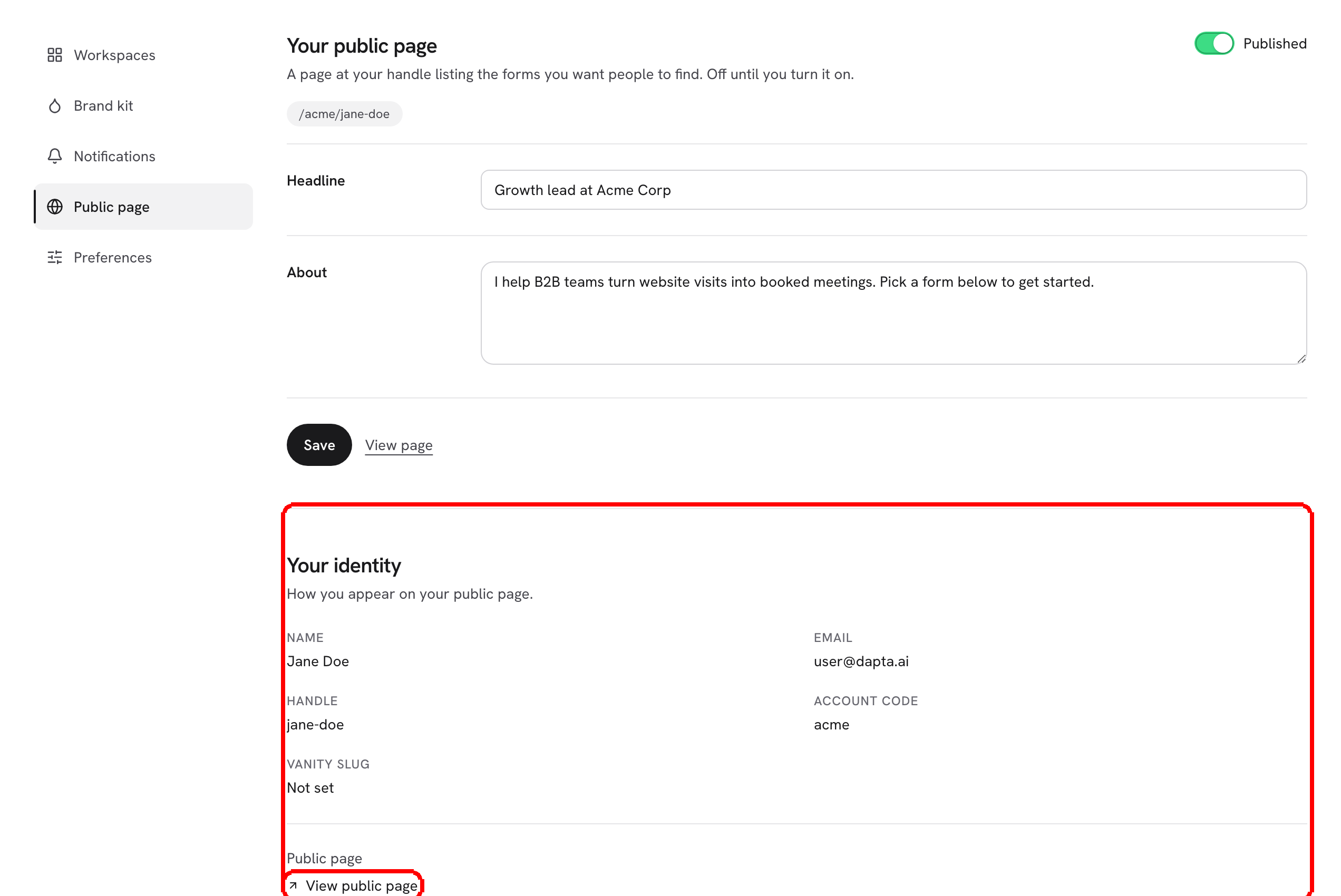
The block below the settings is read-only. It exists so you always know which values are baked into your public links.

<figure><img src="https://3835013762-files.gitbook.io/~/files/v0/b/gitbook-x-prod.appspot.com/o/spaces%2FCy5rSNtQmtqYCGzJlNEB%2Fuploads%2Fgit-blob-98a48a7a192ab11e8d31ba8940b295f2cf215446%2Fforms-public-page-and-identity-02-identity.png?alt=media" alt="The Your identity block listing Name, Email, Handle, Account code and Vanity slug, with the View public page link"><figcaption><p><strong>Your identity</strong> shows how you appear on your public page, plus a shortcut to open it.</p></figcaption></figure>

| Field            | What it is                                                                                            |
| ---------------- | ----------------------------------------------------------------------------------------------------- |
| **Name**         | The name shown at the top of your public page.                                                        |
| **Email**        | The address you sign in with.                                                                         |
| **Handle**       | The second part of every public URL, unique to you. It is created for you the first time you sign in. |
| **Account code** | The 6 character code that starts every public URL, for example `k7m2xq`.                              |
| **Vanity slug**  | A readable replacement for the account code. Shows **Not set** until you have one.                    |

At the bottom of the block, **View public page** opens the live page in a new tab.

> **⚠️ Note:** The vanity slug is a premium perk tied to your Dapta subscription, not a Dapta Forms setting. Claiming one does not break anything you already shared: old account codes keep working forever, so links you sent last month still open.

***

## Where these values show up

* Every form you publish gets the URL `forms.dapta.ai/{account code}/{handle}/{form slug}`.
* Your public page is the same address without the form slug: `forms.dapta.ai/{account code}/{handle}`.
* While the page is published, the **Home** screen shows a **Your public page** box with a **Copy** button, so you can grab the link without coming back here.

***

## What's next

* [Your public page](/dapta-forms/share/public-page.md): what visitors see and how to share it.
* [Your public link](/dapta-forms/share/public-link.md): the URL of a single form.
* [Workspaces](/dapta-forms/account/workspaces.md): the workspace name and account code that sit behind these links.
* [Design & Branding](/dapta-forms/design.md): the logo and colors your forms use.


---

# Agent Instructions
This documentation is published with GitBook. GitBook is the documentation platform designed so that both humans and AI agents can read, navigate, and reason over technical content effectively. Learn more at gitbook.com.

## Querying This Documentation
If you need additional information that is not directly available in this page, you can query the documentation dynamically by asking a question.

Perform an HTTP GET request on the current page URL with the `ask` query parameter, and the optional `goal` query parameter:

```
GET https://docs.dapta.ai/dapta-forms/account/public-page-and-identity.md?ask=<question>&goal=<endgoal>
```

`ask` is the immediate question: it should be specific, self-contained, and written in natural language.
`goal` is optional and describes the broader end goal you are ultimately trying to accomplish on behalf of the user. GitBook uses it to tailor the answer towards what is most useful for that goal.

The response will contain a direct answer to the question and relevant excerpts and sources from the documentation.

Use this mechanism when the answer is not explicitly present in the current page, you need clarification or additional context, or you want to retrieve related documentation sections.