> For the complete documentation index, see [llms.txt](https://docs.dapta.ai/llms.txt). Markdown versions of documentation pages are available by appending `.md` to page URLs; this page is available as [Markdown](https://docs.dapta.ai/dapta-forms/builder.md).

# Building Forms

A tour of the Dapta Forms editor: the topbar with the form name, save status, Build / Logic / Connect tabs, share buttons and Publish; the contextual toolbar; the question list; the live canvas and th

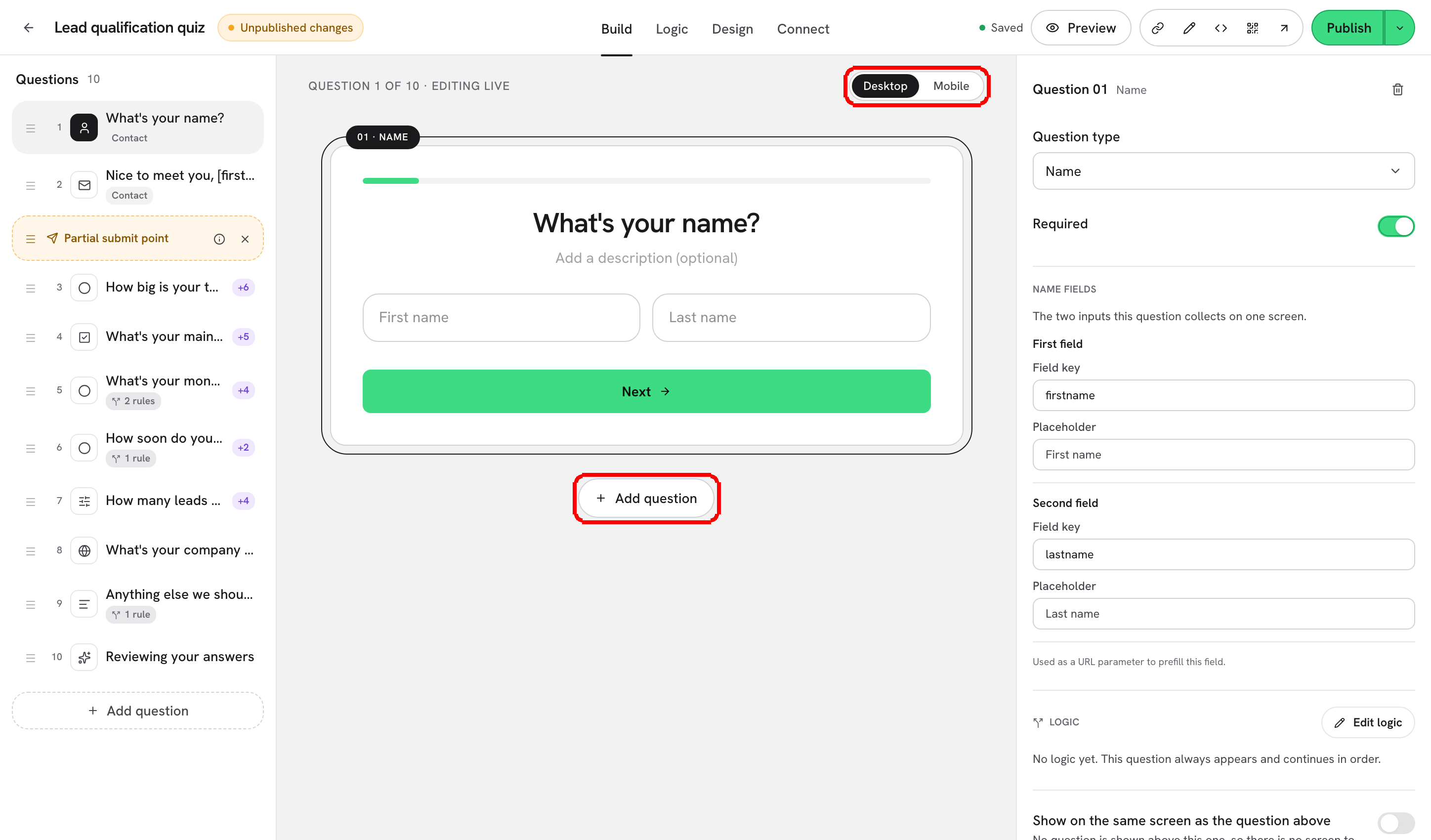
The editor is where a form takes shape. Everything you see on the canvas is exactly what respondents will see, and every change is saved as a draft automatically until you decide to **Publish**. This page names each part of the screen so the rest of the section can refer to them.

<figure><img src="https://3835013762-files.gitbook.io/~/files/v0/b/gitbook-x-prod.appspot.com/o/spaces%2FCy5rSNtQmtqYCGzJlNEB%2Fuploads%2Fgit-blob-45b38879bae2f055c49fe8d6313ebf45caefcdc5%2Fforms-builder-01-editor-overview.png?alt=media" alt="The form editor with the question list on the left, the live canvas in the centre and the Question settings pane on the right"><figcaption><p>Left: the question list. Centre: the live canvas. Right: settings for the selected question.</p></figcaption></figure>

***

## The topbar

<figure><img src="https://3835013762-files.gitbook.io/~/files/v0/b/gitbook-x-prod.appspot.com/o/spaces%2FCy5rSNtQmtqYCGzJlNEB%2Fuploads%2Fgit-blob-6f799b72bfa3d587cc5ddea6cf3db1778ca4dc2e%2Fforms-builder-02-topbar.png?alt=media" alt="The editor topbar: back link to Forms, the form name and Saved status, the Build, Logic and Connect tabs, the Copy link, Embed and Open form icons, the Unpublished changes dot and the Publish button"><figcaption><p>From left to right: name and save status, section tabs, share buttons and <strong>Publish</strong>.</p></figcaption></figure>

| Element                                   | What it does                                                                                                                                         |
| ----------------------------------------- | ---------------------------------------------------------------------------------------------------------------------------------------------------- |
| **Forms**                                 | The back link on the far left. Returns to the Forms list; your work is already saved.                                                                |
| Form name                                 | Click it to rename the form inline. The placeholder reads **Untitled form**.                                                                         |
| Save status                               | **Draft** (no questions yet), **Saving…**, **Saved**, **Retrying…** or **Not saved**. See [Autosave](#autosave-and-draft-recovery) below.            |
| **Build**                                 | The default tab: questions, canvas and settings. **Design** is a mode inside Build (see the toolbar).                                                |
| **Logic**                                 | The logic canvas plus the **Branching**, **Scoring** and **Outcomes** dialogs. See [Logic, Scoring & Outcomes](/dapta-forms/logic.md).               |
| **Connect**                               | Integrations, tracking & pixels and submission emails. See [Connect & Integrations](/dapta-forms/connect.md).                                        |
| **Copy link** · **Embed** · **Open form** | The share cluster: copy the public URL, get the embed snippet, open the live form in a new tab. See [Publish, Share & Embed](/dapta-forms/share.md). |
| **Unpublished changes**                   | A badge next to **Publish** whenever the draft differs from the live version. On a narrow window it collapses to a single dot.                       |
| **Publish**                               | Makes the current draft live. Disabled (**All changes are published**) when there is nothing new.                                                    |

***

## The contextual toolbar

The second row changes with the tab. On **Build** it holds the tools you use most:

<figure><img src="https://3835013762-files.gitbook.io/~/files/v0/b/gitbook-x-prod.appspot.com/o/spaces%2FCy5rSNtQmtqYCGzJlNEB%2Fuploads%2Fgit-blob-cdbf8df5fc09367bbf5f0fb17d592d5bc29fcd78%2Fforms-builder-03-toolbar.png?alt=media" alt="The Build toolbar with Add question, Design, the Desktop / Mobile switch and the Preview eye icon"><figcaption><p><strong>Add question</strong>, <strong>Design</strong>, the <strong>Desktop / Mobile</strong> canvas switch and <strong>Preview</strong> (the eye).</p></figcaption></figure>

| Control              | What it does                                                                                                                                        |
| -------------------- | --------------------------------------------------------------------------------------------------------------------------------------------------- |
| **Add question**     | Opens the **Add a question** gallery. See [Question types](/dapta-forms/builder/question-types.md).                                                 |
| **Design**           | Switches the canvas into the design panel: theme, colors, typography, logos, cover screen, ending. See [Design & Branding](/dapta-forms/design.md). |
| **Desktop / Mobile** | Resizes the canvas so you can edit at phone width without leaving the editor.                                                                       |
| **Preview** (eye)    | Opens the full preview with real device frames. See [Preview on desktop, tablet and mobile](/dapta-forms/builder/preview.md).                       |

On **Logic** the toolbar shows **Branching**, **Scoring**, **Outcomes** and **Preview**; on **Connect** only **Preview**.

***

## The question list (left)

The **Questions** column lists every step in order with its number, a type icon and badges such as **Contact**, **Logic**, **{n} rules** or **Hidden**. Click a card to select it; drag the handle to reorder. Below the cards you will find:

* **+ Add question**: the same gallery as the toolbar button.
* **Partial submit point**: a dashed, draggable marker. Drop it after a question to save answers as a partial submission from that point on. See [Partial submissions](/dapta-forms/builder/partial-submissions.md).
* A nudge card when the form asks for an email but has no marker yet: **Capture after the email question** places the marker for you.

On narrower windows the list becomes a horizontal strip above the canvas.

## The canvas (centre)

The canvas shows **Question {n} of {total} · editing live**. Click any text to edit it in place: the title (**Type your question…**), the description (**Add a description (optional)**), option labels and the button (**Next** / **Submit**). Type `@` or `[` in a title to insert an earlier answer ([Recall answers with @](/dapta-forms/builder/recall-answers.md)). Some types render a live control: a country picker on Phone, a slider on Slider, a calendar embed on Scheduler.

## The settings pane (right)

**Question settings** holds everything that is not text: the **Question type** select, **Required**, type-specific sections (**Options**, **Name fields**, **Scheduler**, and so on), **Logic** with **Edit logic**, **Advanced settings** (field key, default answer, hidden question, ends the form, prefill URL) and the **HubSpot** mapping block. See [Question settings](/dapta-forms/builder/question-settings.md).

***

## Autosave and draft recovery

You never click Save. Roughly a second after you stop typing, the editor writes the draft and the status pill cycles **Saving…** → **Saved**.

* If the request fails, the pill shows **Retrying…** and then **Not saved** while it keeps trying in the background. Offline, a banner explains: **Can't reach the server. Your changes are kept and saving will retry automatically.**
* If a change cannot be saved yet (for example an option row with an empty value), the pill reads **Can't save yet: {reason}** until you fix it.
* Closing the tab mid-save is safe: the editor flushes the pending change on the way out and also keeps a local backup.
* If the browser crashes before a save lands, the next time you open the form you will see **Unsaved changes recovered**: "This form has edits from a previous session that never reached the server. Restore them, or keep the saved version?" Click **Restore edits** to continue where you left off, or **Discard** to keep the server copy.

Autosave only touches the **draft**. Respondents keep seeing the last published version until you click **Publish**; the **Unpublished changes** badge reminds you that there is something to publish. Read [Autosave, drafts & publishing](/dapta-forms/builder/autosave-and-publishing.md) for the full lifecycle.

> **⚠️ Note:** The exception is **Connect → Integrations**: connecting or mapping HubSpot and webhooks applies to the live form immediately, without a publish.

***

## In this section

* [Create a form](/dapta-forms/builder/create-a-form.md): the new form dialog, layouts and templates; duplicate or delete from the list.
* [Question types](/dapta-forms/builder/question-types.md): the 14 tiles, grouped as Contact, Choice, Text and Content.
* [Question settings](/dapta-forms/builder/question-settings.md): Required, placeholder, default answer, field key, hidden, ends the form.
* [Dynamic questions (variants)](/dapta-forms/builder/dynamic-questions.md): ask a different title depending on an earlier answer.
* [Recall answers with @](/dapta-forms/builder/recall-answers.md): insert earlier answers into later copy.
* [Hidden fields & URL prefill](/dapta-forms/builder/hidden-fields-and-url-prefill.md): `?key=value` prefill and hidden questions.
* [Partial submissions (lead capture point)](/dapta-forms/builder/partial-submissions.md): save answers before the end.
* [One-page layout](/dapta-forms/builder/one-page-layout.md): every question on a single page.
* [Preview on desktop, tablet and mobile](/dapta-forms/builder/preview.md): check the draft in device frames.
* [Autosave, drafts & publishing](/dapta-forms/builder/autosave-and-publishing.md): status pill, recovery, publish.


---

# Agent Instructions
This documentation is published with GitBook. GitBook is the documentation platform designed so that both humans and AI agents can read, navigate, and reason over technical content effectively. Learn more at gitbook.com.

## Querying This Documentation
If you need additional information that is not directly available in this page, you can query the documentation dynamically by asking a question.

Perform an HTTP GET request on the current page URL with the `ask` query parameter, and the optional `goal` query parameter:

```
GET https://docs.dapta.ai/dapta-forms/builder.md?ask=<question>&goal=<endgoal>
```

`ask` is the immediate question: it should be specific, self-contained, and written in natural language.
`goal` is optional and describes the broader end goal you are ultimately trying to accomplish on behalf of the user. GitBook uses it to tailor the answer towards what is most useful for that goal.

The response will contain a direct answer to the question and relevant excerpts and sources from the documentation.

Use this mechanism when the answer is not explicitly present in the current page, you need clarification or additional context, or you want to retrieve related documentation sections.