> For the complete documentation index, see [llms.txt](https://docs.dapta.ai/llms.txt). Markdown versions of documentation pages are available by appending `.md` to page URLs; this page is available as [Markdown](https://docs.dapta.ai/dapta-forms/builder/autosave-and-publishing.md).

# Autosave, drafts & publishing

How Dapta Forms saves your work: the save status pill, automatic retries, recovery of unsaved changes, and the difference between the draft you edit and the published form your respondents see.

You never click Save in the editor. Every change is written to a draft automatically, and the draft stays private until you click **Publish**. This page explains the save status pill, what happens when the connection drops, and how publishing works.

***

## Autosave and the status pill

**Step 1:** Make any change in the editor. The pill next to the form name switches to **Saving…** and, a moment later, to **Saved**.

<figure><img src="https://3835013762-files.gitbook.io/~/files/v0/b/gitbook-x-prod.appspot.com/o/spaces%2FCy5rSNtQmtqYCGzJlNEB%2Fuploads%2Fgit-blob-ff3a07e337a520b76d527d8ec4ff379be778f5d0%2Fforms-autosave-and-publishing-01-saving.png?alt=media" alt="The editor topbar with the save status pill reading Saving…"><figcaption><p>About one second after you stop typing, the draft is sent to the server.</p></figcaption></figure>

<figure><img src="https://3835013762-files.gitbook.io/~/files/v0/b/gitbook-x-prod.appspot.com/o/spaces%2FCy5rSNtQmtqYCGzJlNEB%2Fuploads%2Fgit-blob-8337db86a36e84213a7a5bd24c99890d05974b3a%2Fforms-autosave-and-publishing-02-saved.png?alt=media" alt="The editor topbar with the save status pill reading Saved"><figcaption><p><strong>Saved</strong> means the draft is stored. It does not mean it is live.</p></figcaption></figure>

| Pill          | Meaning                                                                                                                                                   |
| ------------- | --------------------------------------------------------------------------------------------------------------------------------------------------------- |
| **Draft**     | The form has no questions yet. Nothing to save or publish.                                                                                                |
| **Saving…**   | Your last change is being written to the server.                                                                                                          |
| **Saved**     | The draft is up to date on the server.                                                                                                                    |
| **Retrying…** | The last save did not reach the server (for example your connection dropped). Your changes are kept in the browser and the save is retried automatically. |
| **Not saved** | The save keeps failing. Keep the tab open and check your connection; the editor retries on its own.                                                       |

If the editor cannot reach the server it tells you: **Can't reach the server. Your changes are kept and saving will retry automatically.** If a change is incomplete (for example an option with no value), the pill explains why it cannot save yet: **Can't save yet: {reason}**. Fix the field and the save goes through.

> **💡 Tip:** Closing the tab while a save is pending is safe: the editor flushes the last change on the way out, and it also keeps a local backup of your work.

***

## Recovering unsaved changes

If the browser crashed, the tab was killed, or the last save never reached the server, the next time you open the form the editor shows a banner at the top: **Unsaved changes recovered**, with the text **This form has edits from a previous session that never reached the server. Restore them, or keep the saved version?**

* Click **Restore edits** to load the recovered changes into the editor (they are then saved normally).
* Click **Discard** to keep the version stored on the server and drop the local backup.

The banner only appears when the local backup differs from what the server has. If everything was saved correctly you will not see it.

***

## Draft versus published

Saving and publishing are two different things:

* **Draft**: what you see in the editor and in **Preview**. Every autosave updates it.
* **Published**: what respondents see at your public link and in embeds. It only changes when you click **Publish**.

**Step 2:** As soon as the draft differs from the live form, a badge **Unpublished changes** appears next to the **Publish** button (on narrower windows it shows as a dot; hover it to read the label).

<figure><img src="https://3835013762-files.gitbook.io/~/files/v0/b/gitbook-x-prod.appspot.com/o/spaces%2FCy5rSNtQmtqYCGzJlNEB%2Fuploads%2Fgit-blob-fa928f28634e2d6e494a49cde76a61b85b8f9c67%2Fforms-autosave-and-publishing-03-unpublished-badge.png?alt=media" alt="The Copy link, Embed and Open form icons, the Unpublished changes badge and the Publish button in the editor topbar"><figcaption><p>The badge tells you the live form is behind your draft.</p></figcaption></figure>

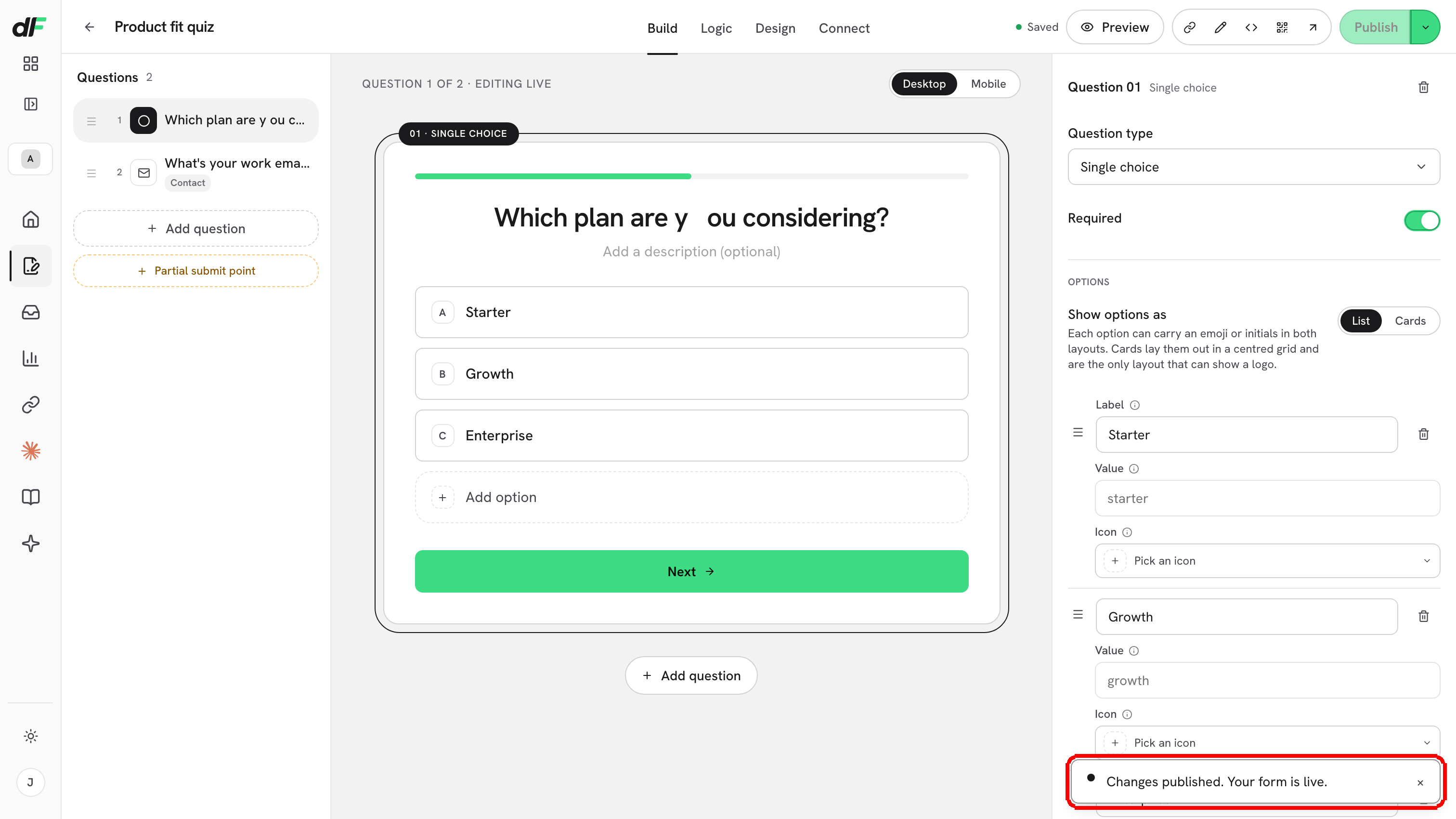
**Step 3:** Click **Publish**. The button reads **Publishing…** for a moment, then a toast confirms **Changes published. Your form is live.** The badge disappears and **Publish** becomes disabled with the tooltip **All changes are published**.

<figure><img src="https://3835013762-files.gitbook.io/~/files/v0/b/gitbook-x-prod.appspot.com/o/spaces%2FCy5rSNtQmtqYCGzJlNEB%2Fuploads%2Fgit-blob-69d0613a641009ea6413c476bab60c8cf52ca849%2Fforms-autosave-and-publishing-04-published-toast.png?alt=media" alt="The editor after clicking Publish, with the confirmation toast Changes published. Your form is live. in the bottom right corner"><figcaption><p>Publishing copies the draft to the live form. Keep editing afterwards: new edits stay private until the next Publish.</p></figcaption></figure>

If something goes wrong you will see **Could not publish. Please try again.** Your draft is not lost; just click **Publish** again.

## Good to know

| Topic               | Behavior                                                                                                                                                                                                                                                    |
| ------------------- | ----------------------------------------------------------------------------------------------------------------------------------------------------------------------------------------------------------------------------------------------------------- |
| First publish       | A brand-new form is not reachable at its public link until you publish it once. Before that, visitors get a not-found page.                                                                                                                                 |
| Editing a live form | Respondents keep seeing the last published version while you work. Nothing changes for them until you publish.                                                                                                                                              |
| Integrations        | Connections you switch on under **Connect** > **Integrations** (HubSpot, webhooks, Calendly) apply to the live form immediately; they do not wait for Publish. Tracking IDs under **Tracking & pixels** are part of the draft and go live when you publish. |
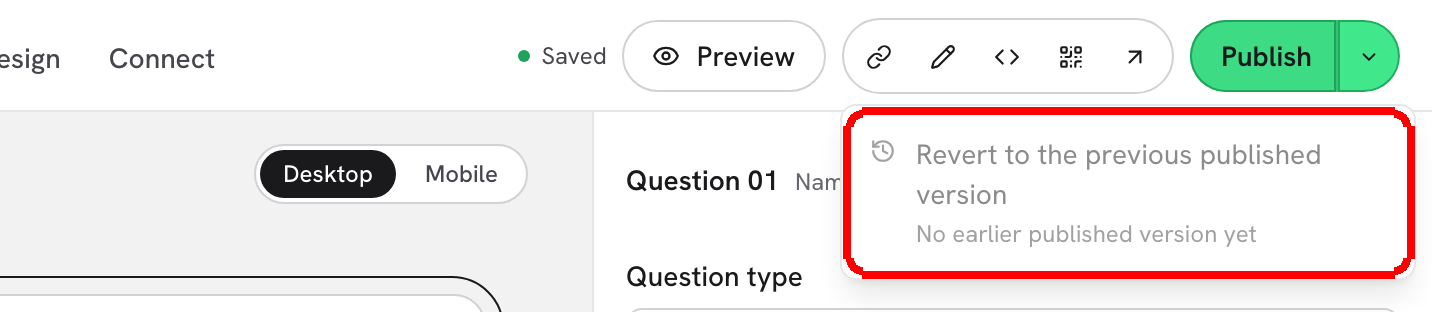
| Unpublishing        | There is no Unpublish button. To take a form offline, delete it from the **Forms** list (this also deletes its submissions), or duplicate it first if you want to keep a copy.                                                                              |
| Duplicates          | **Duplicate** in the Forms list creates "{name} (copy)" with the same questions, logic and design. Publish the copy when it is ready.                                                                                                                       |
| Who can publish     | Every member of the workspace can create, edit and publish forms.                                                                                                                                                                                           |

## What's next

* [Preview on desktop, tablet and mobile](/dapta-forms/builder/preview.md): check the draft before you publish.
* [Publish, Share & Embed](/dapta-forms/share.md): copy the link, embed the form, share card.
* [Create a form](/dapta-forms/builder/create-a-form.md): duplicate and delete forms from the list.


---

# Agent Instructions
This documentation is published with GitBook. GitBook is the documentation platform designed so that both humans and AI agents can read, navigate, and reason over technical content effectively. Learn more at gitbook.com.

## Querying This Documentation
If you need additional information that is not directly available in this page, you can query the documentation dynamically by asking a question.

Perform an HTTP GET request on the current page URL with the `ask` query parameter, and the optional `goal` query parameter:

```
GET https://docs.dapta.ai/dapta-forms/builder/autosave-and-publishing.md?ask=<question>&goal=<endgoal>
```

`ask` is the immediate question: it should be specific, self-contained, and written in natural language.
`goal` is optional and describes the broader end goal you are ultimately trying to accomplish on behalf of the user. GitBook uses it to tailor the answer towards what is most useful for that goal.

The response will contain a direct answer to the question and relevant excerpts and sources from the documentation.

Use this mechanism when the answer is not explicitly present in the current page, you need clarification or additional context, or you want to retrieve related documentation sections.