> For the complete documentation index, see [llms.txt](https://docs.dapta.ai/llms.txt). Markdown versions of documentation pages are available by appending `.md` to page URLs; this page is available as [Markdown](https://docs.dapta.ai/dapta-forms/builder/one-page-layout.md).

# One-page layout

Show every question of your Dapta Form on a single page with one Submit button: how to switch layouts, how logic, cover, reveal and validation behave on a one-page form, and which design settings do n

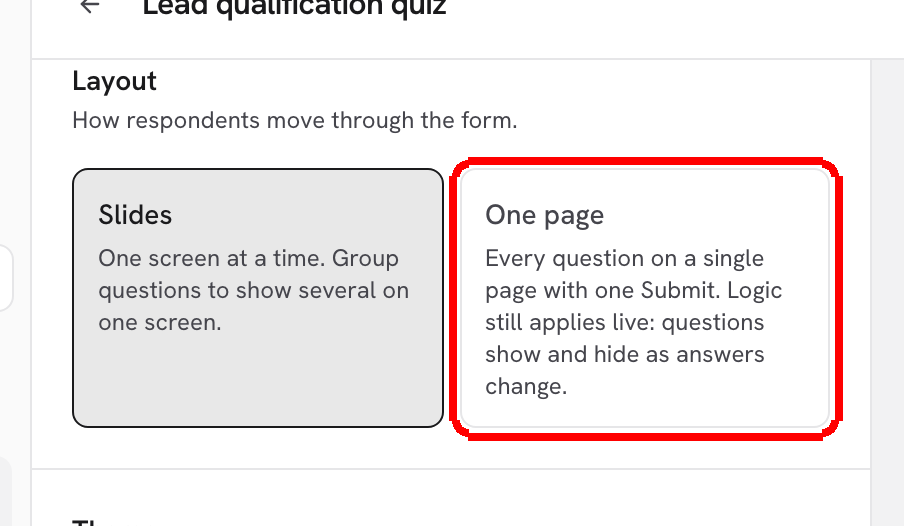
A Dapta Form has two layouts. **Slides** shows one question per screen, step by step. **One page** shows every question on a single scrolling page with one **Submit** button at the end, like a classic web form. You pick the layout when you create the form and can switch at any time from the **Design** panel. Questions, logic, scoring, design and integrations stay the same in both.

***

**Step 1:** Create the form with the **One page** layout (the **Create a new form** dialog has a **Layout** choice: **Slides** or **One page**), or open an existing form, click **Design** in the toolbar and pick **One page** under **Layout**. The hint reads **Every question on a single page with one Submit. Logic still applies live: questions show and hide as answers change.**

<figure><img src="https://3835013762-files.gitbook.io/~/files/v0/b/gitbook-x-prod.appspot.com/o/spaces%2FCy5rSNtQmtqYCGzJlNEB%2Fuploads%2Fgit-blob-d72e564a5f3f0db60cb414693bc5624642aea710%2Fforms-one-page-layout-01-design-layout.png?alt=media" alt="The Design panel Layout section with One page selected"><figcaption><p><strong>Design</strong> > <strong>Layout</strong>: switch an existing form between <strong>Slides</strong> and <strong>One page</strong> at any time.</p></figcaption></figure>

On a one-page form the **Layout** section also offers **Reveal screen before results**: a single reveal screen that plays once, after **Submit** and before the result. Turn it on and edit its copy by selecting the reveal card at the end of the question list.

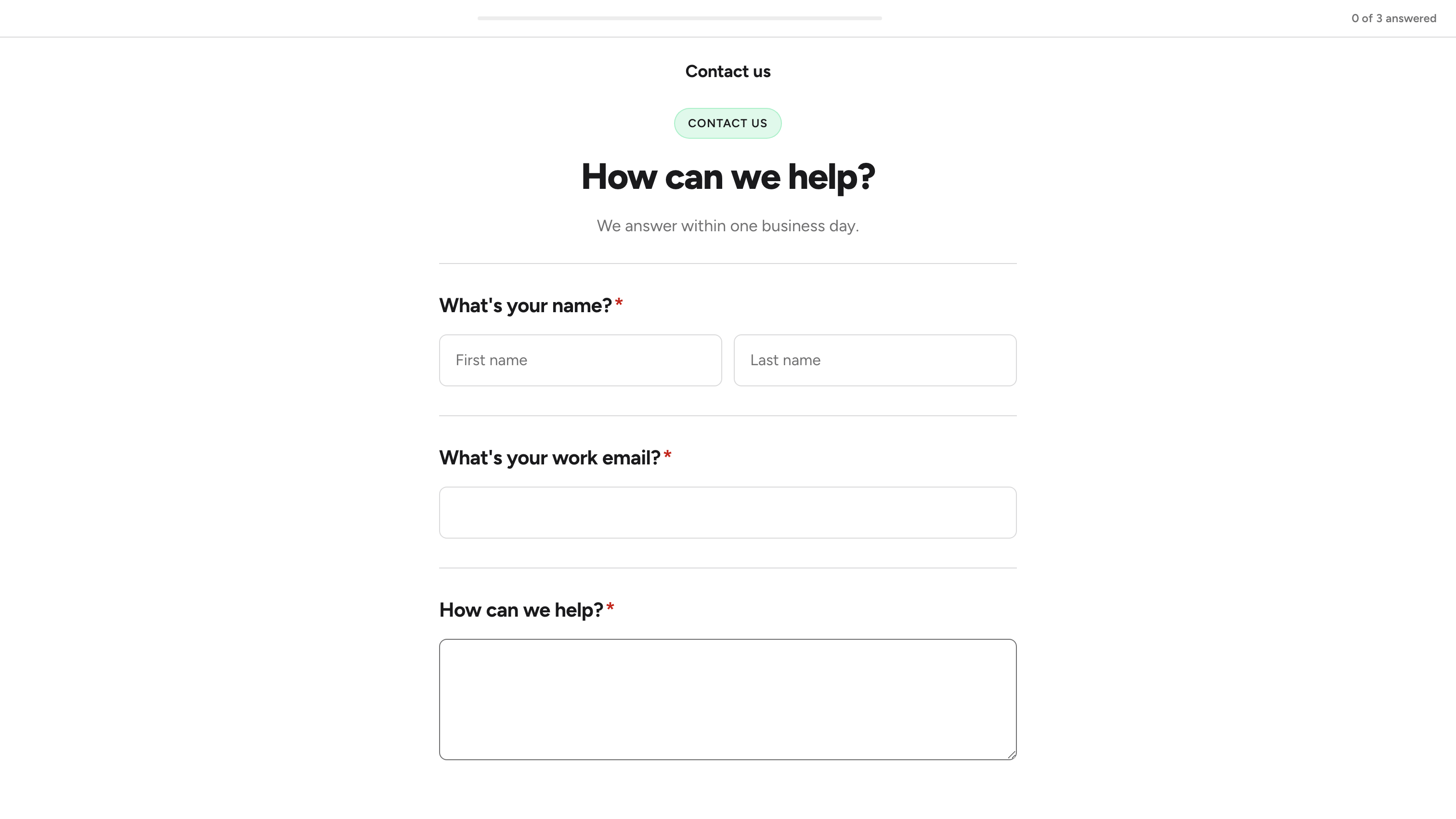
**Step 2:** Publish and open the form. Respondents see all questions at once, a counter at the top that reads **{answered} of {total} answered**, and one **Submit** button at the end.

<figure><img src="https://3835013762-files.gitbook.io/~/files/v0/b/gitbook-x-prod.appspot.com/o/spaces%2FCy5rSNtQmtqYCGzJlNEB%2Fuploads%2Fgit-blob-9070c9754e3ef0b76c53b428be39ef347d4b29c1%2Fforms-one-page-layout-02-public-page.png?alt=media" alt="A published one page form showing the cover header and every question stacked on a single page"><figcaption><p>The cover becomes a header and every question is visible at once.</p></figcaption></figure>

**Step 3:** Each question is checked when the respondent leaves it (a bad email is flagged right away). When they click **Submit**, every visible question is validated at once. Missing required answers and invalid values are highlighted, the page scrolls to the first problem and the message **Check the highlighted questions above.** appears next to the button.

<figure><img src="https://3835013762-files.gitbook.io/~/files/v0/b/gitbook-x-prod.appspot.com/o/spaces%2FCy5rSNtQmtqYCGzJlNEB%2Fuploads%2Fgit-blob-089519b9d11b4c68bac7dd8a83d681bed8a5b410%2Fforms-one-page-layout-03-validation.png?alt=media" alt="A one page form after clicking Submit with nothing filled in, every required question outlined in red with This field is required"><figcaption><p>Submitting with gaps highlights every problem at once and the counter still reads <strong>0 of 3 answered</strong>.</p></figcaption></figure>

## How a one-page form behaves

| Feature                              | On a one-page form                                                                                                                                                      |
| ------------------------------------ | ----------------------------------------------------------------------------------------------------------------------------------------------------------------------- |
| **Cover screen**                     | Renders as a hero header above the questions (eyebrow, headline, subheadline, logos, banner). There is no **Start** button, so the **Start button text** is not used.   |
| **Show & hide conditions**           | Apply live: as soon as an answer changes, the questions that depend on it appear or disappear on the page.                                                              |
| **Branching (jumps)**                | Apply live too: when an answer triggers a jump, the questions it skips over disappear from the page.                                                                    |
| **Ends the form** (disqualification) | A question marked **Ends the form** hides everything after it once it has an answer. The respondent can still change that answer; the form never submits on its own.    |
| **Scoring & outcomes**               | Work exactly as in Slides. The outcome is resolved on Submit.                                                                                                           |
| **Reveal screens**                   | One reveal for the whole form, enabled with **Reveal screen before results** in Design > Layout. Per-question reveal cards are not used.                                |
| **Partial submit point**             | Works the same: the partial submission is saved as soon as the question before the marker holds a valid answer (for example a valid email), without waiting for Submit. |
| **Scheduler step**                   | Shown as a booking page after Submit.                                                                                                                                   |
| **Ending**                           | Same as Slides: the thank-you heading, message and redirect from Design > **When the form ends** or the matching outcome.                                               |
| **Progress**                         | The **{answered} of {total} answered** counter replaces the bar, dots or counter of the Slides layout.                                                                  |
| **Analytics**                        | The drop-off table shows **Answered** per question instead of **Views**, because every question is on screen at once.                                                   |

## Design settings that do not apply

These four Design axes only make sense when questions are shown one at a time, so the panel does not offer them on a one-page form:

* **Step transition** (Slide / Fade / None)
* **Question alignment** (Left / Center)
* **Progress** style (Bar / Dots / Counter / Hidden)
* **Logo size** and **Logo position** on question screens

Everything else (theme, colors, background, typography, corners, button style, content width, cover, client logos, share card) applies to both layouts. Switching back to **Slides** brings those settings back with the values you had.

> **💡 Tip:** One page is a good fit for short forms (contact, RSVP, feedback) and for embeds on a page where visitors expect to see everything at once. For longer forms, Slides keeps respondents focused on one question at a time.

## What's next

* [Create a form](/dapta-forms/builder/create-a-form.md): pick the layout when you create the form.
* [Show & hide conditions](/dapta-forms/logic/conditions.md): the logic that stays live on one page.
* [Cover screen & banner](/dapta-forms/design/cover-screen-and-banner.md): the hero header on a one-page form.
* [Reveal screens](/dapta-forms/logic/reveal-screens.md): the single reveal before results.


---

# Agent Instructions
This documentation is published with GitBook. GitBook is the documentation platform designed so that both humans and AI agents can read, navigate, and reason over technical content effectively. Learn more at gitbook.com.

## Querying This Documentation
If you need additional information that is not directly available in this page, you can query the documentation dynamically by asking a question.

Perform an HTTP GET request on the current page URL with the `ask` query parameter, and the optional `goal` query parameter:

```
GET https://docs.dapta.ai/dapta-forms/builder/one-page-layout.md?ask=<question>&goal=<endgoal>
```

`ask` is the immediate question: it should be specific, self-contained, and written in natural language.
`goal` is optional and describes the broader end goal you are ultimately trying to accomplish on behalf of the user. GitBook uses it to tailor the answer towards what is most useful for that goal.

The response will contain a direct answer to the question and relevant excerpts and sources from the documentation.

Use this mechanism when the answer is not explicitly present in the current page, you need clarification or additional context, or you want to retrieve related documentation sections.