πPartial submissions (lead capture point)
Capture leads before they finish your Dapta Form: add a Partial submit point to the question list, learn what it stores, how partials are upgraded when the respondent completes the form, and where to
By default a form only stores answers when the respondent reaches the end. A Partial submit point changes that: the moment someone passes the marker, everything they answered so far is saved as a submission, even if they close the tab on the next question. The classic use is to drop the marker right after the email question, so every lead who shares an email is captured.
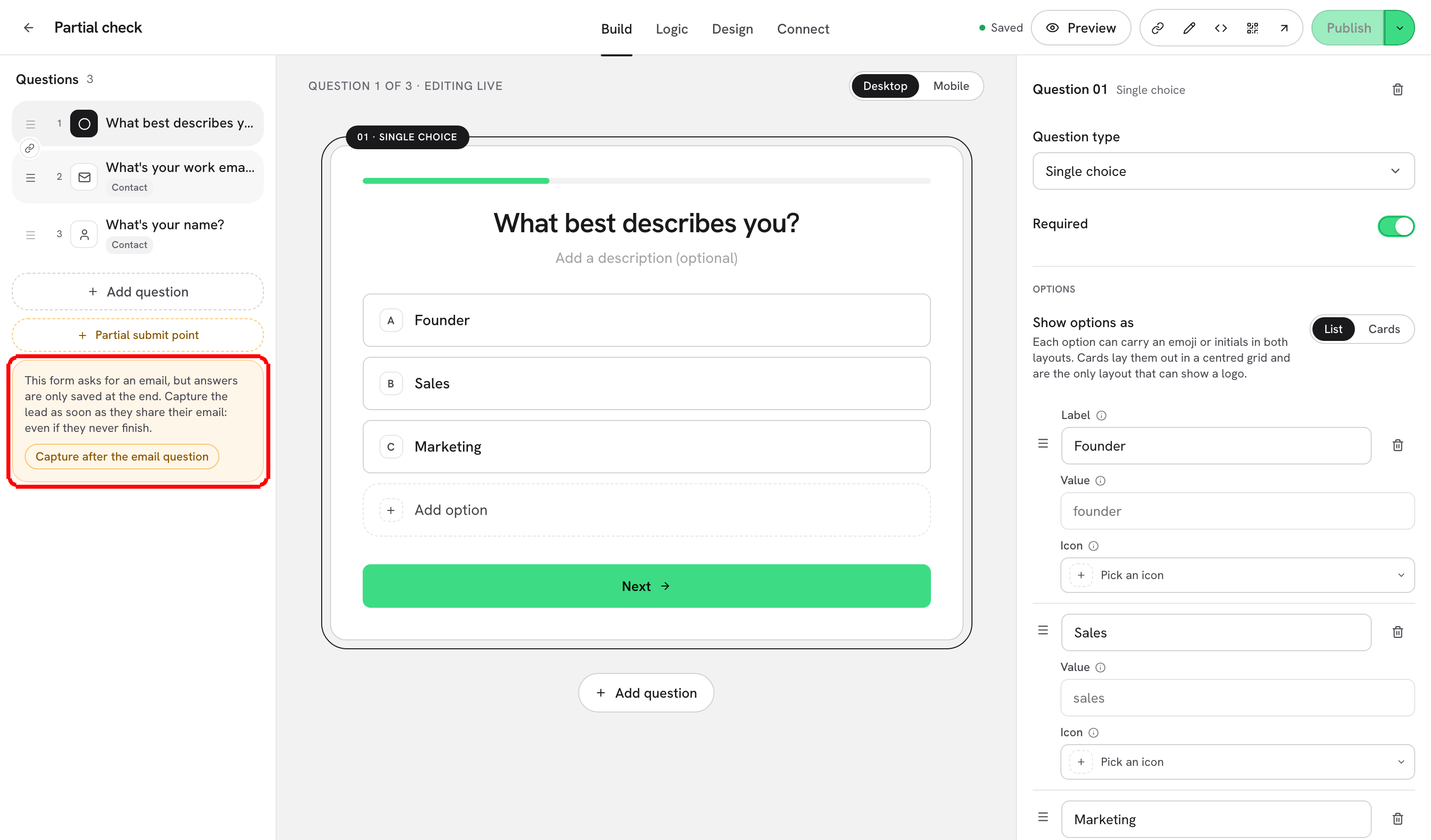
Step 1: Open the form in the editor and look at the bottom of the Questions list on the Build tab. Under + Add question there is a dashed Partial submit point button. If the form already asks for an email and has no marker yet, the editor also shows a nudge: This form asks for an email, but answers are only saved at the end. Capture the lead as soon as they share their email: even if they never finish.

Step 2: Click Capture after the email question to place the marker right after your email question in one click. Or click Partial submit point to add the marker at the end of the list and drag it where you want it.

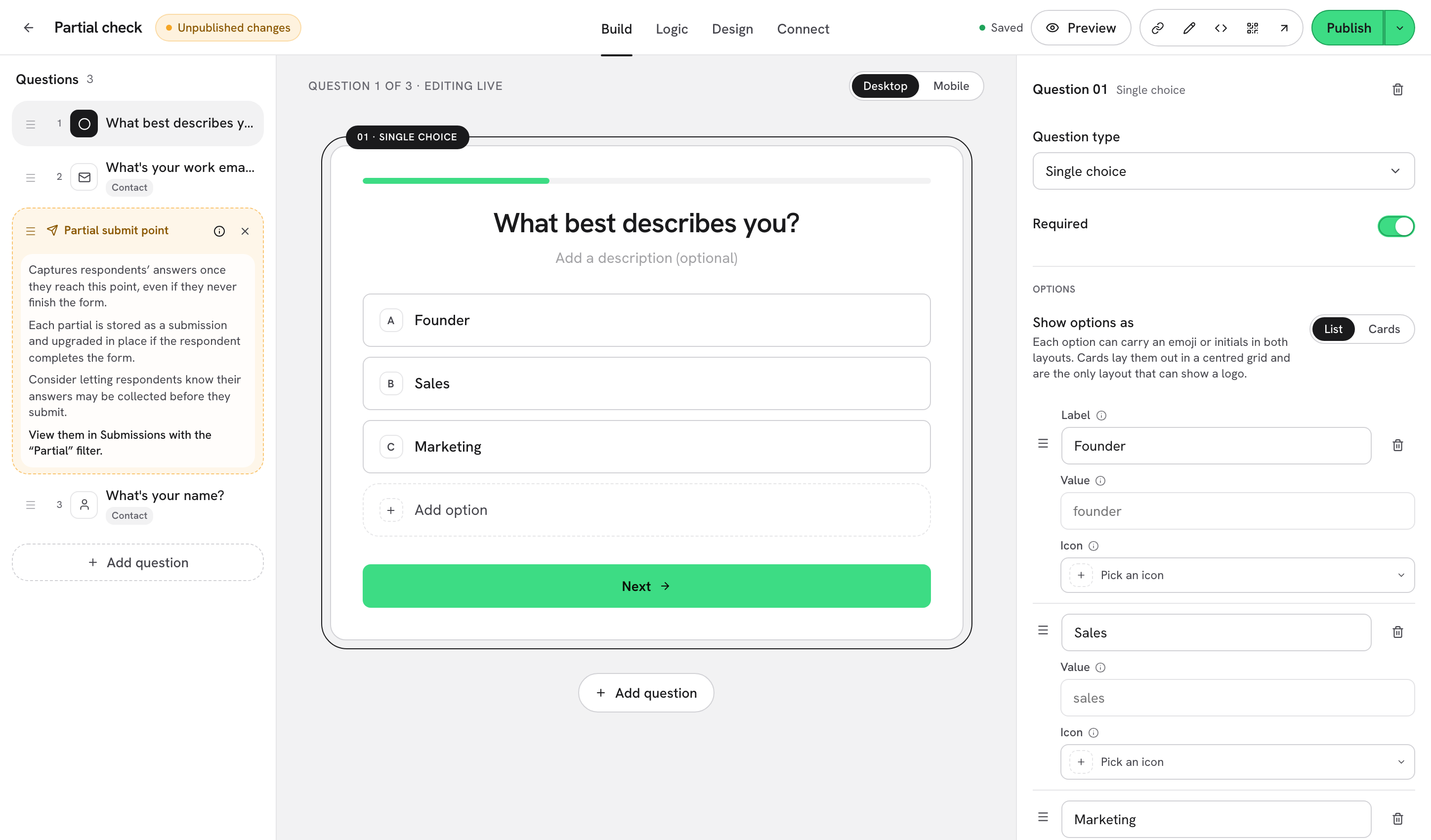
The marker has three controls: the drag handle (Move partial submit point), an info icon (About the partial submit point) and an X (Remove partial submit point). It is never shown to respondents and does not count as a step.
Step 3: Click the info icon to read what the marker does.

β οΈ Note: Consider letting respondents know their answers may be collected before they submit. A short line in the question description, or a sentence on the cover screen, is usually enough.
Step 4: Publish the form. From now on, each respondent who passes the marker creates a submission with the status Partial.
What gets captured
When it fires
As soon as the respondent moves past the last question before the marker (for example after typing an email and pressing Next). It fires once per session.
What is stored
Every answer given up to that point, plus the score so far, the UTM parameters of the link and the timestamps.
How it is stored
As a regular submission with the status Partial. It appears in Submissions, in the CSV export, in the Partial submits metric in Analytics, and can be sent to a webhook.
If the respondent finishes
The same submission is upgraded in place to Completed. You never get two rows for one person.
If they never finish
The partial row stays, with the answers collected so far.
Marker after the last question
It never fires: the final submit already captures everything.
Deleting or reordering questions
The marker re-anchors itself to the question it followed, so it stays after the same question.
One-page layout
Works too: the partial is saved as soon as the question before the marker holds a valid answer, even though the single Submit button is further down the page.
Where to find partial submissions
Step 5: Open Submissions for the form (from the Forms list, or Submissions in the left menu and pick the form). Use the Partial filter chip to see only the people who did not finish; Completed shows the rest and All shows everything. The Status column marks each row.
Partial submissions can also trigger your integrations:
Webhooks: turn on the Partial submissions event on the webhook to receive a delivery each time the marker fires. See Webhooks.
HubSpot: a partial that contains an email can already create or update the contact, so your sales team sees the lead early. See HubSpot.
What's next
Submissions: the full table, filters and row actions.
Analytics: the Partial submits metric and question-by-question drop-off.
Webhooks: receive partials on your own endpoint.
Contact fields: Name, Email, Phone: set up the email question the marker usually follows.
Last updated