> For the complete documentation index, see [llms.txt](https://docs.dapta.ai/llms.txt). Markdown versions of documentation pages are available by appending `.md` to page URLs; this page is available as [Markdown](https://docs.dapta.ai/dapta-forms/builder/partial-submissions.md).

# Partial submissions (lead capture point)

Capture leads before they finish your Dapta Form: add a Partial submit point to the question list, learn what it stores, how partials are upgraded when the respondent completes the form, and where to

By default a form only stores answers when the respondent reaches the end. A **Partial submit point** changes that: the moment someone passes the marker, everything they answered so far is saved as a submission, even if they close the tab on the next question. The classic use is to drop the marker right after the email question, so every lead who shares an email is captured.

***

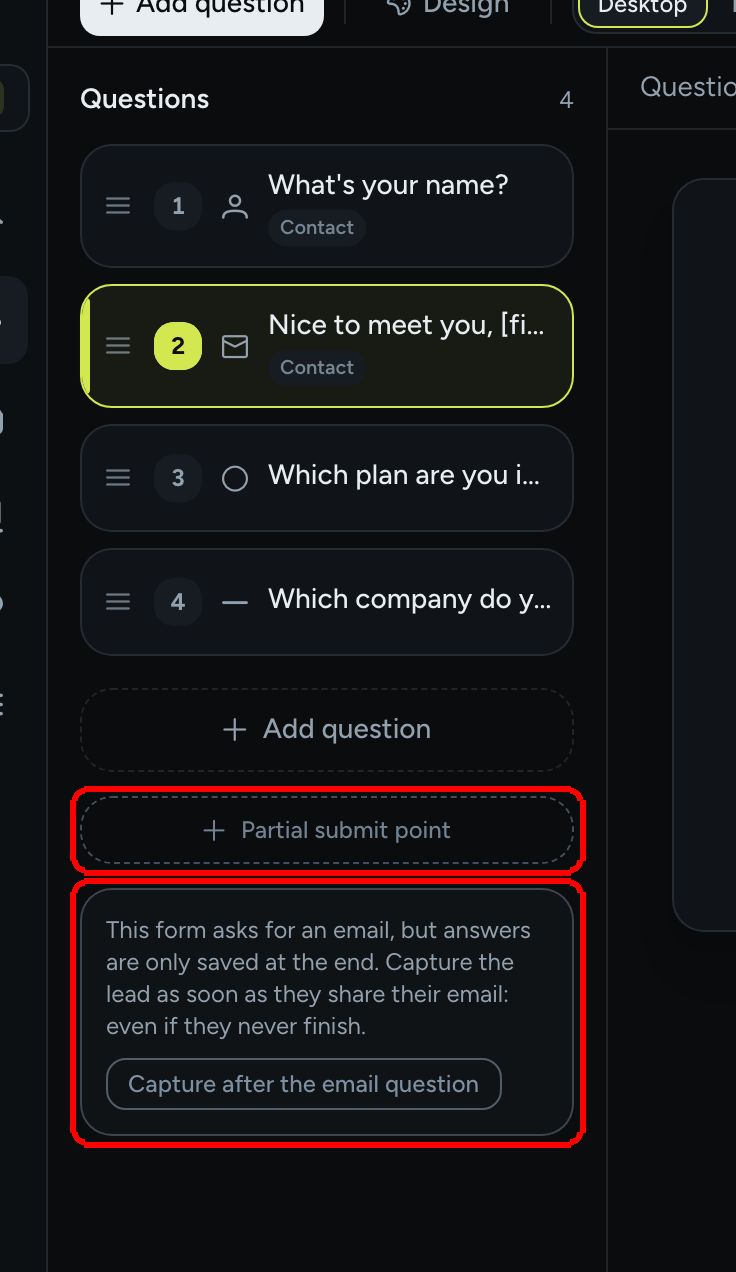
**Step 1:** Open the form in the editor and look at the bottom of the **Questions** list on the **Build** tab. Under **+ Add question** there is a dashed **Partial submit point** button. If the form already asks for an email and has no marker yet, the editor also shows a nudge: **This form asks for an email, but answers are only saved at the end. Capture the lead as soon as they share their email: even if they never finish.**

<figure><img src="https://3835013762-files.gitbook.io/~/files/v0/b/gitbook-x-prod.appspot.com/o/spaces%2FCy5rSNtQmtqYCGzJlNEB%2Fuploads%2Fgit-blob-22150f8343c1767cd746d8243fb2d439159c160d%2Fforms-partial-submissions-01-nudge.png?alt=media" alt="The bottom of the question list with the dashed Partial submit point button and the nudge card offering Capture after the email question"><figcaption><p>Two ways to add the marker: the dashed button, or the shortcut in the nudge.</p></figcaption></figure>

**Step 2:** Click **Capture after the email question** to place the marker right after your email question in one click. Or click **Partial submit point** to add the marker at the end of the list and drag it where you want it.

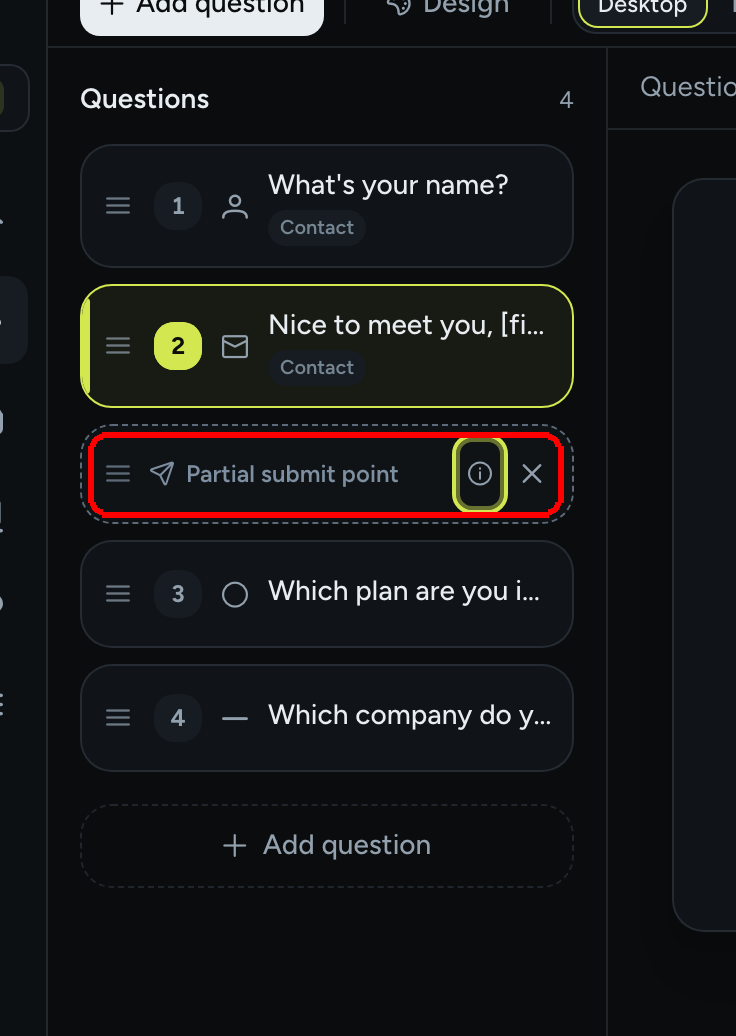
<figure><img src="https://3835013762-files.gitbook.io/~/files/v0/b/gitbook-x-prod.appspot.com/o/spaces%2FCy5rSNtQmtqYCGzJlNEB%2Fuploads%2Fgit-blob-f36496ff1ca5a264229804a8fba3d3dd9438ee01%2Fforms-partial-submissions-02-marker.png?alt=media" alt="The question list with the dashed Partial submit point marker placed after question 2, the email question"><figcaption><p>The marker is a dashed, unnumbered card. Drag its handle to move it between questions.</p></figcaption></figure>

The marker has three controls: the drag handle (**Move partial submit point**), an info icon (**About the partial submit point**) and an **X** (**Remove partial submit point**). It is never shown to respondents and does not count as a step.

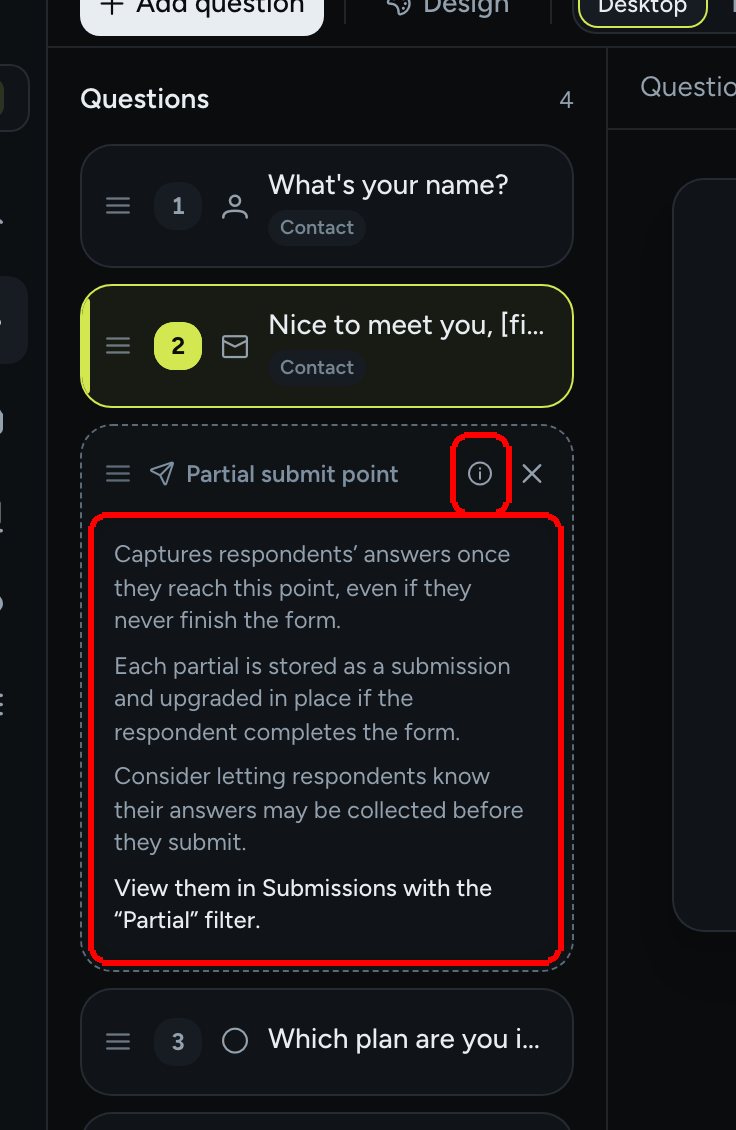
**Step 3:** Click the info icon to read what the marker does.

<figure><img src="https://3835013762-files.gitbook.io/~/files/v0/b/gitbook-x-prod.appspot.com/o/spaces%2FCy5rSNtQmtqYCGzJlNEB%2Fuploads%2Fgit-blob-ca647e061e600b14deabd7aea967f4f1fb971907%2Fforms-partial-submissions-03-about.png?alt=media" alt="The About popover of the Partial submit point explaining that answers are captured at this point, stored as a submission and upgraded in place, with a reminder to tell respondents and to use the Partial filter in Submissions"><figcaption><p>The <strong>About</strong> popover summarizes the behavior.</p></figcaption></figure>

> **⚠️ Note:** Consider letting respondents know their answers may be collected before they submit. A short line in the question description, or a sentence on the cover screen, is usually enough.

**Step 4:** Publish the form. From now on, each respondent who passes the marker creates a submission with the status **Partial**.

***

## What gets captured

| Aspect                           | Behavior                                                                                                                                                                                 |
| -------------------------------- | ---------------------------------------------------------------------------------------------------------------------------------------------------------------------------------------- |
| When it fires                    | As soon as the respondent moves past the last question before the marker (for example after typing an email and pressing **Next**). It fires once per session.                           |
| What is stored                   | Every answer given up to that point, plus the score so far, the UTM parameters of the link and the timestamps.                                                                           |
| How it is stored                 | As a regular submission with the status **Partial**. It appears in **Submissions**, in the CSV export, in the **Partial submits** metric in **Analytics**, and can be sent to a webhook. |
| If the respondent finishes       | The same submission is upgraded in place to **Completed**. You never get two rows for one person.                                                                                        |
| If they never finish             | The partial row stays, with the answers collected so far.                                                                                                                                |
| Marker after the last question   | It never fires: the final submit already captures everything.                                                                                                                            |
| Deleting or reordering questions | The marker re-anchors itself to the question it followed, so it stays after the same question.                                                                                           |
| One-page layout                  | Works too: the partial is saved as soon as the question before the marker holds a valid answer, even though the single **Submit** button is further down the page.                       |

***

## Where to find partial submissions

**Step 5:** Open **Submissions** for the form (from the Forms list, or **Submissions** in the left menu and pick the form). Use the **Partial** filter chip to see only the people who did not finish; **Completed** shows the rest and **All** shows everything. The **Status** column marks each row.

Partial submissions can also trigger your integrations:

* **Webhooks**: turn on the **Partial submissions** event on the webhook to receive a delivery each time the marker fires. See [Webhooks](/dapta-forms/connect/webhooks.md).
* **HubSpot**: a partial that contains an email can already create or update the contact, so your sales team sees the lead early. See [HubSpot](/dapta-forms/connect/hubspot.md).

## What's next

* [Submissions](/dapta-forms/results/submissions.md): the full table, filters and row actions.
* [Analytics](/dapta-forms/results/analytics.md): the **Partial submits** metric and question-by-question drop-off.
* [Webhooks](/dapta-forms/connect/webhooks.md): receive partials on your own endpoint.
* [Contact fields: Name, Email, Phone](/dapta-forms/builder/question-types/contact-fields.md): set up the email question the marker usually follows.


---

# Agent Instructions
This documentation is published with GitBook. GitBook is the documentation platform designed so that both humans and AI agents can read, navigate, and reason over technical content effectively. Learn more at gitbook.com.

## Querying This Documentation
If you need additional information that is not directly available in this page, you can query the documentation dynamically by asking a question.

Perform an HTTP GET request on the current page URL with the `ask` query parameter, and the optional `goal` query parameter:

```
GET https://docs.dapta.ai/dapta-forms/builder/partial-submissions.md?ask=<question>&goal=<endgoal>
```

`ask` is the immediate question: it should be specific, self-contained, and written in natural language.
`goal` is optional and describes the broader end goal you are ultimately trying to accomplish on behalf of the user. GitBook uses it to tailor the answer towards what is most useful for that goal.

The response will contain a direct answer to the question and relevant excerpts and sources from the documentation.

Use this mechanism when the answer is not explicitly present in the current page, you need clarification or additional context, or you want to retrieve related documentation sections.