> For the complete documentation index, see [llms.txt](https://docs.dapta.ai/llms.txt). Markdown versions of documentation pages are available by appending `.md` to page URLs; this page is available as [Markdown](https://docs.dapta.ai/dforms/builder/preview.md).
# Preview on desktop, tablet and mobile
Preview your dForms form exactly as respondents will see it, in real mobile, tablet and desktop frames, without publishing or submitting anything. Walk through the screens, restart, and check unsaved
The **Preview** opens your form in a real device frame: a same-origin copy of the public form at a true phone, tablet or desktop width. It always shows the draft you are editing right now, including edits that were not published yet, and nothing you do inside it is ever submitted.
***
**Step 1:** In the editor, click **Preview** in the editor topbar, next to the save status. It is available on the **Build**, **Logic** and **Connect** tabs.
The Preview icon sits at the end of the toolbar.
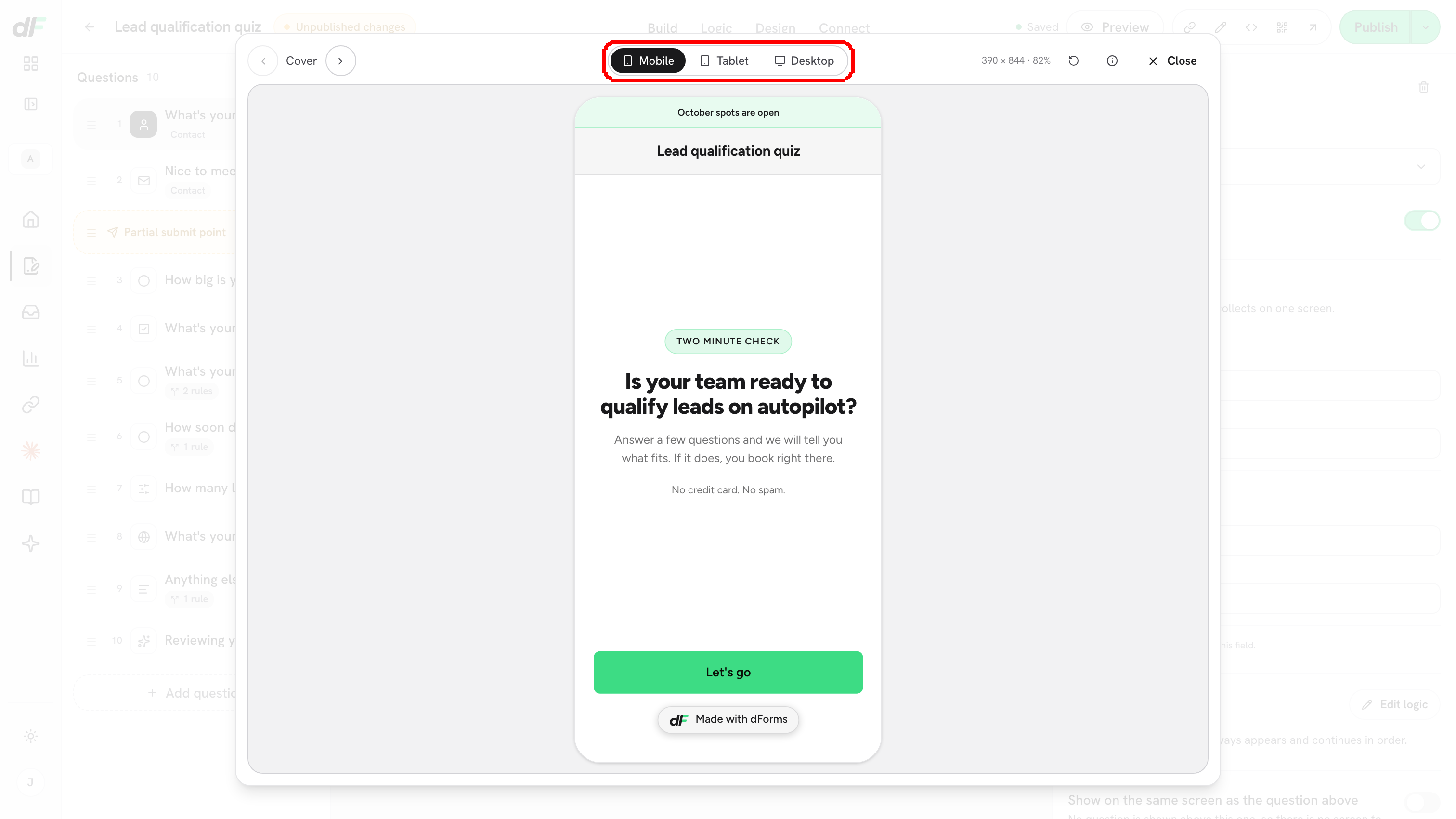
**Step 2:** The preview modal opens on **Mobile** by default. Use the **Device preview** switch to change the frame: **Mobile** (390 × 844), **Tablet** (768 × 1024) or **Desktop** (1280 × 800). The frame is scaled down when it does not fit the window (the readout next to it says, for example, **1280 × 800 · 45%**) but the layout inside is rendered at the real width, so what you see is what a phone or a laptop shows.
The preview opens on Mobile. The switch changes the frame.
***
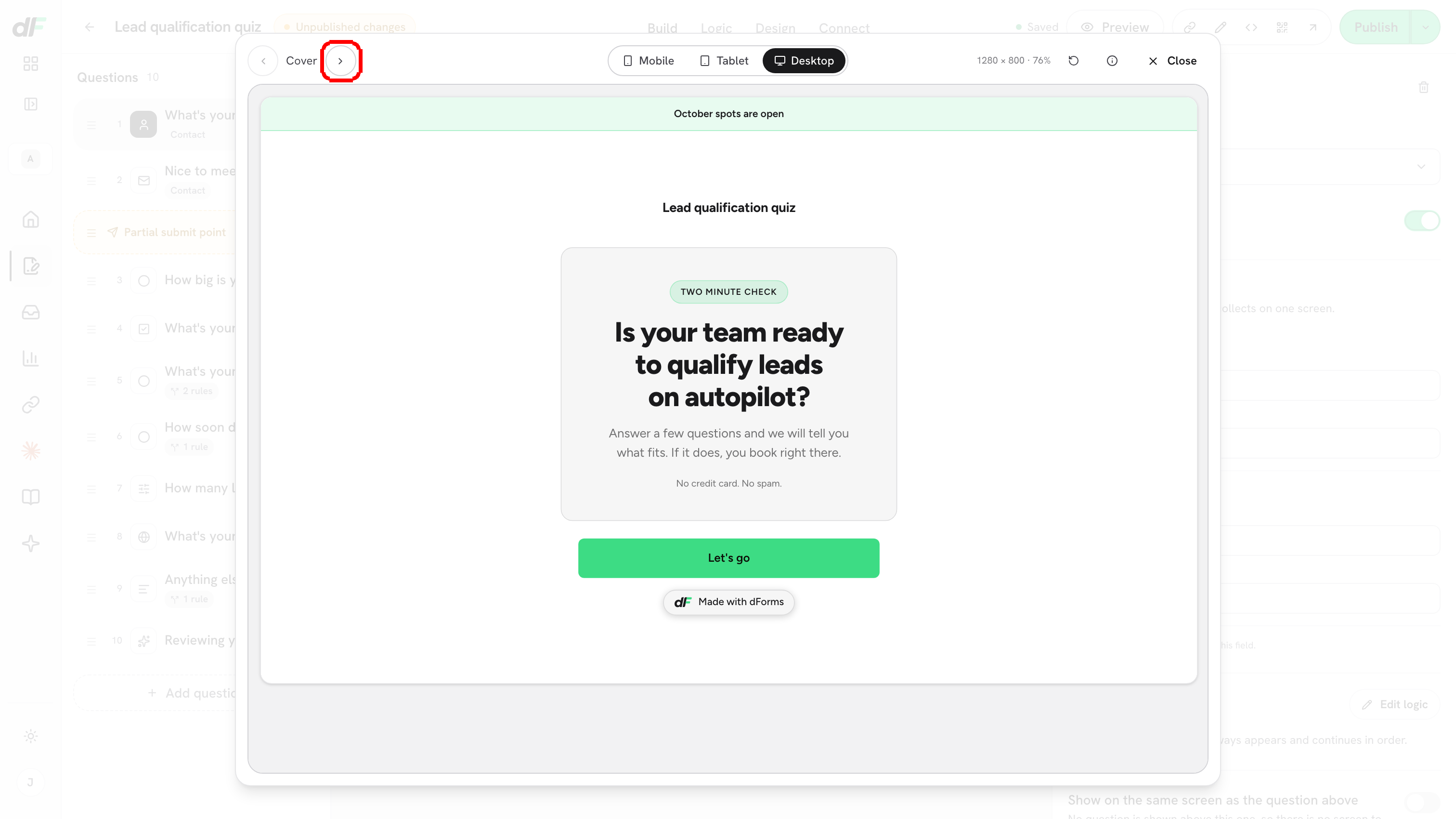
**Step 3:** Walk through the form. Answer the questions inside the frame as a respondent would, or use the **Previous screen** and **Next screen** arrows. The counter reads **Cover** or **Step 1 of 4**, and it counts screens: questions you grouped on one screen are one step, and the arrows move one screen at a time. Logic, scoring and reveal screens behave exactly as they will live.
The same draft in the Desktop frame. The arrows move between screens.
***
**Step 4:** Click **Restart preview** (the circular arrow) to return to the cover or first question, and **Close** (or press Esc) to go back to the editor.
## What the preview shows and does not do
| Topic | Behavior |
| -------------------- | ------------------------------------------------------------------------------------------------------------------------------------------------------------------------------------------------------------------------------------------------------------------------------------------------------------------ |
| Which version | The draft in the editor, live. You do not need to wait for **Saved** or click **Publish**. |
| Language | The frame renders in the form's language (**Design → Language**), whatever language you use the editor in. A form set to **Auto (visitor’s browser)** previews in your editor language. |
| Submitting | Nothing is sent. The shield icon in the toolbar reads **Preview only. Nothing here is submitted.** If you press **Submit** on the last question, the frame stays on its **Submitting…** screen and no submission, webhook, HubSpot contact or email is created. Click **Restart preview** to go back to the start. |
| Partial submit point | Does not fire in the preview, for the same reason. |
| Spam protection | The check never loads in the preview, even when the form has spam protection on. |
| Bookings | A Scheduler step shows the real calendar embed. Do not book from the preview: the booking itself happens on the calendar side and would be real. |
| Design panel | The **Design** panel has the same device frame on its right side, so you can watch colors and typography change while you edit them. |
| Embeds | The frame shows the standalone form. To check how it looks inside your own page, paste the **Embed** snippet into a test page. |
> **💡 Tip:** To test the real thing end to end (submissions, webhooks, HubSpot), publish the form and open the public link in a private window. Delete the test rows afterwards from **Submissions**.
## What's next
* [Autosave, drafts & publishing](/dforms/builder/autosave-and-publishing.md): make the draft live.
* [What respondents see](/dforms/respondent-experience.md): the full respondent journey.
* [Design & Branding](/dforms/design.md): style the form with the live preview next to the controls.
---
# Agent Instructions
This documentation is published with GitBook. GitBook is the documentation platform designed so that both humans and AI agents can read, navigate, and reason over technical content effectively. Learn more at gitbook.com.
## Querying This Documentation
If you need additional information that is not directly available in this page, you can query the documentation by asking a question.
Perform an HTTP GET request on the following URL with the `ask` and `goal` query parameters:
```
GET https://docs.dapta.ai/dforms/builder/preview.md?ask=&goal=
```
`ask` is the immediate question: it should be specific, self-contained, and written in natural language.
`goal` is what the user is ultimately trying to achieve, the reason they need the answer. Sharing it helps GitBook give you a better, more relevant answer. A goal is most helpful when it describes the outcome the user wants rather than restating the question. For example, with `ask=how do I create an API token`, a goal like `automate deployments from our CI pipeline` lets GitBook tailor the answer to that use case.
The response will contain a direct answer to the question and relevant excerpts and sources from the documentation.
Use this mechanism when the answer is not explicitly present in the current page, you need clarification or additional context, or you want to retrieve related documentation sections.