π€Contact fields: Name, Email, Phone
The three contact question types in Dapta Forms: Name (first and last name on one screen), Email (with Require work email) and Phone (country picker, minimum digits, international format).
Contact fields are how a form identifies the person answering it. They are marked with a Contact badge in the question list, they never count toward the score, and they are the fields HubSpot and webhooks use to recognise a lead. This page covers every setting the three types offer.
Name
Step 1: Click Add question and pick Name (Full name field). Type the question text on the canvas, for example What's your name?
The Name question is the only step that collects two inputs on one screen: a first name and a last name, side by side.

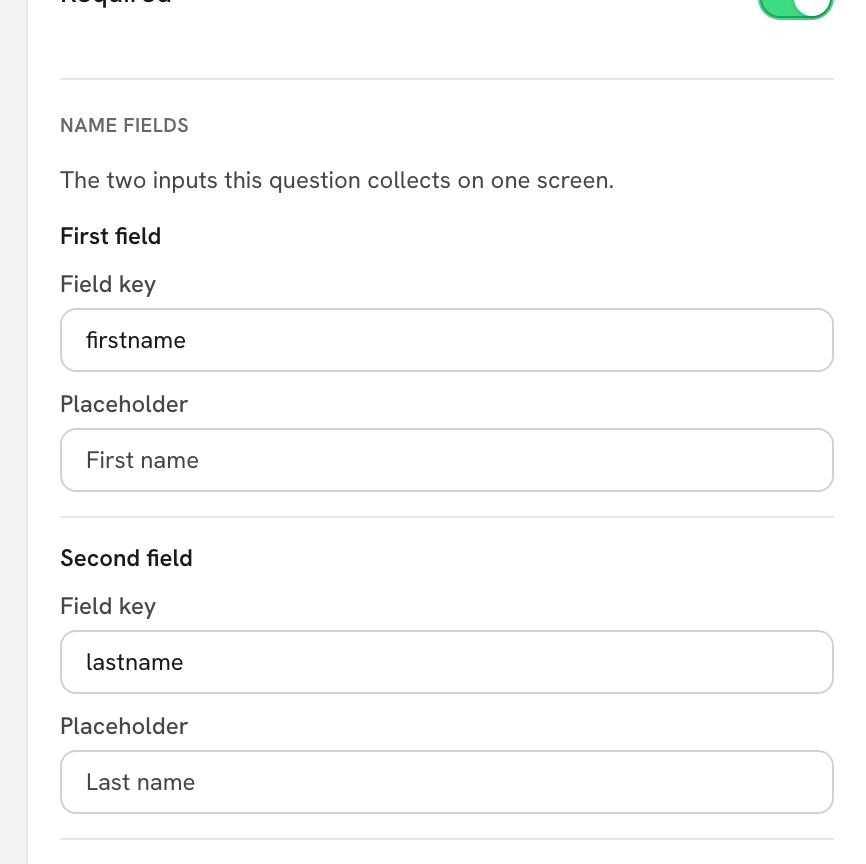
Step 2: In Question settings, open the Name fields section ("The two inputs this question collects on one screen."). Each input has its own row:

firstname and lastname; placeholders default to First name and Last name.First field β Field key
firstname
The name the first input is stored under. Also the URL parameter that prefills it (?firstname=Ada) and the reference that recalls it later ([firstname]).
First field β Placeholder
First name
Ghost text inside the first input while it is empty.
Second field β Field key
lastname
Same as above for the second input (?lastname=Lovelace, [lastname]).
Second field β Placeholder
Last name
Ghost text inside the second input.
Required
On
Both inputs must be filled to continue.
Because the two keys are independent, a Name question produces two values in every submission, two columns in the CSV export and two fields you can map separately in HubSpot (typically First name and Last name). Keys accept letters, numbers and underscores, up to 64 characters, and must be unique in the form.
π‘ Tip: The Name question has no Placeholder or Default answer at the question level; use the per-field placeholders above. Renaming a key updates every place that refers to it (logic,
[key]references, HubSpot mapping).
Step 1: Click Add question and pick Email (Validated email). Type the question text, for example What's your work email?
Respondents must enter a syntactically valid address; otherwise they see Enter a valid email address. and cannot continue.
Step 2: In Question settings, set the Placeholder if you want ghost text (for example name@company.com) and decide whether to turn on Require work email.

Placeholder
empty
Ghost text shown inside the input while it is empty. Leave empty for none.
Require work email
Off
Blocks Gmail, Hotmail, Yahoo and other personal domains. A respondent who types a personal address sees Please use your work email address.
Required
On
The step cannot be skipped.
Default answer
empty
Under Advanced settings. Used when the link carries no value; anything in the URL wins over this.
Field key
email (first email question)
Under Advanced settings. Prefill with ?email=ana%40acme.com; recall with [email].
An email question unlocks several things elsewhere in the editor:
The question list shows the Capture after the email question nudge: one click places the Partial submit point right after this step so the lead is saved even if they never finish. See Partial submissions.
HubSpot sync needs an email (or a booking) to identify the contact; with an email question in the form, the HubSpot block in the settings pane lets you map answers to properties. See HubSpot.
Later questions gain a Personal email only switch in their Logic section: "Show this question only when the respondent entered a personal (non-work) email." Use it, for example, to ask for a company name only when the email domain does not reveal it.
Phone
Step 1: Click Add question and pick Phone (Number with country). Type the question text, for example What's your phone number?
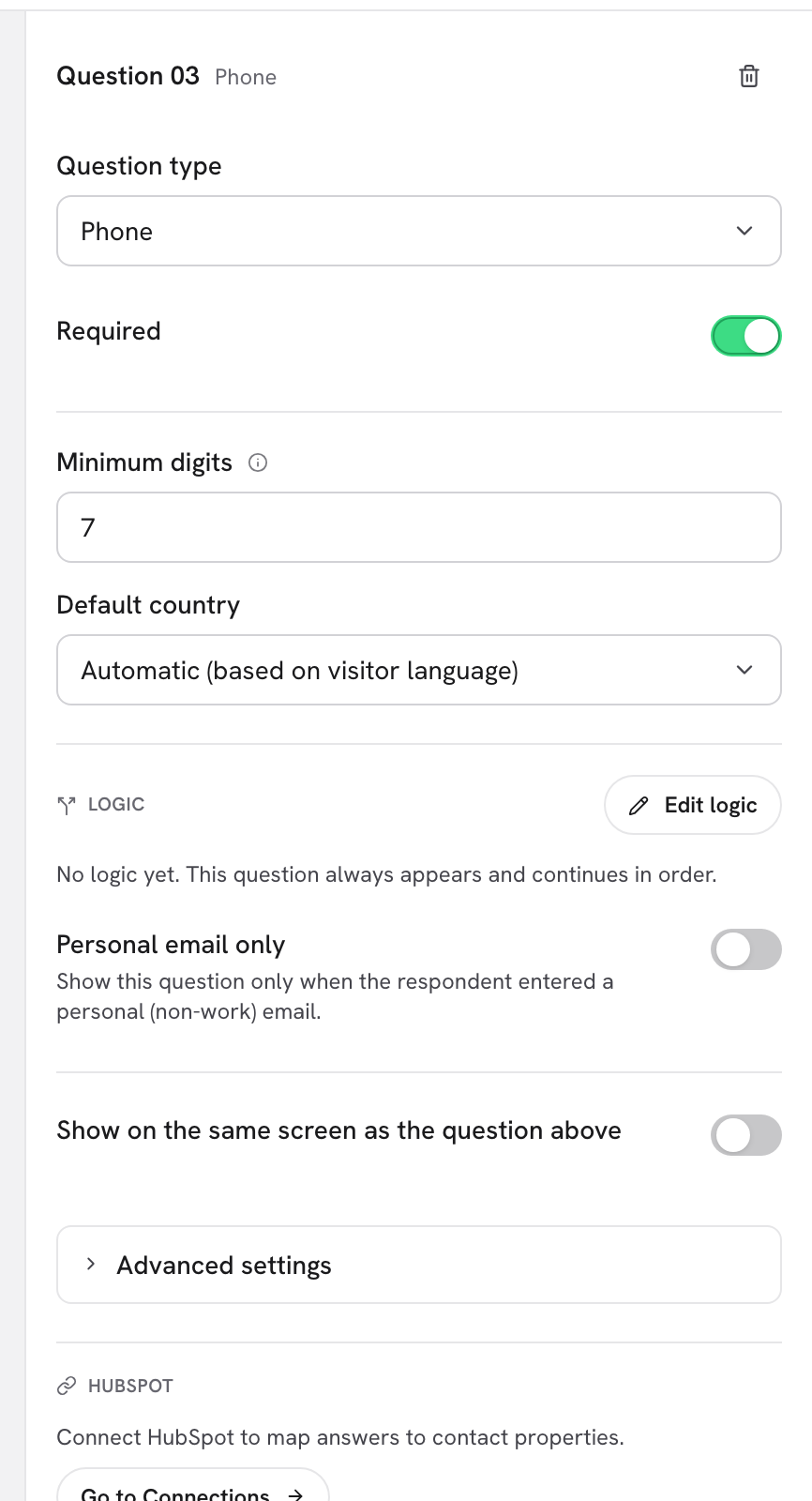
Step 2: In Question settings, review Minimum digits and Default country.

Minimum digits
7
The shortest number accepted, not counting the country code. Phone lengths vary by country, so this is the floor that catches an obviously incomplete number. A shorter entry shows Enter a valid phone number.
Default country
Automatic (based on visitor language)
Which country code the picker starts on. Automatic reads the visitor's browser language; or pin one country so the code is right for most of your audience.
Required
On
The step cannot be skipped.
Default answer / Field key
empty / phone
Under Advanced settings. Prefill with the number URL-encoded, for example ?phone=%2B15555550123.
Step 3: To pin a country, click Default country, type in the Search⦠box and pick a row. Every country is listed with its flag and dial code.

What respondents see: a country-code picker next to the number input, with its own search box (Search country or code, and No countries found when nothing matches). Whatever country they pick, the answer is stored in international E.164 format (for example +15555550123), so it arrives clean in submissions, CSV exports, HubSpot and webhooks. The phone input does not steal focus when the screen opens, so the picker stays reachable on mobile.
Good to know
All three types carry the Contact badge in the question list and are excluded from scoring: the settings pane says Contact field: doesn't affect the score.
Contact answers can be recalled in later questions with
@(for example Thanks, [firstname]! Which plan fits you?). See Recall answers with @.Any of them can be prefilled from the link (
?email=β¦&firstname=β¦). See Hidden fields & URL prefill.
What's next
Last updated