For the complete documentation index, see llms.txt. This page is also available as Markdown.

File upload

Collect a document or an image with the File upload question: choose which file types you accept, set a size limit, and see exactly what respondents get when they attach a file or pick the wrong one.

File upload asks the respondent for one file: a CV, a signed form, a logo, a screenshot of an invoice. The file goes straight from their browser to secure storage, and the answer appears in Submissions as the file's own name, ready to open or download.


Add the question

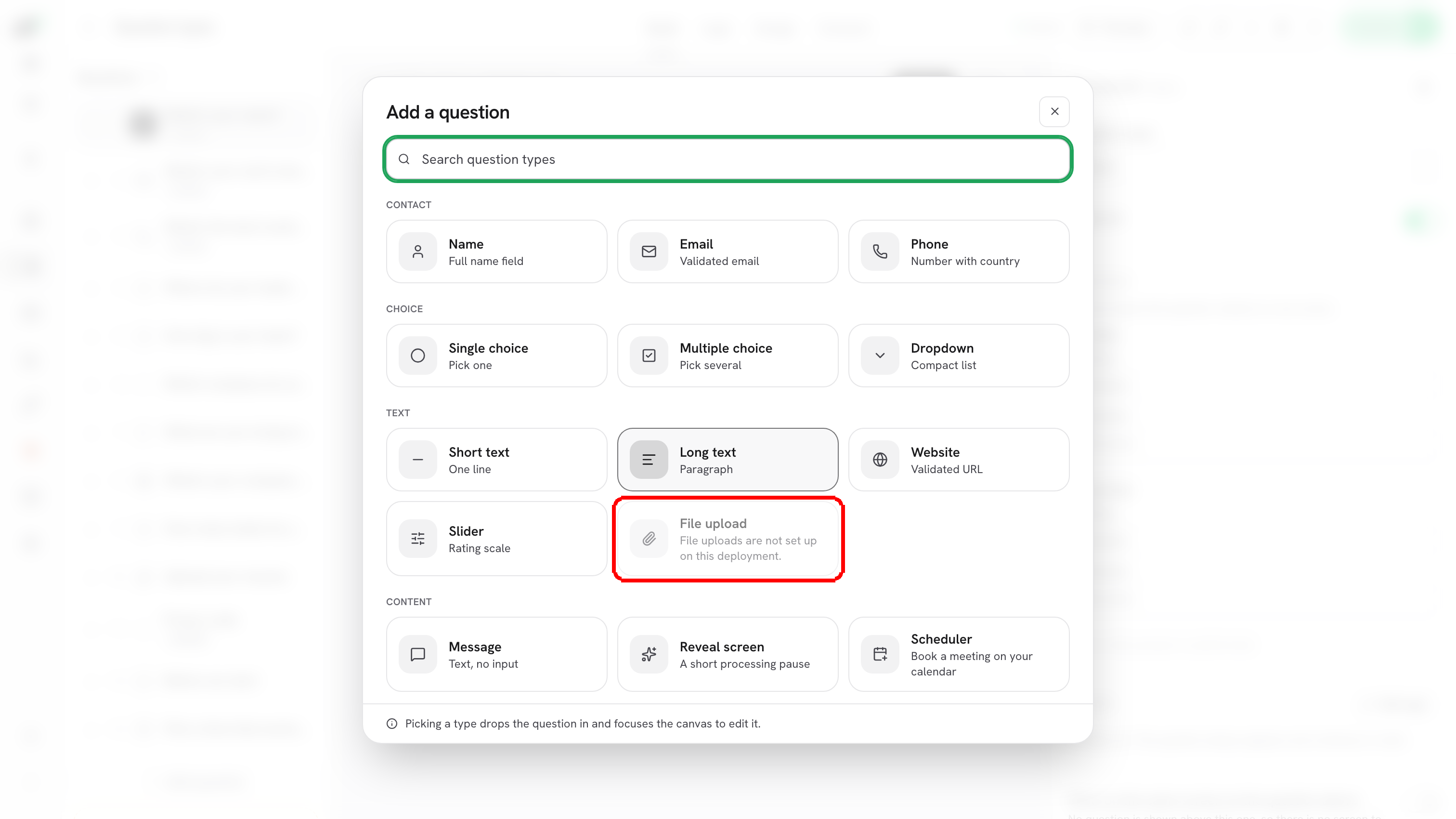
Click Add question and pick File upload from the Text group. Its gallery hint reads A document or image.

The Add a question dialog with the File upload tile highlighted in the Text group
File upload sits with the Text family, next to Slider.

Write the question text on the canvas the way you would for any other question, and use the description to tell people what you expect. PDF or Word, up to 10 MB saves you a round of bad attachments.


Choose what it accepts

Select the question and look at Question settings on the right. A File upload section appears with two controls of its own.

The Question settings pane showing the Accepted files presets with the extension list, and the Largest file (MB) field
Accepted files on top, Largest file (MB) underneath. A new question starts at pdf, doc, docx, jpg, png.
Accepted files is a row of four presets over a text box. Clicking a preset adds its extensions to the box; clicking it again takes them out. The box is the real setting, so you can type anything the presets do not cover.

Preset
Extensions it adds

Documents

pdf, doc, docx, txt

Images

jpg, png, gif, webp

Spreadsheets

xls, xlsx, csv

Archives

zip

Type extensions separated by commas, lowercase, without the dot: pdf, dwg, ai. A preset lights up only when every extension it stands for is in the box, so ticking a half-matching preset completes the set rather than doing nothing.

⚠️ Note: Empty the box and the warning Choose at least one kind of file, or nobody can answer this question appears. With the box empty the question does not stop anyone: any file that is not a program or a web page is accepted, so list at least one type deliberately before you publish.


What is never accepted

Two families of file are refused whatever you type in the box, on every form:

  • Programs and scripts, including exe, msi, dmg, pkg, deb, rpm, jar, bat, cmd, sh, ps1, vbs and js.

  • Web pages, including html, htm, xhtml and svg, because those run code in whatever opens them.

The hint under the box says it plainly: Programs and web pages are never accepted.


Set a size limit

Largest file (MB) is your own ceiling for this question. The hint tells you the ceiling the deployment allows, which is 10 MB on forms.dapta.ai. Leave the field empty to allow the full amount.

You can only go lower. Type a bigger number and it is clamped back to the deployment's limit, because the limit is enforced twice on the server: once before the upload is authorised and again against the stored file.


What respondents see

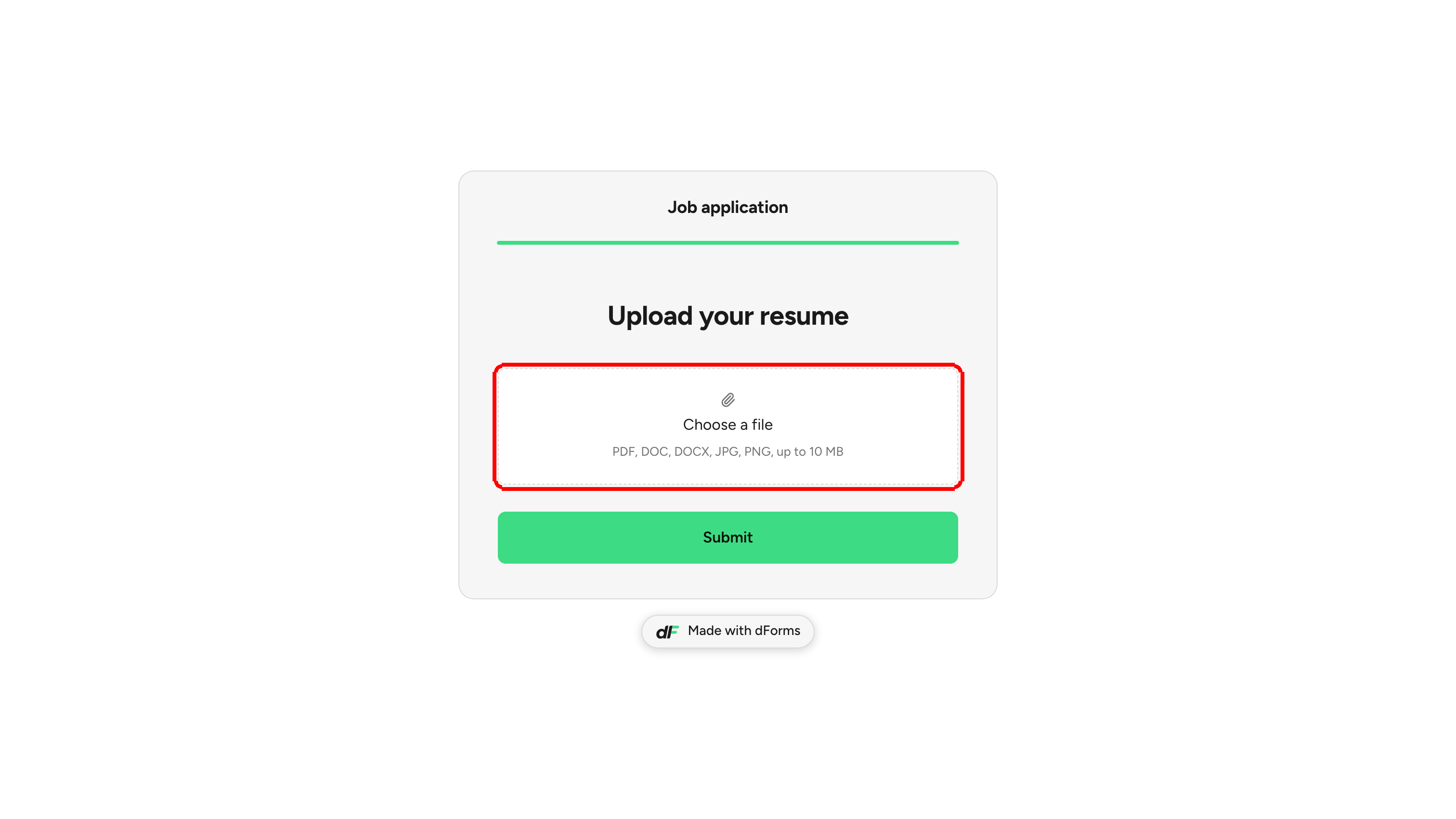
The question renders as an upload area reading Choose a file, with the accepted types and the size limit spelled out underneath. Respondents click it to pick a file from their device.

The public form showing the Choose a file area with the line PDF, DOC, DOCX, JPG, PNG, up to 10 MB
The second line is built from your settings, so respondents read the rules before they pick anything.
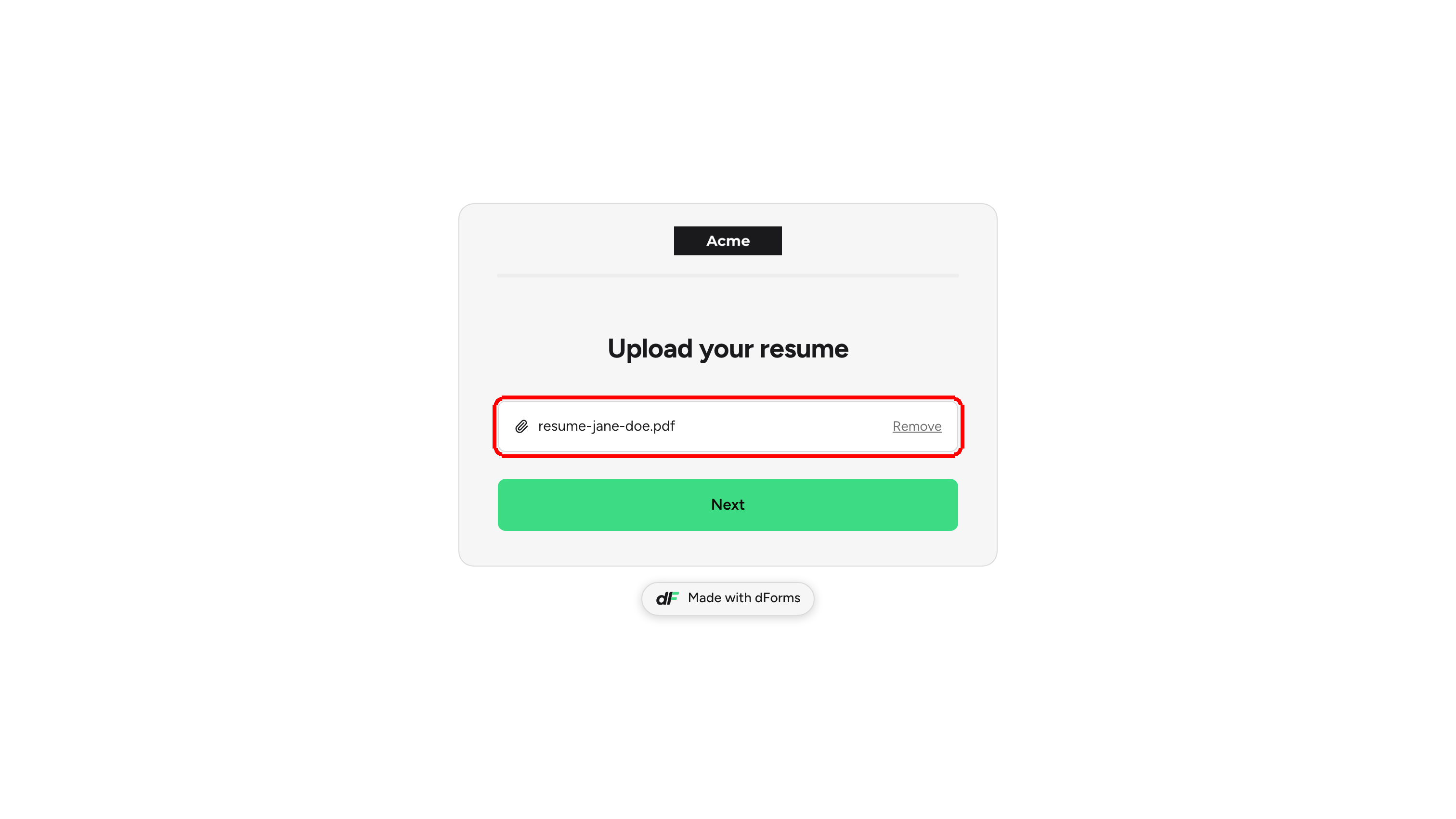
While the file travels, the control reads Uploading 42%. Once it lands, the area is replaced by the file's name and a Remove link that clears it and starts over.

The same question after a file is attached, showing resume-alex-rivera.pdf and the Remove link
One file per question. Remove puts the control back to Choose a file.

Pick a file that breaks a rule and the upload never starts. The message sits under the control with a Try again link:

What they did
What they read

Picked a type you do not accept

That kind of file is not accepted here.

Picked a file over the limit

That file is bigger than 10 MB.

The upload was interrupted

That upload did not finish.

The public form showing the message That kind of file is not accepted here with a Try again link
Nothing is uploaded when the file breaks a rule, so the respondent stays on the question.

💡 Tip: A File upload question obeys Required like any other. Leave it required and the form will not advance without a file; turn it off and people can skip it.


How the file gets there

The file never passes through the form page or through Dapta's servers. The browser asks for a short-lived, single-use upload address and sends the bytes straight to storage.

When the respondent submits, the file is checked again before the response is saved: its actual contents have to match its extension. A program renamed to .pdf fails that check and the submission is refused, so a file that reaches your Submissions table is a file whose type was verified.


Limits

Limit
Value

Files per question

1. Add a second File upload question to collect a second file.

Largest file

10 MB on forms.dapta.ai, or your own smaller number.

Types

Whatever you list, minus the programs and web pages that are always refused.

Scoring

A file answer carries no points and never changes the score.

Screens

On a Slides form it always gets a screen of its own.

Prefill

A link cannot carry a file, so it cannot be prefilled. The Hidden question switch is offered, but a hidden File upload is never answered.


What's next

Last updated