For the complete documentation index, see llms.txt. This page is also available as Markdown.

✏️Text & scale fields: Short text, Long text, Website, Slider

The four free-form question types in Dapta Forms: Short text, Long text, Website and Slider. Learn how placeholders work, how the Website field validates and cleans up addresses, and how to set up a s

These four types live in the Text group of the question gallery. Use Short text for a one-line answer, Long text for a paragraph, Website for a validated web address and Slider for a number on a scale. This page covers the settings each one offers and what respondents see.


Step 1: In the editor, click Add question in the toolbar. In the Add a question dialog, look at the Text group: Short text (One line), Long text (Paragraph), Website (Validated URL) and Slider (Rating scale). Click a tile to drop that question into your form.

The Add a question dialog with the Text group highlighted: Short text, Long text, Website and Slider
The Text group of the question gallery.

πŸ’‘ Tip: You can change the type later. In Question settings, open the Question type select and pick another type. The question keeps its place in the list.


Short text and Long text

Short text shows a single-line input. Long text shows a multi-line box for longer answers. Both store exactly what the respondent typed.

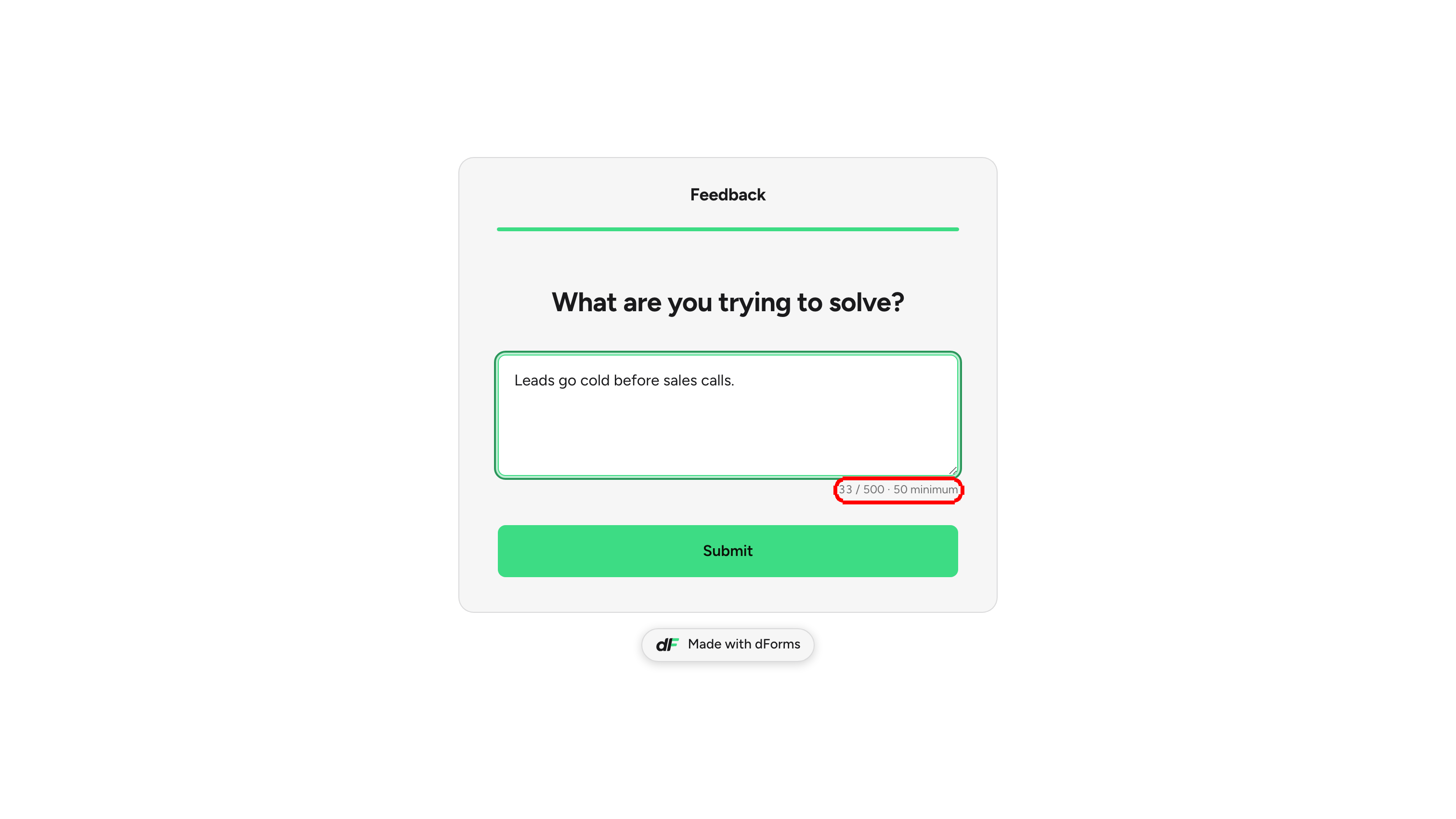
Step 2: Select the question in the Questions list. Type the question on the canvas (Type your question…) and, if you want, a helper line (Add a description (optional)). In Question settings, fill in Placeholder: the ghost text shown inside the empty input. The canvas updates as you type.

A Short text question on the canvas with the Placeholder field highlighted in Question settings and the ghost text visible inside the input
The Placeholder appears inside the input on the canvas and in the live form.

What you can set on both types:

Setting
Where
What it does

Required

Question settings

On by default. Respondents cannot continue with an empty answer.

Placeholder

Question settings

Ghost text shown inside the input while it is empty. Leave empty for none.

Default answer

Advanced settings

Pre-fills the answer when the link carries no value for this field. A value in the URL always wins over it.

Field key

Advanced settings

The name the answer is stored under, the URL parameter that prefills it, and the token you type between brackets to recall it later.

Hidden question

Advanced settings

Hides the question and fills it from a matching URL parameter.

Neither type can award points. If you need a scored answer, use a choice question or a slider.

πŸ’‘ Tip: Long text is a good place to ask an open question such as "Anything else we should know?". Because it is Required by default, turn Required off if you want it to be optional.


Website

Website collects a web address and checks that it looks like one before the respondent can continue. Like Short text, it accepts a Placeholder in Question settings; leave it empty for none, or set something like acme.com to show the shape you expect.

What respondents experience:

  • They can type a bare domain such as acme.com or www.acme.com, or a full address such as https://acme.com/pricing. Anything with a domain and a valid ending (.com, .io, .co, and so on) is accepted.

  • When they leave the field, Dapta Forms adds https:// automatically if it was missing. acme.com becomes https://acme.com, and that is the value stored in the submission and sent to integrations.

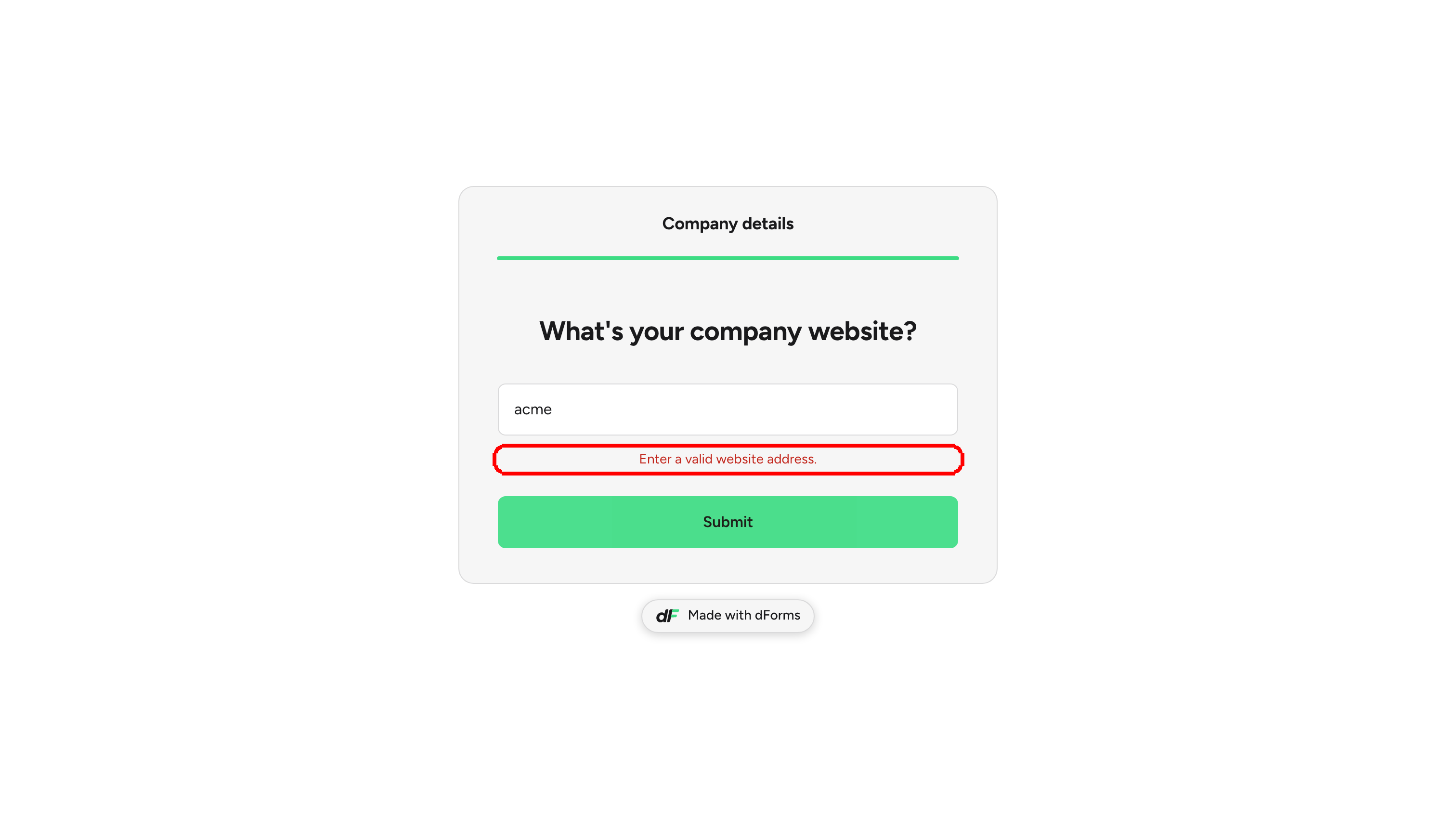
  • If the text is not a valid address (for example acme with no ending, or an ftp:// link), the form shows Enter a valid website address. and stays on the question.

The live form showing a Website question with the text acme typed in and the error Enter a valid website address.
An incomplete address is refused. The respondent fixes it and continues.
Website questions offer the same settings as Short text (Required, Placeholder, Default answer, Field key, Hidden question) and cannot award points.


Slider

Slider asks for a number on a scale. Respondents drag a handle (or use the keyboard) and see the current value in a large pill above the track, with the minimum and maximum printed at the ends.

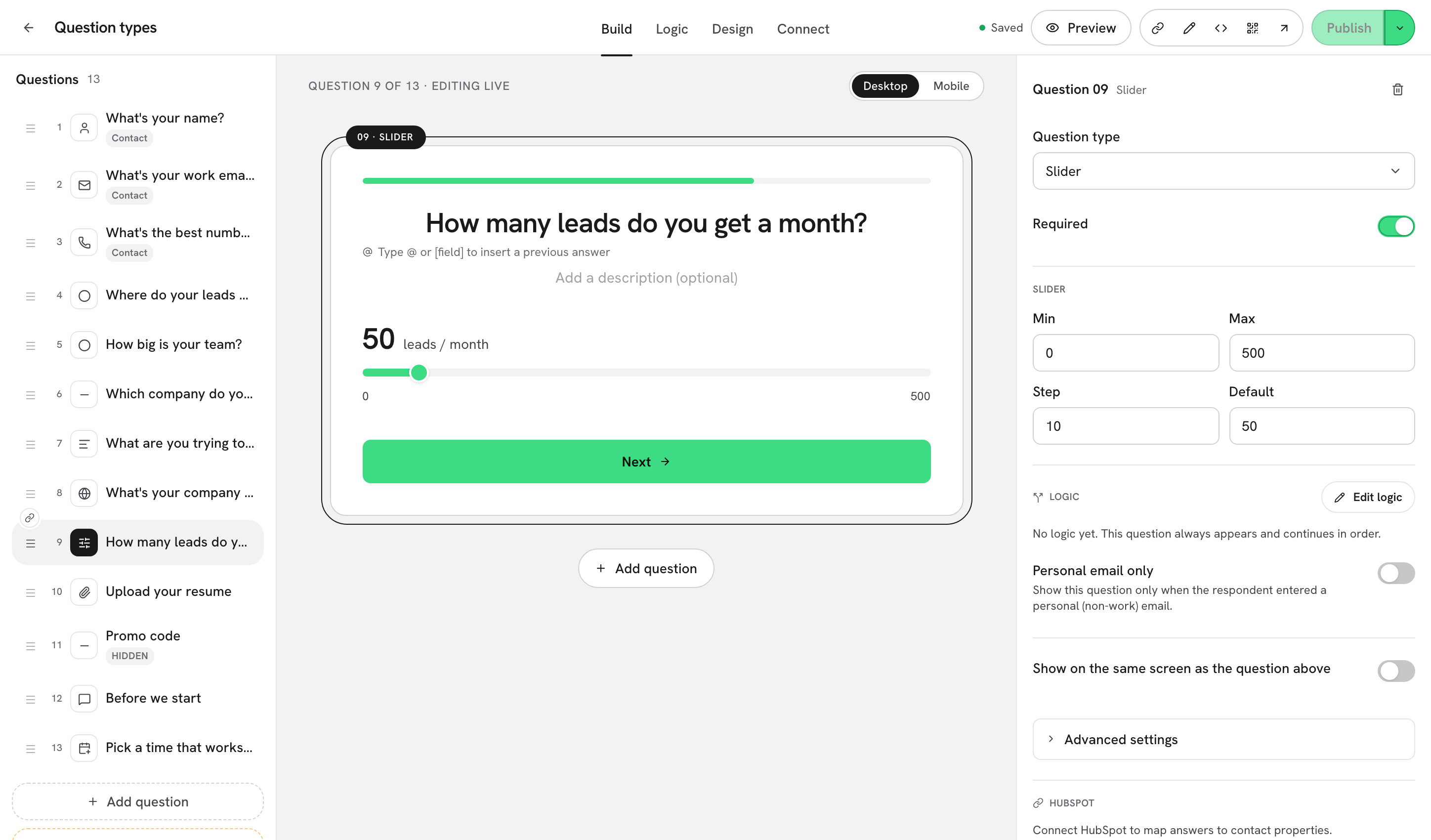
Step 3: Select the slider question. In Question settings, under Slider, set the four values:

Setting
Default
What it does

Min

0

The lowest value the handle can reach.

Max

100

The highest value the handle can reach.

Step

1

How much the value moves per notch. Use 10 for 0, 10, 20…; use 5 for 0, 5, 10…

Default

50

Where the handle starts. If the respondent never touches the slider, this is the value that is submitted.

A Slider question on the canvas with the Slider section highlighted in Question settings: Min 0, Max 500, Step 10, Default 50
The canvas previews the scale as you edit Min, Max, Step and Default.
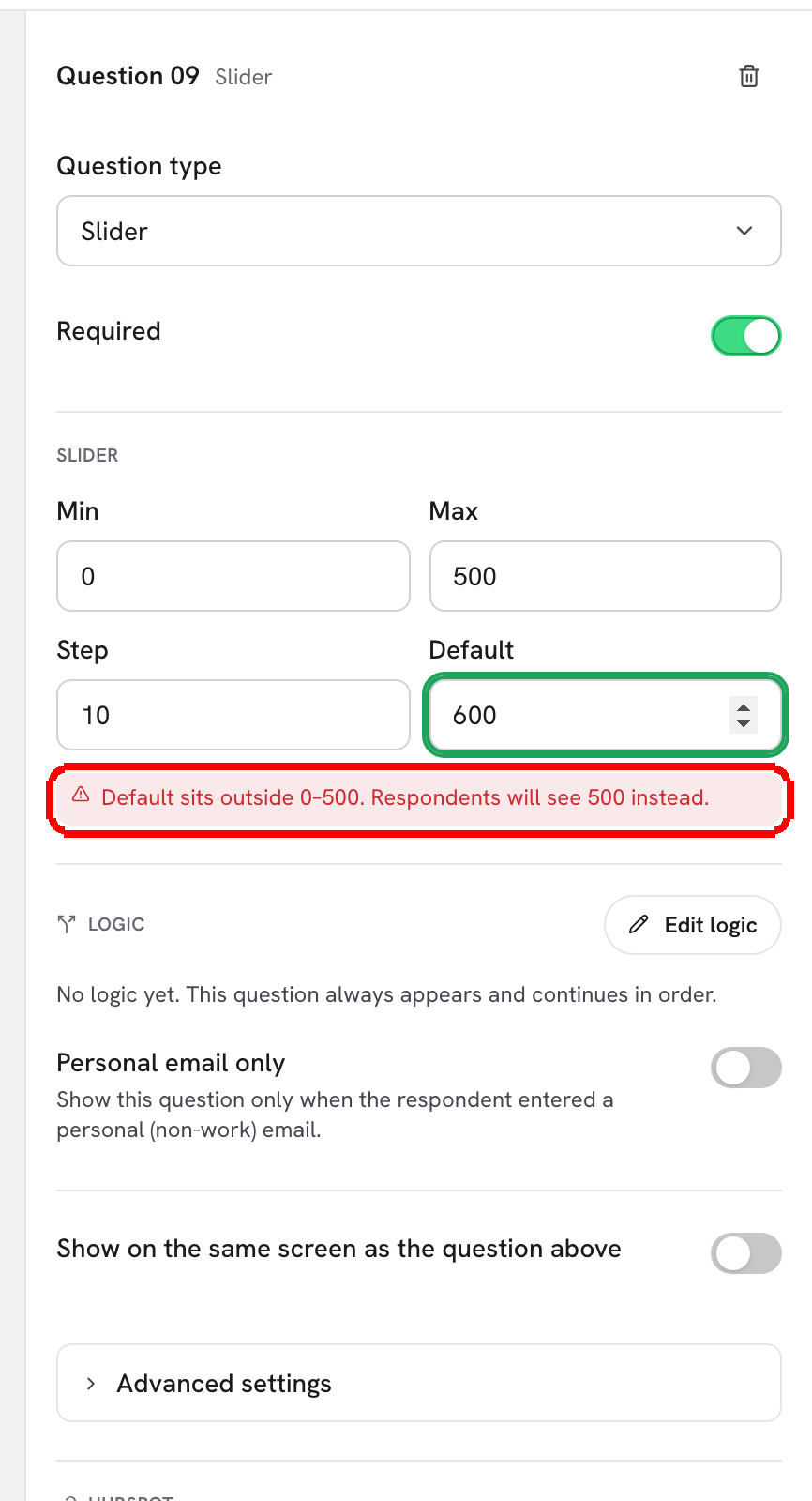
The editor warns you inline when the four values do not make sense together. Fix the value and the warning disappears:

Warning
When it appears

Default sits outside 0-500. Respondents will see 500 instead.

Default is below Min or above Max. The live form clamps it to the nearest bound.

Max is below Min. The slider has nothing to move along.

Max is smaller than Min.

Min and Max are the same, so the handle cannot move. Respondents can only answer 0.

Min equals Max.

Step must be greater than 0. Browsers ignore anything else and move in steps of 1.

Step is 0 or negative.

The Slider settings with Default set to 600 and the warning Default sits outside 0-500. Respondents will see 500 instead.
A default outside the range triggers a warning right under the fields.

Unit label. To print a unit next to the number (for example leads / month), open Advanced settings, turn on Vary the question by a field under Dynamic question and fill in Slider unit label for each variant. The label is part of the dynamic question feature, so it can change with an earlier answer. See Dynamic questions (variants).

The live form showing a slider with the value 50 and the unit label leads / month in the pill above the track
What respondents see: the value pill with its unit label, the track and the 0 and 500 ends.

More about sliders:

  • Scoring. A slider can award points by range (for example 0 to 49 gives 0 points, 50 and up gives 10). Set the ranges in Logic > Scoring. See Scoring.

  • Logic. Show, hide and branching rules on a slider use Equal to, Greater than, Less than and Between. See Show & hide conditions.

  • Prefill. The Prefill from URL block in Advanced settings shows a ready-made example such as ?leads=5. A value in the URL replaces the Default.


What's next

Last updated