> For the complete documentation index, see [llms.txt](https://docs.dapta.ai/llms.txt). Markdown versions of documentation pages are available by appending `.md` to page URLs; this page is available as [Markdown](https://docs.dapta.ai/dapta-forms/builder/recall-answers.md).

# Recall answers with @

Personalize your Dapta Form by inserting a previous answer into a later question title, helper text, reveal screen, outcome message or ending. Type @ or \[ to open the picker, and learn what the warnin

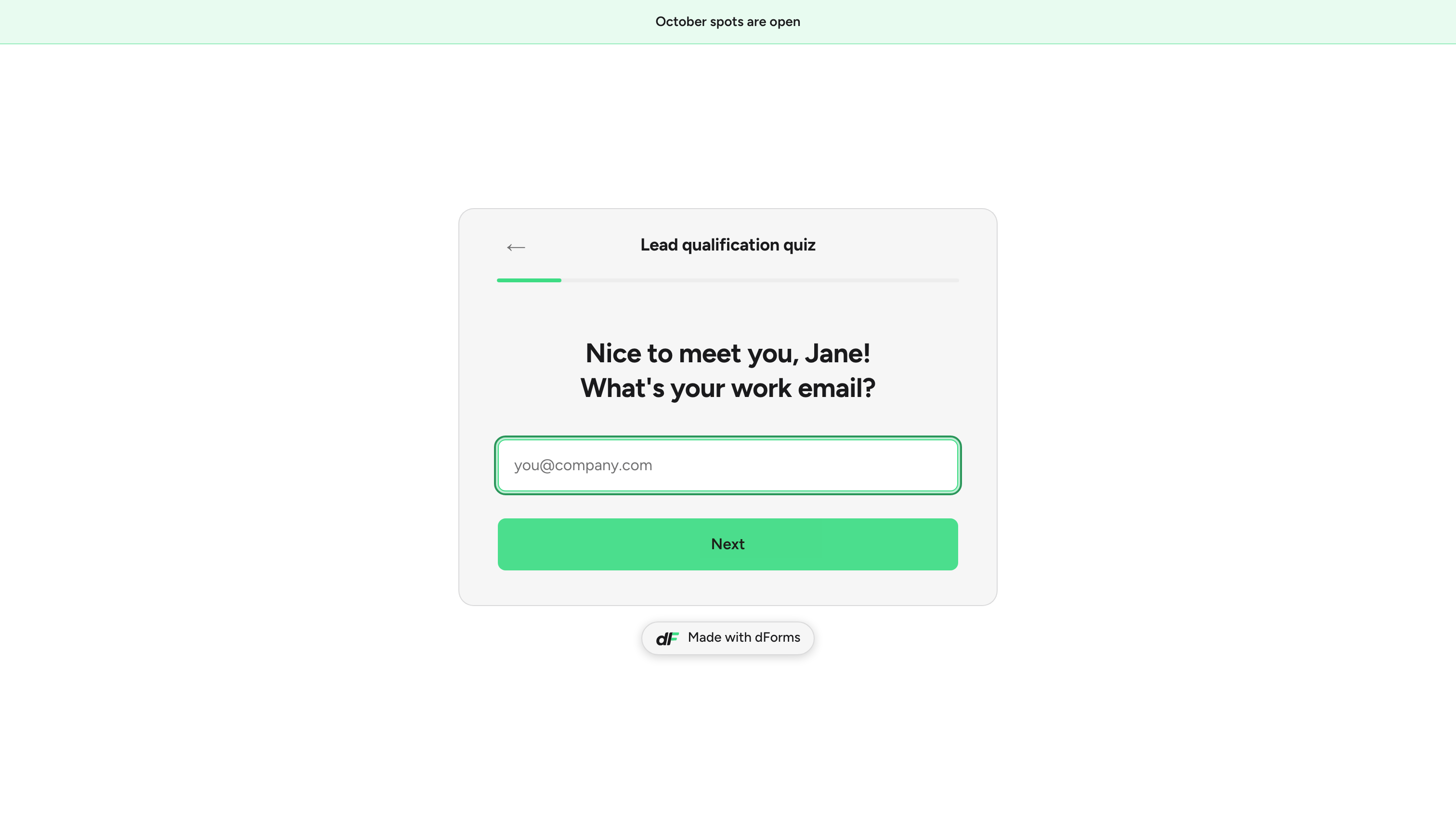
Recall lets a later screen repeat something the respondent already told you: "Nice to meet you, Ada!" instead of a generic "What's your email?". You insert a small token such as `[firstname]`, and the live form swaps it for the real answer.

Tokens work in question titles, descriptions (helper text), reveal screen copy, dynamic question variants, outcome thank-you messages and the form's ending. The editor only offers fields that are asked **before** the screen you are editing.

***

**Step 1:** Open your form in the editor, select the question you want to personalize and click its title on the canvas (**Type your question…**). Under the title you will see the hint **Type @ or \[field] to insert a previous answer**.

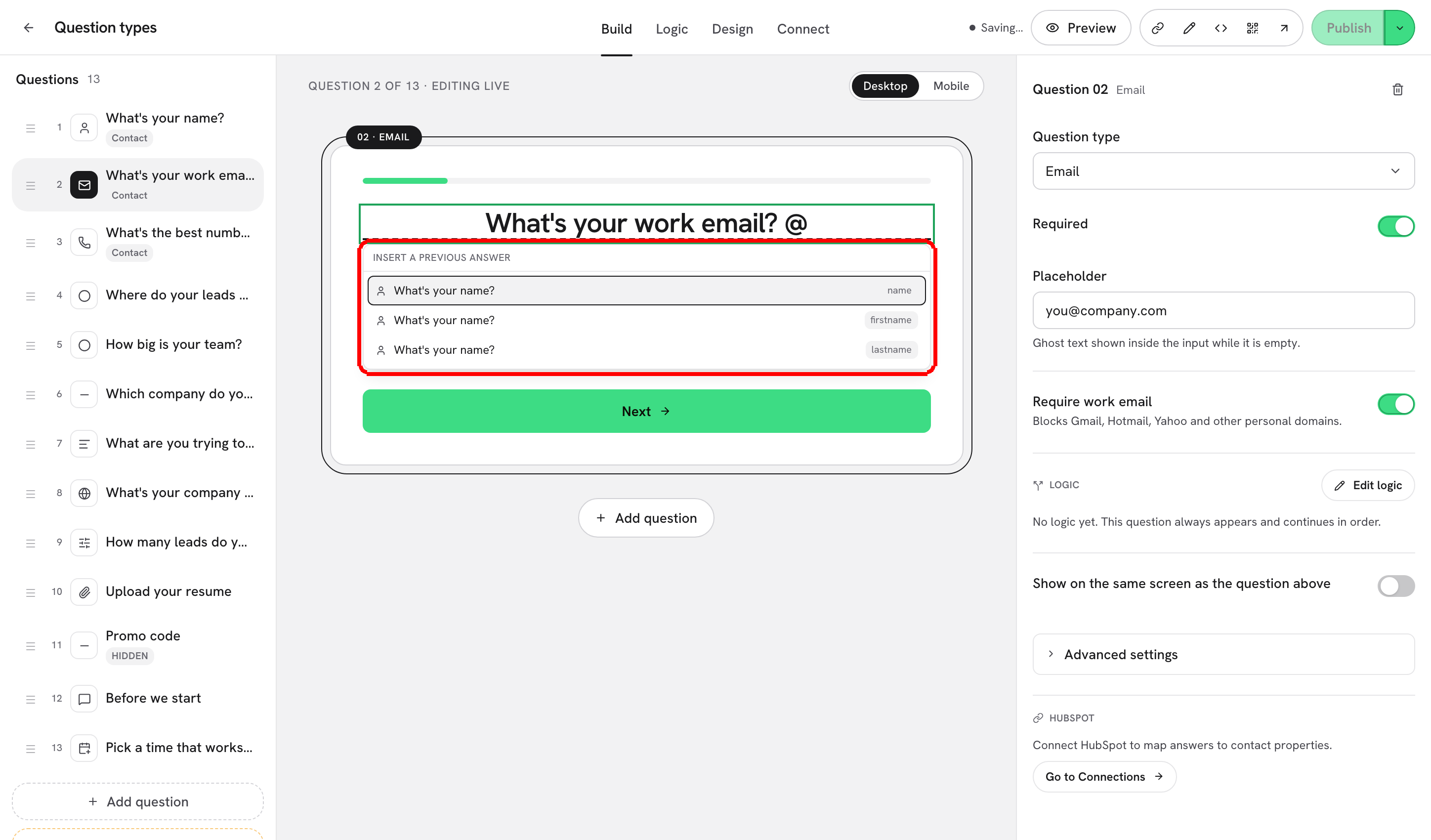
**Step 2:** Type `@` (or `[`) where you want the answer to appear. The picker **Insert a previous answer** opens and lists every earlier field, showing the question text and its field key. Click one, or use the arrow keys and Enter.

<figure><img src="https://3835013762-files.gitbook.io/~/files/v0/b/gitbook-x-prod.appspot.com/o/spaces%2FCy5rSNtQmtqYCGzJlNEB%2Fuploads%2Fgit-blob-9086cb18288997b3a18bd7467b6ec4b09cdfb5ff%2Fforms-recall-answers-01-picker.png?alt=media" alt="The question title on the canvas with the Insert a previous answer picker open, listing firstname and lastname from the earlier Name question"><figcaption><p>Type <strong>@</strong> in a title or description and pick the field to insert.</p></figcaption></figure>

The token is inserted as `[key]`, for example `[firstname]`, and is highlighted on the canvas so you can tell it apart from normal text. Keep typing around it as usual.

> **💡 Tip:** You can type the token by hand. Typing `[firstname]` (with the brackets) does exactly the same as picking it from the list. A bare `@firstname` without brackets stays as literal text.

***

**Step 3:** Check the warning line under the field. The editor checks every token as you type:

<figure><img src="https://3835013762-files.gitbook.io/~/files/v0/b/gitbook-x-prod.appspot.com/o/spaces%2FCy5rSNtQmtqYCGzJlNEB%2Fuploads%2Fgit-blob-564595ad7cc62d8b72009a89442f594cebb9604e%2Fforms-recall-answers-02-warning.png?alt=media" alt="A question title with a [firstname] token and a description containing [company] with the warning: company is asked after this step. It will be empty here."><figcaption><p>Tokens that cannot have a value yet are flagged in red. The title token is fine; the description token points at a later question.</p></figcaption></figure>

| Warning                                                           | Meaning                                                                    | What to do                                                                  |
| ----------------------------------------------------------------- | -------------------------------------------------------------------------- | --------------------------------------------------------------------------- |
| **"\[key]" is asked after this step. It will be empty here.**     | The field exists, but the respondent has not reached that question yet.    | Move the question earlier, or recall it on a later screen.                  |
| **"\[key]" doesn't exist in this form.**                          | No question uses that field key (typo, or the question was deleted).       | Pick the field from the picker, or fix the key under **Advanced settings**. |
| **"@key" stays as literal text: only \[key] fills in an answer.** | You typed `@` followed by a word instead of choosing from the list.        | Select the field from the picker so it is inserted with brackets.           |
| **No earlier answers yet. This is the first question.**           | Shown in the picker on the first question: there is nothing to recall yet. | Add the token on a later question.                                          |

Empty tokens never break the form: if a value is missing when the form is shown (for example an optional question that was skipped), the token is removed silently and the sentence reads without it.

***

**Step 4:** Publish and open the form. The live screen shows the real answer in place of the token.

<figure><img src="https://3835013762-files.gitbook.io/~/files/v0/b/gitbook-x-prod.appspot.com/o/spaces%2FCy5rSNtQmtqYCGzJlNEB%2Fuploads%2Fgit-blob-847afb3e0075e32c6bcdad03de03f2265ec50f90%2Fforms-recall-answers-03-public.png?alt=media" alt="The published form showing the question Nice to meet you, Ada! What&#x27;s your work email?"><figcaption><p>The respondent typed "Ada" on the name step; the email step greets them by name.</p></figcaption></figure>

## Where tokens work

| Place                                                            | How to add the token                                                               |
| ---------------------------------------------------------------- | ---------------------------------------------------------------------------------- |
| Question title and description                                   | Type `@` or `[` on the canvas.                                                     |
| Reveal screen headline and subtitle                              | Select the reveal card, type `@` or `[` in its copy.                               |
| Dynamic question variants (**Ask instead**)                      | Type `@` or `[` in the variant text.                                               |
| Outcome **Thank-you message** (Logic > Outcomes)                 | Type `[key]` in the message field.                                                 |
| Ending **Heading** and **Message** (Design > When the form ends) | Type `[key]`. The hint under the field reads **Use \[field] to insert an answer.** |

Field keys are shown under **Advanced settings** > **Field key** for every question. A Name question exposes two keys (by default `firstname` and `lastname`). Renaming a key updates every token that uses it.

> **⚠️ Note:** Recall only reads answers given earlier in the same session. It is not a way to pull data from your CRM. To pass known values into a form, use [Hidden fields & URL prefill](/dapta-forms/builder/hidden-fields-and-url-prefill.md): a prefilled field can be recalled like any other.

## What's next

* [Dynamic questions (variants)](/dapta-forms/builder/dynamic-questions.md): ask a different question depending on an earlier answer.
* [Hidden fields & URL prefill](/dapta-forms/builder/hidden-fields-and-url-prefill.md): fill answers from the link and recall them.
* [Ending screen](/dapta-forms/logic/ending-screen.md): personalize the thank-you message.
* [Outcomes (results by score range)](/dapta-forms/logic/outcomes.md): different messages by score, with tokens.


---

# Agent Instructions
This documentation is published with GitBook. GitBook is the documentation platform designed so that both humans and AI agents can read, navigate, and reason over technical content effectively. Learn more at gitbook.com.

## Querying This Documentation
If you need additional information that is not directly available in this page, you can query the documentation dynamically by asking a question.

Perform an HTTP GET request on the current page URL with the `ask` query parameter, and the optional `goal` query parameter:

```
GET https://docs.dapta.ai/dapta-forms/builder/recall-answers.md?ask=<question>&goal=<endgoal>
```

`ask` is the immediate question: it should be specific, self-contained, and written in natural language.
`goal` is optional and describes the broader end goal you are ultimately trying to accomplish on behalf of the user. GitBook uses it to tailor the answer towards what is most useful for that goal.

The response will contain a direct answer to the question and relevant excerpts and sources from the documentation.

Use this mechanism when the answer is not explicitly present in the current page, you need clarification or additional context, or you want to retrieve related documentation sections.