> For the complete documentation index, see [llms.txt](https://docs.dapta.ai/llms.txt). Markdown versions of documentation pages are available by appending `.md` to page URLs; this page is available as [Markdown](https://docs.dapta.ai/dforms/builder/screens.md).

# Several questions on one screen

Show several questions together on one screen of a Slides form in Dapta Forms: group them from the question list or the settings pane, what can and cannot share a screen, how reordering, logic, partia

On a **Slides** form every question gets a screen of its own by default. You can group questions so that respondents see several of them together, on one card with one button: a name, an email and a phone number on a single contact screen, or three short qualifying questions in one step.

Grouping changes only how the questions are shown. Each question keeps its own settings, field key, logic and answer, and appears as its own column in **Submissions**.

Screens exist only on **Slides**. On a **One page** form every question is already on the same page, so screens do not apply there (see [On a one-page form](#on-a-one-page-form) below).

***

## Group questions in the question list

**Step 1:** Open the form on the **Build** tab. In the **Questions** list, point at the card you want to join to the one above it. A small chain icon appears on its top edge, between the two cards. Its tooltip reads **Show on the same screen as the question above**.

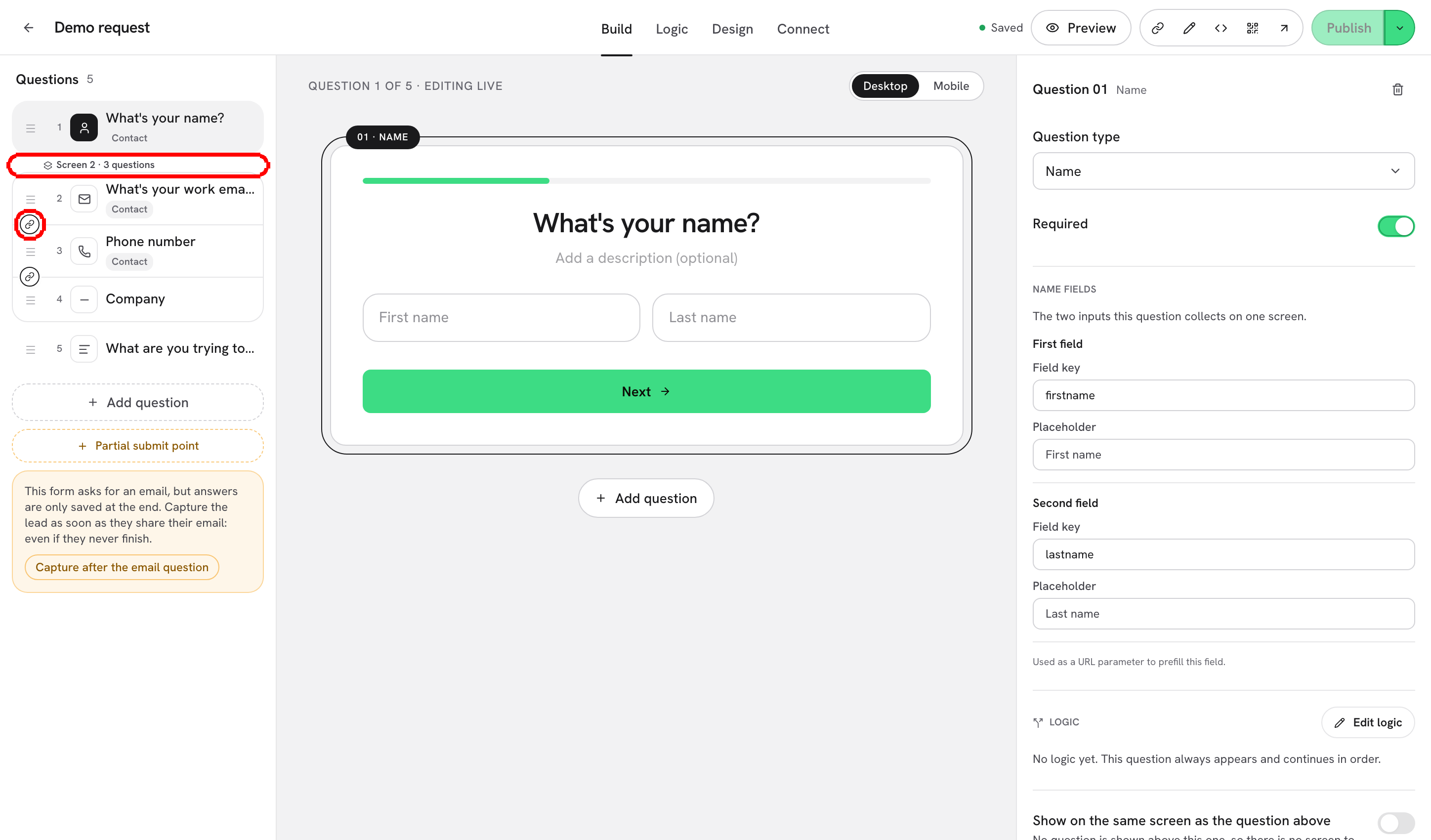
**Step 2:** Click the chain. The two cards close ranks into one block, and a chip above the block names the screen, for example **Screen 2 · 2 questions**. Click the chain above the next card to add a third question, and so on.

<figure><img src="https://3835013762-files.gitbook.io/~/files/v0/b/gitbook-x-prod.appspot.com/o/spaces%2FCy5rSNtQmtqYCGzJlNEB%2Fuploads%2Fgit-blob-9295f67bf741d9c5fdcd4a381046f4c248d256ba%2Fforms-screens-01-chain-toggle.png?alt=media" alt="The Questions list with two cards joined into one block under the chip Screen 2 · 2 questions, and the chain icon between them highlighted"><figcaption><p>The chain between two cards joins them. The chip above the block names the screen and counts its questions.</p></figcaption></figure>

The chain stays visible between cards that share a screen. Click it again (its tooltip now reads **Start a new screen here**) to split the screen: that question and every question below it on the screen move to a new screen.

Clicking the chain above the first question of a screen joins the two whole screens, as long as the result holds 10 questions or fewer. Questions keep their numbers in the list; the chip is what counts screens.

***

## Or use the settings pane

Every question on a **Slides** form has a **Show on the same screen as the question above** switch in **Question settings**, right after the **Logic** card. It does exactly what the chain does. Turn it on to join the question to the screen above, and off to start a new screen at this question.

<figure><img src="https://3835013762-files.gitbook.io/~/files/v0/b/gitbook-x-prod.appspot.com/o/spaces%2FCy5rSNtQmtqYCGzJlNEB%2Fuploads%2Fgit-blob-293b43d04b8d7713acf56e1c9d20dd11151ebb1e%2Fforms-screens-02-settings-switch.png?alt=media" alt="The Show on the same screen as the question above switch below the Logic card, unavailable on a Scheduler with the reason Schedulers, reveal screens and file uploads always get a screen of their own."><figcaption><p>When a question cannot join the screen above, the switch stays visible and says why.</p></figcaption></figure>

The switch is also the way to group questions in a narrow window. Below a laptop-sized window the **Questions** list is replaced by a row of numbered buttons under the canvas. That row selects questions and adds new ones, but it does not show screens or the chain.

***

## What cannot share a screen

When a question cannot join the screen above, the switch stays visible but cannot be turned on, and says why. Where the chain appears in the list, its tooltip gives the same reason.

| Case                                                                                    | Reason shown                                                                      |
| --------------------------------------------------------------------------------------- | --------------------------------------------------------------------------------- |
| No question is shown above this one                                                     | **No question is shown above this one, so there is no screen to join.**           |
| This question or the one above is a **Scheduler**, **Reveal screen** or **File upload** | **Schedulers, reveal screens and file uploads always get a screen of their own.** |
| The question is hidden                                                                  | **Hidden questions are never shown, so they don't join a screen.**                |
| Joining would put more than 10 questions on the screen                                  | **A screen holds up to 10 questions.**                                            |

A **Message** can share a screen, which is a simple way to put a short explanation above the questions it introduces.

***

## Move, hide and change questions on a screen

The editor keeps screens tidy as you work:

* **Drag within a screen** to reorder its questions. They stay on the screen.
* **Drop a question between two questions of another screen** and it joins that screen, unless the screen is full.
* **Drop it anywhere else** and it leaves its screen.
* A **Scheduler**, **Reveal screen** or **File upload**, or any question dropped into a full screen, lands right after the screen instead, so a drop never cuts a screen in two.
* **A screen left with one question** stops being a screen.
* **Hiding a question** takes it off its screen. The **Hidden question** hint says so: **Hiding it also takes it off its screen.** Showing it again puts it back when it sits between two questions of the screen, or right after the screen when the screen is full.
* **Changing a question's type** to **Scheduler**, **Reveal screen** or **File upload** takes it off the screen. On a question that shares a screen, the note **Schedulers, reveal screens and file uploads always get a screen of their own.** under **Question type** warns you before you switch.

***

## What you see in the editor

* **Canvas.** Selecting any question of a screen shows the whole screen on the canvas as one card, with one button at the bottom, the way respondents will see it. The question the settings pane describes is marked; click another question on the card to select it. The progress indicator on the card counts screens, as on the live form.
* **Button text.** The screen's one button is the last question's button: **Next**, or **Submit** on the last screen, in the form's language (or your own words from **Design** → **Button text**). A screen that ends with a **Message** shows **Continue**. See [Language & button text](/dforms/design/language-and-button-text.md).
* **Preview.** The **Step 1 of 4** counter counts screens, and the arrows move one screen at a time. See [Preview](/dforms/builder/preview.md).
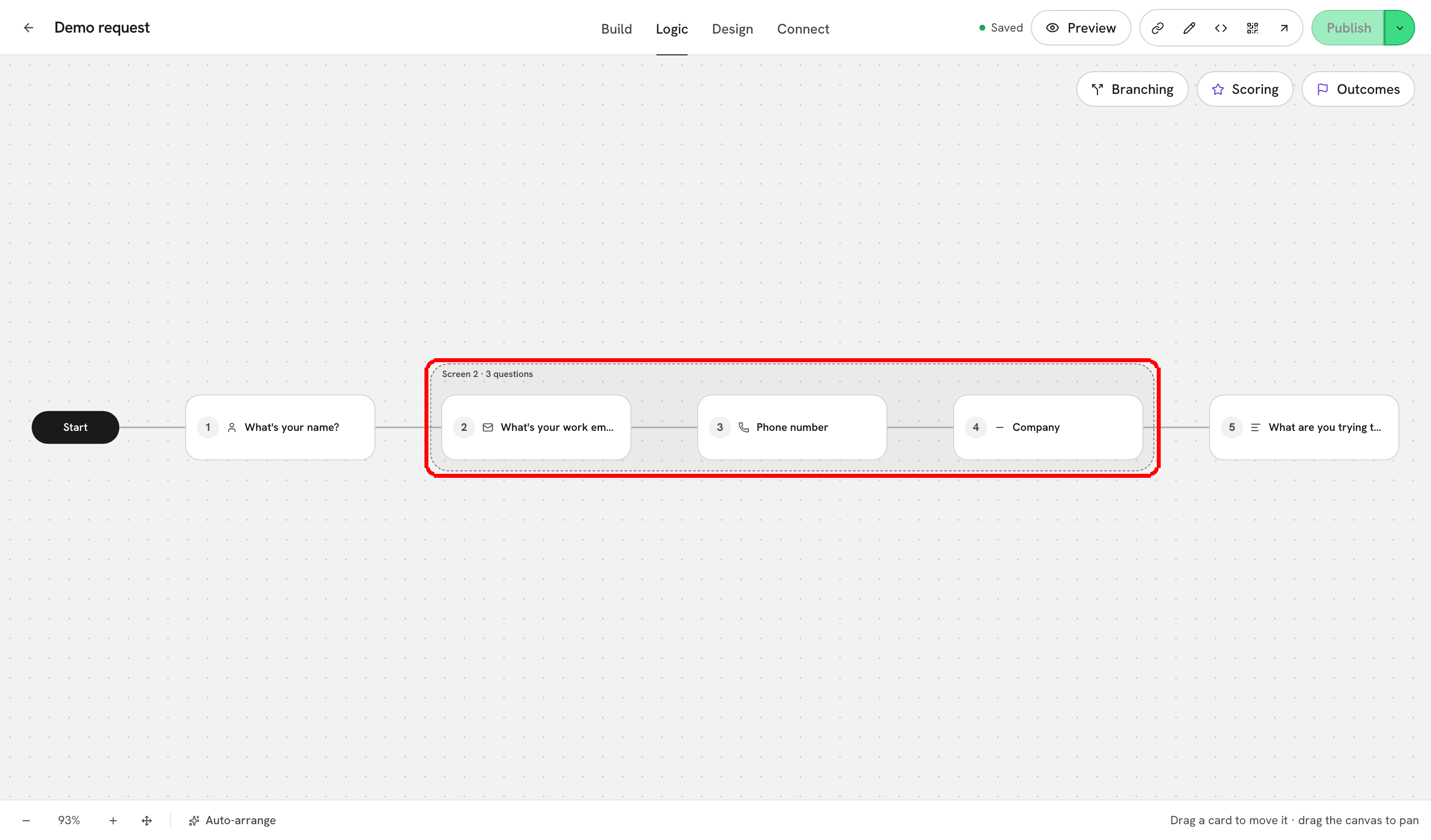
* **Logic tab.** On the Logic canvas each screen is drawn as a frame around its questions, with the same **Screen 2 · 3 questions** chip. The Logic map on small windows shows the chip too. See [Logic, Scoring & Outcomes](/dforms/logic.md).

<figure><img src="https://3835013762-files.gitbook.io/~/files/v0/b/gitbook-x-prod.appspot.com/o/spaces%2FCy5rSNtQmtqYCGzJlNEB%2Fuploads%2Fgit-blob-432f97346935b538f80927bfa99feff940fff3d2%2Fforms-screens-03-canvas-screen.png?alt=media" alt="The editor with a screen of three questions selected: the Questions list shows the block under Screen 2 · 3 questions, and the canvas shows the three questions on one card with one Next button, the selected question marked"><figcaption><p>Select any question of a screen and the canvas shows the whole screen, as respondents will see it.</p></figcaption></figure>

***

## What respondents see

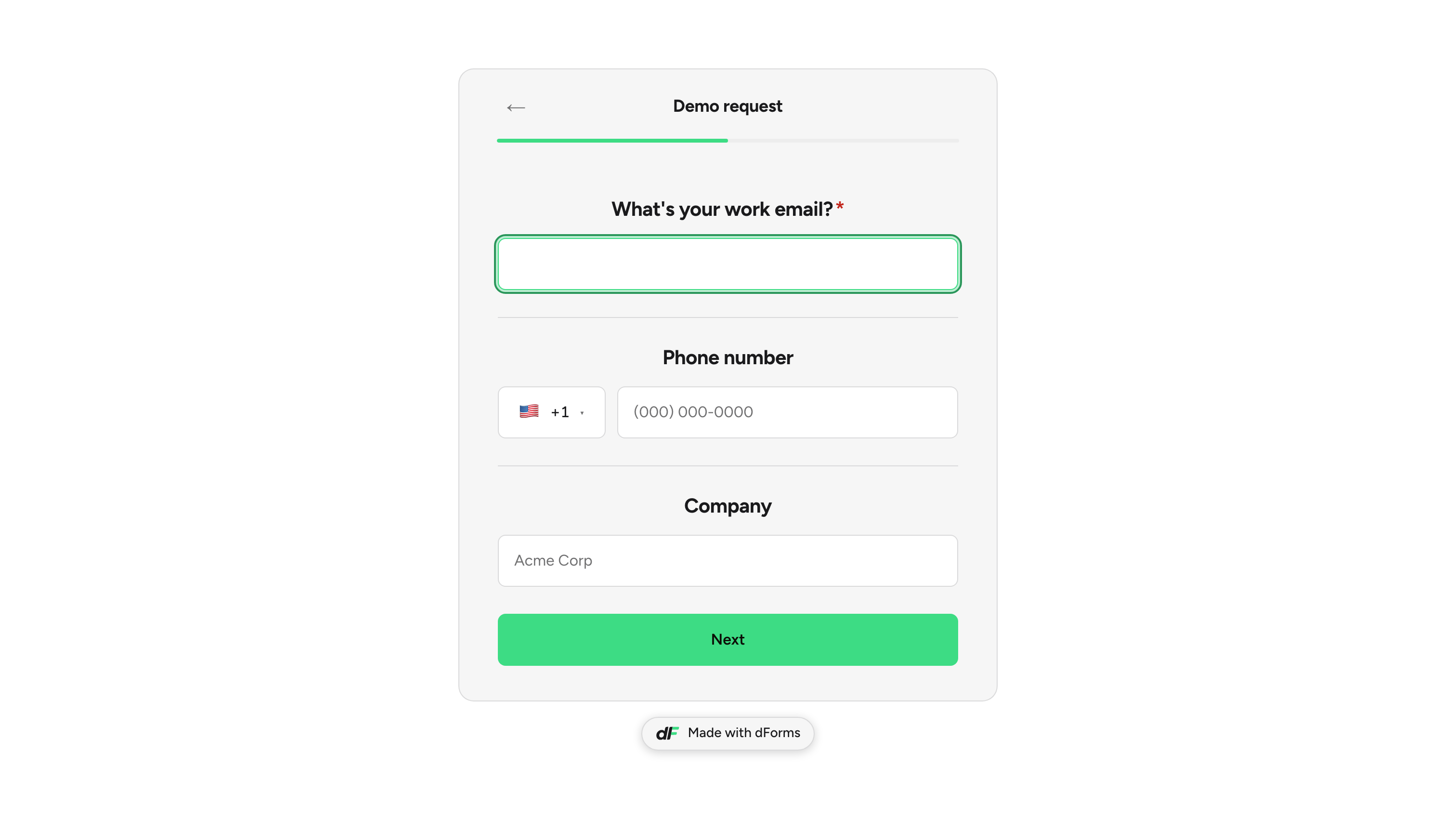
The respondent answers the questions of a screen together, on one card:

* Every required question carries an asterisk.
* There is one button at the bottom. Picking an option in a **Single choice** or a **Dropdown** records the answer but does not move on; the button does.
* **Enter** in a one-line field moves to the next field, and submits the screen from the last one.
* The button checks every question at once. Each question with a problem shows its own message, the summary **Check the highlighted questions above.** appears above the button, and the cursor moves to the first problem.
* The **Back** arrow returns to the previous screen, with the answers still filled in.

<figure><img src="https://3835013762-files.gitbook.io/~/files/v0/b/gitbook-x-prod.appspot.com/o/spaces%2FCy5rSNtQmtqYCGzJlNEB%2Fuploads%2Fgit-blob-8447a846b5c473cbee967e73accaee75efff6297%2Fforms-screens-04-public-screen.png?alt=media" alt="A published Slides form showing one screen with three questions on a single card and one Next button at the bottom"><figcaption><p>Three questions on one screen, with one <strong>Next</strong> button.</p></figcaption></figure>

On a form embedded in your site with `embed.js`, your page scrolls back to the top of the form each time the screen changes, so a tall screen never starts halfway down the page. See [Embed on your website](/dforms/share/embed.md#the-form-scrolls-into-view).

***

## Logic on a screen

Each question keeps its own conditions and rules. On a screen they behave like this:

* **Conditions run live.** A question whose **Show when** or **Hide when** rule reads another question on the same screen appears and disappears while the respondent answers. The **Logic** card says so: **This question depends on an answer on the same screen, so it appears and disappears while they answer.**
* **Jumps wait for the screen.** A jump or a skip to the end happens when the respondent leaves the screen. The rules of its questions are read from top to bottom and the first one that goes somewhere wins, so an **Always go to** on an upper question wins over the rules below it.
* **A jump opens a whole screen.** Jump lists offer only the first question of each screen. A jump into the middle of a screen opens that screen from its first visible question, and a jump to a question of its own screen is ignored.
* **Ends the form** on a question of the screen ends the form when the respondent submits the screen.

The full rules are in [Branching & jumps](/dforms/logic/branching.md#jumps-on-a-screen-of-several-questions) and [Show & hide conditions](/dforms/logic/conditions.md#conditions-on-a-screen-of-several-questions).

<figure><img src="https://3835013762-files.gitbook.io/~/files/v0/b/gitbook-x-prod.appspot.com/o/spaces%2FCy5rSNtQmtqYCGzJlNEB%2Fuploads%2Fgit-blob-2683645b3636f244aac80dff75b80dcb4e08f545%2Fforms-screens-05-logic-frame.png?alt=media" alt="The Logic canvas with three question cards inside one frame labeled Screen 2 · 3 questions, and a dashed jump leaving the frame"><figcaption><p>On the Logic canvas, a screen is a frame around its questions. Jumps leave from the screen.</p></figcaption></figure>

***

## Partial submissions, reveal screens and spam protection

* **Partial submit point.** The marker never sits inside a screen. Placed after a question in the middle of a screen, it moves after the screen's last question, and it fires when the respondent submits the screen. See [Partial submissions](/dforms/builder/partial-submissions.md).
* **Reveal screens.** A reveal always gets a screen of its own. On a question that shares a screen, **Show reveal screen after** reads **Show a reveal screen after this screen** and adds the reveal after the screen's last question. See [Reveal screens](/dforms/logic/reveal-screens.md).
* **Spam protection.** When the form has [spam protection](/dforms/connect/spam-protection.md) on, the check appears above the button of the screen that ends the form.

***

## Results and analytics

Grouping does not change what is stored: every question keeps its own answer, column and field key, in **Submissions**, the CSV export, webhooks and HubSpot. In [Analytics](/dforms/results/analytics.md), every question on a screen counts a view when the screen appears, so the drop-off of a screen shows on its last question.

***

## On a one-page form

Screens are a **Slides** feature. On a **One page** form the chain, the chips and the switch do not appear, and the **Design** panel notes **Screens only apply to Slides. On One page every question is already on one page.** Your screens are kept: switch the form back to **Slides** and they return exactly as they were. See [One-page layout](/dforms/builder/one-page-layout.md).

## What's next

* [Question settings](/dforms/builder/question-settings.md): the switch next to the other shared settings.
* [Branching & jumps](/dforms/logic/branching.md): how jumps behave on a screen of several questions.
* [What respondents see](/dforms/respondent-experience.md): the public form, screen by screen.
* [Language & button text](/dforms/design/language-and-button-text.md): the words on the screen's button.


---

# Agent Instructions
This documentation is published with GitBook. GitBook is the documentation platform designed so that both humans and AI agents can read, navigate, and reason over technical content effectively. Learn more at gitbook.com.

## Querying This Documentation
If you need additional information that is not directly available in this page, you can query the documentation by asking a question.

Perform an HTTP GET request on the following URL with the `ask` and `goal` query parameters:

```
GET https://docs.dapta.ai/dforms/builder/screens.md?ask=<question>&goal=<user_goal>
```

`ask` is the immediate question: it should be specific, self-contained, and written in natural language.
`goal` is what the user is ultimately trying to achieve, the reason they need the answer. Sharing it helps GitBook give you a better, more relevant answer. A goal is most helpful when it describes the outcome the user wants rather than restating the question. For example, with `ask=how do I create an API token`, a goal like `automate deployments from our CI pipeline` lets GitBook tailor the answer to that use case.

The response will contain a direct answer to the question and relevant excerpts and sources from the documentation.

Use this mechanism when the answer is not explicitly present in the current page, you need clarification or additional context, or you want to retrieve related documentation sections.