> For the complete documentation index, see [llms.txt](https://docs.dapta.ai/llms.txt). Markdown versions of documentation pages are available by appending `.md` to page URLs; this page is available as [Markdown](https://docs.dapta.ai/dapta-forms/connect.md).

# Connect & Integrations

Send every Dapta Forms submission where your team works: HubSpot, your own webhook endpoint, analytics pixels and email notices. Learn the two surfaces (account-level Connections and the per-form Conn

Dapta Forms can push each submission out the moment it arrives: to a HubSpot contact, to a webhook on your own server, to your analytics tools through pixels, and to inboxes through email notices. Everything is configured from two places, and nothing an integration does can ever block or lose a submission.

***

## The two surfaces

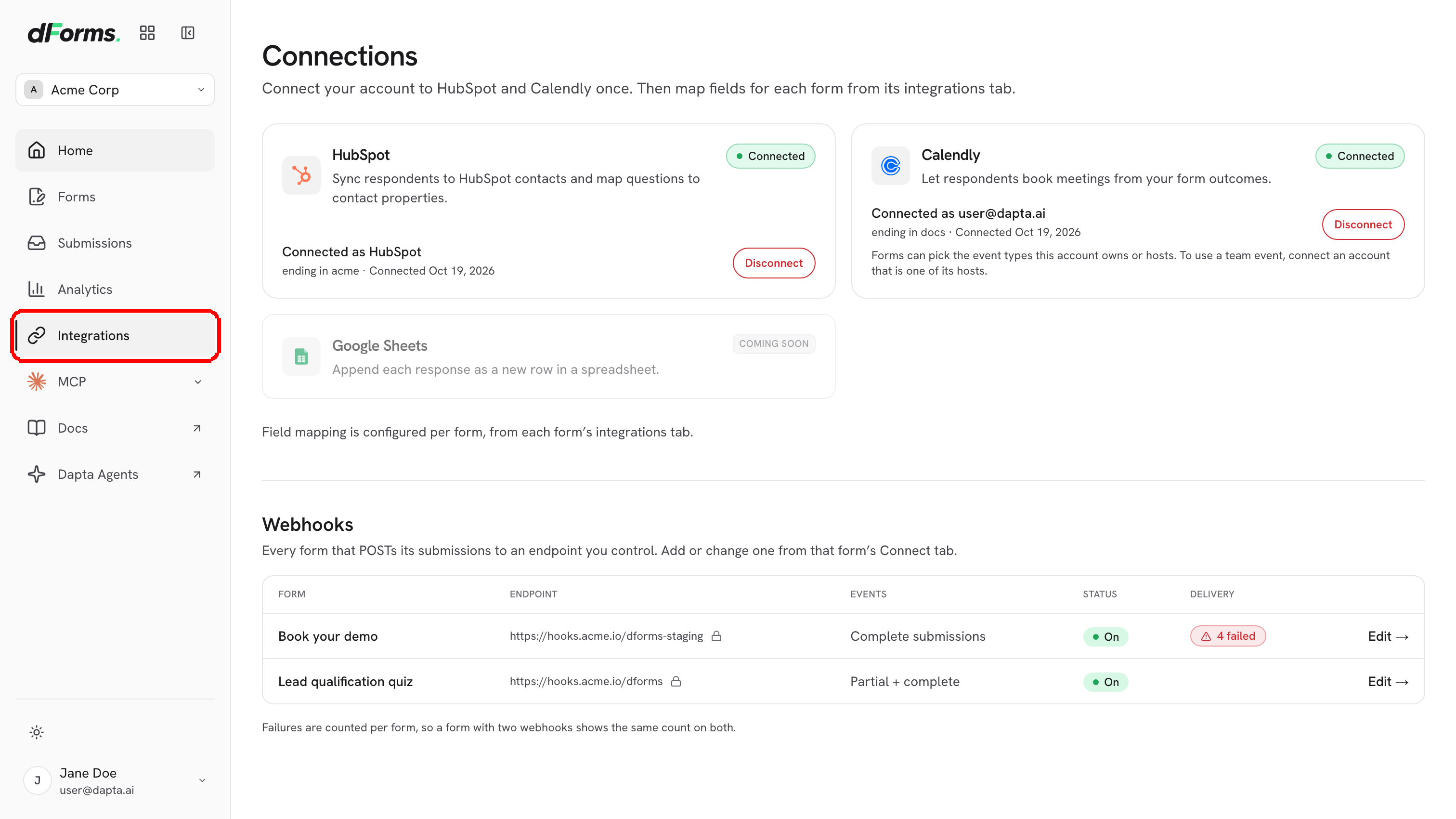
**1. Connections (account level).** Open **Integrations** in the left rail. This is where you connect your account to **HubSpot** and **Calendly** once with a token, and where you see an inventory of every webhook across your forms. Connecting is done by an admin or owner; after that, every form in the workspace can use the connection.

<figure><img src="https://3835013762-files.gitbook.io/~/files/v0/b/gitbook-x-prod.appspot.com/o/spaces%2FCy5rSNtQmtqYCGzJlNEB%2Fuploads%2Fgit-blob-3116678a57ea263dbe1d6a12d2a125060ad8dadf%2Fforms-connect-02-connections-page.png?alt=media" alt="The Connections page opened from the Integrations entry in the rail, with HubSpot and Calendly connected"><figcaption><p>Connect once here, then map fields per form.</p></figcaption></figure>

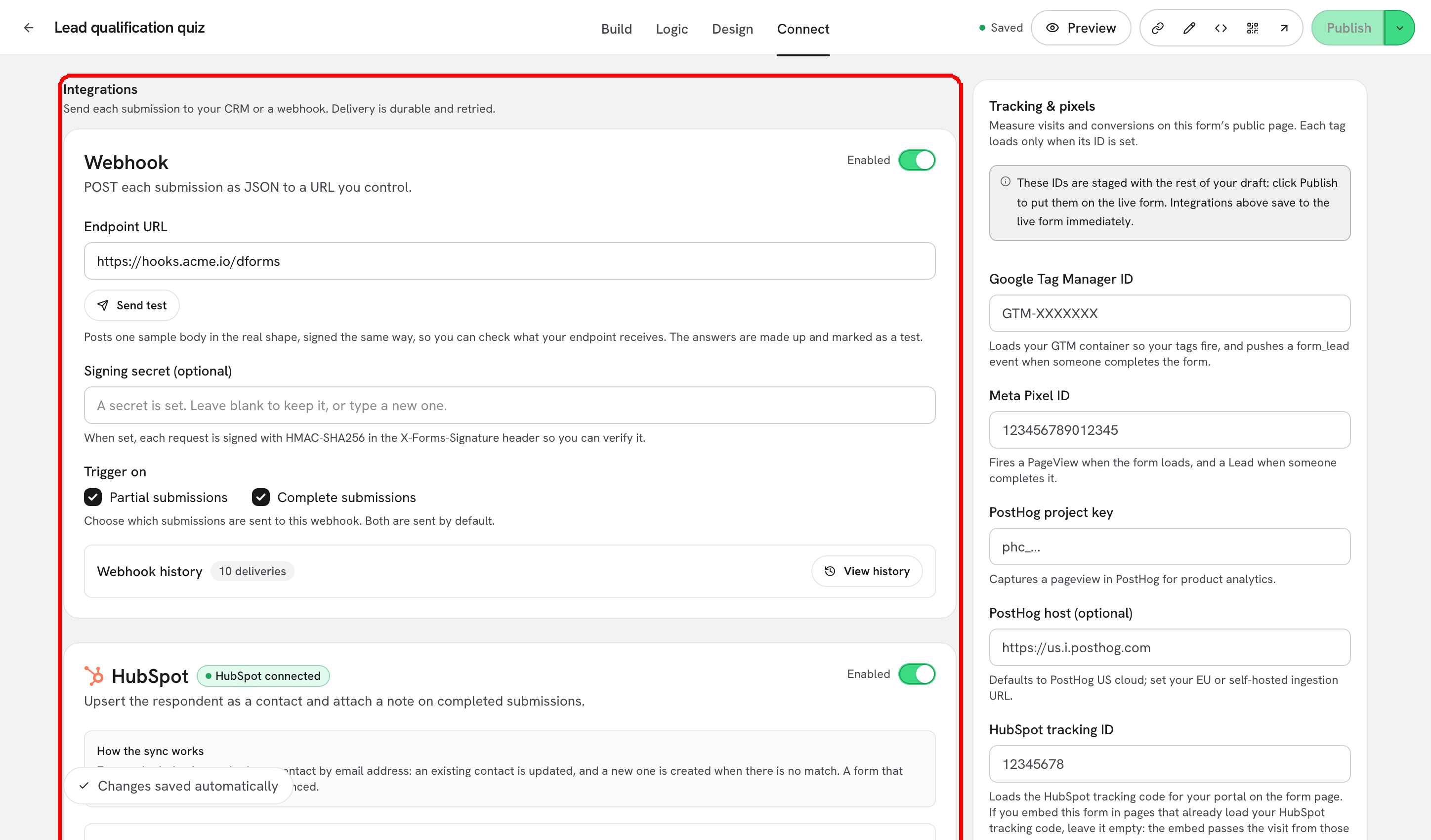
**2. The Connect tab (per form).** Open any form in the editor and click **Connect** in the top bar. The tab has three sections:

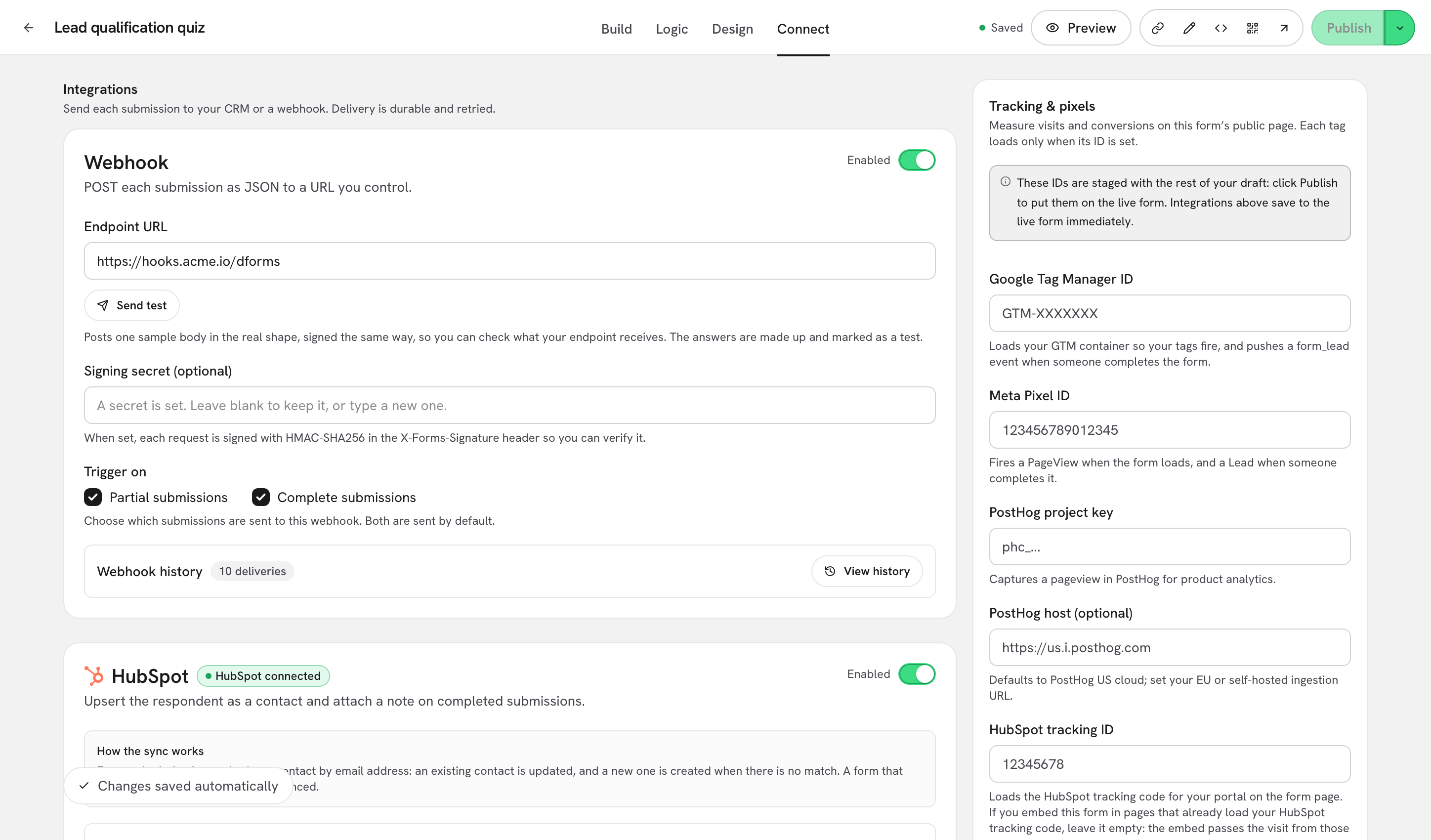
<figure><img src="https://3835013762-files.gitbook.io/~/files/v0/b/gitbook-x-prod.appspot.com/o/spaces%2FCy5rSNtQmtqYCGzJlNEB%2Fuploads%2Fgit-blob-04bd377e5cc71769b1b76c2e4b7ba7a7541b0e33%2Fforms-connect-01-connect-tab.png?alt=media" alt="The Connect tab of a form showing the Integrations section with a Webhook card and a HubSpot card"><figcaption><p>The Connect tab. <strong>Integrations</strong> first, then <strong>Tracking &#x26; pixels</strong> and <strong>Emails</strong>.</p></figcaption></figure>

| Section               | What you set there                                                                                                                                                      |
| --------------------- | ----------------------------------------------------------------------------------------------------------------------------------------------------------------------- |
| **Integrations**      | The **Webhook** card and the **HubSpot** card, each with an **Enabled** / **Disabled** switch and its own delivery history. **Google Sheets** shows as **Coming soon**. |
| **Tracking & pixels** | **Google Tag Manager ID**, **Meta Pixel ID**, **PostHog project key**, **PostHog host (optional)** and **HubSpot tracking ID** for the form's public page.              |
| **Emails**            | The **New submission notice** (to you) and the **Respondent confirmation** (to the respondent): follow the account template or customize them for this form.            |

<figure><img src="https://3835013762-files.gitbook.io/~/files/v0/b/gitbook-x-prod.appspot.com/o/spaces%2FCy5rSNtQmtqYCGzJlNEB%2Fuploads%2Fgit-blob-f2b0a14be3e13e1b4639a22b0aa617783695916d%2Fforms-connect-03-tracking-and-emails.png?alt=media" alt="The Tracking and pixels section followed by the Emails section in the Connect tab"><figcaption><p>Further down the same tab: tracking IDs and the two submission emails.</p></figcaption></figure>

> **💡 Tip:** There is no Save button on the Connect tab. Changes are saved automatically and the footer reads **Changes saved automatically**. Integrations save to the live form immediately, while tracking IDs are staged with your draft and go live when you click **Publish**.

***

## Durable delivery, in one paragraph

When someone submits, the answers are stored first. Only then does Dapta Forms queue one delivery per enabled integration (webhook, HubSpot, email). A slow or broken endpoint never slows the respondent down, and a failed attempt is retried automatically with increasing delays. Every integration card has a **View history** button that shows what was sent and what came back, so you never have to guess. Details are on [Delivery, retries & history](/dapta-forms/connect/delivery-and-retries.md).

***

## In this section

* [Connections (account level)](/dapta-forms/connect/connections.md): connect HubSpot and Calendly with a token, see who is connected, disconnect, and review the webhooks inventory.
* [HubSpot](/dapta-forms/connect/hubspot.md): sync respondents as contacts, map questions to properties, translate values, stamp UTMs, score and outcome.
* [Scheduler step & Calendly](/dapta-forms/connect/scheduler-and-calendly.md): let respondents book a meeting inside the form.
* [Webhooks](/dapta-forms/connect/webhooks.md): POST each submission as JSON to a URL you control, signed and retried.
* [Tracking & pixels](/dapta-forms/connect/tracking-and-pixels.md): GTM, Meta Pixel, PostHog and HubSpot tracking on the public page.
* [Submission emails](/dapta-forms/connect/emails.md): the notice you receive and the confirmation the respondent receives.
* [Delivery, retries & history](/dapta-forms/connect/delivery-and-retries.md): what happens after a submission, retry schedule, statuses.

## What's next

* [Submissions](/dapta-forms/results/submissions.md): the answers behind every delivery.
* [Autosave, drafts & publishing](/dapta-forms/builder/autosave-and-publishing.md): why tracking IDs wait for **Publish** and integrations do not.
* [Members & roles](/dapta-forms/account/members-and-roles.md): who can connect a provider and who can only map fields.
* [Troubleshooting](/dapta-forms/troubleshooting.md): a contact that never arrived, a webhook that keeps failing.


---

# Agent Instructions
This documentation is published with GitBook. GitBook is the documentation platform designed so that both humans and AI agents can read, navigate, and reason over technical content effectively. Learn more at gitbook.com.

## Querying This Documentation
If you need additional information that is not directly available in this page, you can query the documentation dynamically by asking a question.

Perform an HTTP GET request on the current page URL with the `ask` query parameter, and the optional `goal` query parameter:

```
GET https://docs.dapta.ai/dapta-forms/connect.md?ask=<question>&goal=<endgoal>
```

`ask` is the immediate question: it should be specific, self-contained, and written in natural language.
`goal` is optional and describes the broader end goal you are ultimately trying to accomplish on behalf of the user. GitBook uses it to tailor the answer towards what is most useful for that goal.

The response will contain a direct answer to the question and relevant excerpts and sources from the documentation.

Use this mechanism when the answer is not explicitly present in the current page, you need clarification or additional context, or you want to retrieve related documentation sections.