> For the complete documentation index, see [llms.txt](https://docs.dapta.ai/llms.txt). Markdown versions of documentation pages are available by appending `.md` to page URLs; this page is available as [Markdown](https://docs.dapta.ai/dapta-forms/connect/connections.md).

# Connections (account level)

Connect your Dapta Forms account to HubSpot and Calendly once from the Connections page, check who is connected, disconnect safely, and review the account-wide inventory of webhooks across all your fo

The **Connections** page is where your account meets the outside tools. You connect **HubSpot** and **Calendly** here one time, with a token, and from then on every form in the workspace can map fields to them from its own **Connect** tab. The same page lists every webhook your forms send, so you can spot a failing endpoint without opening each form.

***

**Step 1:** Click **Integrations** in the left rail. The page title is **Connections**.

<figure><img src="https://3835013762-files.gitbook.io/~/files/v0/b/gitbook-x-prod.appspot.com/o/spaces%2FCy5rSNtQmtqYCGzJlNEB%2Fuploads%2Fgit-blob-4f86d203d25cd1501658c964611a901e86ce9f80%2Fforms-connections-01-connections-page.png?alt=media" alt="The Connections page with the HubSpot, Calendly and Google Sheets cards"><figcaption><p>Three cards: <strong>HubSpot</strong>, <strong>Calendly</strong> and <strong>Google Sheets</strong> (coming soon). Below them, the webhooks inventory.</p></figcaption></figure>

***

**Step 2:** On a card that is **Not connected**, click **Connect**. A single field appears: **Paste your HubSpot token** (or **Paste your Calendly token**), with the help text "The token is validated, encrypted, and stored server-side. It is never shown again." Paste the token and click **Connect** (the button reads **Connecting…** while it checks). Click **Cancel** to back out.

Where the tokens come from:

| Provider     | What to paste                                                                                                                                                                                                                               | What the card shows afterwards                                             |
| ------------ | ------------------------------------------------------------------------------------------------------------------------------------------------------------------------------------------------------------------------------------------- | -------------------------------------------------------------------------- |
| **HubSpot**  | A private app access token from your HubSpot portal (Settings → Integrations → Private apps). It needs contact read/write scopes; add the forms and form-submissions scopes if you plan to turn on **Record a form submission in HubSpot**. | **Connected as** the token's label, **ending in** its last four characters |
| **Calendly** | A personal access token from your Calendly account (Integrations → API & webhooks).                                                                                                                                                         | **Connected as** the email of the Calendly user who owns the token         |

If the field is empty when you click **Connect**, you get "Paste a token first." If the provider rejects the token: "Could not connect. Check the token and try again." On success a toast says **HubSpot connected.** (or **Calendly connected.**) and the card flips to **Connected**.

> **⚠️ Note:** Only an **Owner** or **Admin** of the workspace can connect or disconnect. Members can still map fields on their forms once a connection exists.

***

**Step 3:** Read the connected state. Each connected card shows a **Connected** badge, a **Connected as** line, **ending in** the last four characters of the token, the date it was connected, and a **Disconnect** button.

<figure><img src="https://3835013762-files.gitbook.io/~/files/v0/b/gitbook-x-prod.appspot.com/o/spaces%2FCy5rSNtQmtqYCGzJlNEB%2Fuploads%2Fgit-blob-7859344e16da94200d3ba95e125df0c4af542507%2Fforms-connections-02-hubspot-connected.png?alt=media" alt="The HubSpot card in the Connected state showing the Connected badge, the Connected as line and the Disconnect button"><figcaption><p>The token itself is never shown again; the last four characters help you recognise which one is in use.</p></figcaption></figure>

The badge can also read:

| Badge                         | Meaning                                                                                                                         |
| ----------------------------- | ------------------------------------------------------------------------------------------------------------------------------- |
| **Connected**                 | Your account's own token is stored and working.                                                                                 |
| **Not connected**             | Nothing stored yet; click **Connect**.                                                                                          |
| **Provided by the server**    | This deployment supplies a shared token, so syncing already works. Connecting your own token replaces it for your account only. |
| **Connecting is unavailable** | The server is not configured to store credentials; ask whoever runs your installation.                                          |

***

**Step 4 (optional):** To remove a connection, click **Disconnect** and confirm **Disconnect HubSpot for this account?** (or Calendly). The toast **HubSpot disconnected.** confirms it. Forms keep their field mappings, but nothing is sent to that provider until you connect again.

***

## Google Sheets

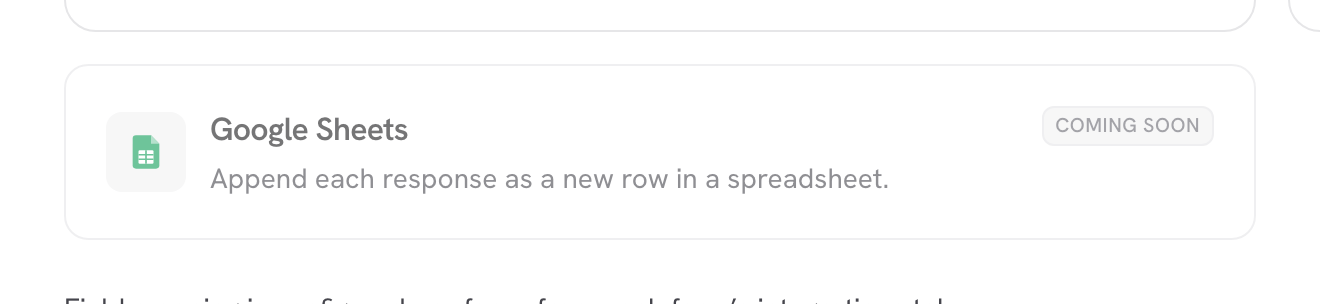
The **Google Sheets** card ("Append each response as a new row in a spreadsheet.") is marked **Coming soon** and cannot be clicked yet. The same card appears on each form's Connect tab. Until it ships, a [webhook](/dapta-forms/connect/webhooks.md) is the way to get rows into a spreadsheet through your own automation.

<figure><img src="https://3835013762-files.gitbook.io/~/files/v0/b/gitbook-x-prod.appspot.com/o/spaces%2FCy5rSNtQmtqYCGzJlNEB%2Fuploads%2Fgit-blob-0380ef6208d8e406bd7040862b24c99ac165f84d%2Fforms-connections-03-google-sheets-coming-soon.png?alt=media" alt="The Google Sheets card with a Coming soon badge"><figcaption><p>Coming soon: the card is informational only.</p></figcaption></figure>

***

## Webhooks inventory

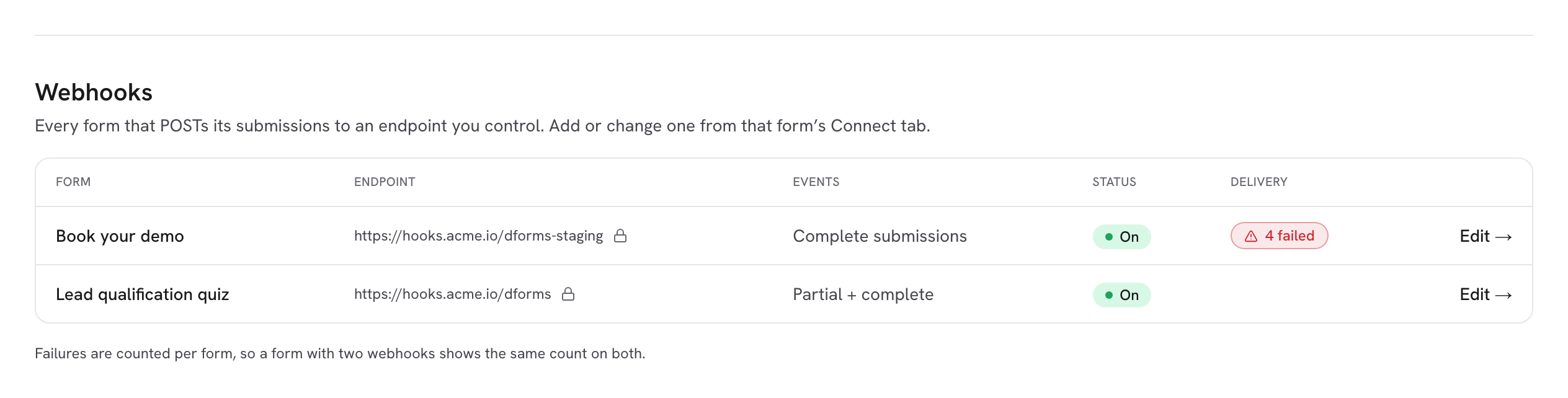
Below the cards, the **Webhooks** section lists "Every form that POSTs its submissions to an endpoint you control." You add or change a webhook from the form's Connect tab; this table is the account-wide overview.

<figure><img src="https://3835013762-files.gitbook.io/~/files/v0/b/gitbook-x-prod.appspot.com/o/spaces%2FCy5rSNtQmtqYCGzJlNEB%2Fuploads%2Fgit-blob-5a7bc082447b8baec9595e9baa484ea8f071b3fb%2Fforms-connections-04-webhooks-table.png?alt=media" alt="The Webhooks table with one row: form name, endpoint with a lock icon, events, status On, delivery column and an Edit link"><figcaption><p>One row per webhook. The lock icon means the webhook is <strong>Signed with a secret</strong>.</p></figcaption></figure>

| Column       | What it shows                                                                                                                                                                                                                |
| ------------ | ---------------------------------------------------------------------------------------------------------------------------------------------------------------------------------------------------------------------------- |
| **Form**     | The form's name, linked to its Connect tab.                                                                                                                                                                                  |
| **Endpoint** | The URL that receives the POST. A lock icon appears when a signing secret is set.                                                                                                                                            |
| **Events**   | **Partial + complete**, **Partial submissions** or **Complete submissions**, matching the **Trigger on** boxes.                                                                                                              |
| **Status**   | **On** or **Off**: the card's **Enabled** switch.                                                                                                                                                                            |
| **Delivery** | Empty when healthy. Shows a red **{n} failed** count and **Last failure {date}** when deliveries have exhausted their retries. Failures are counted per form, so a form with two webhooks shows the same count on both rows. |
| **Edit →**   | Opens the form's Connect tab.                                                                                                                                                                                                |

When no form has a webhook yet you see **No webhooks yet** with a **Go to forms** button.

> **💡 Tip:** Field mapping is configured per form, from each form's Connect tab. This page only manages the connections themselves and gives you the overview.

## What's next

* [HubSpot](/dapta-forms/connect/hubspot.md): map questions to contact properties once HubSpot is connected.
* [Scheduler step & Calendly](/dapta-forms/connect/scheduler-and-calendly.md): add a booking step powered by your Calendly event types.
* [Webhooks](/dapta-forms/connect/webhooks.md): add a webhook to a form.
* [Members & roles](/dapta-forms/account/members-and-roles.md): who is an Owner, Admin or Member.


---

# Agent Instructions
This documentation is published with GitBook. GitBook is the documentation platform designed so that both humans and AI agents can read, navigate, and reason over technical content effectively. Learn more at gitbook.com.

## Querying This Documentation
If you need additional information that is not directly available in this page, you can query the documentation dynamically by asking a question.

Perform an HTTP GET request on the current page URL with the `ask` query parameter, and the optional `goal` query parameter:

```
GET https://docs.dapta.ai/dapta-forms/connect/connections.md?ask=<question>&goal=<endgoal>
```

`ask` is the immediate question: it should be specific, self-contained, and written in natural language.
`goal` is optional and describes the broader end goal you are ultimately trying to accomplish on behalf of the user. GitBook uses it to tailor the answer towards what is most useful for that goal.

The response will contain a direct answer to the question and relevant excerpts and sources from the documentation.

Use this mechanism when the answer is not explicitly present in the current page, you need clarification or additional context, or you want to retrieve related documentation sections.