> For the complete documentation index, see [llms.txt](https://docs.dapta.ai/llms.txt). Markdown versions of documentation pages are available by appending `.md` to page URLs; this page is available as [Markdown](https://docs.dapta.ai/dapta-forms/connect/emails.md).

# Submission emails

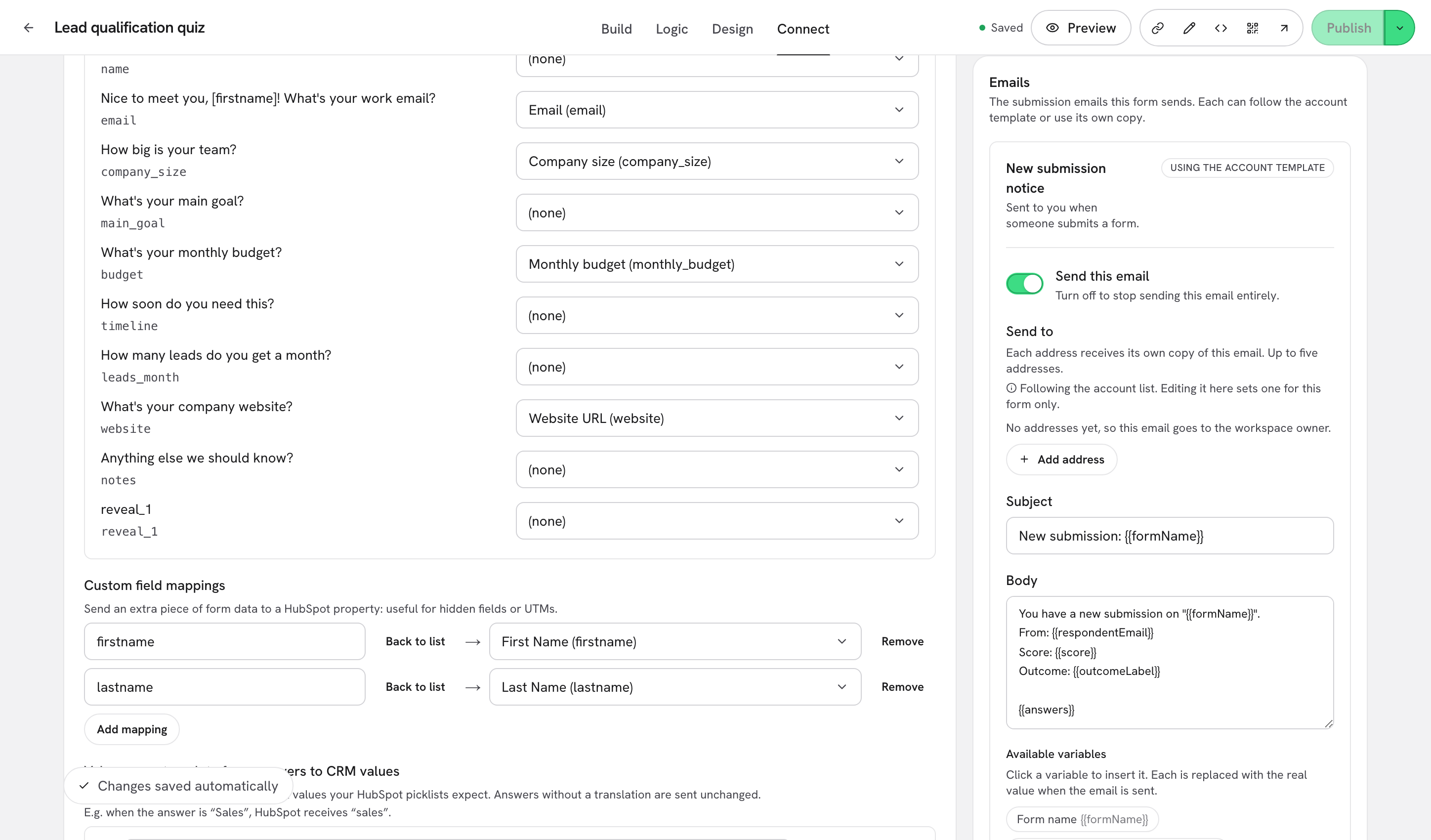
The two emails a form sends when someone completes it: the new submission notice and the respondent confirmation. Follow the account template or write custom copy for one form, insert variables, previ

Every completed submission can trigger two emails:

* **New submission notice**: "Sent to you when someone submits a form."
* **Respondent confirmation**: "Sent to the respondent to confirm you received their answers."

Both start from the templates saved for your workspace, and any single form can break away and use its own copy. This page covers the per-form side, in the editor's **Connect** tab. The workspace-wide copy lives in [Notification emails (account templates)](/dapta-forms/account/notifications.md).

> **⚠️ Note:** Both emails are sent for **completed** submissions only. A partial submission never triggers them. The confirmation is also skipped when no answer in the submission looks like an email address, since there is nobody to send it to.

***

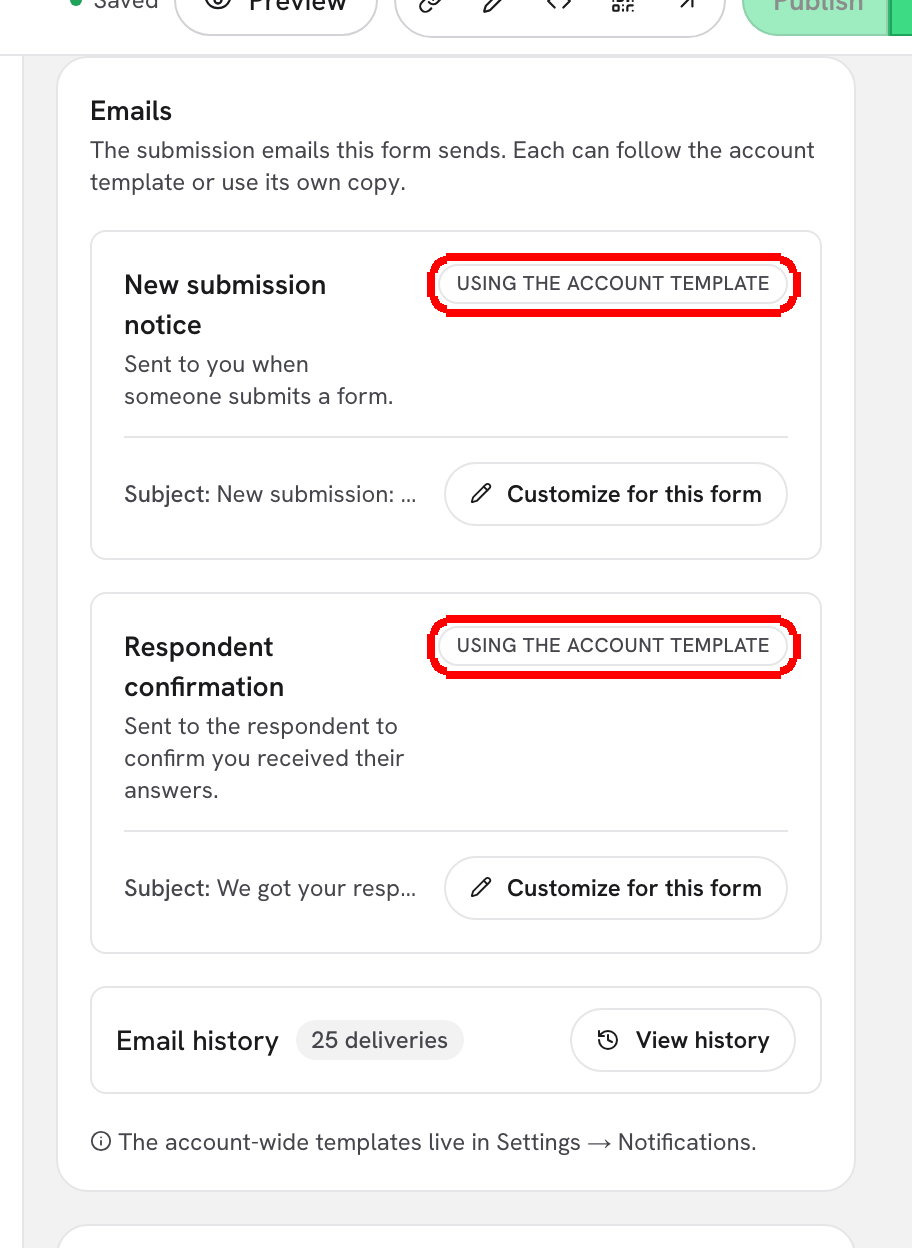
**Step 1:** Open the form in the editor, click the **Connect** tab and scroll to **Emails**. Each card shows which copy it is using right now, a preview of its subject line, and a **Customize for this form** button.

<figure><img src="https://3835013762-files.gitbook.io/~/files/v0/b/gitbook-x-prod.appspot.com/o/spaces%2FCy5rSNtQmtqYCGzJlNEB%2Fuploads%2Fgit-blob-c6803a17b102c3c08c6078606b44e22ec722d92b%2Fforms-emails-01-emails-section.png?alt=media" alt="The Emails section of the Connect tab with the New submission notice and Respondent confirmation cards, each marked Using the account template"><figcaption><p>Two cards, one per email. The badge reads <strong>Using the account template</strong> or <strong>Custom for this form</strong>.</p></figcaption></figure>

***

**Step 2:** Click **Customize for this form** on the email you want to change. The card opens into an editor with **Send this email**, **Subject** and **Body**.

<figure><img src="https://3835013762-files.gitbook.io/~/files/v0/b/gitbook-x-prod.appspot.com/o/spaces%2FCy5rSNtQmtqYCGzJlNEB%2Fuploads%2Fgit-blob-e51b2bae840076005e7b6a53eeae9420f793e8af%2Fforms-emails-02-customize-editor.png?alt=media" alt="The New submission notice editor with the Send this email switch, a custom Subject and a custom Body written with variables"><figcaption><p>Write the copy for this form. <strong>Send this email</strong> turns the email off entirely for this form.</p></figcaption></figure>

| Control                  | What it does                                                                                       |
| ------------------------ | -------------------------------------------------------------------------------------------------- |
| **Send this email**      | "Turn off to stop sending this email entirely." Leave it on unless you want silence for this form. |
| **Subject**              | The subject line. Variables are allowed.                                                           |
| **Body**                 | The message. Plain text, line breaks are kept.                                                     |
| **Available variables**  | Click a variable to insert it at the cursor.                                                       |
| **Preview**              | The same copy rendered with sample values, updated as you type.                                    |
| **Use account template** | Drops the custom copy and follows the workspace template again.                                    |
| **Save changes**         | Saves the copy for this form. You will see **Notification email saved.**                           |

***

**Step 3:** Insert variables instead of typing values by hand. Under **Available variables** the editor explains: "Click a variable to insert it. Each is replaced with the real value when the email is sent."

<figure><img src="https://3835013762-files.gitbook.io/~/files/v0/b/gitbook-x-prod.appspot.com/o/spaces%2FCy5rSNtQmtqYCGzJlNEB%2Fuploads%2Fgit-blob-400137951519217dda771a88455216497abbf8bc%2Fforms-emails-03-variables-and-preview.png?alt=media" alt="The Available variables buttons and the Preview panel showing the subject and body rendered with sample values"><figcaption><p>Click a variable to drop it in. <strong>Preview</strong> shows the result as you type.</p></figcaption></figure>

| Variable              | Becomes          |
| --------------------- | ---------------- |
| `{{formName}}`        | Form name        |
| `{{respondentEmail}}` | Respondent email |
| `{{score}}`           | Score            |
| `{{outcomeLabel}}`    | Outcome          |
| `{{formLink}}`        | Form link        |

> **💡 Tip:** **Preview** always uses sample values (a sample form name, `lead@acme.io`, a score of 15, the outcome "Qualified"), not answers from this form. It is there to show where each variable lands, not to show a real submission.

Anything that is not one of these five variables is left exactly as you typed it, so a stray `{{firstName}}` would arrive in the inbox as literal text. Stick to the buttons and you cannot get it wrong.

***

**Step 4:** Click **Save changes**. The badge on the card flips to **Custom for this form**, and from now on this form ignores the account template for that email.

To go back, click **Use account template** and confirm **Reset email template**: "Remove this form's custom copy and go back to the account template?"

<figure><img src="https://3835013762-files.gitbook.io/~/files/v0/b/gitbook-x-prod.appspot.com/o/spaces%2FCy5rSNtQmtqYCGzJlNEB%2Fuploads%2Fgit-blob-5cd6a13214010a86f78c324d4c8a8424ec7af1ac%2Fforms-emails-04-use-account-template.png?alt=media" alt="The Reset email template confirmation dialog with Cancel and Use account template buttons"><figcaption><p>Confirming deletes this form's custom copy. The workspace template is untouched.</p></figcaption></figure>

***

## Which copy wins

Each email resolves field by field, in this order:

1. **This form's custom copy**, when the card says **Custom for this form**.
2. **The account template**, saved in **Settings → Notifications** for the whole workspace.
3. **The built-in copy** shipped with Dapta Forms, when nobody has changed anything.

So a form can override just the subject in practice by customizing that email, while every other form in the workspace keeps following the account template. Changing the account template later never overwrites a form that has its own copy.

> **⚠️ Note:** Editing this copy, on a form or for the workspace, is limited to workspace **admins** and **owners**. See [Members & roles](/dapta-forms/account/members-and-roles.md).

## Email history

The **Email history** panel at the bottom of the **Emails** section counts what this form has sent. Click **View history** for the list: "The last deliveries this form made, newest first."

<figure><img src="https://3835013762-files.gitbook.io/~/files/v0/b/gitbook-x-prod.appspot.com/o/spaces%2FCy5rSNtQmtqYCGzJlNEB%2Fuploads%2Fgit-blob-24e59a54fa4f1e010718d8e88ca08dbd78f64893%2Fforms-emails-05-email-history.png?alt=media" alt="The Email history dialog listing two Delivered rows, submission_received and submission_confirmed, with timestamps"><figcaption><p>One completed submission, two emails: the notice to you and the confirmation to the respondent.</p></figcaption></figure>

* **submission\_received** is the new submission notice, **submission\_confirmed** is the respondent confirmation.
* The pill on the left is the status: **Delivered**, **In progress**, **Failed** or **Skipped**.
* **Refresh** re-reads the list without closing the dialog; **Close** dismisses it.

A **Skipped** row is normal and usually means there was nothing to send to: no email address in the submission, or the email switched off. Failures are retried automatically, so there is no resend button. See [Delivery, retries & history](/dapta-forms/connect/delivery-and-retries.md).

## Good to know

* Emails never hold up a respondent. They are queued after the submission is stored, so a slow mail provider cannot break your form.
* The sender address is set by the Dapta Forms deployment. It cannot be changed per workspace or per form today.
* The **New submission notice** goes to the workspace owner's address, not to a list you choose.
* Deleting a form also removes its custom email copy.

## What's next

* [Notification emails (account templates)](/dapta-forms/account/notifications.md): the workspace-wide copy every form starts from.
* [Delivery, retries & history](/dapta-forms/connect/delivery-and-retries.md): what **Delivered**, **Failed** and **Skipped** mean.
* [Outcomes (results by score range)](/dapta-forms/logic/outcomes.md): what `{{outcomeLabel}}` is filled with.
* [Submissions](/dapta-forms/results/submissions.md): read the answers behind an email.


---

# Agent Instructions
This documentation is published with GitBook. GitBook is the documentation platform designed so that both humans and AI agents can read, navigate, and reason over technical content effectively. Learn more at gitbook.com.

## Querying This Documentation
If you need additional information that is not directly available in this page, you can query the documentation dynamically by asking a question.

Perform an HTTP GET request on the current page URL with the `ask` query parameter, and the optional `goal` query parameter:

```
GET https://docs.dapta.ai/dapta-forms/connect/emails.md?ask=<question>&goal=<endgoal>
```

`ask` is the immediate question: it should be specific, self-contained, and written in natural language.
`goal` is optional and describes the broader end goal you are ultimately trying to accomplish on behalf of the user. GitBook uses it to tailor the answer towards what is most useful for that goal.

The response will contain a direct answer to the question and relevant excerpts and sources from the documentation.

Use this mechanism when the answer is not explicitly present in the current page, you need clarification or additional context, or you want to retrieve related documentation sections.