> For the complete documentation index, see [llms.txt](https://docs.dapta.ai/llms.txt). Markdown versions of documentation pages are available by appending `.md` to page URLs; this page is available as [Markdown](https://docs.dapta.ai/dapta-forms/connect/hubspot.md).

# HubSpot

Send every Dapta Forms submission to HubSpot as a contact. Learn what the integration syncs, how contacts are matched by email address, what reaches HubSpot on a partial submission versus a completed

The HubSpot card turns each submission into a contact in your portal. Answers become contact properties, UTMs and lead score can be stamped alongside them, and completed submissions can add a note and a form submission activity.

Connect HubSpot once for the whole account from **Integrations** in the left rail (see [Connections (account level)](/dapta-forms/connect/connections.md)), then map fields form by form from the **Connect** tab.

***

## What the integration syncs

Dapta Forms writes to **contacts** only. There are no deals, companies or tickets: the company and website properties can be filled from the email domain, but nothing else is created.

Every submission is matched to a contact **by email address**. HubSpot updates the contact it finds, and creates a new one when there is no match. That single rule explains most of what follows: a form that never collects an email address has nothing to identify the person with, so nothing is synced.

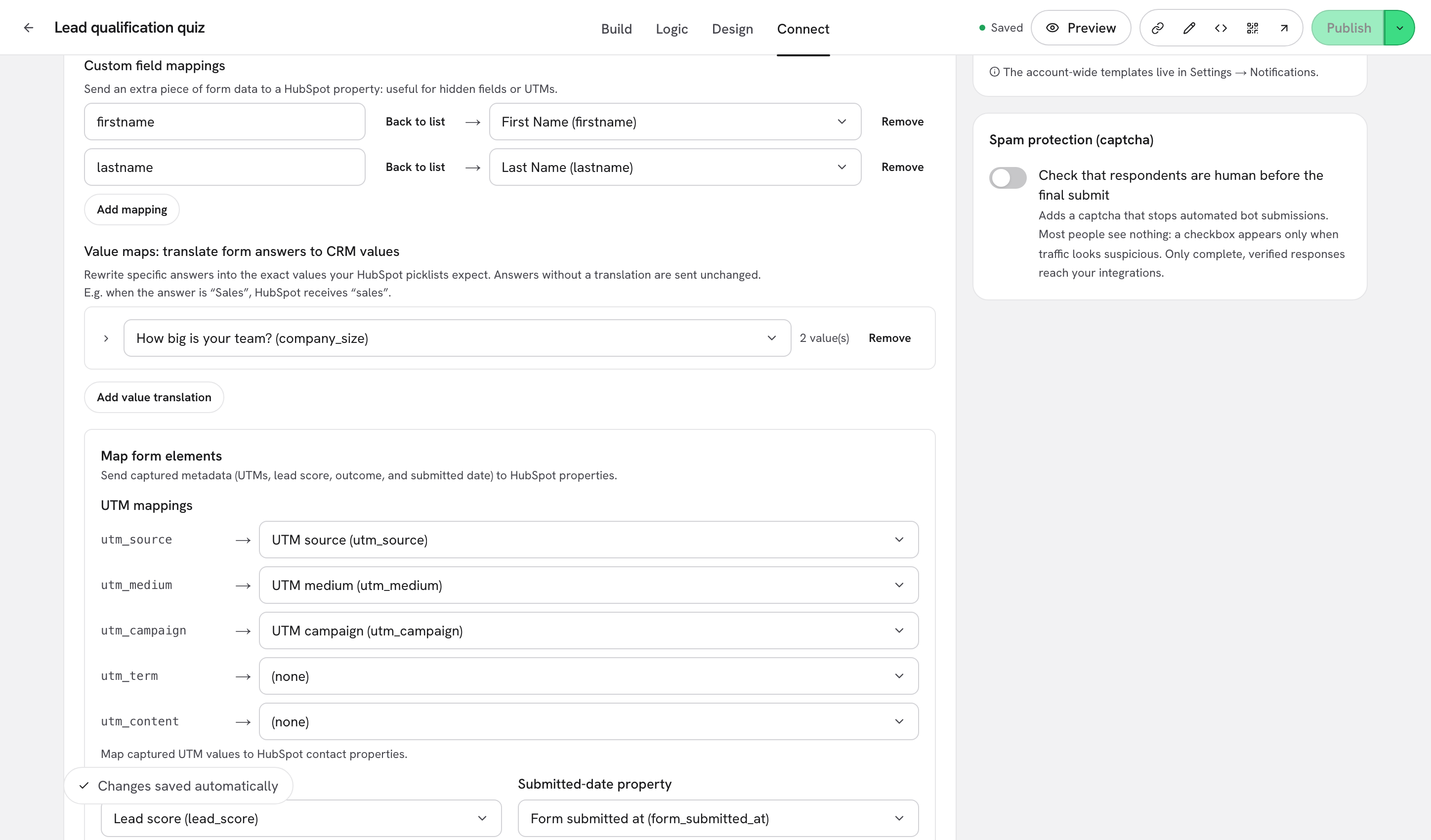
<figure><img src="https://3835013762-files.gitbook.io/~/files/v0/b/gitbook-x-prod.appspot.com/o/spaces%2FCy5rSNtQmtqYCGzJlNEB%2Fuploads%2Fgit-blob-aaf63783b650e345124977fbc21689089ceeb428%2Fforms-hubspot-01-card.png?alt=media" alt="The Connect tab of a form with the HubSpot card, its HubSpot connected badge and its Enabled switch"><figcaption><p>The <strong>HubSpot</strong> card in a form's <strong>Connect</strong> tab. The <strong>HubSpot connected</strong> badge means the account connection is in place.</p></figcaption></figure>

| Element                           | What it tells you                                                                                                                                                                                   |
| --------------------------------- | --------------------------------------------------------------------------------------------------------------------------------------------------------------------------------------------------- |
| **HubSpot connected** badge       | Your account already has a HubSpot connection, so you can pick real properties from the pickers. Without it the card shows **Connect HubSpot to map this form** and a **Go to Connections** button. |
| **Enabled** / **Disabled** switch | Turns the whole destination on or off for this form. Switching it off stops new deliveries and keeps every mapping you configured.                                                                  |
| **How the sync works**            | The short explainer above the mapping sections. See [How the sync works & troubleshooting](/dapta-forms/connect/hubspot/how-sync-works.md).                                                         |

> **⚠️ Note:** The **Connect** tab has no Save button, and integration changes are **not** part of your draft. The footer reads **Changes saved automatically**, and what you change on the HubSpot card applies to the live form right away, without clicking **Publish**.

***

## Partial and complete submissions

A form can save answers twice: once at the **partial submit point** (as soon as the email address is known) and once when the respondent reaches the end. HubSpot receives both, but they do not carry the same payload.

| Sent on a **partial** submission                      | Sent only on a **complete** submission                          |
| ----------------------------------------------------- | --------------------------------------------------------------- |
| The contact upsert (create or update, keyed on email) | The score in the **Score property**                             |
| Every answer mapped under **Map questions**           | The heading of the matching outcome in the **Outcome property** |
| Every **Custom field mapping**, including UTMs        | Every entry under **Static properties**                         |
| The **UTM mappings** under **Map form elements**      | The note from **Create a note on completed submissions**        |
| Value translations applied to those answers           | The activity from **Record a form submission in HubSpot**       |

That split is deliberate: a lead who abandons halfway still lands in your CRM with a name and an email, and the qualification data is added later if the person finishes.

***

## Where each setting lives

All of it sits inside one card, in this order.

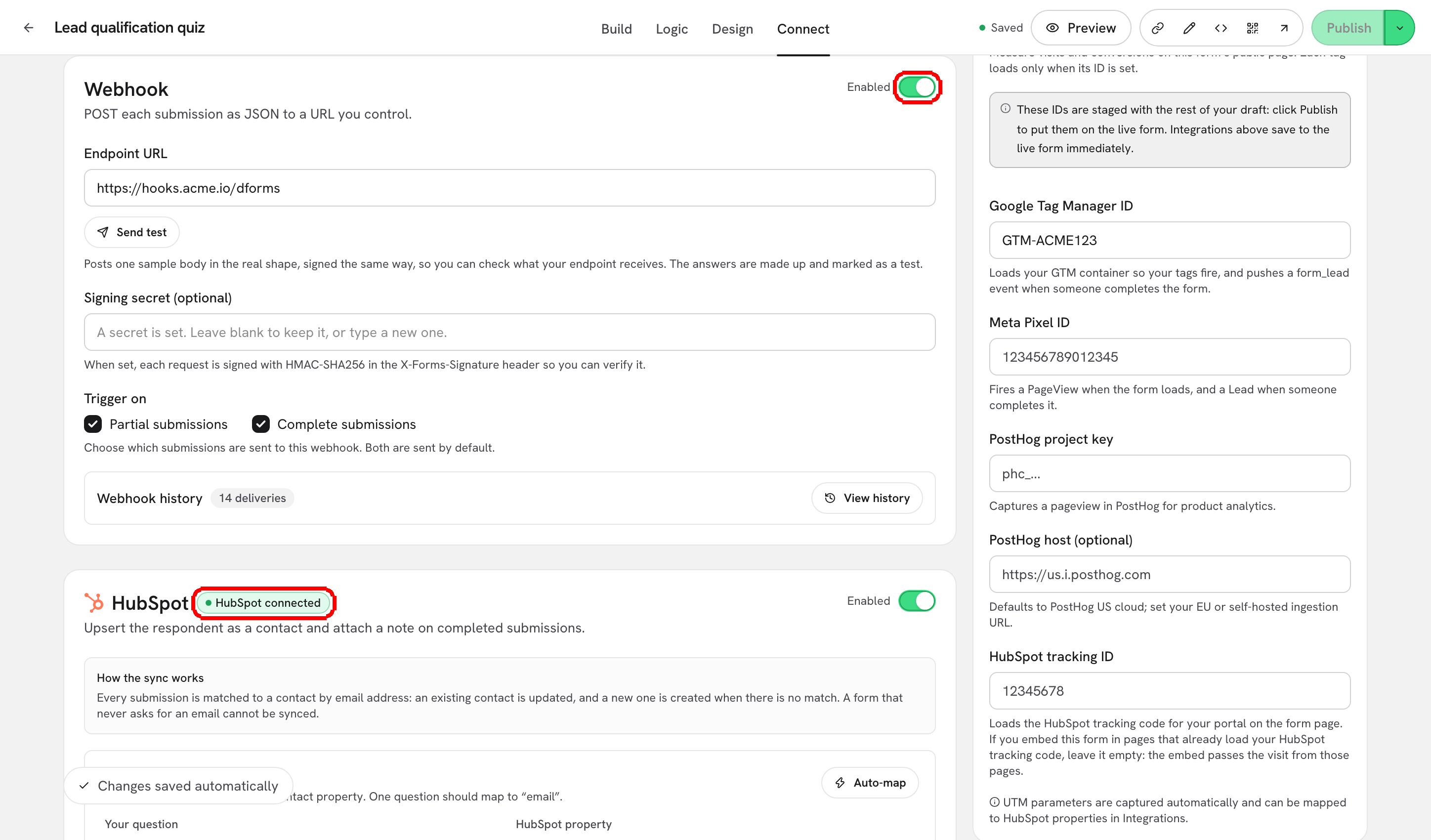
<figure><img src="https://3835013762-files.gitbook.io/~/files/v0/b/gitbook-x-prod.appspot.com/o/spaces%2FCy5rSNtQmtqYCGzJlNEB%2Fuploads%2Fgit-blob-50890163f61da48ea2e1e45cab5bbff7fe06c708%2Fforms-hubspot-02-sections.png?alt=media" alt="The HubSpot card scrolled to show the Custom field mappings, Value maps and Map form elements sections"><figcaption><p>The card is a stack of sections. Each one has its own page below.</p></figcaption></figure>

* [Map questions to contact properties](/dapta-forms/connect/hubspot/map-questions.md): send each answer to a contact property, use **Auto-map** for the obvious ones, and add extra keys such as UTMs or hidden fields under **Custom field mappings**.
* [Value maps & static properties](/dapta-forms/connect/hubspot/value-maps-and-static-properties.md): rewrite answers into the exact values your HubSpot picklists expect, and stamp fixed values on every completed submission.
* [Form elements: UTMs, score, outcome, submitted date](/dapta-forms/connect/hubspot/form-elements.md): the **Map form elements** section plus the **Infer company from email**, **Create a note on completed submissions** and **Record a form submission in HubSpot** switches.
* [Booking sync](/dapta-forms/connect/hubspot/booking-sync.md): the contact properties stamped when someone books a meeting from a scheduler step.
* [How the sync works & troubleshooting](/dapta-forms/connect/hubspot/how-sync-works.md): the email rule, the states that block the sync, and how to read the **HubSpot history** log.

***

## What's next

* [Connections (account level)](/dapta-forms/connect/connections.md): connect HubSpot to your account before mapping anything.
* [Scheduler step & Calendly](/dapta-forms/connect/scheduler-and-calendly.md): let respondents book a meeting inside the form.
* [Webhooks](/dapta-forms/connect/webhooks.md): send the same submission to your own endpoint as JSON.
* [Delivery, retries & history](/dapta-forms/connect/delivery-and-retries.md): what happens after a submission, and how retries work.


---

# Agent Instructions
This documentation is published with GitBook. GitBook is the documentation platform designed so that both humans and AI agents can read, navigate, and reason over technical content effectively. Learn more at gitbook.com.

## Querying This Documentation
If you need additional information that is not directly available in this page, you can query the documentation dynamically by asking a question.

Perform an HTTP GET request on the current page URL with the `ask` query parameter, and the optional `goal` query parameter:

```
GET https://docs.dapta.ai/dapta-forms/connect/hubspot.md?ask=<question>&goal=<endgoal>
```

`ask` is the immediate question: it should be specific, self-contained, and written in natural language.
`goal` is optional and describes the broader end goal you are ultimately trying to accomplish on behalf of the user. GitBook uses it to tailor the answer towards what is most useful for that goal.

The response will contain a direct answer to the question and relevant excerpts and sources from the documentation.

Use this mechanism when the answer is not explicitly present in the current page, you need clarification or additional context, or you want to retrieve related documentation sections.