> For the complete documentation index, see [llms.txt](https://docs.dapta.ai/llms.txt). Markdown versions of documentation pages are available by appending `.md` to page URLs; this page is available as [Markdown](https://docs.dapta.ai/dapta-forms/connect/hubspot/booking-sync.md).

# Booking sync

Stamp the booking facts on the HubSpot contact when someone books from a Scheduler step: a stage value, the day they booked, the time the meeting starts, and the details Calendly collected on the book

**Booking sync** is the part of the HubSpot card that fires when a respondent books a meeting from a [Scheduler step](/dapta-forms/connect/scheduler-and-calendly.md). A submission tells you what the lead answered; a booking tells you that they picked a slot, which day they picked it on, and when the meeting starts. Those are different facts, so they go to their own contact properties.

Everything here is optional. Leave a field blank and that fact is simply not written.

***

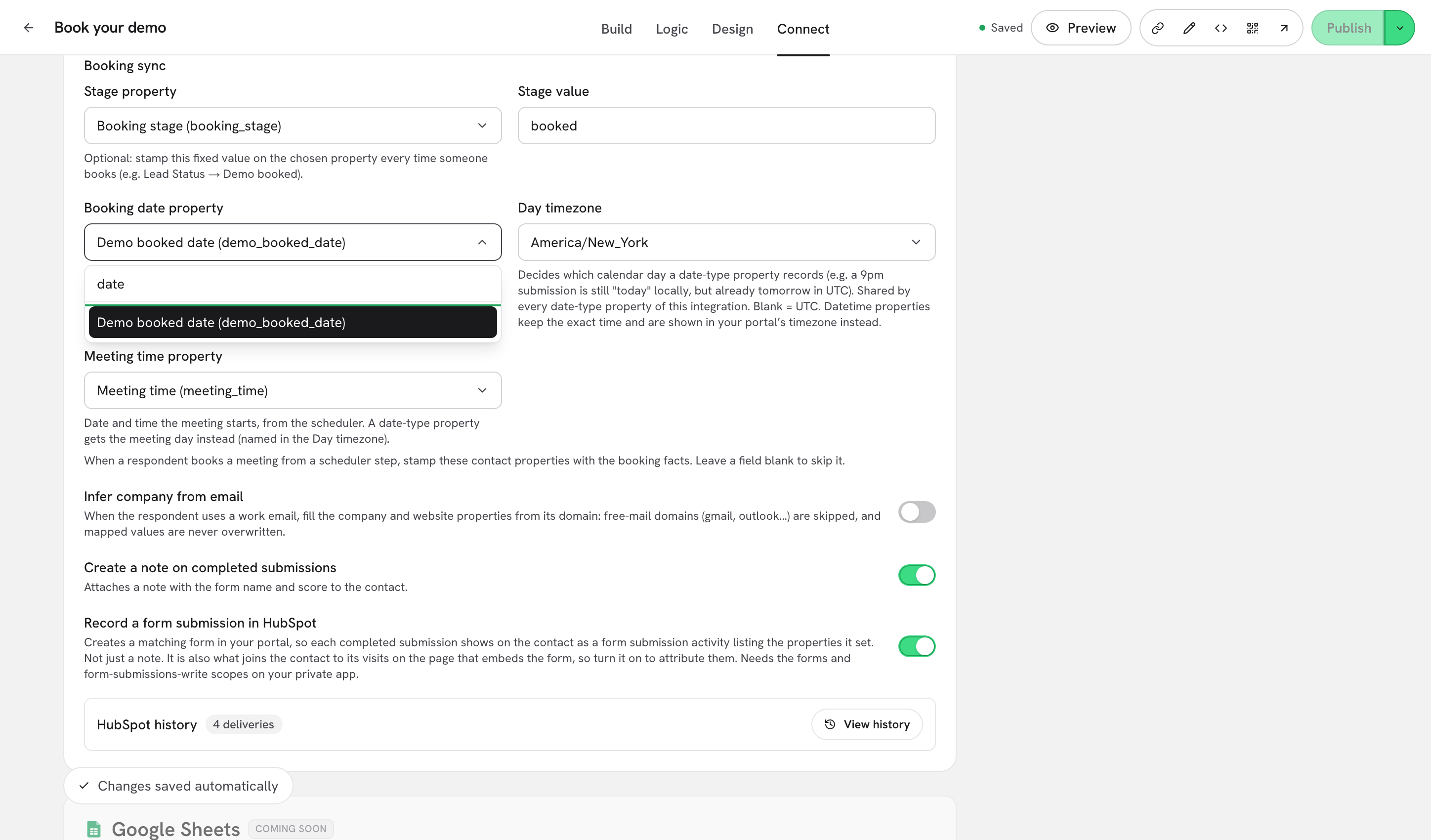
**Step 1:** Open the form in the editor, go to the **Connect** tab and switch the **HubSpot** card to **Enabled**. Scroll down to **Booking sync** and fill the fields you want.

<figure><img src="https://3835013762-files.gitbook.io/~/files/v0/b/gitbook-x-prod.appspot.com/o/spaces%2FCy5rSNtQmtqYCGzJlNEB%2Fuploads%2Fgit-blob-a304f793bd14691c74ee0d618cf478294b715fcb%2Fforms-booking-sync-01-booking-sync-fields.png?alt=media" alt="The Booking sync fields in the HubSpot card, with a stage property, a stage value, a booking date property, a day timezone and a meeting time property filled in"><figcaption><p>The five <strong>Booking sync</strong> fields. Anything left blank is skipped.</p></figcaption></figure>

| Field                     | What it writes                                                                   |
| ------------------------- | -------------------------------------------------------------------------------- |
| **Stage property**        | The contact property that marks the lead as booked, for example **Lead Status**. |
| **Stage value**           | The fixed value stamped on that property every time someone books.               |
| **Booking date property** | The calendar day the lead booked, not the day of the meeting.                    |
| **Day timezone**          | The timezone that day is computed in. Blank means UTC.                           |
| **Meeting time property** | The date and time the meeting starts, taken from the scheduler.                  |

> **⚠️ Note:** These settings save to the **live** form as soon as you stop typing. The status line reads **Changes saved automatically**. Unlike design or question edits, they do not wait for **Publish**.

***

**Step 2:** Pick each property from the searchable picker. It lists your HubSpot contact properties as **Label (internal\_name)**, so you can search either the human label or the internal name.

<figure><img src="https://3835013762-files.gitbook.io/~/files/v0/b/gitbook-x-prod.appspot.com/o/spaces%2FCy5rSNtQmtqYCGzJlNEB%2Fuploads%2Fgit-blob-a9274e4f5a4b983e7315b560373abeea6a7d54e3%2Fforms-booking-sync-02-property-picker.png?alt=media" alt="The Booking date property picker open with a search term, listing HubSpot contact properties as label and internal name"><figcaption><p>Every property picker is searchable and shows the internal name in brackets, so two similarly named properties cannot be confused.</p></figcaption></figure>

If the property you want is not in the list, it does not exist in your portal yet. Create it in HubSpot first (a **date** property for the booking date, a **date and time** property for the meeting time), then come back and reopen the picker. Nothing is created in HubSpot for you.

**Stage value** is a plain text field, not a picker, because it has to match what your HubSpot property stores. Type the internal value exactly as HubSpot has it: if the option is labelled "Meeting booked" but stored as `MEETING_BOOKED`, type `MEETING_BOOKED`. A value HubSpot does not recognise is rejected and the stage is not set.

> **💡 Tip:** **Day timezone** takes an IANA name such as `America/Bogota` or `Europe/Madrid`. If the name is not recognised the field warns **Not a timezone name we recognise. The day will be computed in UTC.** and still saves, so a typo silently shifts bookings made late in the evening to the following day.

***

## Why the two dates are different

| Property                  | Answers the question          | Written when                                                  |
| ------------------------- | ----------------------------- | ------------------------------------------------------------- |
| **Booking date property** | When did this lead commit?    | On every booking, even if the provider reports no start time. |
| **Meeting time property** | When are we actually meeting? | Only when a start time is available.                          |

Reporting on "meetings booked this month" counts the day the lead booked, which is why **Booking date property** exists on its own. Stamping it with the meeting day would push a booking made on the 31st into next month.

HubSpot **date** properties store midnight UTC, so only the day is kept. **Day timezone** decides which day that is: a booking made at 22:00 in Bogota is still the same calendar day there, but is already the next day in UTC.

***

## What else a booking carries

The booking page also tells Dapta Forms who booked. That is where the invitee details come from:

| Booking field             | What it holds                                                                       |
| ------------------------- | ----------------------------------------------------------------------------------- |
| **Booking: meeting time** | The start time of the meeting, as the booking reported it.                          |
| **Booking: full name**    | The name typed on the booking page.                                                 |
| **Booking: first name**   | The first name, split from the full name when Calendly does not send it separately. |
| **Booking: last name**    | The last name, split the same way.                                                  |
| **Booking: phone**        | The phone number, when the event type asks for one.                                 |

Which of these you can map depends on whether the form asks for an email itself.

* **The form has an email question.** That answer is what identifies the contact, and the whole submission has already synced by the time anyone books. Only **Booking: meeting time** is offered, on the scheduler question in the **Build** tab. The booking properties above still get stamped.
* **The form has no email question.** The booking is the only place an address appears, so Calendly's invitee email becomes the contact key. The invitee rows are then offered too: on the scheduler question, and in **Custom field mappings** on the **Connect** tab, under **System fields**. When someone books, the answers they gave earlier are mirrored onto that contact, so the quiz you asked before the calendar is not lost.

<figure><img src="https://3835013762-files.gitbook.io/~/files/v0/b/gitbook-x-prod.appspot.com/o/spaces%2FCy5rSNtQmtqYCGzJlNEB%2Fuploads%2Fgit-blob-a3386aebaec67a3c0da1e7e5c4b9ab53a69dda7d%2Fforms-booking-sync-03-question-booking-row.png?alt=media" alt="The HubSpot block on a scheduler question showing the Booking: meeting time row and its hint"><figcaption><p>On the scheduler question, the <strong>HubSpot</strong> block maps what the booking produces. The hint points typed dates back to <strong>Booking sync</strong>.</p></figcaption></figure>

> **⚠️ Note:** **Booking: meeting time** on the question is sent as text, exactly as the booking reported it. A HubSpot date property will reject it. For a real date property, use **Meeting time property** in **Booking sync**, which sends a proper timestamp.

***

## What happens when someone books

1. The respondent picks a slot in the embedded calendar and confirms on the booking page.
2. Dapta Forms records the booking and waits a short moment for the calendar to settle.
3. It reads the meeting start time and the invitee details back from Calendly.
4. It matches the HubSpot contact by email address (the invitee's address, or the one the form collected) and stamps the properties you configured above.
5. On a form with no email question, the earlier answers are mirrored onto that contact in the same pass.

Delivery is durable: if HubSpot is slow or briefly unavailable, the write is retried in the background instead of being dropped. You can follow every attempt in **HubSpot history** on the same card, where booking writes appear alongside submission writes. See [Delivery, retries & history](/dapta-forms/connect/delivery-and-retries.md).

Nothing is written when the contact cannot be identified at all, when the HubSpot card is disabled, or when every **Booking sync** field is blank.

## What's next

* [Scheduler step & Calendly](/dapta-forms/connect/scheduler-and-calendly.md): add the step, pick the event type and autofill the booking form.
* [How the sync works & troubleshooting](/dapta-forms/connect/hubspot/how-sync-works.md): the email key, conflicting mappings and reading the history.
* [Map questions to contact properties](/dapta-forms/connect/hubspot/map-questions.md): send each answer to a contact property.
* [Form elements: UTMs, score, outcome, submitted date](/dapta-forms/connect/hubspot/form-elements.md): the rest of the metadata a submission can carry.


---

# Agent Instructions
This documentation is published with GitBook. GitBook is the documentation platform designed so that both humans and AI agents can read, navigate, and reason over technical content effectively. Learn more at gitbook.com.

## Querying This Documentation
If you need additional information that is not directly available in this page, you can query the documentation dynamically by asking a question.

Perform an HTTP GET request on the current page URL with the `ask` query parameter, and the optional `goal` query parameter:

```
GET https://docs.dapta.ai/dapta-forms/connect/hubspot/booking-sync.md?ask=<question>&goal=<endgoal>
```

`ask` is the immediate question: it should be specific, self-contained, and written in natural language.
`goal` is optional and describes the broader end goal you are ultimately trying to accomplish on behalf of the user. GitBook uses it to tailor the answer towards what is most useful for that goal.

The response will contain a direct answer to the question and relevant excerpts and sources from the documentation.

Use this mechanism when the answer is not explicitly present in the current page, you need clarification or additional context, or you want to retrieve related documentation sections.