> For the complete documentation index, see [llms.txt](https://docs.dapta.ai/llms.txt). Markdown versions of documentation pages are available by appending `.md` to page URLs; this page is available as [Markdown](https://docs.dapta.ai/dapta-forms/connect/hubspot/form-elements.md).

# Form elements: UTMs, score, outcome, submitted date

Send the metadata Dapta Forms captures on its own to HubSpot: the five UTM parameters, the lead score, the outcome heading and the submitted date. Plus the switches for inferring the company from the

Not everything worth sending to HubSpot is an answer. Dapta Forms also captures where the respondent came from, how they scored, which outcome they landed on and when they submitted. The **Map form elements** section is where you decide which contact property receives each of those.

Open your form, click **Connect**, and scroll inside the **HubSpot** card to **Map form elements**. The section is described as **Send captured metadata (UTMs, lead score, outcome, and submitted date) to HubSpot properties.**

***

**Step 1:** Map the campaign parameters under **UTM mappings**.

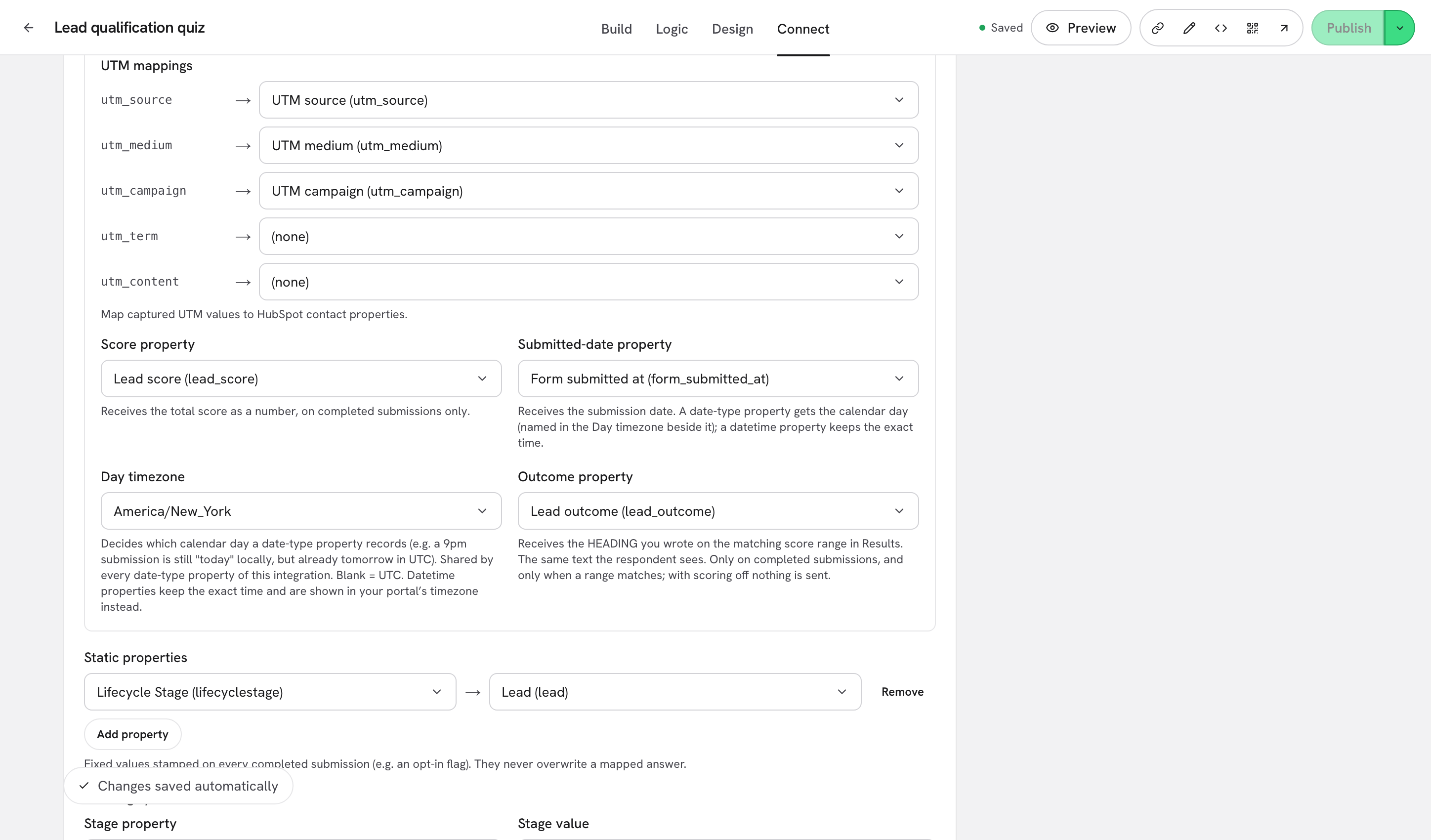
<figure><img src="https://3835013762-files.gitbook.io/~/files/v0/b/gitbook-x-prod.appspot.com/o/spaces%2FCy5rSNtQmtqYCGzJlNEB%2Fuploads%2Fgit-blob-549d1e31a6412914b2e3de4add8f299bca76b509%2Fforms-form-elements-01-utm-mappings.png?alt=media" alt="The UTM mappings block with rows for utm_source, utm_medium, utm_campaign, utm_term and utm_content, three of them pointing at HubSpot properties"><figcaption><p>Five fixed rows, one per UTM parameter. Leave a row on <strong>(none)</strong> to skip it.</p></figcaption></figure>

The five rows are `utm_source`, `utm_medium`, `utm_campaign`, `utm_term` and `utm_content`. Whenever someone opens the public form with those parameters in the URL, Dapta Forms captures them automatically: you do not have to add hidden questions for them.

UTMs are sent on **partial and complete** submissions, so an abandoned lead still arrives with its campaign attached.

> **💡 Tip:** The same values ride along in the webhook payload under `utm`, and they are also visible on each submission. Tracking scripts are configured separately, in [Tracking & pixels](/dapta-forms/connect/tracking-and-pixels.md).

***

**Step 2:** Choose where the lead score and the submission date go.

<figure><img src="https://3835013762-files.gitbook.io/~/files/v0/b/gitbook-x-prod.appspot.com/o/spaces%2FCy5rSNtQmtqYCGzJlNEB%2Fuploads%2Fgit-blob-45ae31d8d2967297cbe5273dd0bcbe67a21e2996%2Fforms-form-elements-02-score-and-date.png?alt=media" alt="The Score property and Submitted-date property pickers side by side with their helper text"><figcaption><p><strong>Score property</strong> and <strong>Submitted-date property</strong>, each with the rule that governs it.</p></figcaption></figure>

| Field                       | What it receives                                                                                                                                                             |
| --------------------------- | ---------------------------------------------------------------------------------------------------------------------------------------------------------------------------- |
| **Score property**          | The total score as a number. **Receives the total score as a number, on completed submissions only.** Pick a HubSpot number property.                                        |
| **Submitted-date property** | The date of the submission. HubSpot date properties store midnight UTC, so **the time of day is not kept**. If you need the exact timestamp, take it from a webhook instead. |

Scoring is set up on the **Logic** tab. If your form does not use points, leave **Score property** on **(none)**. See [Scoring](/dapta-forms/logic/scoring.md).

***

**Step 3:** Send the outcome the respondent saw.

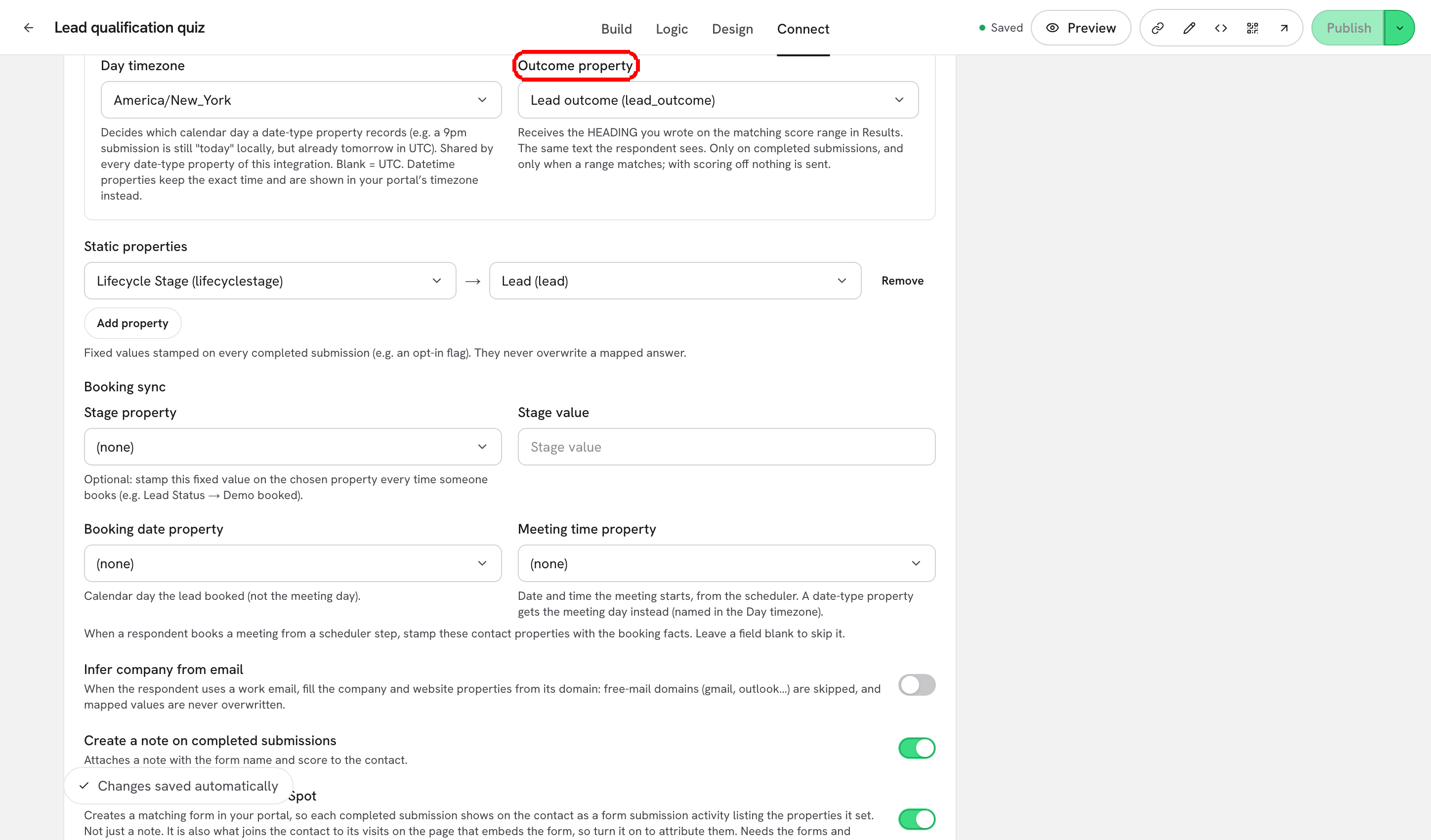
<figure><img src="https://3835013762-files.gitbook.io/~/files/v0/b/gitbook-x-prod.appspot.com/o/spaces%2FCy5rSNtQmtqYCGzJlNEB%2Fuploads%2Fgit-blob-893678b2a575214f714dc78fbb63c63b6a755fc2%2Fforms-form-elements-03-outcome.png?alt=media" alt="The Outcome property picker with the helper text explaining that it receives the heading of the matching score range"><figcaption><p>The <strong>Outcome property</strong> receives the exact heading from the matching score range.</p></figcaption></figure>

It receives the **heading you wrote on the matching score range in Results**: the same text the respondent reads on the ending screen, not a code. It is written on completed submissions only, and only when a score range actually matches. With scoring switched off, nothing is sent. See [Outcomes](/dapta-forms/logic/outcomes.md).

***

**Step 4:** Decide what else the sync should do, with the three switches under the mapping sections.

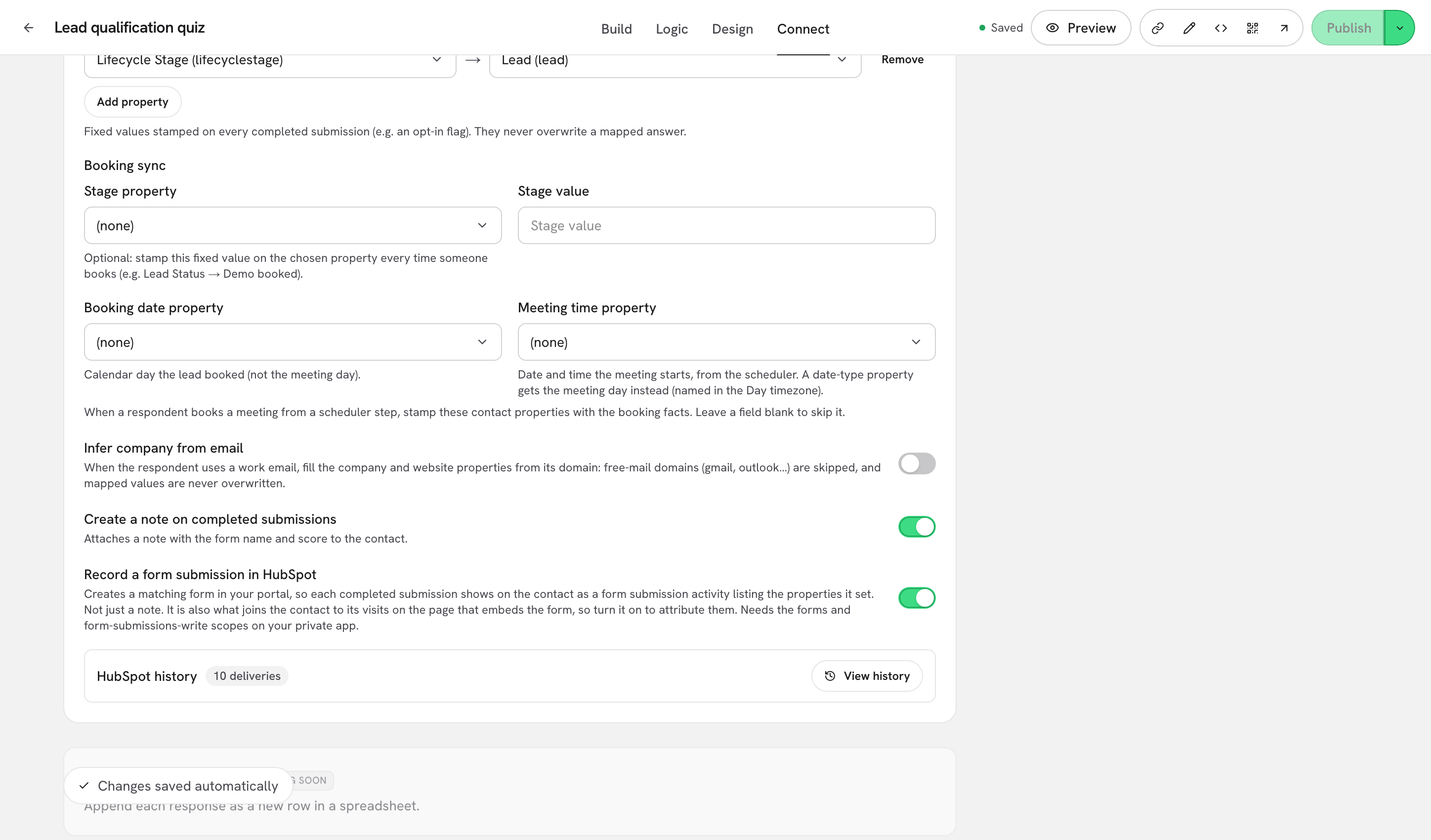
<figure><img src="https://3835013762-files.gitbook.io/~/files/v0/b/gitbook-x-prod.appspot.com/o/spaces%2FCy5rSNtQmtqYCGzJlNEB%2Fuploads%2Fgit-blob-3b724b654bf846912236217be95ab14c59fe79f6%2Fforms-form-elements-04-toggles.png?alt=media" alt="The Infer company from email, Create a note on completed submissions and Record a form submission in HubSpot switches, all on"><figcaption><p>Three switches, all shown here turned on.</p></figcaption></figure>

| Switch                                     | What it does                                                                                                                                                                                                                                |
| ------------------------------------------ | ------------------------------------------------------------------------------------------------------------------------------------------------------------------------------------------------------------------------------------------- |
| **Infer company from email**               | When the respondent uses a work email, fills the company and website properties from its domain. Free mail domains (gmail, outlook and the like) are skipped, and a value you mapped yourself is never overwritten.                         |
| **Create a note on completed submissions** | Attaches a note with the form name and the score to the contact. On by default.                                                                                                                                                             |
| **Record a form submission in HubSpot**    | Creates a matching form in your portal, so each completed submission shows on the contact as a **form submission activity** listing the properties it set, not just a note. The form is named after yours, with **(Dapta Forms)** appended. |

**Record a form submission in HubSpot** needs the `forms` and `form-submissions-write` scopes on the private app behind your connection. If your portal refuses, the card shows **HubSpot could not set this up: {reason}** and the rest of your settings still save.

> **⚠️ Note:** All three only act on **completed** submissions. A partial submission carries the contact upsert, the mapped answers and the UTMs, and nothing else.

***

## Reference

| Setting                                    | Sent on partial | Sent on complete                |
| ------------------------------------------ | --------------- | ------------------------------- |
| **UTM mappings**                           | Yes             | Yes                             |
| **Score property**                         | No              | Yes                             |
| **Outcome property**                       | No              | Yes, when a score range matches |
| **Submitted-date property**                | No              | Yes, date only                  |
| **Infer company from email**               | No              | Yes                             |
| **Create a note on completed submissions** | No              | Yes                             |
| **Record a form submission in HubSpot**    | No              | Yes                             |

***

## What's next

* [Value maps & static properties](/dapta-forms/connect/hubspot/value-maps-and-static-properties.md): translate answers and stamp fixed values.
* [Booking sync](/dapta-forms/connect/hubspot/booking-sync.md): the properties written when someone books a meeting.
* [How the sync works & troubleshooting](/dapta-forms/connect/hubspot/how-sync-works.md): read the delivery log and fix a sync that is not running.


---

# Agent Instructions
This documentation is published with GitBook. GitBook is the documentation platform designed so that both humans and AI agents can read, navigate, and reason over technical content effectively. Learn more at gitbook.com.

## Querying This Documentation
If you need additional information that is not directly available in this page, you can query the documentation dynamically by asking a question.

Perform an HTTP GET request on the current page URL with the `ask` query parameter, and the optional `goal` query parameter:

```
GET https://docs.dapta.ai/dapta-forms/connect/hubspot/form-elements.md?ask=<question>&goal=<endgoal>
```

`ask` is the immediate question: it should be specific, self-contained, and written in natural language.
`goal` is optional and describes the broader end goal you are ultimately trying to accomplish on behalf of the user. GitBook uses it to tailor the answer towards what is most useful for that goal.

The response will contain a direct answer to the question and relevant excerpts and sources from the documentation.

Use this mechanism when the answer is not explicitly present in the current page, you need clarification or additional context, or you want to retrieve related documentation sections.