> For the complete documentation index, see [llms.txt](https://docs.dapta.ai/llms.txt). Markdown versions of documentation pages are available by appending `.md` to page URLs; this page is available as [Markdown](https://docs.dapta.ai/dapta-forms/connect/hubspot/how-sync-works.md).

# How the sync works & troubleshooting

How Dapta Forms matches every submission to a HubSpot contact, the states that stop the sync before it starts (no email address, HubSpot not connected, a conflicting email mapping, a second HubSpot de

Almost every HubSpot question comes down to one rule and four states that block it. This page covers both, then shows you where to look when a lead did not arrive.

***

## The one rule: contacts are matched by email

The **How the sync works** explainer sits at the top of the **HubSpot** card, above every mapping section.

<figure><img src="https://3835013762-files.gitbook.io/~/files/v0/b/gitbook-x-prod.appspot.com/o/spaces%2FCy5rSNtQmtqYCGzJlNEB%2Fuploads%2Fgit-blob-13b651cec87d7bea7ae00df0dc2c5a46810c304d%2Fforms-how-sync-works-01-explainer.png?alt=media" alt="The How the sync works explainer inside the HubSpot card, above the mapping sections"><figcaption><p>The rule the whole integration is built on, stated on the card itself.</p></figcaption></figure>

**Every submission is matched to a contact by email address: an existing contact is updated, and a new one is created when there is no match. A form that never asks for an email cannot be synced.**

Three consequences follow from that:

* The same person answering twice updates one contact instead of creating two.
* A respondent who reaches the partial submit point already lands in HubSpot, because the email address is known from that step on. See [Partial submissions](/dapta-forms/builder/partial-submissions.md).
* An answer that is not mapped simply does not travel. It is still stored in Dapta Forms and still appears under **Submissions**.

***

## State 1: the form has no email address

If nothing in the form can produce an email address, the card replaces every mapping section with a single panel.

<figure><img src="https://3835013762-files.gitbook.io/~/files/v0/b/gitbook-x-prod.appspot.com/o/spaces%2FCy5rSNtQmtqYCGzJlNEB%2Fuploads%2Fgit-blob-8d949c0fc9a481c5eedaced92195fe84a0813a19%2Fforms-how-sync-works-02-no-email.png?alt=media" alt="The HubSpot card on a form with no email question, showing the panel titled This form has no email address to sync"><figcaption><p><strong>This form has no email address to sync.</strong> There is nothing to map until the form can identify the respondent.</p></figcaption></figure>

The panel spells out why: a submission with no address arrives with nothing to identify, so no contact is created and the lead is not synced.

**How to fix it:** open the **Build** tab and add an **Email** question, or add a **Scheduler** step. Calendly collects the invitee's address when someone books, which is enough to key the contact. Return to **Connect** and the mapping sections appear.

***

## State 2: HubSpot is not connected for the account

Without an account connection the card shows **Connect HubSpot to map this form**, explains that HubSpot is not connected for your account yet, and offers a **Go to Connections** button.

Connecting is done once, by an admin or an owner, from **Integrations** in the left rail. Every form in the workspace then shares it. See [Connections (account level)](/dapta-forms/connect/connections.md).

If your portal is reachable but slow to answer, you may instead see **HubSpot properties are temporarily unavailable, but you can still type a property name.** Your mappings still save; the pickers come back on their own.

***

## State 3: a mapping that stops the sync

On a form whose only source of an address is a **scheduler** step, the booking supplies the email. Mapping a question to `email` on that form takes over as the contact key, and answers stop reaching HubSpot after a booking.

The card catches this with the alert **This mapping stops the sync** and names the question to fix. Clear that question's property back to **(none)** and the sync resumes. On these forms the **Map questions** helper reads **Do not map anything to "email"** instead of the usual line.

***

## State 4: a second HubSpot destination

A form can only have one HubSpot destination. If a second one exists, the card warns **This form has a second HubSpot connection** and explains that this screen only edits the first one.

To send one answer to several properties, do not add a second destination: add the extra properties to the same question under **Custom field mappings**. See [Map questions to contact properties](/dapta-forms/connect/hubspot/map-questions.md).

***

## Reading the HubSpot history

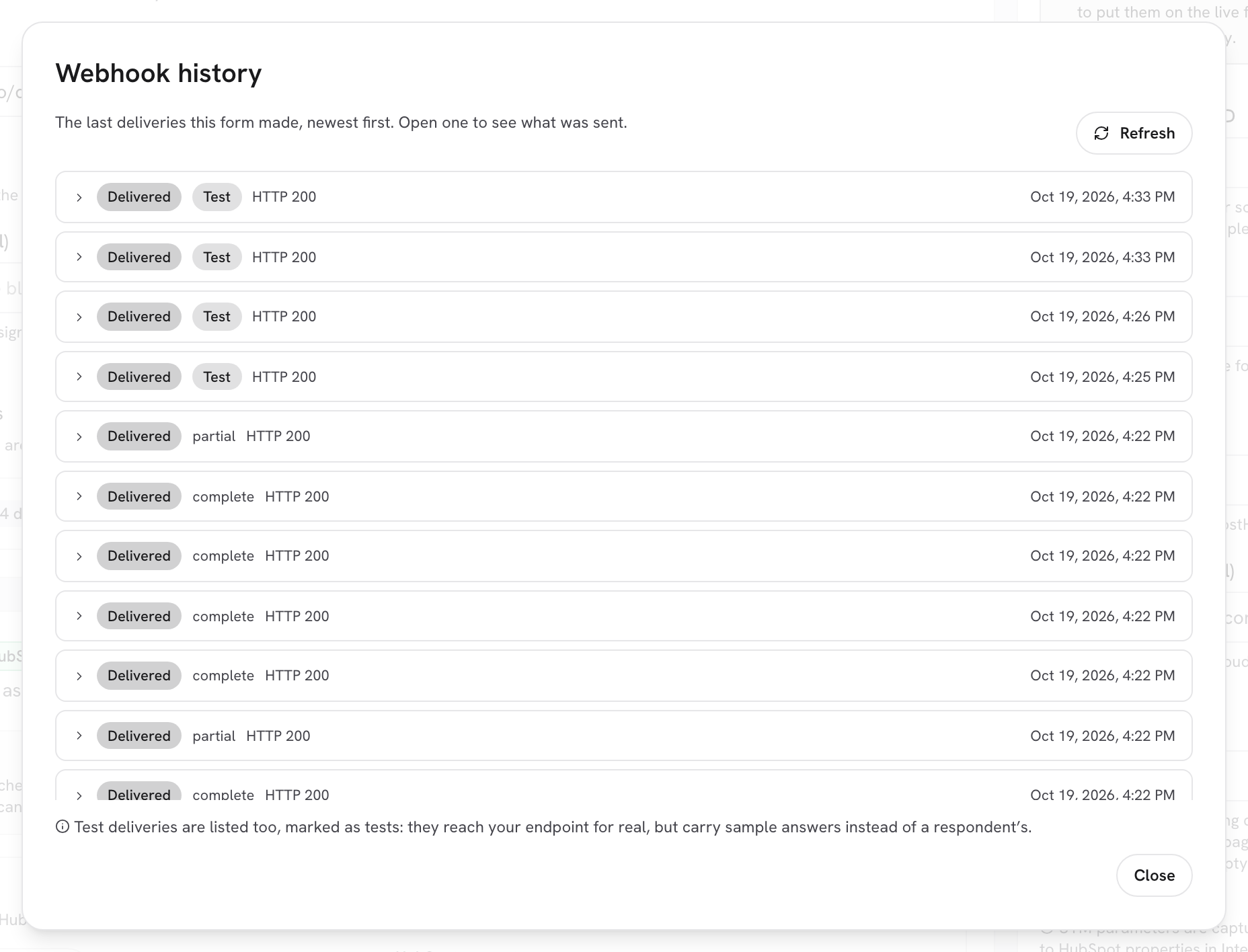
Every card carries its own delivery log. On the HubSpot card it sits at the bottom, as a line reading **HubSpot history** with a **{n} deliveries** chip, or a red **{n} failed** chip when something went wrong. Click **View history**.

<figure><img src="https://3835013762-files.gitbook.io/~/files/v0/b/gitbook-x-prod.appspot.com/o/spaces%2FCy5rSNtQmtqYCGzJlNEB%2Fuploads%2Fgit-blob-a5519761dc7190b15459b5d56514441efe7577fb%2Fforms-how-sync-works-03-history.png?alt=media" alt="The HubSpot history dialog listing five deliveries, newest first, each with a Delivered pill, a complete or partial label and a timestamp"><figcaption><p>The last deliveries this form made, newest first. The top row is the completed submission that has just been synced.</p></figcaption></figure>

| Column           | What it means                                                                                                                                                      |
| ---------------- | ------------------------------------------------------------------------------------------------------------------------------------------------------------------ |
| Status pill      | **Delivered** (it landed), **In progress** (queued or retrying), **Failed** (it gave up after the last attempt) or **Skipped** (it was superseded and never sent). |
| Action name      | The queue's own name for the delivery. On the HubSpot card that is `partial` or `complete`, so you can tell a lead capture apart from a finished submission.       |
| **Test** badge   | A test ping rather than a respondent's answers. **Send test** exists on the **Webhook** card only, so these rows show up in **Webhook history**, not here.         |
| **{n} attempts** | Shown when the delivery needed more than one try.                                                                                                                  |
| Timestamp        | When the delivery was made, in your browser's local time.                                                                                                          |

**Refresh** reloads the list, **Close** dismisses the dialog, and the panel keeps the 25 most recent deliveries. Before anything has been sent it reads **Nothing has been delivered yet.**

> **⚠️ Note:** Rows open to show **What we sent** and **What came back** only when a delivery is a single HTTP request, which is the case for webhooks. A HubSpot sync is several API calls in a row, so those rows have no body to open. To inspect an exact payload, add a webhook alongside HubSpot: see [Webhooks](/dapta-forms/connect/webhooks.md).

***

## A lead did not arrive: what to check, in order

1. **Is the switch on?** The **HubSpot** card must read **Enabled**.
2. **Is there an email address?** Open the submission under **Submissions**. If the email field is empty, nothing was synced, and that is expected.
3. **Is the question mapped to `email`?** Without that row, no contact is created. See [Map questions](/dapta-forms/connect/hubspot/map-questions.md).
4. **Was it a partial submission?** Score, outcome, static properties, the note and the form submission activity are written on completed submissions only.
5. **Check the log.** Open **HubSpot history**. A **Failed** row shows the reason it recorded, or **No reason was recorded.** when the failure carried none.
6. **Nothing in the log at all?** The delivery was never queued, which points back to steps 1 to 3 rather than to HubSpot.

Deliveries are retried automatically with growing delays, so a portal that was briefly unavailable usually resolves itself. There is no manual resend. The full retry behaviour is on [Delivery, retries & history](/dapta-forms/connect/delivery-and-retries.md).

***

## What's next

* [Map questions to contact properties](/dapta-forms/connect/hubspot/map-questions.md): fix the mapping most sync problems come down to.
* [Form elements: UTMs, score, outcome, submitted date](/dapta-forms/connect/hubspot/form-elements.md): what is written only at the end.
* [Connections (account level)](/dapta-forms/connect/connections.md): the account connection every form shares.


---

# Agent Instructions
This documentation is published with GitBook. GitBook is the documentation platform designed so that both humans and AI agents can read, navigate, and reason over technical content effectively. Learn more at gitbook.com.

## Querying This Documentation
If you need additional information that is not directly available in this page, you can query the documentation dynamically by asking a question.

Perform an HTTP GET request on the current page URL with the `ask` query parameter, and the optional `goal` query parameter:

```
GET https://docs.dapta.ai/dapta-forms/connect/hubspot/how-sync-works.md?ask=<question>&goal=<endgoal>
```

`ask` is the immediate question: it should be specific, self-contained, and written in natural language.
`goal` is optional and describes the broader end goal you are ultimately trying to accomplish on behalf of the user. GitBook uses it to tailor the answer towards what is most useful for that goal.

The response will contain a direct answer to the question and relevant excerpts and sources from the documentation.

Use this mechanism when the answer is not explicitly present in the current page, you need clarification or additional context, or you want to retrieve related documentation sections.