> For the complete documentation index, see [llms.txt](https://docs.dapta.ai/llms.txt). Markdown versions of documentation pages are available by appending `.md` to page URLs; this page is available as [Markdown](https://docs.dapta.ai/dapta-forms/connect/hubspot/map-questions.md).

# Map questions to contact properties

Map each question of a Dapta Form to a HubSpot contact property: use the searchable property picker, let Auto-map fill the obvious matches, add extra keys such as UTMs and hidden fields with Custom fi

Mapping tells HubSpot where each answer belongs. Until a question is mapped, its answer stays in Dapta Forms and never reaches your CRM.

Open your form, click **Connect** in the top bar, and scroll to the **HubSpot** card.

***

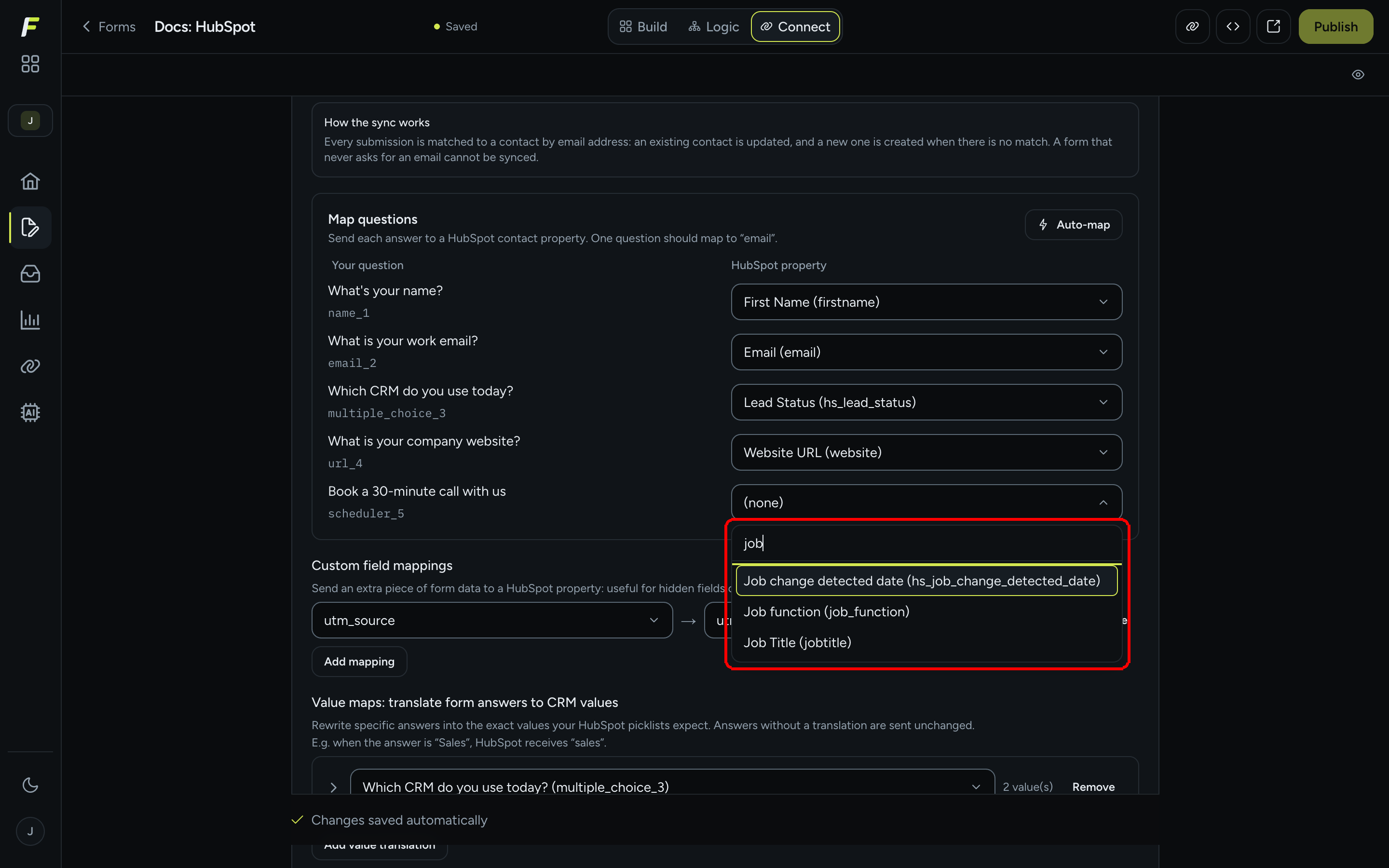
**Step 1:** Find the **Map questions** section. It lists every question in the form under **Your question**, with its field key underneath, and a picker under **HubSpot property** next to each one.

<figure><img src="https://3835013762-files.gitbook.io/~/files/v0/b/gitbook-x-prod.appspot.com/o/spaces%2FCy5rSNtQmtqYCGzJlNEB%2Fuploads%2Fgit-blob-bffb5759d6b12a0b4a4b2c0814d33bf6b44f89a7%2Fforms-map-questions-01-section.png?alt=media" alt="The Map questions section listing five questions with their HubSpot property pickers and the Auto-map button"><figcaption><p><strong>Map questions</strong> pairs every question with a contact property. <strong>Auto-map</strong> fills the obvious ones for you.</p></figcaption></figure>

The helper line states the one rule that matters: **Send each answer to a HubSpot contact property. One question should map to "email".**

***

**Step 2:** Click **Auto-map** to fill the obvious matches in one go.

Auto-map reads your question text and types, in English and in Spanish, and suggests the standard contact properties: an email question to `email`, a phone question to `mobilephone` or `phone`, a website or URL question to `website`, a company question to `company`, a job title question to `jobtitle`, and first and last name to `firstname` and `lastname`.

It never overwrites a mapping you already made. When it finds something you get **Auto-mapped {n} question(s). Review and save.**, and when there is nothing left to suggest you get **No new matches to suggest.**

> **💡 Tip:** Always review what Auto-map chose. It is a shortcut for the standard properties, not a replacement for reading the list.

***

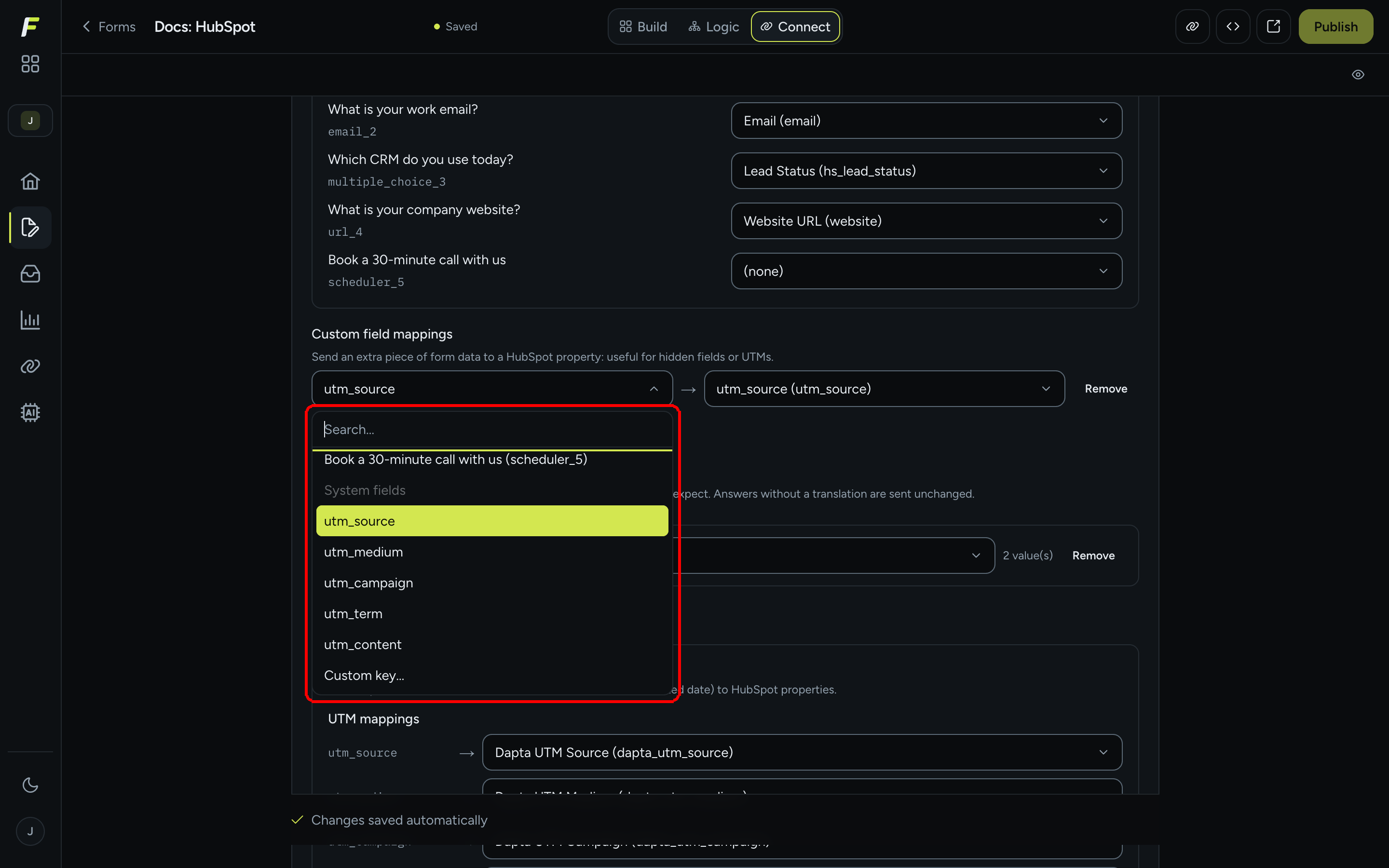
**Step 3:** Set the rest by hand. Click a picker to open the property list, type in **Search…** to narrow it down, then click the property you want.

<figure><img src="https://3835013762-files.gitbook.io/~/files/v0/b/gitbook-x-prod.appspot.com/o/spaces%2FCy5rSNtQmtqYCGzJlNEB%2Fuploads%2Fgit-blob-f9e199242ca527d2336f1a06bef387ca910fe7cb%2Fforms-map-questions-02-property-picker.png?alt=media" alt="An open HubSpot property picker with the word job typed in the search field and three matching properties listed"><figcaption><p>Every property in your portal is searchable, shown as <strong>Label (internal_name)</strong>.</p></figcaption></figure>

Each entry reads **Label (internal\_name)**: the label is what your team sees in HubSpot, the value in brackets is the internal name the API uses. Pick **(none)** to clear a mapping.

Two details worth knowing:

* The same question can feed several properties. Map it once here, and add the extra targets under **Custom field mappings** in the next step.
* If your portal cannot be reached for a moment, the card says **HubSpot properties are temporarily unavailable, but you can still type a property name.** The mapping still saves.

***

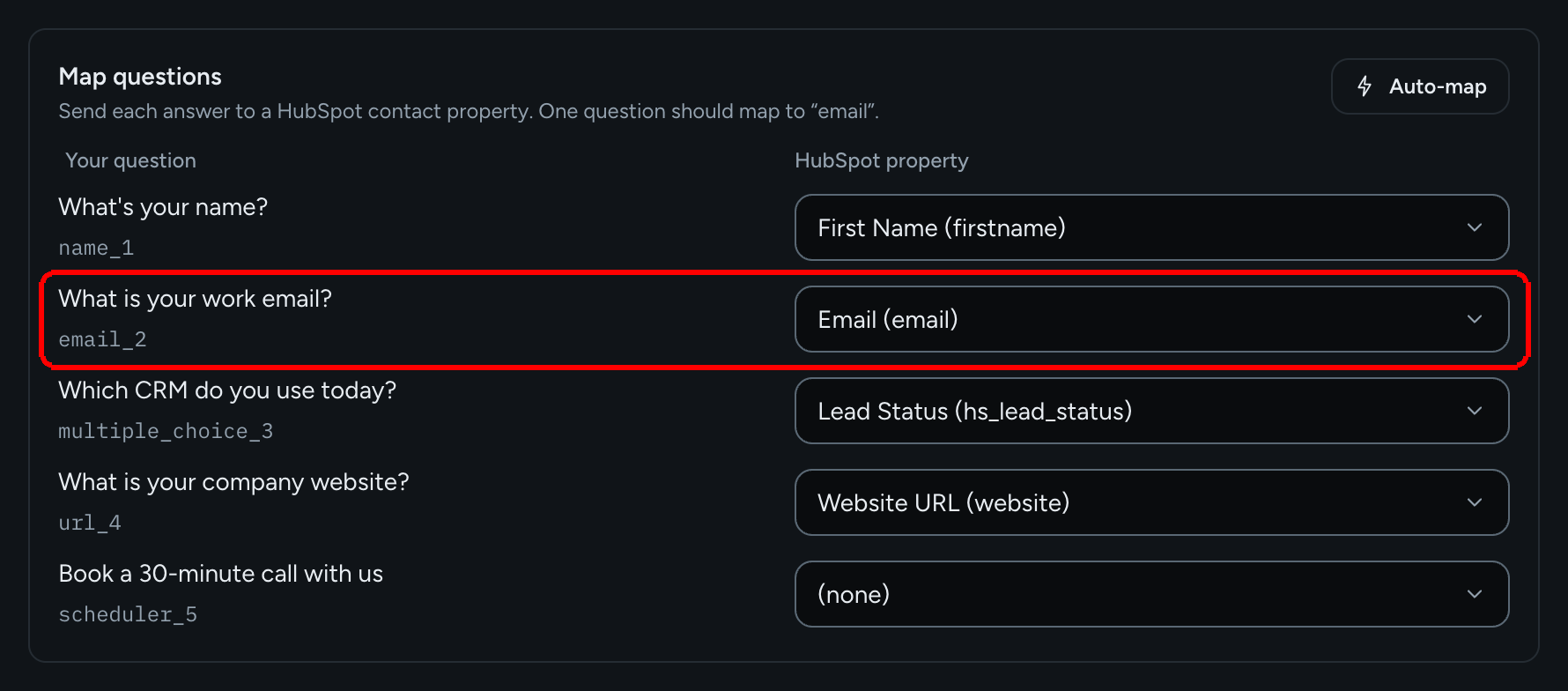
**Step 4:** Use **Custom field mappings** for anything that is not a plain question: UTM parameters, hidden fields, or a key you set through the URL.

<figure><img src="https://3835013762-files.gitbook.io/~/files/v0/b/gitbook-x-prod.appspot.com/o/spaces%2FCy5rSNtQmtqYCGzJlNEB%2Fuploads%2Fgit-blob-b0b7f2e12052380acf1e8b0b872d3446cf12768a%2Fforms-map-questions-03-custom-field-key.png?alt=media" alt="The Custom field mappings key picker open, showing the Form questions group, the System fields group with the five UTM keys, and the Custom key option"><figcaption><p>The key picker groups everything you can send: <strong>Form questions</strong>, <strong>System fields</strong> and <strong>Custom key…</strong>.</p></figcaption></figure>

Click **Add mapping**, open the left picker and choose the key:

| Group              | What it contains                                                                                                                                                                                                                                                         |
| ------------------ | ------------------------------------------------------------------------------------------------------------------------------------------------------------------------------------------------------------------------------------------------------------------------ |
| **Form questions** | Every question in the form, listed as **Question text (field\_key)**. Use this to send one answer to a second property.                                                                                                                                                  |
| **System fields**  | The five captured UTM parameters: `utm_source`, `utm_medium`, `utm_campaign`, `utm_term` and `utm_content`. On a form with a scheduler step you also get the booking keys (**Booking: full name**, **Booking: first name**, **Booking: last name**, **Booking: phone**). |
| **Custom key…**    | Type any key by hand, for a hidden field or a value you pass in the URL. **Back to list** returns to the groups.                                                                                                                                                         |

Then pick the HubSpot property on the right. **Remove** deletes the row. With no rows the section reads **No mappings yet.**

> **💡 Tip:** Hidden fields and `?key=value` prefill are explained in [Hidden fields & URL prefill](/dapta-forms/builder/hidden-fields-and-url-prefill.md). Anything that lands in a form field can be mapped here.

***

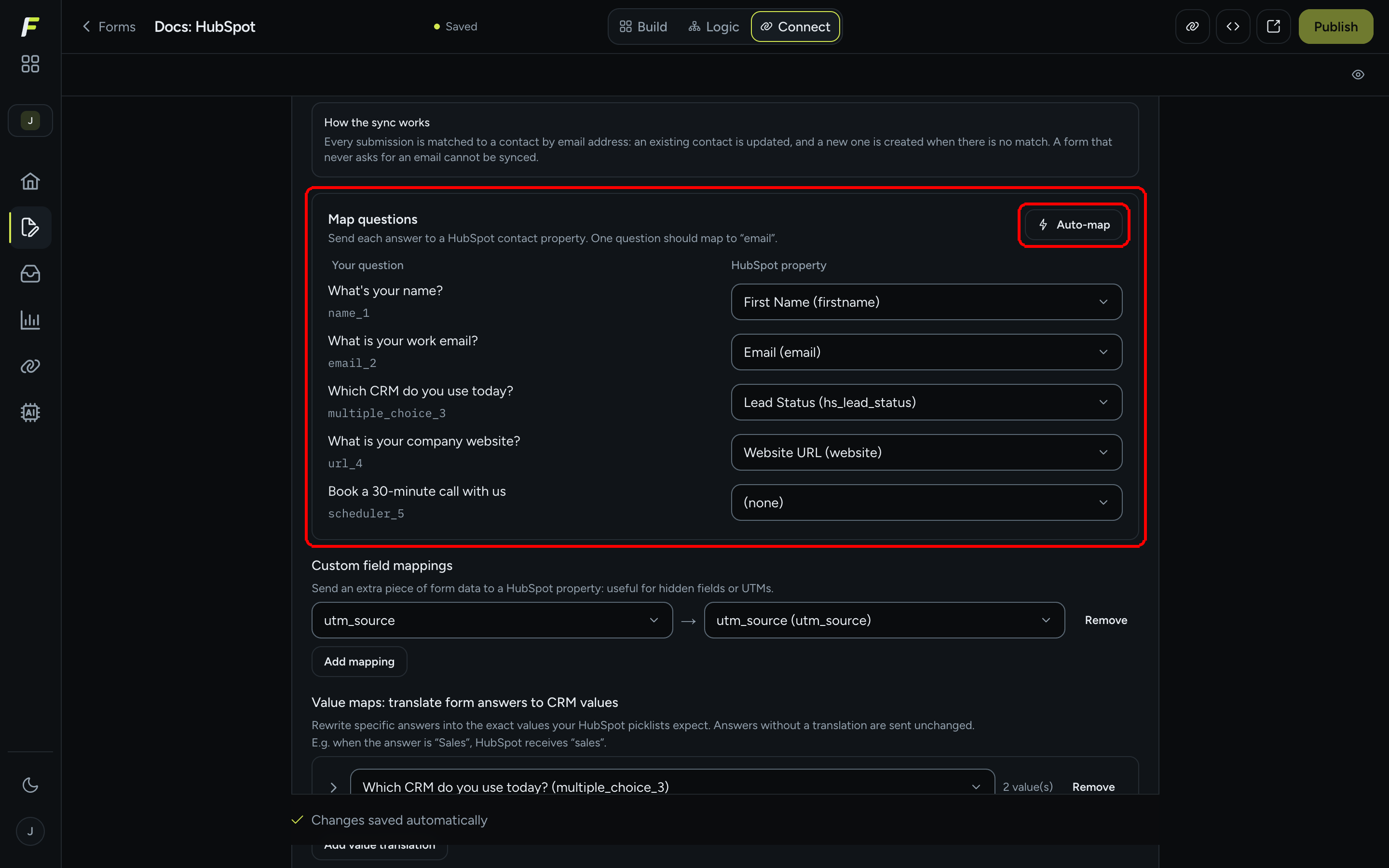
**Step 5:** Check that one question maps to **Email (email)**. This is the mapping the whole integration depends on.

<figure><img src="https://3835013762-files.gitbook.io/~/files/v0/b/gitbook-x-prod.appspot.com/o/spaces%2FCy5rSNtQmtqYCGzJlNEB%2Fuploads%2Fgit-blob-af94e7dcc57265843539b4c59c9c1a726d1d0dbf%2Fforms-map-questions-04-email-row.png?alt=media" alt="The Map questions rows with the work email question mapped to Email (email) highlighted"><figcaption><p>Without this row, submissions arrive with nothing to identify the person and no contact is created.</p></figcaption></figure>

HubSpot matches a contact by email address: it updates the one it finds, or creates a new one. A submission that carries no address cannot be matched, so the lead is not synced at all. If your form has no email question, the card replaces the mapping sections with **This form has no email address to sync**.

There is one exception. On a form whose only source of an address is a **scheduler** step, Calendly supplies the invitee address when someone books, and you should **not** map anything to `email`. Doing so raises the alert **This mapping stops the sync**. See [How the sync works & troubleshooting](/dapta-forms/connect/hubspot/how-sync-works.md).

***

## What's next

* [Value maps & static properties](/dapta-forms/connect/hubspot/value-maps-and-static-properties.md): translate answers into the values your picklists expect.
* [Form elements: UTMs, score, outcome, submitted date](/dapta-forms/connect/hubspot/form-elements.md): map the metadata Dapta Forms captures on its own.
* [How the sync works & troubleshooting](/dapta-forms/connect/hubspot/how-sync-works.md): the email rule, blocked states and the delivery log.


---

# Agent Instructions
This documentation is published with GitBook. GitBook is the documentation platform designed so that both humans and AI agents can read, navigate, and reason over technical content effectively. Learn more at gitbook.com.

## Querying This Documentation
If you need additional information that is not directly available in this page, you can query the documentation dynamically by asking a question.

Perform an HTTP GET request on the current page URL with the `ask` query parameter, and the optional `goal` query parameter:

```
GET https://docs.dapta.ai/dapta-forms/connect/hubspot/map-questions.md?ask=<question>&goal=<endgoal>
```

`ask` is the immediate question: it should be specific, self-contained, and written in natural language.
`goal` is optional and describes the broader end goal you are ultimately trying to accomplish on behalf of the user. GitBook uses it to tailor the answer towards what is most useful for that goal.

The response will contain a direct answer to the question and relevant excerpts and sources from the documentation.

Use this mechanism when the answer is not explicitly present in the current page, you need clarification or additional context, or you want to retrieve related documentation sections.