> For the complete documentation index, see [llms.txt](https://docs.dapta.ai/llms.txt). Markdown versions of documentation pages are available by appending `.md` to page URLs; this page is available as [Markdown](https://docs.dapta.ai/dforms/connect/spam-protection.md).

# Spam protection (captcha)

Turn on a human check before a form's final submit to stop bot submissions. Choose Automatic or Strict mode, see what respondents see, and learn how partial answers, webhooks, HubSpot and bookings beh

Spam protection adds a human check, powered by Cloudflare Turnstile, right before a form's final submit. It stops bots from filling your form and flooding your webhooks and HubSpot with junk contacts. It is off by default, and you turn it on form by form.

***

**Step 1:** Open the form in the editor, click **Connect** in the top bar and scroll to the last section, **Spam protection (captcha)**.

<figure><img src="https://3835013762-files.gitbook.io/~/files/v0/b/gitbook-x-prod.appspot.com/o/spaces%2FCy5rSNtQmtqYCGzJlNEB%2Fuploads%2Fgit-blob-4acc7ad76a2f9f6ea0d84b108a192ab46c580529%2Fforms-spam-protection-01-section-off.png?alt=media" alt="The Spam protection (captcha) section at the end of the Connect tab, with its switch turned off"><figcaption><p>The last section of the <strong>Connect</strong> tab. Most forms never need it.</p></figcaption></figure>

***

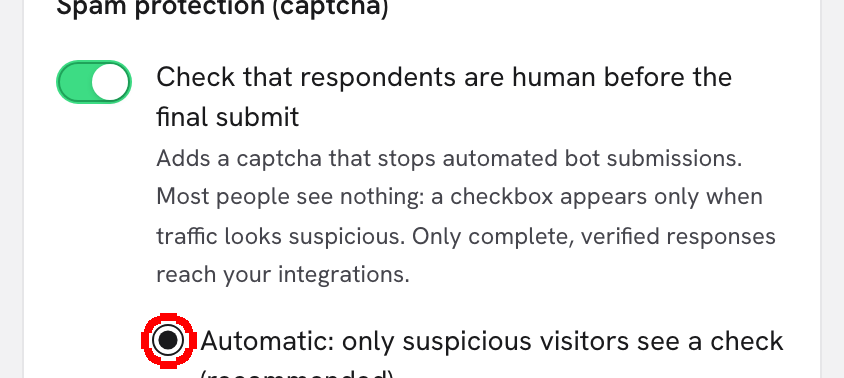
**Step 2:** Turn on **Check that respondents are human before the final submit**. Two modes appear under the switch, and **Automatic: only suspicious visitors see a check (recommended)** is selected.

<figure><img src="https://3835013762-files.gitbook.io/~/files/v0/b/gitbook-x-prod.appspot.com/o/spaces%2FCy5rSNtQmtqYCGzJlNEB%2Fuploads%2Fgit-blob-493d8c1b21e5e8d67413af40d24cf8abe3e66c91%2Fforms-spam-protection-02-automatic.png?alt=media" alt="The Spam protection section with the switch on, Automatic mode selected and the notes about partial answers and publishing"><figcaption><p>Switched on, in <strong>Automatic</strong> mode. The notes below the modes say what changes and when it applies.</p></figcaption></figure>

The section now reads *Partial answers are still saved in Submissions, but they are not sent to webhooks or HubSpot while protection is on.* The next sections explain both halves of that sentence.

***

**Step 3:** Pick the mode.

<figure><img src="https://3835013762-files.gitbook.io/~/files/v0/b/gitbook-x-prod.appspot.com/o/spaces%2FCy5rSNtQmtqYCGzJlNEB%2Fuploads%2Fgit-blob-cb3c8f321375d8966666e4ee11bd3a3d68da9166%2Fforms-spam-protection-03-strict.png?alt=media" alt="The Spam protection section with Strict mode selected and its helper text"><figcaption><p><strong>Strict</strong> shows the check to everyone and adds two checks of its own.</p></figcaption></figure>

| Mode                                                                         | What respondents see                                                                        | Extra checks                                                                                                                                            |
| ---------------------------------------------------------------------------- | ------------------------------------------------------------------------------------------- | ------------------------------------------------------------------------------------------------------------------------------------------------------- |
| **Automatic: only suspicious visitors see a check (recommended)**            | Nothing, in most cases. A checkbox appears only when Cloudflare finds the visit suspicious. | None.                                                                                                                                                   |
| **Strict: everyone sees the verification before sending, plus extra checks** | The verification, every time, before the answers are sent.                                  | A hidden field that no person can reach, and a minimum fill time: a form completed less than 2 seconds after the respondent first opened it is refused. |

The product's own advice for **Strict** is *Use it if spam still gets through. It adds a visible step for everyone.*

***

**Step 4:** Click **Publish**. The setting travels with your draft, like the tracking IDs, and the section says so: *Staged with your draft: click Publish to apply it to the live form.* Until you publish, the live form keeps its previous setting.

> **💡 Tip:** The editor preview never shows the check. To see it, open the published form in a new tab.

Turning the switch off and back on resets the mode to **Automatic**.

***

## What respondents see

The check sits right above the button that ends the form, so the page never changes for it:

| Layout                    | Where the check runs                                                                                                                                                     |
| ------------------------- | ------------------------------------------------------------------------------------------------------------------------------------------------------------------------ |
| **One page**              | Right above **Submit**.                                                                                                                                                  |
| **Slides**                | Right above the button of the last step, or of the last screen when several questions share a screen. See [Several questions on one screen](/dforms/builder/screens.md). |
| A finish without a button | On the submitting screen. This covers a single choice or dropdown that moves on by itself, and a reveal screen or a scheduler as the last step.                          |

The check loads once the respondent starts answering and the button is on screen, and it works while they finish, so the answers usually go out without any wait. While the check finishes, the button reads **Submitting…**. It follows the form's language and its light or dark theme.

<figure><img src="https://3835013762-files.gitbook.io/~/files/v0/b/gitbook-x-prod.appspot.com/o/spaces%2FCy5rSNtQmtqYCGzJlNEB%2Fuploads%2Fgit-blob-6c0a31b85b3470d1acb54814f89bd90a56c70a61%2Fforms-spam-protection-04-public-check.png?alt=media" alt="A published one-page form with the Cloudflare verification checkbox right above the Submit button" width="400"><figcaption><p>In <strong>Strict</strong> mode everyone sees the verification above <strong>Submit</strong>. In <strong>Automatic</strong> mode it only shows up for a suspicious visit.</p></figcaption></figure>

If something goes wrong, the answers stay filled in and the message appears next to the button:

| Message                                                                              | When it appears                                                                                                                                                    |
| ------------------------------------------------------------------------------------ | ------------------------------------------------------------------------------------------------------------------------------------------------------------------ |
| *We couldn’t verify that you’re human. Please try again.*                            | The check did not pass. The form already retried once on its own before showing it.                                                                                |
| *We couldn’t complete the security check. Your answers are saved. Please try again.* | The check could not run: Cloudflare could not be reached, or the check could not load in the browser. See [When the check cannot run](#when-the-check-cannot-run). |
| *This form now checks that you’re human. Refresh the page and submit again.*         | The page was opened before you turned protection on.                                                                                                               |

On the submitting screen, a check that needs a click shows *Confirm you’re human to send your answers.*, and a failed one offers **Try again**.

***

## What changes for your integrations

While protection is on, one rule applies to every destination:

* A **partial** submission is still saved and still appears in [Submissions](/dforms/results/submissions.md), but it is not sent to webhooks or to HubSpot.
* A **complete** submission is verified first, then saved and delivered as usual.

[Submission emails](/dforms/connect/emails.md) do not change: they were already sent for completed submissions only.

Your settings are left exactly as saved. A webhook keeps its **Partial submissions** box ticked, and turning protection off brings partial deliveries back. Until then, the dashboard marks what is paused:

| Where                                                           | What it shows                                                                                                                                                                                                                               |
| --------------------------------------------------------------- | ------------------------------------------------------------------------------------------------------------------------------------------------------------------------------------------------------------------------------------------- |
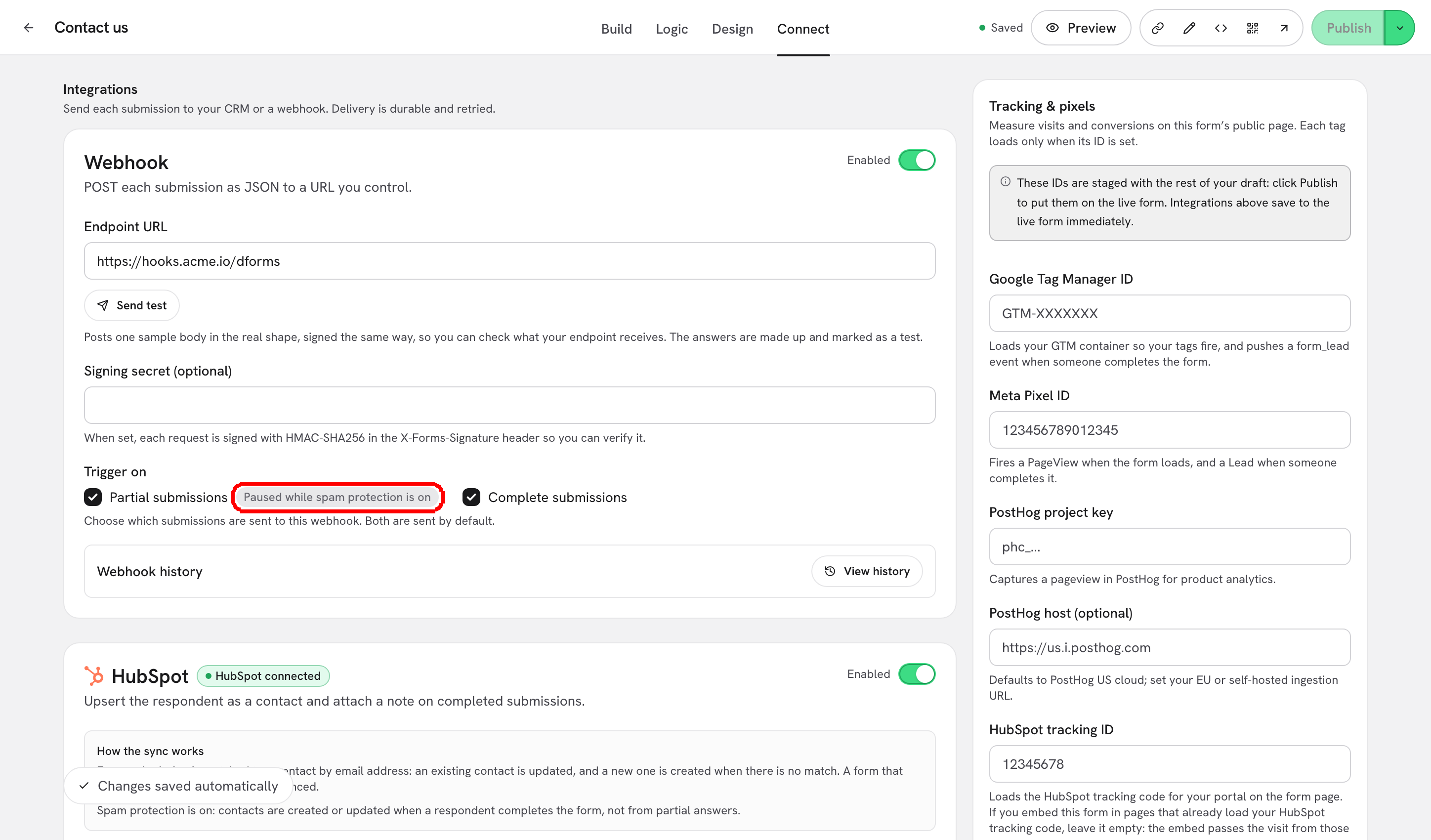
| Webhook card, **Trigger on**                                    | **Paused while spam protection is on**, next to **Partial submissions**. A webhook that only listens to partials also warns *This webhook will not fire: it only listens to partial answers, which are paused while spam protection is on.* |
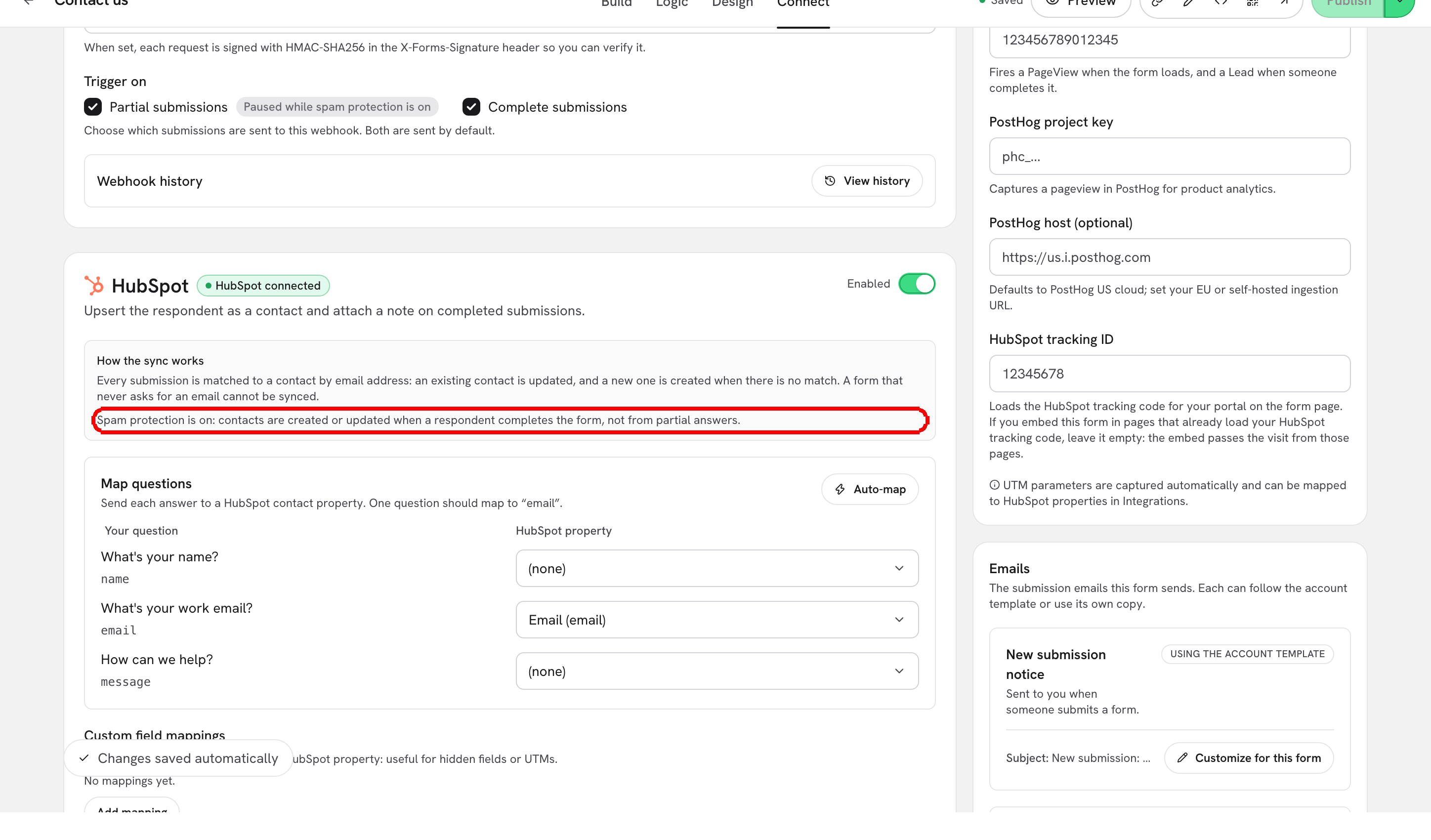
| HubSpot card, **How the sync works**                            | *Spam protection is on: contacts are created or updated when a respondent completes the form, not from partial answers.*                                                                                                                    |
| **Integrations** page, **Webhooks** table, **Events**           | **Complete (partials paused)** or **Partial submissions (paused)**.                                                                                                                                                                         |
| **Build** tab, the info popover of the **Partial submit point** | *With spam protection on, partial answers are saved but not sent to integrations.*                                                                                                                                                          |

<figure><img src="https://3835013762-files.gitbook.io/~/files/v0/b/gitbook-x-prod.appspot.com/o/spaces%2FCy5rSNtQmtqYCGzJlNEB%2Fuploads%2Fgit-blob-53073e60daaf0c058e8dc35e01be6764cecaa3a8%2Fforms-spam-protection-05-webhook-paused.png?alt=media" alt="The Webhook card Trigger on row with the Paused while spam protection is on marker next to Partial submissions"><figcaption><p>The partial trigger stays ticked, but nothing partial is sent while protection is on.</p></figcaption></figure>

<figure><img src="https://3835013762-files.gitbook.io/~/files/v0/b/gitbook-x-prod.appspot.com/o/spaces%2FCy5rSNtQmtqYCGzJlNEB%2Fuploads%2Fgit-blob-b13d4b09ed5dc28c4bd8c75d3cfa8f1664b8b9ae%2Fforms-spam-protection-06-hubspot-partial-note.png?alt=media" alt="The How the sync works box on the HubSpot card with the spam protection note"><figcaption><p>On the HubSpot card, the note sits next to the rule it changes.</p></figcaption></figure>

> **⚠️ Note:** The markers in the **Connect** tab follow the switch in your draft, so they appear as soon as you turn it on. Deliveries only change once you click **Publish**. The **Webhooks** table on the **Integrations** page always shows the published form.

**Send test** on the webhook card still posts its sample while partials are paused, so you can keep testing your endpoint.

***

## Scheduler bookings

A booking made from a [Scheduler step](/dforms/connect/scheduler-and-calendly.md) is also covered. With protection on, [Booking sync](/dforms/connect/hubspot/booking-sync.md) writes to HubSpot only when one of these is true:

* Calendly confirms the invitee through your Calendly connection.
* The respondent has already completed the form, and so passed the check.

Otherwise the booking is recorded but the sync is skipped. **HubSpot history** shows a **Skipped** row that gives the reason.

***

## When the check cannot run

Sometimes the check cannot run at all: Cloudflare is briefly unreachable, a browser extension blocks it, or the browser is not supported. Nothing is lost:

1. The answers are saved as a partial submission. Like every partial while protection is on, it is not delivered.
2. The respondent reads *We couldn’t complete the security check. Your answers are saved. Please try again.*
3. When they try again and the check passes, the same submission becomes complete and is delivered.

***

## Submissions sent without the form

The check is verified by the dForms API, not only by the browser. A script that posts straight to the public submissions endpoint without a valid check is refused and nothing is written. The error codes are listed in [Public API & rate limits](/dforms/developers/public-api.md).

***

## Privacy

* The Cloudflare script loads only on forms with protection on, and only once the respondent starts answering. A visitor who only looks at the form sends nothing to Cloudflare.
* To verify a check, dForms sends Cloudflare the check's token and, when it is a public address, the respondent's IP address. Neither is stored with the response.
* Refused attempts are recorded without any answers and are not counted in [Analytics](/dforms/results/analytics.md).

More on what is stored, and what is not, in [Security & Privacy](/dforms/security-and-privacy.md).

> **💡 Tip:** Running your own copy of dForms? Spam protection needs Cloudflare Turnstile keys on your deployment. See [Feature flags & environment](/dforms/developers/environment-flags.md).

## What's next

* [Webhooks](/dforms/connect/webhooks.md): the partial and complete triggers.
* [How the sync works & troubleshooting](/dforms/connect/hubspot/how-sync-works.md): when a contact is created or updated.
* [Partial submissions (lead capture point)](/dforms/builder/partial-submissions.md): where the partial submit point sits.
* [Delivery, retries & history](/dforms/connect/delivery-and-retries.md): what happens after a submission.


---

# Agent Instructions
This documentation is published with GitBook. GitBook is the documentation platform designed so that both humans and AI agents can read, navigate, and reason over technical content effectively. Learn more at gitbook.com.

## Querying This Documentation
If you need additional information that is not directly available in this page, you can query the documentation by asking a question.

Perform an HTTP GET request on the following URL with the `ask` and `goal` query parameters:

```
GET https://docs.dapta.ai/dforms/connect/spam-protection.md?ask=<question>&goal=<user_goal>
```

`ask` is the immediate question: it should be specific, self-contained, and written in natural language.
`goal` is what the user is ultimately trying to achieve, the reason they need the answer. Sharing it helps GitBook give you a better, more relevant answer. A goal is most helpful when it describes the outcome the user wants rather than restating the question. For example, with `ask=how do I create an API token`, a goal like `automate deployments from our CI pipeline` lets GitBook tailor the answer to that use case.

The response will contain a direct answer to the question and relevant excerpts and sources from the documentation.

Use this mechanism when the answer is not explicitly present in the current page, you need clarification or additional context, or you want to retrieve related documentation sections.