> For the complete documentation index, see [llms.txt](https://docs.dapta.ai/llms.txt). Markdown versions of documentation pages are available by appending `.md` to page URLs; this page is available as [Markdown](https://docs.dapta.ai/dapta-forms/connect/tracking-and-pixels.md).

# Tracking & pixels

Add Google Tag Manager, Meta Pixel, PostHog or the HubSpot tracking code to a form's public page, understand when each tag fires, and see how UTM parameters are captured with every submission.

**Tracking & pixels** lets you measure the traffic that reaches a form with the tools you already use. You paste an ID, publish, and the matching tag loads on the form's public page. Nothing loads in the editor, and nothing loads for a tool whose ID you left empty.

This is optional. Dapta Forms already counts views, starts, submissions and drop-off on its own under [Analytics](/dapta-forms/results/analytics.md); tracking IDs are for stitching form traffic into your own campaign reporting.

***

**Step 1:** Open the form in the editor and click the **Connect** tab. Scroll past **Integrations** to the **Tracking & pixels** section.

<figure><img src="https://3835013762-files.gitbook.io/~/files/v0/b/gitbook-x-prod.appspot.com/o/spaces%2FCy5rSNtQmtqYCGzJlNEB%2Fuploads%2Fgit-blob-37ef63fab326dd57e0c0c12f5a1399aa4f32b57d%2Fforms-tracking-and-pixels-01-connect-tab.png?alt=media" alt="The Connect tab of the form editor showing the Integrations cards and the start of the Tracking and pixels section"><figcaption><p>The <strong>Connect</strong> tab holds <strong>Integrations</strong>, <strong>Tracking &#x26; pixels</strong> and <strong>Emails</strong>.</p></figcaption></figure>

***

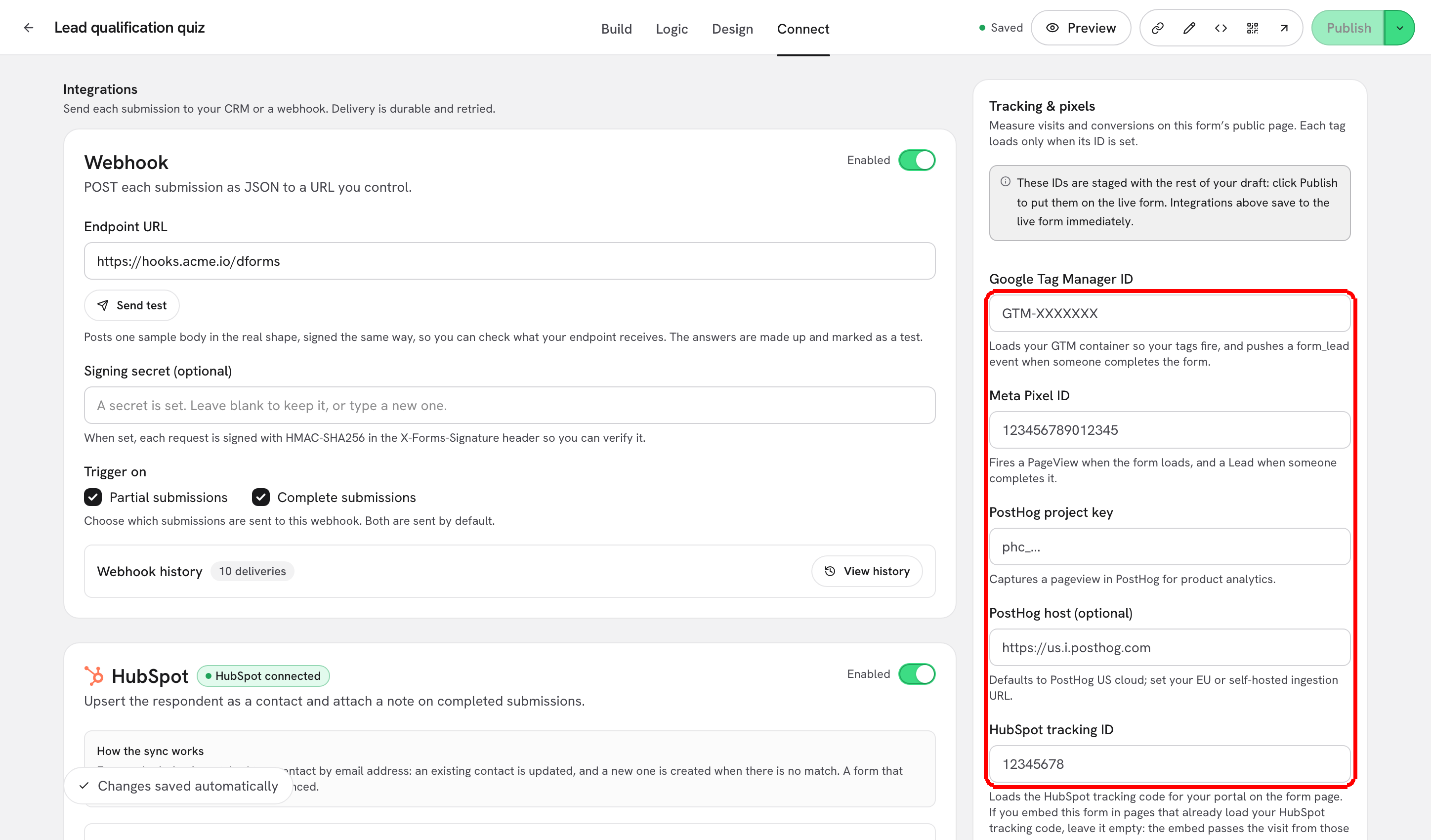
**Step 2:** Fill in only the fields for the tools you use. Every field is optional and independent.

<figure><img src="https://3835013762-files.gitbook.io/~/files/v0/b/gitbook-x-prod.appspot.com/o/spaces%2FCy5rSNtQmtqYCGzJlNEB%2Fuploads%2Fgit-blob-fad94c6221920048cd5b85749f739ba3fb448655%2Fforms-tracking-and-pixels-02-fields.png?alt=media" alt="The five tracking fields filled in: Google Tag Manager ID, Meta Pixel ID, PostHog project key, PostHog host and HubSpot tracking ID"><figcaption><p>Five fields, five tags. Leave a field empty and that tag is never loaded.</p></figcaption></figure>

| Field                       | What you paste             | What it does on the form page                                           |
| --------------------------- | -------------------------- | ----------------------------------------------------------------------- |
| **Google Tag Manager ID**   | `GTM-XXXXXXX`              | Loads your GTM container on the form page so your tags fire.            |
| **Meta Pixel ID**           | `123456789012345`          | Fires a PageView on your Meta pixel to measure campaigns.               |
| **PostHog project key**     | `phc_...`                  | Captures a pageview in PostHog for product analytics.                   |
| **PostHog host (optional)** | `https://us.i.posthog.com` | Defaults to PostHog US cloud; set your EU or self-hosted ingestion URL. |
| **HubSpot tracking ID**     | `12345678`                 | Loads the HubSpot tracking code for your portal on the form page.       |

> **💡 Tip:** The **PostHog host** field only matters if your project is not on PostHog US cloud. It must be a full address, for example `https://eu.i.posthog.com`. Anything else is refused with **Enter a full http(s) URL, e.g. <https://eu.i.posthog.com>.**

***

**Step 3:** Click **Publish**. Tracking IDs are part of your draft, so they only reach visitors once the form is published.

<figure><img src="https://3835013762-files.gitbook.io/~/files/v0/b/gitbook-x-prod.appspot.com/o/spaces%2FCy5rSNtQmtqYCGzJlNEB%2Fuploads%2Fgit-blob-b49b5abcd82b6a4101069fa26d33d36474198fec%2Fforms-tracking-and-pixels-03-staged-until-publish.png?alt=media" alt="The staged banner above the tracking fields and the Publish button in the topbar, both outlined in red"><figcaption><p>The banner says it plainly: tracking IDs are staged with your draft, <strong>Integrations</strong> are not.</p></figcaption></figure>

The banner above the fields reads: "These IDs are staged with the rest of your draft: click Publish to put them on the live form. Integrations above save to the live form immediately."

That difference is worth remembering:

* **Tracking & pixels**: saved into the draft, live after **Publish**.
* **Integrations** (webhook, HubSpot): saved to the live form the moment you change them, no publish needed.

See [Autosave, drafts & publishing](/dapta-forms/builder/autosave-and-publishing.md) for the rest of the draft lifecycle.

***

## When each tag fires

The rules are the same for every tool, so what you measure stays predictable:

* Tags load **only on the public form page**. The editor, the preview and the admin never load them.
* Each visit produces **exactly one pageview**: one GTM container load, one Meta `PageView`, one PostHog `$pageview`, one HubSpot tracking script.
* Moving from one question to the next fires **nothing**. A slides form is a single page for your analytics, however many steps it has.
* Submitting fires **no conversion event**. If you need one, build the trigger yourself in GTM (for example on a URL or an element on your thank-you page, or on the redirect destination you set in the [ending screen](/dapta-forms/logic/ending-screen.md)).

> **⚠️ Note:** Dapta Forms does not show a cookie or consent banner on the public form. If your visitors need one, handle consent in your own GTM container and gate your tags there.

## LinkedIn, TikTok, Google Ads and everything else

There are only five fields, and there is no separate field for LinkedIn Insight, TikTok Pixel, Google Ads or any other tool. Load those through **Google Tag Manager**: set the **Google Tag Manager ID** here, then add each tag inside your container. One ID on the form, as many tags as you like in GTM.

## UTM parameters are captured for you

You do not need a pixel to know where a lead came from. When someone opens a form with campaign parameters on the link, for example:

```
https://forms.dapta.ai/k7m2xq/alex/lead-qualification-quiz?utm_source=linkedin&utm_medium=cpc&utm_campaign=spring
```

`utm_source`, `utm_medium`, `utm_campaign`, `utm_term` and `utm_content` are stored with the submission. From there they travel with the answer:

* to HubSpot, through the five **UTM mappings** in [Form elements](/dapta-forms/connect/hubspot/form-elements.md);
* to your endpoint, in the `utm` object of the [webhook payload](/dapta-forms/connect/webhooks/payload-reference.md).

The footnote under the fields says the same: "UTM parameters are captured automatically and can be mapped to HubSpot properties in Integrations."

> **⚠️ Note:** `utm_` keys are reserved for campaign capture. A question whose field key starts with `utm_` is never prefilled from the URL. See [Hidden fields & URL prefill](/dapta-forms/builder/hidden-fields-and-url-prefill.md).

## What is not collected

A form with no tracking IDs makes **zero third-party requests**. Dapta Forms itself stores the answers, the score, the timestamps and the UTMs of a submission, and does not store IP addresses, user agents, devices, countries or referrers. Read [Security & Privacy](/dapta-forms/security-and-privacy.md) for the full picture.

## What's next

* [Analytics](/dapta-forms/results/analytics.md): views, starts, completion rate and drop-off, measured by Dapta Forms.
* [Form elements: UTMs, score, outcome, submitted date](/dapta-forms/connect/hubspot/form-elements.md): send the captured UTMs to HubSpot properties.
* [Payload & headers reference](/dapta-forms/connect/webhooks/payload-reference.md): where the UTMs sit in the webhook body.
* [Autosave, drafts & publishing](/dapta-forms/builder/autosave-and-publishing.md): why the IDs wait for **Publish**.


---

# Agent Instructions
This documentation is published with GitBook. GitBook is the documentation platform designed so that both humans and AI agents can read, navigate, and reason over technical content effectively. Learn more at gitbook.com.

## Querying This Documentation
If you need additional information that is not directly available in this page, you can query the documentation dynamically by asking a question.

Perform an HTTP GET request on the current page URL with the `ask` query parameter, and the optional `goal` query parameter:

```
GET https://docs.dapta.ai/dapta-forms/connect/tracking-and-pixels.md?ask=<question>&goal=<endgoal>
```

`ask` is the immediate question: it should be specific, self-contained, and written in natural language.
`goal` is optional and describes the broader end goal you are ultimately trying to accomplish on behalf of the user. GitBook uses it to tailor the answer towards what is most useful for that goal.

The response will contain a direct answer to the question and relevant excerpts and sources from the documentation.

Use this mechanism when the answer is not explicitly present in the current page, you need clarification or additional context, or you want to retrieve related documentation sections.
