> For the complete documentation index, see [llms.txt](https://docs.dapta.ai/llms.txt). Markdown versions of documentation pages are available by appending `.md` to page URLs; this page is available as [Markdown](https://docs.dapta.ai/dapta-forms/design/logos-layout-transitions.md).

# Logos, layout & transitions

Add a logo to your Dapta Form (form logo on every question, cover logo on the cover screen), set logo size and position, the size of the attribution badge, question alignment, content width and step t

The **Layout** card in the Design panel places your brand on the form and decides where things sit: which logo shows where, how big it is, how big the attribution badge is, whether questions are left-aligned or centered, how wide the content is and how the form moves from one step to the next. The **Form title** card, the third from the top below **Language** and **Button text**, sets the public name respondents see.

***

**Step 1:** Open your form, stay on **Build**, click **Design** in the toolbar and scroll to the **Layout** card (the one below **Shape and controls**).

***

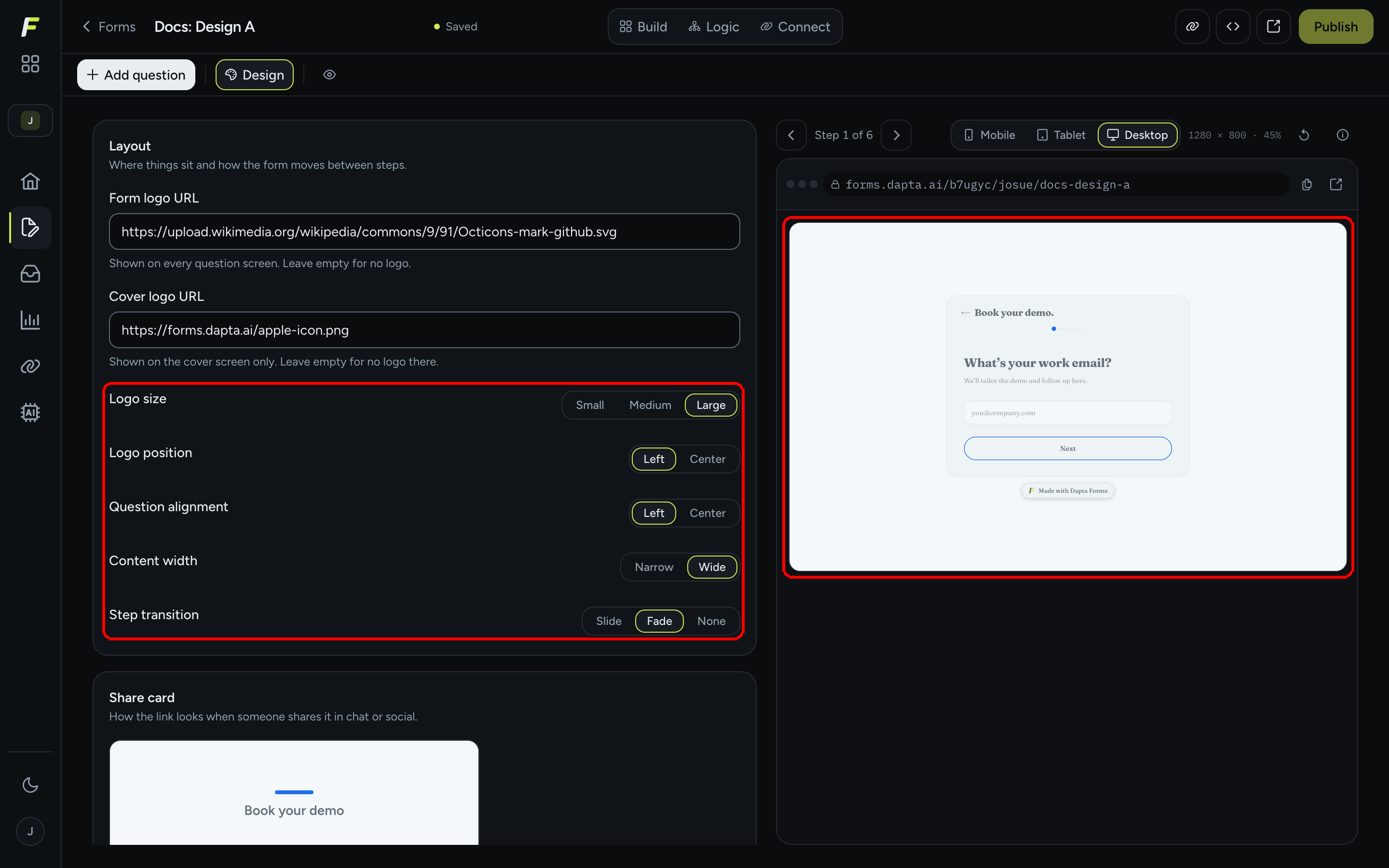
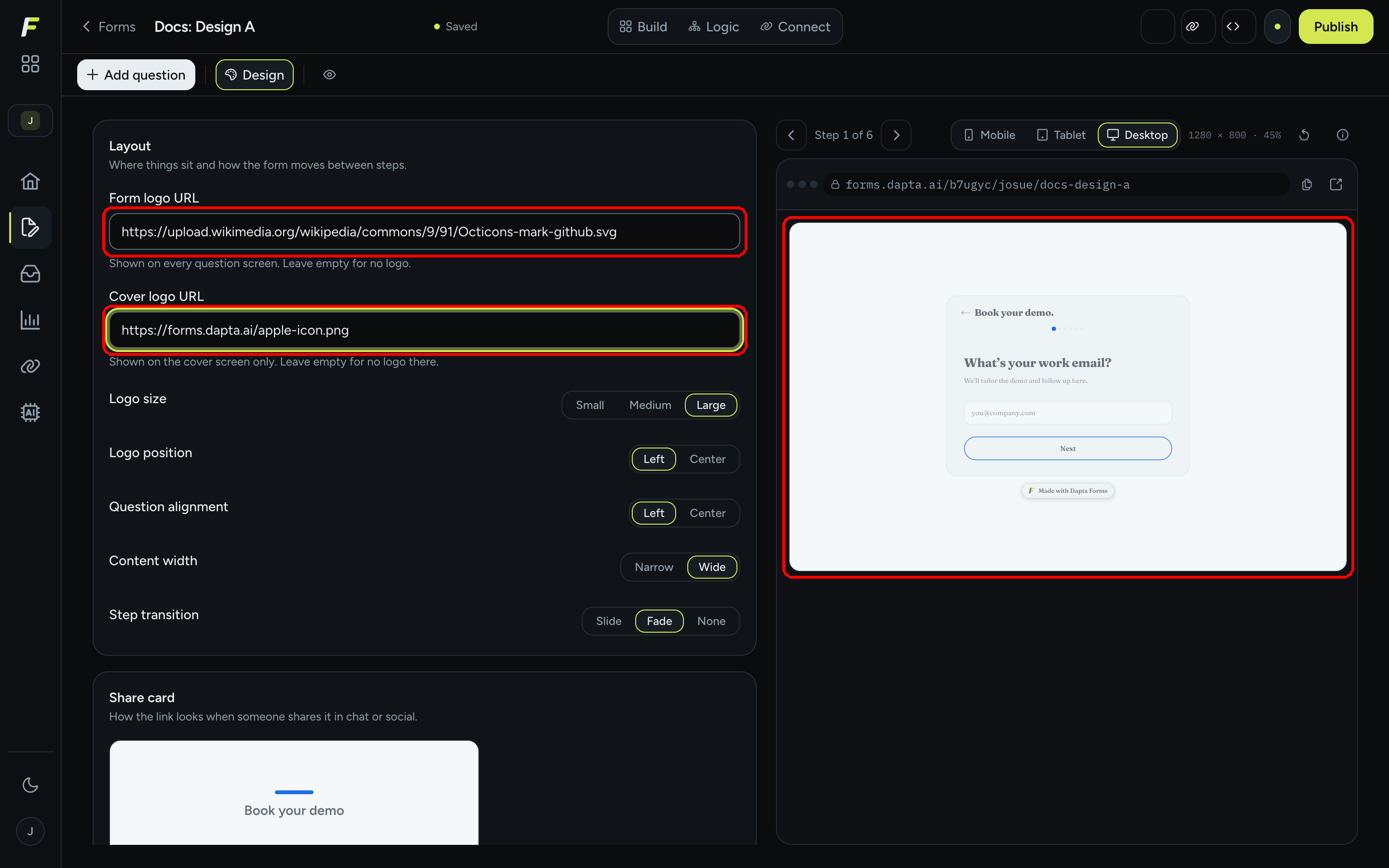
**Step 2:** Paste a public image link into **Form logo URL**. This logo is shown at the top of every question screen. If you use a cover screen, paste the logo for it into **Cover logo URL**; it is shown on the cover screen only. Leave either field empty for no logo in that place.

<figure><img src="https://3835013762-files.gitbook.io/~/files/v0/b/gitbook-x-prod.appspot.com/o/spaces%2FCy5rSNtQmtqYCGzJlNEB%2Fuploads%2Fgit-blob-ddfb96b54c5d442fb30e661aecd63f46ab89b44a%2Fforms-logos-layout-transitions-01-logo-urls.png?alt=media" alt="The Layout card with the Form logo URL and Cover logo URL fields filled in, next to the live preview"><figcaption><p>Two logos, two fields. The form logo goes on every question screen; the cover logo only on the cover.</p></figcaption></figure>

| Field              | Where it shows               | Notes                                                                                              |
| ------------------ | ---------------------------- | -------------------------------------------------------------------------------------------------- |
| **Form logo URL**  | Top of every question screen | Leave empty for no logo. When there is no form logo, the form title is shown as text in its place. |
| **Cover logo URL** | The cover screen only        | The field is hidden while the cover screen is switched off. Leave empty for no logo there.         |

> **💡 Tip:** Use a direct link to a PNG, SVG or JPG that starts with `https://` and is reachable without a login. Links with other protocols are rejected with **This URL protocol is not allowed for images.** If the image cannot be loaded, the question screens fall back to the title text.

> **⚠️ Note:** The preview in the editor may show the form title as text where the logo goes. After you **Publish**, use **Open form** to see the image on the live form.

***

**Step 3:** Set the remaining controls in the same card. Each is a toggle; the preview updates as you click.

<figure><img src="https://3835013762-files.gitbook.io/~/files/v0/b/gitbook-x-prod.appspot.com/o/spaces%2FCy5rSNtQmtqYCGzJlNEB%2Fuploads%2Fgit-blob-3b55e713f651c7317414f525350912d8ebd17447%2Fforms-logos-layout-transitions-02-layout-toggles.png?alt=media" alt="The Layout card toggles: Logo size Medium, Logo position Center, Attribution badge Medium, Question alignment Center, Content width Narrow, Step transition Slide"><figcaption><p>Every toggle of the card. <strong>Attribution badge</strong> sits between <strong>Logo position</strong> and <strong>Question alignment</strong>.</p></figcaption></figure>

| Setting                | Options                          | What it does                                                                                                                                                                   |
| ---------------------- | -------------------------------- | ------------------------------------------------------------------------------------------------------------------------------------------------------------------------------ |
| **Logo size**          | **Small**, **Medium**, **Large** | Height of the form logo on question screens.                                                                                                                                   |
| **Logo position**      | **Left**, **Center**             | Where the form logo sits in the top bar of each question screen.                                                                                                               |
| **Attribution badge**  | **Small**, **Medium**            | Size of the *Made with Dapta Forms* pill under the form. **Medium** is the default and the size every existing form keeps. **Small** shrinks the pill and the space around it. |
| **Question alignment** | **Left**, **Center**             | Whether the question text, helper text and inputs are left-aligned or centered.                                                                                                |
| **Content width**      | **Narrow**, **Wide**             | The maximum width of the question card. **Wide** gives long option labels and paragraphs more room.                                                                            |
| **Step transition**    | **Slide**, **Fade**, **None**    | The animation between screens: slide sideways, fade, or switch instantly.                                                                                                      |

> **⚠️ Note:** On a **One page** form the logo sits in a hero at the top rather than a top bar, so **Logo size**, **Logo position**, **Question alignment** and **Step transition** do not apply and are not shown. **Attribution badge** and **Content width** still apply.

The attribution badge is the *Made with Dapta Forms* pill (*Hecho con Dapta Forms* on a Spanish form). It links to the Dapta Forms website in a new tab, and it shows on the cover and under the question screens, or once at the foot of a **One page** form. The ending and reveal screens, and the booking screen that follows a result, do not carry it. You can make it smaller, not remove it. The question canvas does not draw it, so check its size in the preview on the right.

***

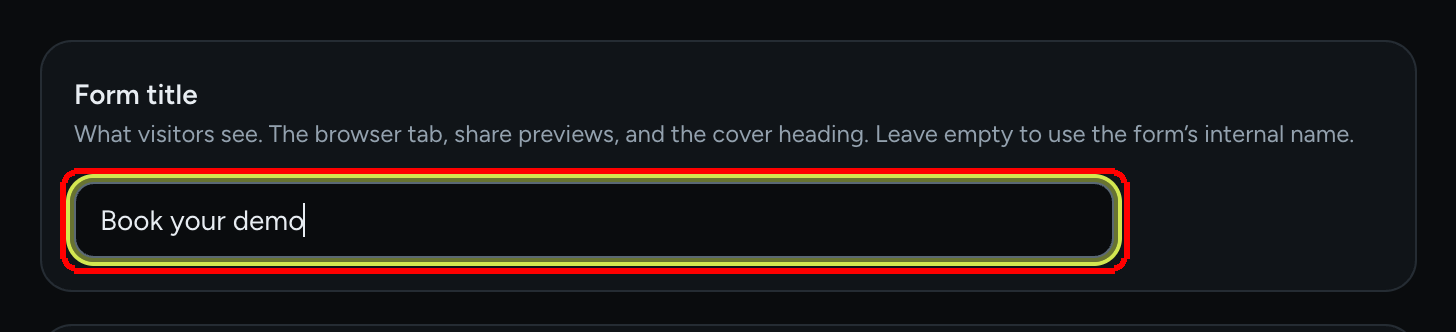
**Step 4:** Scroll up to the **Form title** card, the third card of the panel, and fill it in. This is what visitors see: the browser tab, share previews and the cover heading. Leave it empty to use the form's internal name (the one in the editor top bar).

<figure><img src="https://3835013762-files.gitbook.io/~/files/v0/b/gitbook-x-prod.appspot.com/o/spaces%2FCy5rSNtQmtqYCGzJlNEB%2Fuploads%2Fgit-blob-57a96e8665dc7ff28d2ce103163d027aaddf3042%2Fforms-logos-layout-transitions-03-form-title.png?alt=media" alt="The Form title card with the public title set to Book your demo"><figcaption><p>The public title. The internal name in the top bar stays the same.</p></figcaption></figure>

***

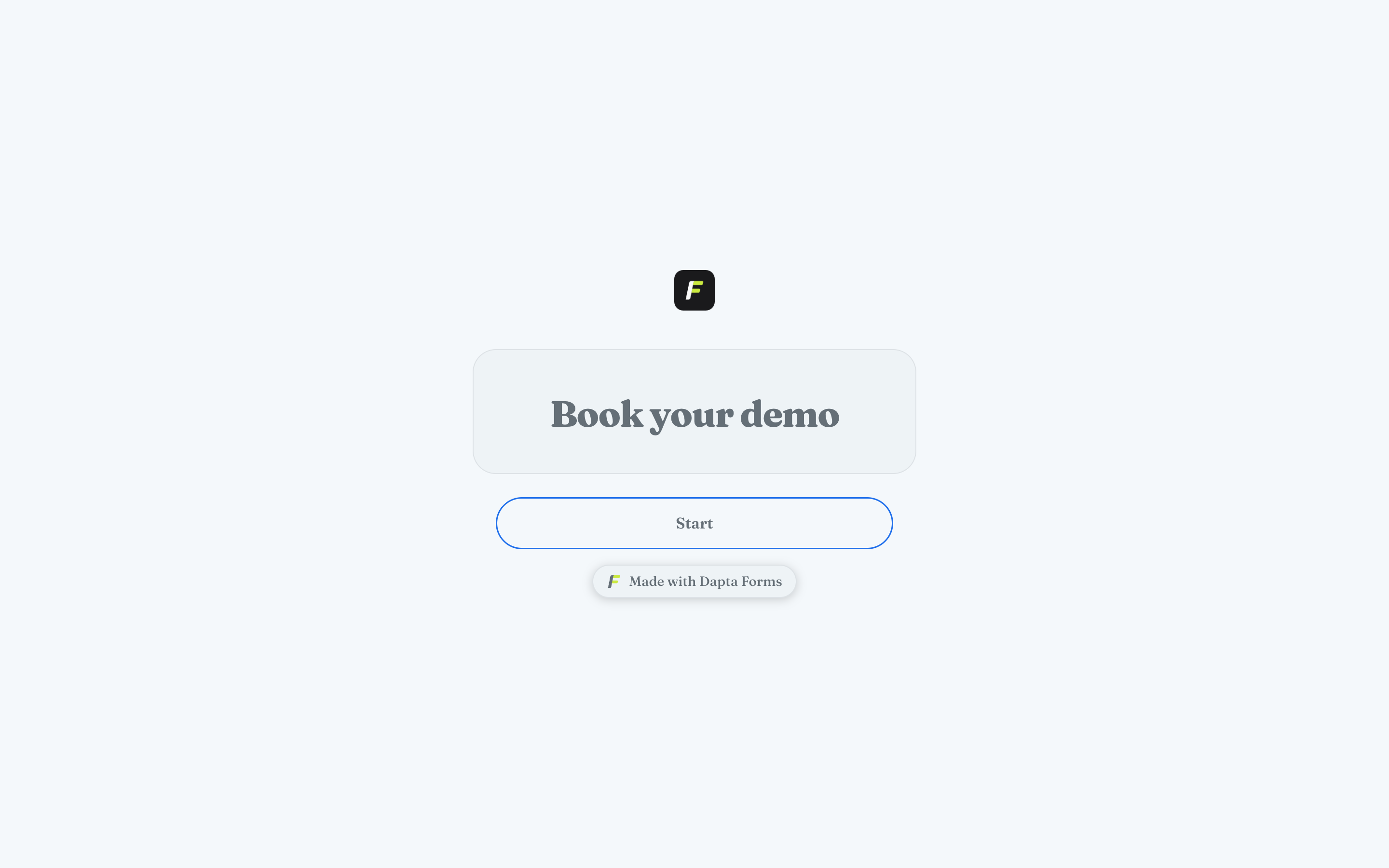
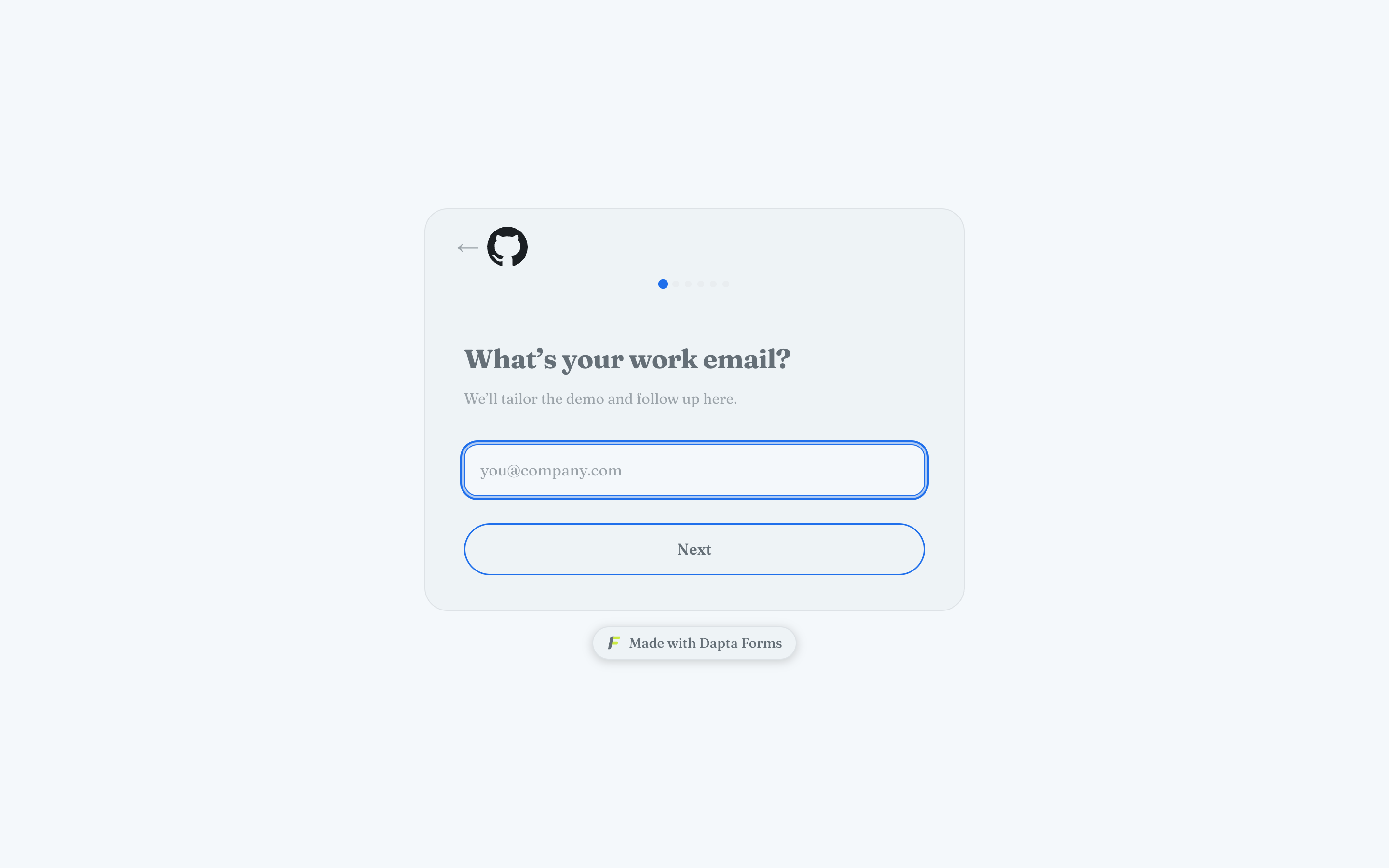
**Step 5:** Click **Publish** and open the live form. With a cover screen on, the cover logo appears above the headline; on the questions, the form logo replaces the title text.

<figure><img src="https://3835013762-files.gitbook.io/~/files/v0/b/gitbook-x-prod.appspot.com/o/spaces%2FCy5rSNtQmtqYCGzJlNEB%2Fuploads%2Fgit-blob-bbb1114cd249c228b3adc926a87d310a8a2cf55a%2Fforms-logos-layout-transitions-04-public-cover-logo.png?alt=media" alt="The published cover screen with the cover logo above the headline Book your demo and a Start button"><figcaption><p>The cover screen shows the <strong>Cover logo URL</strong> image and the form title as the headline.</p></figcaption></figure>

<figure><img src="https://3835013762-files.gitbook.io/~/files/v0/b/gitbook-x-prod.appspot.com/o/spaces%2FCy5rSNtQmtqYCGzJlNEB%2Fuploads%2Fgit-blob-4412a924fc3760039048a512b74f16c1c5dc6547%2Fforms-logos-layout-transitions-05-public-question-logo.png?alt=media" alt="The first question of the published form with a large logo at the top left, the question left-aligned and a wide card"><figcaption><p>A question screen: <strong>Large</strong> logo, <strong>Left</strong> position, <strong>Left</strong> alignment, <strong>Wide</strong> content.</p></figcaption></figure>

## What's next

* [Cover screen & banner](/dapta-forms/design/cover-screen-and-banner.md): turn the cover on and write its headline, subheadline and Start button.
* [Language & button text](/dapta-forms/design/language-and-button-text.md): the two cards above **Form title**.
* [Client logos marquee](/dapta-forms/design/client-logos.md): add a "trusted by" strip under the cover.
* [Share card (social preview image)](/dapta-forms/design/share-card.md): how the title and logo end up in the social preview.
* [Brand kit (workspace-wide)](/dapta-forms/design/brand-kit.md): set one logo for every new form in the workspace.


---

# Agent Instructions
This documentation is published with GitBook. GitBook is the documentation platform designed so that both humans and AI agents can read, navigate, and reason over technical content effectively. Learn more at gitbook.com.

## Querying This Documentation
If you need additional information that is not directly available in this page, you can query the documentation dynamically by asking a question.

Perform an HTTP GET request on the current page URL with the `ask` query parameter, and the optional `goal` query parameter:

```
GET https://docs.dapta.ai/dapta-forms/design/logos-layout-transitions.md?ask=<question>&goal=<endgoal>
```

`ask` is the immediate question: it should be specific, self-contained, and written in natural language.
`goal` is optional and describes the broader end goal you are ultimately trying to accomplish on behalf of the user. GitBook uses it to tailor the answer towards what is most useful for that goal.

The response will contain a direct answer to the question and relevant excerpts and sources from the documentation.

Use this mechanism when the answer is not explicitly present in the current page, you need clarification or additional context, or you want to retrieve related documentation sections.