> For the complete documentation index, see [llms.txt](https://docs.dapta.ai/llms.txt). Markdown versions of documentation pages are available by appending `.md` to page URLs; this page is available as [Markdown](https://docs.dapta.ai/dapta-forms/key-concepts.md).

# Key Concepts

The vocabulary used across the Dapta Forms docs: form, question and step, Slides vs One page layout, score, outcome, partial submission, workspace, draft vs published, and the public link.

This page defines the handful of words the rest of the documentation uses. Skim it once and the editor, the Logic tab and the Connect tab will make a lot more sense.

***

## Form

A form is the thing you build, publish and share. Each form has a name (shown only to you in the editor and the forms list), an optional public title (what visitors see), a layout, a list of questions, design settings, logic, scoring, integrations and its own **Submissions** and **Analytics** pages.

Forms belong to a workspace. Every member of the workspace can open, edit, publish and delete forms in it.

## Question and step

A **question** is one item in the list on the left of the editor. Most questions collect an answer (Name, Email, Single choice, Slider and so on). Some do not: a **Message** shows text with no input, a **Reveal screen** plays a short timed pause, and a **Scheduler** lets the respondent book a meeting.

In the Slides layout each question is one **step**: one screen the respondent moves through. That is why the **Counter** progress style reads **Step 2 of 3** and why analytics talk about "question-by-question drop-off". Every question also has a **Field key** (for example `email`, `team_size`) which is the stable name used in submissions, webhooks, HubSpot mapping and `[field]` placeholders.

<figure><img src="https://3835013762-files.gitbook.io/~/files/v0/b/gitbook-x-prod.appspot.com/o/spaces%2FCy5rSNtQmtqYCGzJlNEB%2Fuploads%2Fgit-blob-3015c490bcd11175bc948a999e38104379fcbc6d%2Fforms-quickstart-04-edit-question.png?alt=media" alt="The form editor with the question list on the left, the live canvas in the center and the question settings on the right"><figcaption><p>The editor: questions on the left, the live canvas in the center, settings for the selected question on the right.</p></figcaption></figure>

## Layout: Slides vs One page

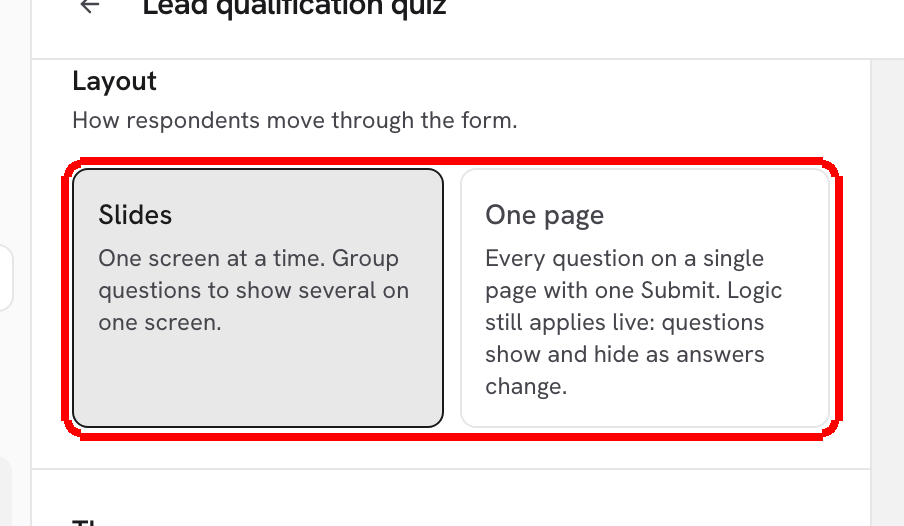
You pick a layout when you create a form and can switch it later in **Design → Layout**.

| Layout       | How it behaves                                                                                                                                                                                                                                                            |
| ------------ | ------------------------------------------------------------------------------------------------------------------------------------------------------------------------------------------------------------------------------------------------------------------------- |
| **Slides**   | One question per screen. Respondents press **Next** (or **Enter**) to move on, single-choice answers advance automatically, and a **Back** arrow returns to the previous step. Cover screen, reveal screens and step transitions are available.                           |
| **One page** | Every question on a single page with one **Submit** button. Logic still applies live: questions show and hide as answers change. The cover renders as a header at the top, the progress reads **0 of 3 answered**, and an optional reveal screen plays once after Submit. |

<figure><img src="https://3835013762-files.gitbook.io/~/files/v0/b/gitbook-x-prod.appspot.com/o/spaces%2FCy5rSNtQmtqYCGzJlNEB%2Fuploads%2Fgit-blob-b0f41066c059d3561f85910593136e0fa0da3b68%2Fforms-key-concepts-02-layout.png?alt=media" alt="The Design panel with the Layout section showing the Slides and One page options and the Reveal screen before results switch"><figcaption><p>Switch layouts any time from the <strong>Design</strong> panel. The live preview on the right updates instantly.</p></figcaption></figure>

## Score

Options in choice questions and ranges in slider questions can carry **Points**. When **Enable scoring** is on (Logic → **Scoring**), the points of every selected option are added up into one number per submission: the score. Contact and text questions never affect the score. The score is stored with the submission, shown in the **Submissions** table, sent to webhooks and HubSpot, and can drive logic ("Score so far") and outcomes.

## Outcome

An outcome is a score range mapped to what the respondent sees at the end: a label (for example "You're a great fit"), a thank-you message, an optional redirect and a delay before it. You manage them in Logic → **Outcomes**. The first matching range wins, and the highest range has no upper bound so no score is left without an outcome. Scores that fall in a gap see the form's own ending (Design → **When the form ends**).

## Partial submission

By default answers are saved when the respondent reaches the end. If you place the **Partial submit point** marker in the question list (the editor suggests **Capture after the email question** as soon as your form asks for an email), answers are stored the moment the respondent passes that point, even if they close the tab later. Those rows show up under **Submissions** with the **Partial** filter and are upgraded in place to **Completed** if the person finishes. Webhooks can fire for partial submissions too.

## Workspace

A workspace is a separate space with its own forms, members, brand kit, notification emails and integrations. Workspaces in Forms are the same workspaces you see in the Dapta app: same name, same members, same roles (owner, admin, member). The workspace switcher at the top of the left menu moves you between them; the active one is the one every page acts on.

## Draft vs published

Every change you make in the editor is saved automatically as a **draft**. The status next to the form name reads **Saving…** and then **Saved**, but nothing is live yet. Clicking **Publish** makes the current draft the live version that the public link serves. Until you publish again, new edits stay private and the badge **Unpublished changes** appears next to **Publish**.

> **⚠️ Note:** Integrations in the **Connect** tab (HubSpot, webhook, emails) save to the live form immediately, without publishing. Tracking IDs, design and questions wait for **Publish**.

There is no unpublish button. To take a form offline, delete it from the forms list (this also deletes its submissions).

## Public link

Each published form has one URL of the shape `forms.dapta.ai/{account code}/{handle}/{form slug}`, for example `forms.dapta.ai/k7m2xq/alex/lead-qualification-quiz`. The account code identifies your workspace, the handle identifies you, and the slug is generated from the form name. You copy it from the editor topbar (**Copy link**) or from the copy icon on the form's row in the forms list. The same link powers the embed snippet and the auto-generated share card.

## What's next

* [Getting Started](/dapta-forms/getting-started.md): sign in and build your first form.
* [Logic, Scoring & Outcomes](/dapta-forms/logic.md): conditions, branching, points and results.
* [Partial submissions](/dapta-forms/builder/partial-submissions.md): capture leads before the last question.
* [Your public link](/dapta-forms/share/public-link.md): what the URL is made of and how to share it.


---

# Agent Instructions
This documentation is published with GitBook. GitBook is the documentation platform designed so that both humans and AI agents can read, navigate, and reason over technical content effectively. Learn more at gitbook.com.

## Querying This Documentation
If you need additional information that is not directly available in this page, you can query the documentation dynamically by asking a question.

Perform an HTTP GET request on the current page URL with the `ask` query parameter, and the optional `goal` query parameter:

```
GET https://docs.dapta.ai/dapta-forms/key-concepts.md?ask=<question>&goal=<endgoal>
```

`ask` is the immediate question: it should be specific, self-contained, and written in natural language.
`goal` is optional and describes the broader end goal you are ultimately trying to accomplish on behalf of the user. GitBook uses it to tailor the answer towards what is most useful for that goal.

The response will contain a direct answer to the question and relevant excerpts and sources from the documentation.

Use this mechanism when the answer is not explicitly present in the current page, you need clarification or additional context, or you want to retrieve related documentation sections.