> For the complete documentation index, see [llms.txt](https://docs.dapta.ai/llms.txt). Markdown versions of documentation pages are available by appending `.md` to page URLs; this page is available as [Markdown](https://docs.dapta.ai/dapta-forms/logic/branching.md).

# Branching & jumps

Route respondents through a Dapta Form with branching rules: If answer is rules that jump to a later question or skip to the end, the Always go to catch-all, first-match-wins evaluation, forward-only

Branching changes where a respondent goes after answering a question. Instead of always continuing to the next question, an answer can **jump to** a later question or **skip to end** of the form. Use it to send disqualified leads straight to the ending, or hot leads straight to the booking step, without them seeing the questions in between.

Conditions ([Show & hide conditions](/dapta-forms/logic/conditions.md)) decide whether a question appears; branching decides where the answer leads. Both live in the same **Logic** dialog.

This page uses a form built from the **Lead qualifier** template, where the dropdown **What's your monthly budget?** carries two rules.

***

## Add a rule: If answer is… then…

**Step 1:** In the **Build** tab, select the question whose answers should route people (a **Single choice**, **Multiple choice** or **Dropdown** question). In the **Question settings** panel, click **Edit logic** on the **Logic** card, then scroll to **Where the answer leads**.

**Step 2:** Click **Add rule**. A rule has two parts: **If answer is** (pick one of the question's options) and **then** (pick the destination). The **then** list offers **→ skip to end** and **⚡ jump to {question}** for every question that comes *after* this one.

<figure><img src="https://3835013762-files.gitbook.io/~/files/v0/b/gitbook-x-prod.appspot.com/o/spaces%2FCy5rSNtQmtqYCGzJlNEB%2Fuploads%2Fgit-blob-504559d687d595ace75f007392aa1e5ae78c470b%2Fforms-branching-01-if-answer-is.png?alt=media" alt="The Where the answer leads section of the Logic dialog for What&#x27;s your monthly budget? with the Always go to control and a rule that reads If answer is Under $500 / month then skip to end"><figcaption><p>A rule under <strong>Where the answer leads</strong>: the lowest budget goes straight to the end. Further rules stack below it.</p></figcaption></figure>

**Step 3:** Add as many rules as you need and click **Done**. The Logic card now lists the rules as sentences (**If Under $500 / month → skip to end**, **If $2,000+ / month → Anything else we should know?**) and the question card in the list shows a **2 rules** badge. Click the **×** next to a rule (**Remove rule**) to delete it.

> **⚠️ Note:** Rules are evaluated **top to bottom and the first match wins**. The dialog says so right under the rules: **Rules run top to bottom; the first match wins. Anyone who doesn't match continues in order.** If two rules name the same option, only the upper one ever runs.

***

## Always go to: the catch-all

Every question has an **Always go to** control above its rules. It is the destination for everyone who does not match a rule, and the default is **Next question in order**. Open the dropdown to pick a later question or **End of the form**.

| Choice                     | What happens                                                                                                                                              |
| -------------------------- | --------------------------------------------------------------------------------------------------------------------------------------------------------- |
| **Next question in order** | The default. Respondents continue down the list (hidden questions are skipped).                                                                           |
| A later question           | Everyone who answers jumps to that question, whatever they picked. On the canvas the line is labeled **any answer** (or **any booking** for a Scheduler). |
| **End of the form**        | Answering this question ends the form for everyone. Use it for the last question of a branch.                                                             |

Questions without answer values (Message, Reveal screen, Short text and so on) cannot carry **If answer is** rules; they only have the **Always go to** control. A **Scheduler** question has its own **After a booking** section that works the same way.

> **💡 Tip:** To disqualify a respondent on a specific answer, a rule **then → skip to end** is enough. To end the form after a question for *everyone*, use **Always go to → End of the form**, or the **Ends the form** switch in the question's **Advanced settings**, under **Behavior** (its hint reads **Completing this question ends the form immediately (disqualification).**).

***

## Rules to remember

* **Forward only.** A jump can only target a question that comes later in the list, so the **then** list never offers earlier questions. This prevents loops: a respondent can never be sent back.
* **Skipped questions stay unanswered.** They are not shown, they are not required, and they add no points to the score.
* **Skipping to the end does not skip the score.** A respondent sent to the end still lands on the outcome that matches their score so far, or on the form's own ending if no range matches. See [Outcomes](/dapta-forms/logic/outcomes.md).
* **Hidden targets cancel the jump.** If the target question is hidden for this respondent by its own **Show when** / **Hide when** rules, the jump is ignored and they simply continue in order.
* **Deleting a target question** leaves the rule in place, but it no longer has anywhere to go, so it is ignored and the respondent continues in order. Delete the rule too, or point it at another question. Reordering keeps rules working, as long as the target is still after the source.
* **Field keys follow you.** Renaming a question's **Field key** updates the rules that reference it.

***

## Review every rule: the Branching dialog

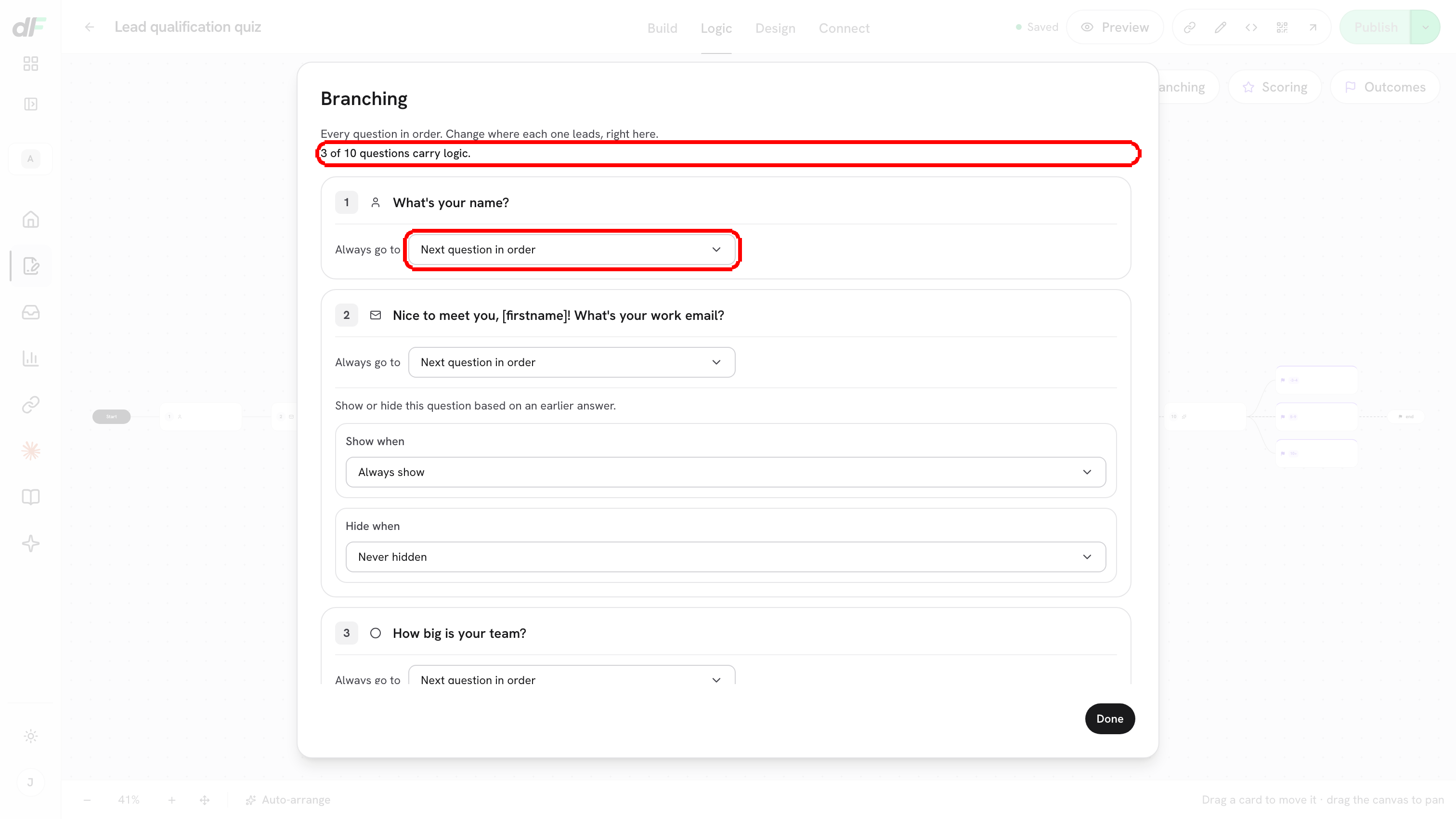
Instead of opening each question one by one, open the **Logic** tab and click **Branching** in the toolbar. The dialog lists **every question in order** with its **Always go to** control, its **If answer is** rules and its **Show when** / **Hide when** conditions, and the summary line tells you how much logic the form carries (**3 of 8 questions carry logic.**, or **No question carries logic yet. Everyone walks the same path.**).

<figure><img src="https://3835013762-files.gitbook.io/~/files/v0/b/gitbook-x-prod.appspot.com/o/spaces%2FCy5rSNtQmtqYCGzJlNEB%2Fuploads%2Fgit-blob-eb78954cf5c18087e43272e91e710e2275e00dca%2Fforms-branching-02-branching-dialog.png?alt=media" alt="The form-wide Branching dialog listing every question with its Always go to dropdown and conditions, with the summary line highlighted"><figcaption><p>The <strong>Branching</strong> dialog: all routing and visibility controls for the whole form, editable in place.</p></figcaption></figure>

Everything in this dialog is editable: change a destination, add a rule or pick a **Show when** field right there. Click **Done** when you are finished. Changes are autosaved like any other edit; publish the form to make them live.

***

## See the branches: the Logic canvas

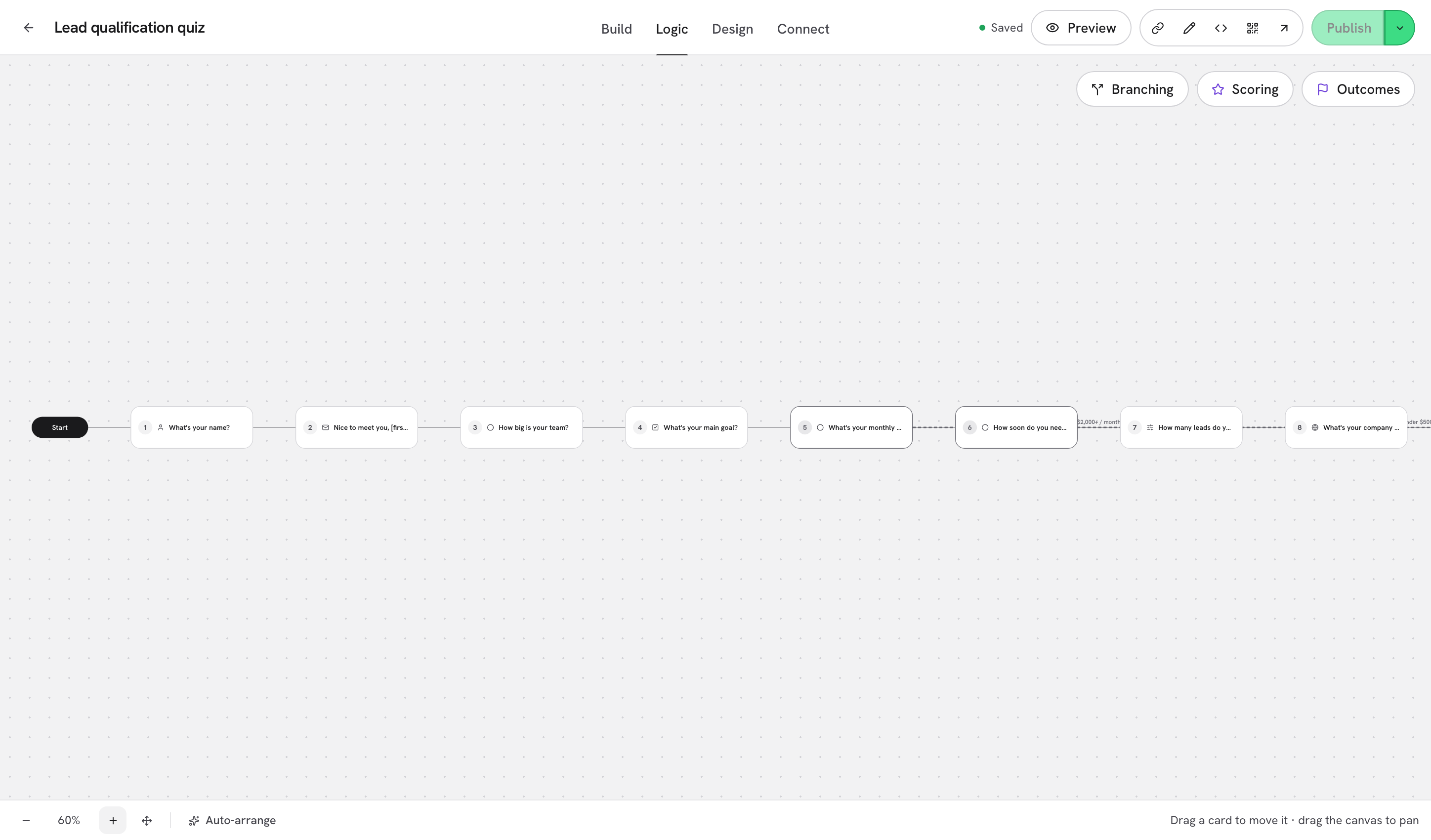
The **Logic** tab draws the whole flow. Cards run left to right in question order; a solid line is the normal path and a **dashed line is a jump**, labeled with the answer that triggers it. Jumps that skip to the end all land on the shared **END** marker.

<figure><img src="https://3835013762-files.gitbook.io/~/files/v0/b/gitbook-x-prod.appspot.com/o/spaces%2FCy5rSNtQmtqYCGzJlNEB%2Fuploads%2Fgit-blob-f2919b3159d3f4067d1bcab555ccc891979eb5c3%2Fforms-branching-03-canvas-branch.png?alt=media" alt="The Logic canvas zoomed on the budget question: a dashed line labeled $2,000+ / month jumps to a later card, and a dashed line labeled Under $500 / month goes to the END marker"><figcaption><p>Both rules drawn: one jump to a later question, one skip to <strong>END</strong>.</p></figcaption></figure>

* **Hover a card** and click its edit button (tooltip **Edit the logic for {question}**) to open the Logic dialog for that question.
* **Drag a card** to move it out of the way when lines overlap (for example to see a jump that passes behind another card). Your positions are remembered with the form.
* **Auto-arrange** puts every card back on the automatic grid. **Fit to screen** zooms so the whole flow is visible; **Zoom in** / **Zoom out** change the level of detail (titles and line labels appear as you zoom in).
* On a narrow window the canvas becomes the read-only **Logic map**, where jumps are written as **If {answer} → {question}** and **If {answer} → skip to end**.

## What's next

* [Show & hide conditions](/dapta-forms/logic/conditions.md): show a question only when an earlier answer calls for it.
* [Scoring](/dapta-forms/logic/scoring.md): the points a skipped question never adds.
* [Outcomes (results by score range)](/dapta-forms/logic/outcomes.md): where respondents land after **skip to end**.
* [Content steps: Message, Reveal screen, Scheduler](/dapta-forms/builder/question-types/content-steps.md): the **After a booking** routing of a Scheduler question.


---

# Agent Instructions
This documentation is published with GitBook. GitBook is the documentation platform designed so that both humans and AI agents can read, navigate, and reason over technical content effectively. Learn more at gitbook.com.

## Querying This Documentation
If you need additional information that is not directly available in this page, you can query the documentation dynamically by asking a question.

Perform an HTTP GET request on the current page URL with the `ask` query parameter, and the optional `goal` query parameter:

```
GET https://docs.dapta.ai/dapta-forms/logic/branching.md?ask=<question>&goal=<endgoal>
```

`ask` is the immediate question: it should be specific, self-contained, and written in natural language.
`goal` is optional and describes the broader end goal you are ultimately trying to accomplish on behalf of the user. GitBook uses it to tailor the answer towards what is most useful for that goal.

The response will contain a direct answer to the question and relevant excerpts and sources from the documentation.

Use this mechanism when the answer is not explicitly present in the current page, you need clarification or additional context, or you want to retrieve related documentation sections.