> For the complete documentation index, see [llms.txt](https://docs.dapta.ai/llms.txt). Markdown versions of documentation pages are available by appending `.md` to page URLs; this page is available as [Markdown](https://docs.dapta.ai/dapta-forms/logic/conditions.md).

# Show & hide conditions

Show or hide a question in Dapta Forms based on an earlier answer or the score so far: Show when and Hide when, the operators for each field type, the contradiction guard, the never-shows warnings and

Conditions decide whether a question appears at all. A question with no conditions always appears; add a **Show when** or **Hide when** rule and it only appears for the respondents who match. Conditions never change the order of questions: a hidden question is simply skipped, and the respondent continues with the next visible one. To send people somewhere else, use [Branching & jumps](/dapta-forms/logic/branching.md).

This page uses a form built from the **Lead qualifier** template with a slider question added ("How many leads do you handle per month?").

***

## Open the Logic dialog

**Step 1:** In the **Build** tab, select the question you want to show or hide. In the **Question settings** panel on the right, find the **Logic** card and click **Edit logic**. While the question has no rules the card reads **No logic yet. This question always appears and continues in order.**

The dialog is titled **Logic: {question}** and has two sections: **When this question appears** (conditions, this page) and **Where the answer leads** (branching, see [Branching & jumps](/dapta-forms/logic/branching.md)). The same dialog opens from a card on the Logic canvas and from the form-wide **Branching** dialog, so it does not matter where you start.

> **💡 Tip:** Conditions can only look at questions that come **before** the current one. If the **Show when** list is empty, move the question further down the form first. The hint **Leave both empty and it always appears.** reminds you that both rules are optional.

***

## Show when: an earlier choice answer

**Step 2:** Under **Show when**, open the field picker (it reads **Always show** while empty) and pick an earlier question. For a choice, dropdown or multiple choice question the dialog shows the option chips under the label **Matches any of**. Click every option that should make this question appear.

<figure><img src="https://3835013762-files.gitbook.io/~/files/v0/b/gitbook-x-prod.appspot.com/o/spaces%2FCy5rSNtQmtqYCGzJlNEB%2Fuploads%2Fgit-blob-111d16d9fae2091707756c76996a9aead911f8a3%2Fforms-conditions-01-show-when.png?alt=media" alt="The Logic dialog for How soon do you need this? with Show when set to What&#x27;s your main goal? and the chips Capture more leads and Qualify faster selected under Matches any of"><figcaption><p>"How soon do you need this?" only appears when the main goal is <strong>Capture more leads</strong> or <strong>Qualify faster</strong>.</p></figcaption></figure>

The rule reads: show this question if the answer to **What's your main goal?** is any of the selected options. For a multiple choice source, one selected option in the respondent's answer is enough.

**Step 3:** Click **Done**. The Logic card now summarizes the rule in a sentence (for example **Show if What's your main goal? is any of Capture more leads, Qualify faster**) and the question card in the list shows a **1 rule** badge.

***

## Show when: a slider value or the score so far

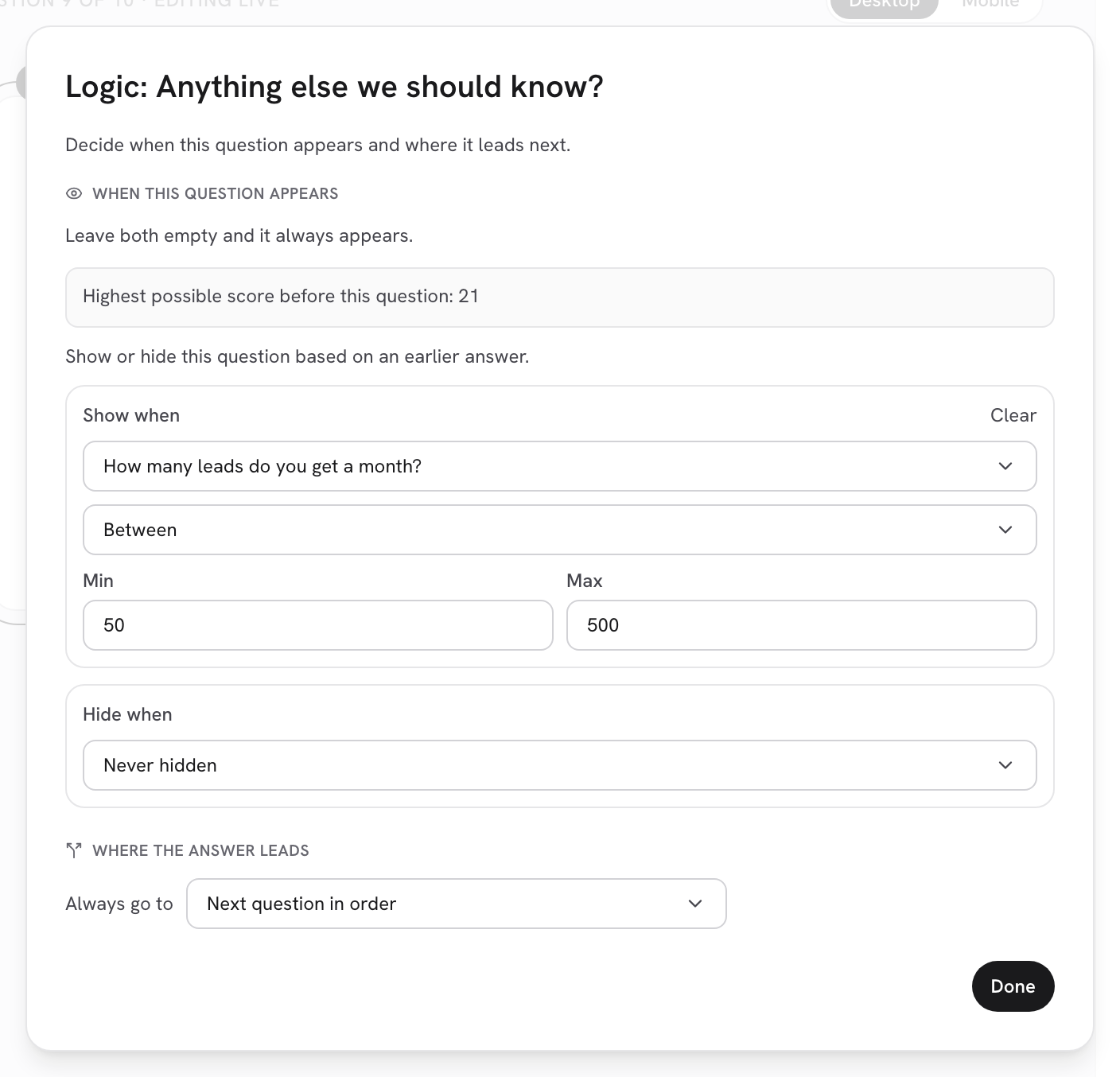
**Step 4:** Pick a **Slider** question (or **Score so far**, the first entry in the list) as the source. Instead of chips you get a **Condition** dropdown and one or two number fields.

<figure><img src="https://3835013762-files.gitbook.io/~/files/v0/b/gitbook-x-prod.appspot.com/o/spaces%2FCy5rSNtQmtqYCGzJlNEB%2Fuploads%2Fgit-blob-7aa5882281f3745f2c1a9b27521144eac73f1062%2Fforms-conditions-02-slider-between.png?alt=media" alt="The Logic dialog for Anything else we should know? with Show when set to the slider question, the condition Between and Min 50, Max 500"><figcaption><p>A slider condition: the question appears when the slider value is between 50 and 500 (both included).</p></figcaption></figure>

| Source                                             | Comparison offered                                         | Fields                                                     |
| -------------------------------------------------- | ---------------------------------------------------------- | ---------------------------------------------------------- |
| Single choice, Multiple choice, Dropdown           | **Matches any of**                                         | Option chips: click every option that counts.              |
| Short text, Long text, Email, Phone, Name, Website | **Matches any of**                                         | A text box; enter comma-separated values to match exactly. |
| Slider                                             | **Equal to**, **Greater than**, **Less than**, **Between** | **Value**, or **Min** and **Max** for Between.             |
| **Score so far**                                   | **Greater than**, **Less than**, **Equal to**, **Between** | **Value**, or **Min** and **Max** for Between.             |

**Between** is inclusive at both ends. **Score so far** means the points collected by the questions above this one; the question's own answer is not counted because it has not been given yet. The dialog prints **Highest possible score before this question: {n}** so you know the range you are working with. If no question above can add points, the dialog warns that the score is always 0 here and the rule can never change what respondents see.

***

## Hide when

**Hide when** works exactly like **Show when**, with the opposite effect: the question is hidden for respondents who match. While it is empty the picker reads **Never hidden**. Use **Hide when** when it is shorter to describe who should *not* see the question ("hide the pricing question for **Just exploring**") than who should.

You can combine both. When you do, a respondent must match the **Show when** rule and not match the **Hide when** rule. Click **Clear** next to either label to remove that rule.

***

## The contradiction guard

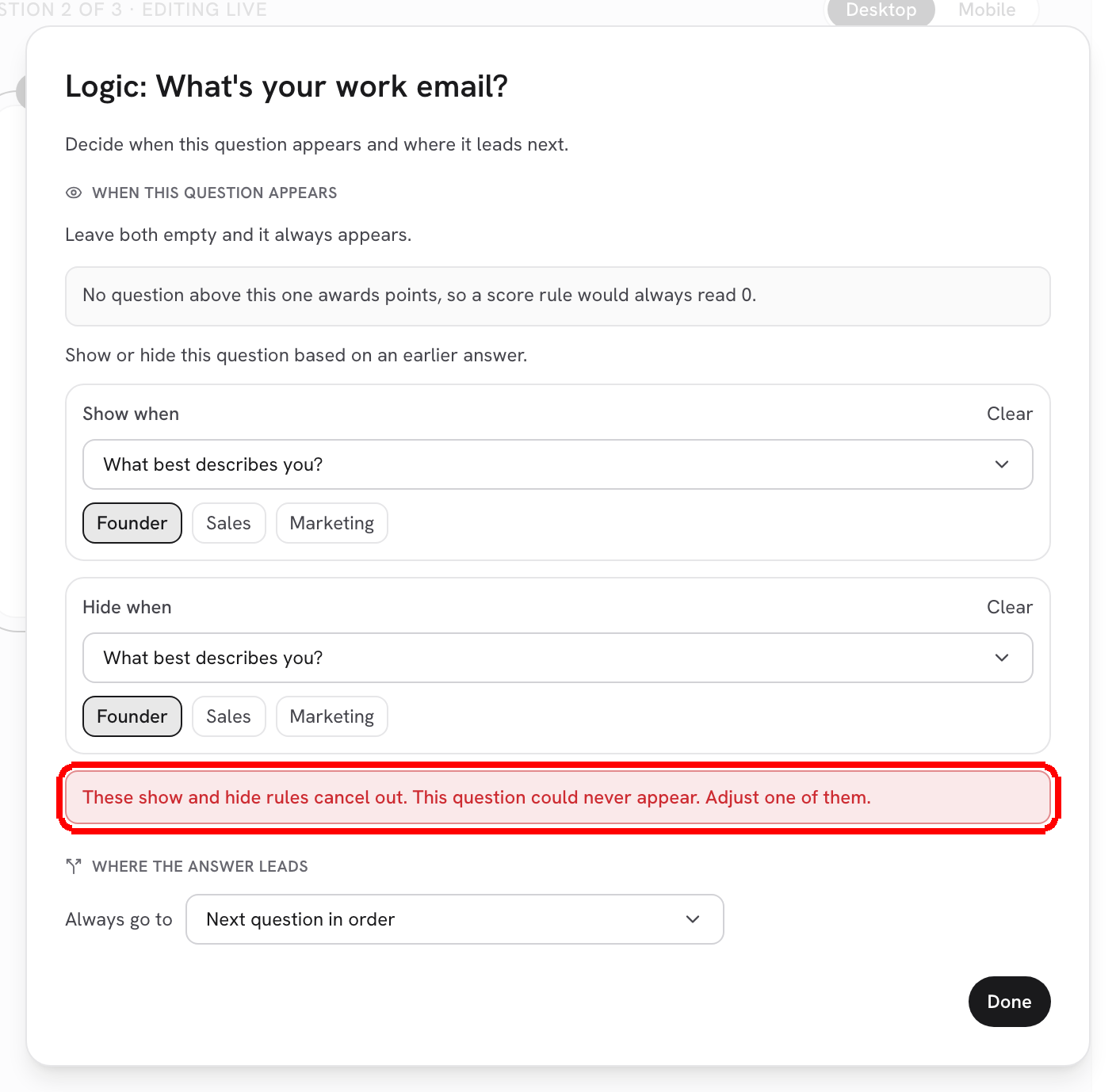
If the two rules cancel each other out, the dialog shows a red warning and you should fix one of them before moving on.

<figure><img src="https://3835013762-files.gitbook.io/~/files/v0/b/gitbook-x-prod.appspot.com/o/spaces%2FCy5rSNtQmtqYCGzJlNEB%2Fuploads%2Fgit-blob-769094a9be7ec232d72d51e716faa8d222523af7%2Fforms-conditions-03-contradiction.png?alt=media" alt="The Logic dialog with Show when and Hide when both set to the same options of What&#x27;s your main goal?, and the red warning These show and hide rules cancel out highlighted"><figcaption><p>The same options in <strong>Show when</strong> and <strong>Hide when</strong>: nobody could ever see this question.</p></figcaption></figure>

The full message reads **These show and hide rules cancel out. This question could never appear. Adjust one of them.** A softer informational notice appears when the hide rule only cuts into the show rule, because the question still appears for some respondents: **The hide rule cuts into the show rule: this question only appears for {lo} to {hi}. If that is what you meant, ignore this.** (the notice prints the real range).

***

## Never-shows warnings

The dialog also warns when a single rule can never match, because the question would silently disappear for everyone:

<figure><img src="https://3835013762-files.gitbook.io/~/files/v0/b/gitbook-x-prod.appspot.com/o/spaces%2FCy5rSNtQmtqYCGzJlNEB%2Fuploads%2Fgit-blob-c46078bba5787b83251dbcd5754fa8be7bb0555c%2Fforms-conditions-04-never-shows.png?alt=media" alt="The Logic dialog with a slider Show when rule that has an empty Value field, and the red warning This rule has no value yet highlighted"><figcaption><p>A rule without a value hides the question from everyone until you fill it in.</p></figcaption></figure>

| Warning                                                                                                         | When it appears                                                                                                 |
| --------------------------------------------------------------------------------------------------------------- | --------------------------------------------------------------------------------------------------------------- |
| **This rule has no value yet, so it never matches. The question is hidden from everyone until you fill it in.** | A slider or score rule with an empty **Value**, **Min** or **Max**.                                             |
| **Min is above Max, so no answer can fall in this range. The question is hidden from everyone.**                | A **Between** rule whose **Min** is larger than its **Max**.                                                    |
| **No options are selected, so this rule never matches. The question is hidden from everyone.**                  | A **Matches any of** rule with no chip selected.                                                                |
| **This hide rule is incomplete, so it never applies. Finish it or clear it.**                                   | A **Hide when** rule missing its value. Unlike a broken show rule, an incomplete hide rule simply does nothing. |

On the Logic canvas and map, a question with rules that can never match carries the note **These rules mean this question never appears.**

***

## Personal email only

Some forms ask for an email first and, when it is a personal address (Gmail, Hotmail, Yahoo and similar), follow up with "Which company are you with?" or "What's your website?". You do not need a condition for that: once the form contains an **Email** question, every later question offers a **Personal email only** switch in its **Logic** card.

<figure><img src="https://3835013762-files.gitbook.io/~/files/v0/b/gitbook-x-prod.appspot.com/o/spaces%2FCy5rSNtQmtqYCGzJlNEB%2Fuploads%2Fgit-blob-8aec4dc2ba807bd918bb0f988de80949851004d5%2Fforms-conditions-05-personal-email-only.png?alt=media" alt="The Question settings panel of a Short text question with the Personal email only switch turned on under the Logic card"><figcaption><p><strong>Personal email only</strong>: "Which company are you with?" is asked only after a personal email address.</p></figcaption></figure>

* The hint reads **Show this question only when the respondent entered a personal (non-work) email.**
* The gate reads the first **Email** question of the form. Respondents who typed a work address skip the question.
* If that **Email** question has **Require work email** turned on, personal addresses are rejected before they get this far, so the gated question would never show. Turn **Require work email** off on the email question when you want this branch.
* The switch lives in the **Question settings** panel, not inside the dialog, and it is not counted in the **{n} rules** badge.

***

## Conditions and one-page forms

In a **One page** layout the same rules run live: a gated question appears or disappears on the page as the respondent answers. See [One-page layout](/dapta-forms/builder/one-page-layout.md).

## What's next

* [Branching & jumps](/dapta-forms/logic/branching.md): send respondents to a later question or to the end.
* [Scoring](/dapta-forms/logic/scoring.md): the points that feed a **Score so far** condition.
* [Dynamic questions (variants)](/dapta-forms/builder/dynamic-questions.md): change the wording of a question instead of hiding it.


---

# Agent Instructions
This documentation is published with GitBook. GitBook is the documentation platform designed so that both humans and AI agents can read, navigate, and reason over technical content effectively. Learn more at gitbook.com.

## Querying This Documentation
If you need additional information that is not directly available in this page, you can query the documentation dynamically by asking a question.

Perform an HTTP GET request on the current page URL with the `ask` query parameter, and the optional `goal` query parameter:

```
GET https://docs.dapta.ai/dapta-forms/logic/conditions.md?ask=<question>&goal=<endgoal>
```

`ask` is the immediate question: it should be specific, self-contained, and written in natural language.
`goal` is optional and describes the broader end goal you are ultimately trying to accomplish on behalf of the user. GitBook uses it to tailor the answer towards what is most useful for that goal.

The response will contain a direct answer to the question and relevant excerpts and sources from the documentation.

Use this mechanism when the answer is not explicitly present in the current page, you need clarification or additional context, or you want to retrieve related documentation sections.