> For the complete documentation index, see [llms.txt](https://docs.dapta.ai/llms.txt). Markdown versions of documentation pages are available by appending `.md` to page URLs; this page is available as [Markdown](https://docs.dapta.ai/dapta-forms/logic/reveal-screens.md).

# Reveal screens

Add a reveal screen: the short animated pause that plays between steps or right before the result. Headline, subtitle, duration, loader styles and what the respondent sees.

A reveal screen is a short, self-advancing pause: a headline, a subtitle, an animation and a timer. Nothing is asked and nothing is answered. It plays for as long as you set, then the form moves on by itself.

Use one just before a result, so a score or a booking link feels calculated rather than instant, or after a long section to give the form a beat of rhythm.

***

## A reveal is a step card

A reveal screen is an ordinary card in the **Questions** list. You can drag it anywhere, add several to one form, and delete it like any other step. It has no field key, no **Required** switch and it never scores.

There are two ways to add one:

* Click **Add question** and pick **Reveal screen** ("A short processing pause") from the **Content** group of the gallery.
* Or use the shortcut on the question it should follow.

**Step 1:** Select the question, open **Advanced settings** in the settings pane and turn on **Show reveal screen after**.

<figure><img src="https://3835013762-files.gitbook.io/~/files/v0/b/gitbook-x-prod.appspot.com/o/spaces%2FCy5rSNtQmtqYCGzJlNEB%2Fuploads%2Fgit-blob-27bb01062acebd644d4a6c710614ec87b915341e%2Fforms-reveal-screens-01-show-reveal-after.png?alt=media" alt="The Show reveal screen after switch at the bottom of a question&#x27;s Advanced settings"><figcaption><p>"Adds a reveal card right after this question. Turning it off removes that card. Edit its copy by selecting the card."</p></figcaption></figure>

Turning the switch off again removes that card, so use it as a quick toggle rather than a one-way action.

***

## Write and style it

**Step 2:** Click the reveal card in the list. The settings pane opens on **Reveal screen**: "Plays here, then the form continues on its own. Drag the card in the list to move it. Both lines accept \[field] tokens."

<figure><img src="https://3835013762-files.gitbook.io/~/files/v0/b/gitbook-x-prod.appspot.com/o/spaces%2FCy5rSNtQmtqYCGzJlNEB%2Fuploads%2Fgit-blob-ac21e0170900c2e45b9e64a7f47371b6a011886b%2Fforms-reveal-screens-02-reveal-settings.png?alt=media" alt="The reveal card selected in the question list, its live preview on the canvas and the Reveal screen settings pane with headline, subtitle, duration and look controls"><figcaption><p>The reveal card sits in the list like any question, and the canvas plays it live while you edit.</p></figcaption></figure>

| Setting                        | What it does                                                                                                                                                                                                                         |
| ------------------------------ | ------------------------------------------------------------------------------------------------------------------------------------------------------------------------------------------------------------------------------------ |
| **Headline**                   | The big line. Leave it empty to use the default wording.                                                                                                                                                                             |
| **Subtitle**                   | The line under it. Both lines accept `[field]` tokens, so you can address the respondent by an earlier answer. See [Recall answers with @](/dapta-forms/builder/recall-answers.md).                                                  |
| **Duration (ms)**              | "How long it plays, 500 to 30000 ms. Default: 2200." 2200 ms is about two seconds.                                                                                                                                                   |
| **Pre-warm the booking embed** | "Loads the outcome's booking calendar while this screen plays." Turn it on when a [scheduler](/dapta-forms/connect/scheduler-and-calendly.md) or a booking outcome comes next, so the calendar is ready when the respondent arrives. |

Under **Look**:

| Control                   | Options                                                                                                 |
| ------------------------- | ------------------------------------------------------------------------------------------------------- |
| **Loader**                | **Spinner**, **Bar only**, **You vs. match**, **No animation**. "What animates while the screen plays." |
| **Loader size**           | **Small**, **Medium**, **Large**, **Huge**.                                                             |
| **Text size**             | **Small**, **Medium**, **Large**, **Huge**.                                                             |
| **Flood with the accent** | "Paints the whole screen in the form's accent color, so the interstitial reads as a moment of its own." |

Picking **You vs. match** adds three more fields: **Your side's label** and **The match's label** ("Both accept \[field] tokens. Empty uses the default wording."), plus a **Status line** shown under the match while it plays, with the placeholder **Searching…**. Clear the status line to drop it.

> **💡 Tip:** Keep it short. A reveal is a beat, not a wait: two to four seconds is usually enough, and anything longer risks people closing the tab.

***

## On a one-page form

A [one-page form](/dapta-forms/builder/one-page-layout.md) has a single **Submit**, so a reveal cannot sit between questions. Instead it plays once, after **Submit** and before the result.

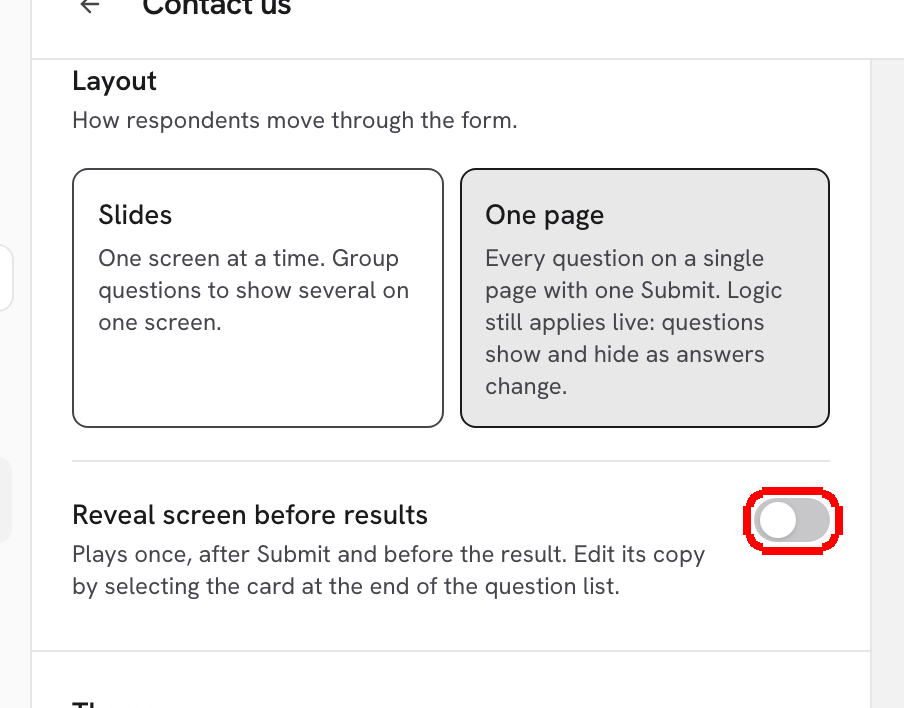
**Step 3:** Open **Design**, find **Layout** and turn on **Reveal screen before results**.

<figure><img src="https://3835013762-files.gitbook.io/~/files/v0/b/gitbook-x-prod.appspot.com/o/spaces%2FCy5rSNtQmtqYCGzJlNEB%2Fuploads%2Fgit-blob-254cf5b211a2f3418dab4223c86554c65fc3d6a3%2Fforms-reveal-screens-03-one-page-option.png?alt=media" alt="The Design panel Layout section with One page selected and the Reveal screen before results switch turned on"><figcaption><p>On <strong>One page</strong>, the reveal is a single switch: "Plays once, after Submit and before the result."</p></figcaption></figure>

The switch adds a **Reveal screen** card at the end of the question list, and you edit its copy there exactly as above.

***

## What the respondent sees

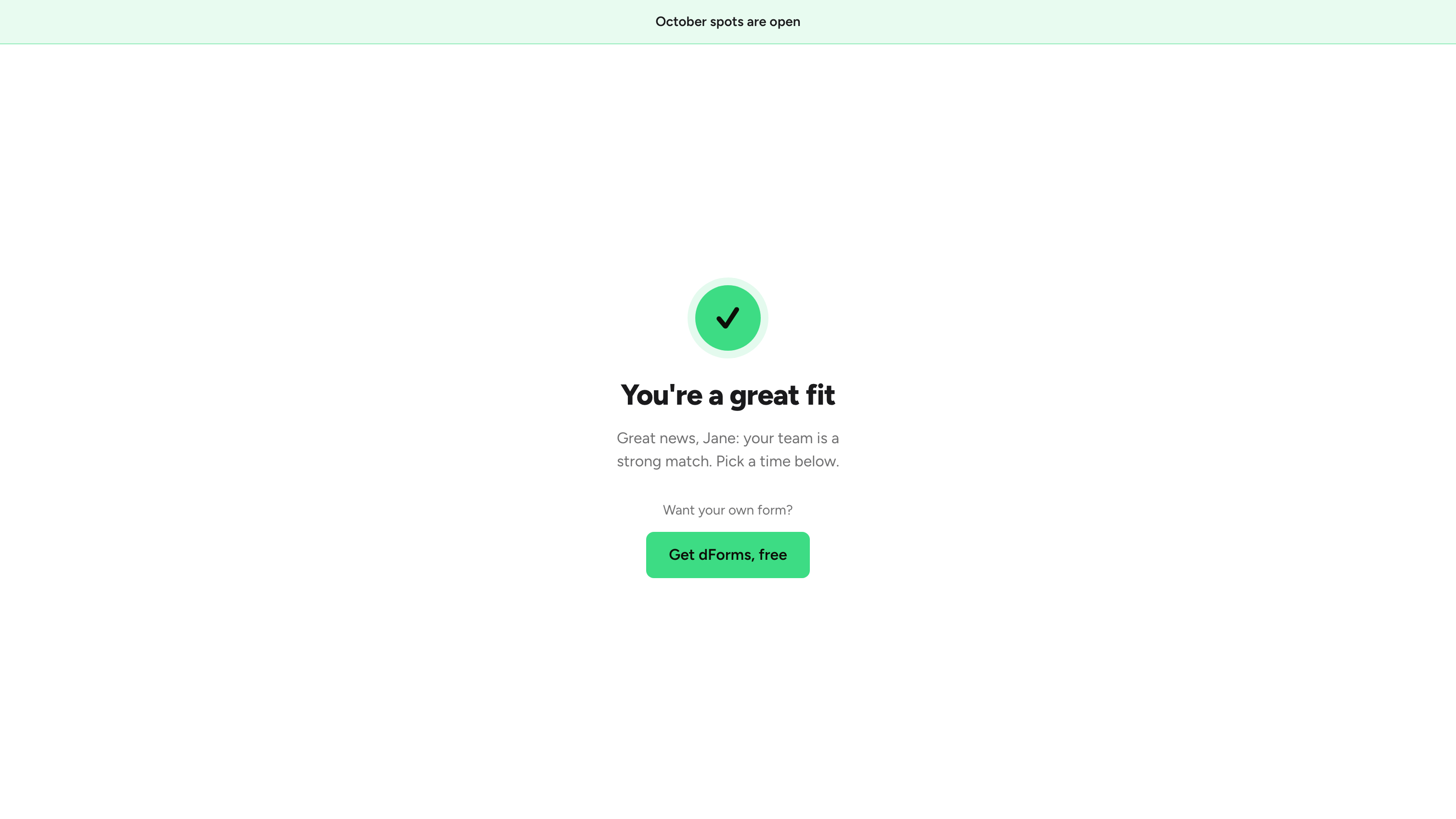
**Step 4:** Publish and open the public link. The reveal takes over the whole screen, plays its animation for the duration you set, then moves on with no click.

<figure><img src="https://3835013762-files.gitbook.io/~/files/v0/b/gitbook-x-prod.appspot.com/o/spaces%2FCy5rSNtQmtqYCGzJlNEB%2Fuploads%2Fgit-blob-5613b5257541b350a563f3988022414897370c00%2Fforms-reveal-screens-04-public-reveal.png?alt=media" alt="The public form playing a reveal screen: a spinner, the headline Reviewing your answers, a subtitle and a progress bar on a full accent colored background"><figcaption><p>The same reveal on the live form, with <strong>Flood with the accent</strong> turned on.</p></figcaption></figure>

If you leave **Headline** and **Subtitle** empty, respondents see the built-in copy: "Reviewing your answers…" and "One moment while we match you with the best next step."

> **⚠️ Note:** There is no skip button and no back button on a reveal. It always plays to the end, so it should never carry information the respondent needs to read carefully.

## Good to know

* A reveal is not a question: it never appears in **Submissions**, in the CSV export or in a webhook payload.
* It does count as a step in the progress indicator, so a form with a reveal reads as one step longer.
* Your **Client logos** marquee can appear on it: in **Design**, set **Show the marquee on** to **Reveal screen** or **Both**. See [Client logos marquee](/dapta-forms/design/client-logos.md).
* On a slides form you can use several reveals. On a one-page form there is only the one before the result.

## What's next

* [Outcomes (results by score range)](/dapta-forms/logic/outcomes.md): the result a reveal usually leads into.
* [Ending screen](/dapta-forms/logic/ending-screen.md): the default thank-you every respondent lands on.
* [Content steps: Message, Reveal screen, Scheduler](/dapta-forms/builder/question-types/content-steps.md): the three steps that ask nothing.
* [One-page layout](/dapta-forms/builder/one-page-layout.md): everything on a single page, with one reveal before the result.


---

# Agent Instructions
This documentation is published with GitBook. GitBook is the documentation platform designed so that both humans and AI agents can read, navigate, and reason over technical content effectively. Learn more at gitbook.com.

## Querying This Documentation
If you need additional information that is not directly available in this page, you can query the documentation dynamically by asking a question.

Perform an HTTP GET request on the current page URL with the `ask` query parameter, and the optional `goal` query parameter:

```
GET https://docs.dapta.ai/dapta-forms/logic/reveal-screens.md?ask=<question>&goal=<endgoal>
```

`ask` is the immediate question: it should be specific, self-contained, and written in natural language.
`goal` is optional and describes the broader end goal you are ultimately trying to accomplish on behalf of the user. GitBook uses it to tailor the answer towards what is most useful for that goal.

The response will contain a direct answer to the question and relevant excerpts and sources from the documentation.

Use this mechanism when the answer is not explicitly present in the current page, you need clarification or additional context, or you want to retrieve related documentation sections.