> For the complete documentation index, see [llms.txt](https://docs.dapta.ai/llms.txt). Markdown versions of documentation pages are available by appending `.md` to page URLs; this page is available as [Markdown](https://docs.dapta.ai/dapta-forms/logic/scoring.md).

# Scoring

Turn a Dapta Form into a scored quiz or lead qualifier: enable scoring, give every option a point value (negative numbers allowed), award points from a slider by value range, switch scoring on or off

Scoring turns answers into a number. Every option of a choice question can carry points, a slider can award points by value range, and the points a respondent collects add up to their **score**. That score is what [Outcomes](/dapta-forms/logic/outcomes.md) use to decide which ending a respondent sees, what **Score so far** conditions read, and what reaches HubSpot, webhooks and notification emails.

This page uses a demo form with three scored questions (a **Single choice** about team size, a **Slider** about monthly demos and a **Single choice** about timing), followed by an **Email** and a **Name** question. Points were chosen so the highest possible score is 14 and the lowest is -3.

***

## Which questions can score

| Question type                                        | Scores? | How                                                                                                                   |
| ---------------------------------------------------- | ------- | --------------------------------------------------------------------------------------------------------------------- |
| **Single choice**, **Multiple choice**, **Dropdown** | Yes     | Each option has a **Points** value. With **Multiple choice**, the points of every selected option are added together. |
| **Slider**                                           | Yes     | Points are awarded by value range (**Slider scoring**).                                                               |
| **Name**, **Email**, **Phone**                       | No      | Contact fields never affect the score.                                                                                |
| **Short text**, **Long text**, **Website**           | No      | Free-text answers cannot be scored.                                                                                   |
| **Message**, **Reveal screen**, **Scheduler**        | No      | No answer value to score.                                                                                             |

Points are whole numbers. Negative numbers are allowed and subtract from the score, which is useful to penalize a disqualifying answer without ending the form.

***

## Step 1: Give each option its points

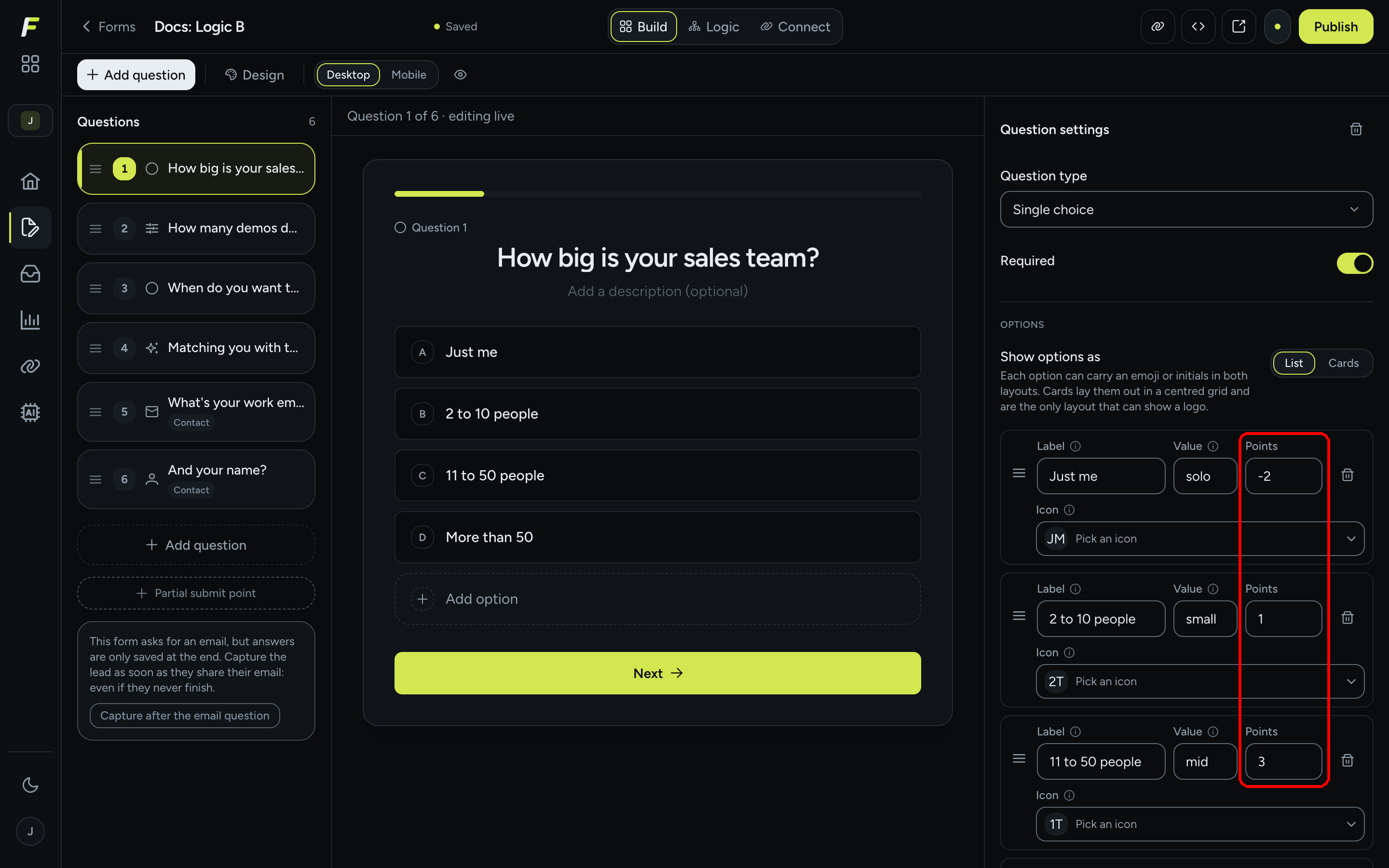
**Step 1:** Open your form in the **Build** tab and select a **Single choice**, **Multiple choice** or **Dropdown** question. In the **Question settings** panel, under **Options**, every option has three fields: **Label**, **Value** and **Points**.

**Step 2:** Type a number in **Points** for each option. Use `0` for neutral answers and a negative number (for example `-2`) for answers that should lower the score. The hint under the list reads **Added to the score when this option is picked. Use a negative number to subtract.**

<figure><img src="https://3835013762-files.gitbook.io/~/files/v0/b/gitbook-x-prod.appspot.com/o/spaces%2FCy5rSNtQmtqYCGzJlNEB%2Fuploads%2Fgit-blob-7a2d98e1f17ac149d460b2090e1d4325fd9b34fb%2Fforms-scoring-01-points-column.png?alt=media" alt="The Question settings panel of a single choice question with the Points column highlighted: Just me -2, 2 to 10 people 1, 11 to 50 people 3"><figcaption><p>Each option carries its own <strong>Points</strong>. Negative values subtract from the score.</p></figcaption></figure>

> **💡 Tip:** If you already have the answers and their scores in a spreadsheet, click **Import options** and paste two columns (option and score). The preview flags duplicates and invalid scores before anything is written.

***

## Step 2: Score a slider by range

A slider has no options, so it scores by value range instead.

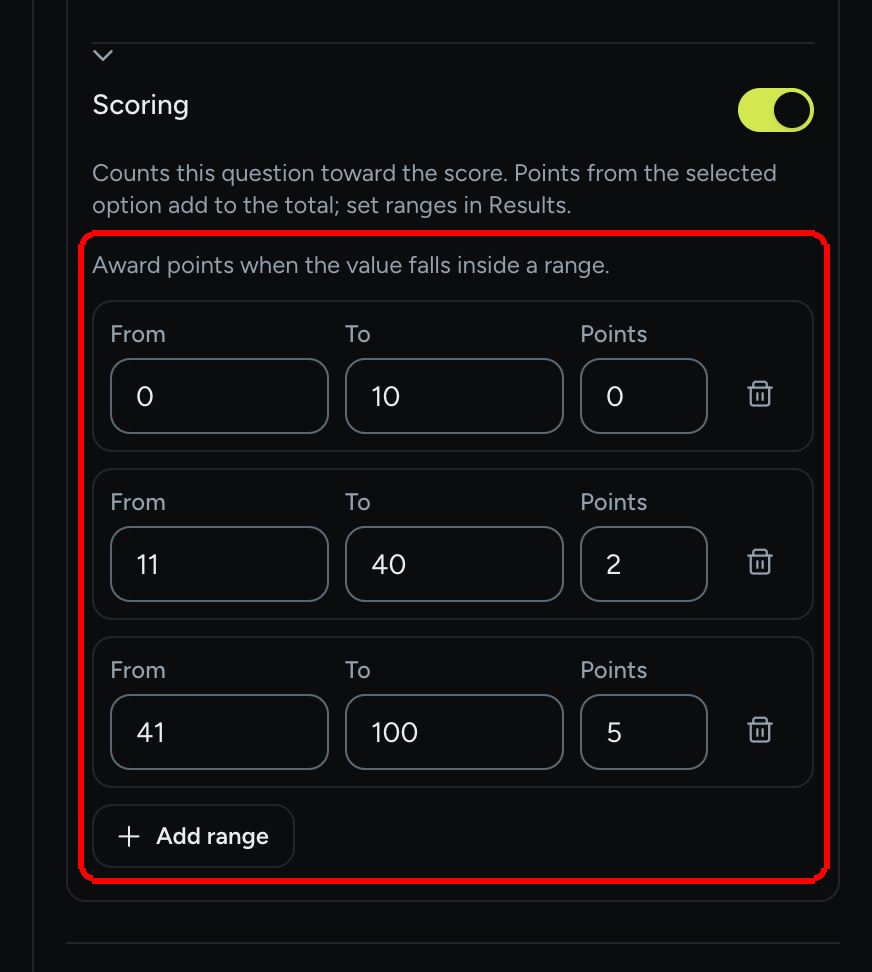
**Step 1:** Select the **Slider** question and open **Advanced settings** in the **Question settings** panel. Turn its **Scoring** switch on, and the **Slider scoring** section appears below it, with the hint **Award points when the value falls inside a range.**

**Step 2:** Click **Add range** and fill in **From**, **To** and **Points**. Add as many ranges as you need (for example 0 to 10 gives 0 points, 11 to 40 gives 2, 41 to 100 gives 5). Click the trash icon (**Remove range**) to delete one.

<figure><img src="https://3835013762-files.gitbook.io/~/files/v0/b/gitbook-x-prod.appspot.com/o/spaces%2FCy5rSNtQmtqYCGzJlNEB%2Fuploads%2Fgit-blob-8ded204f880e93db423e47471c5ae9e17b2a9a54%2Fforms-scoring-03-slider-ranges.png?alt=media" alt="The Scoring section of a slider question with three ranges: 0 to 10 for 0 points, 11 to 40 for 2 points, 41 to 100 for 5 points, and the Add range button"><figcaption><p>Slider ranges live under <strong>Advanced settings</strong>. Each range awards its own points.</p></figcaption></figure>

Two warnings can appear under a range:

| Warning                                                                           | Meaning                                                                                                 |
| --------------------------------------------------------------------------------- | ------------------------------------------------------------------------------------------------------- |
| **Outside the slider's {min} to {max} range. This range can never award points.** | The range lies outside the slider's **Min** and **Max**. Fix the bounds or the range.                   |
| **Overlaps a range above it. When both match, the one listed first wins.**        | Two ranges share values. The upper range in the list takes precedence, so the lower one is partly dead. |

A slider with no ranges shows **No scoring ranges. The slider does not score.** and contributes 0.

***

## Step 3: Scoring per question and contact fields

Every scorable question has its own **Scoring** switch in the **Question settings** panel (under **Options** for choice questions, under **Advanced settings** for a slider). It reads **Counts this question toward the score. Points from the selected option add to the total; set ranges in Results.** Turn it off to keep the points on the options while ignoring them in the total, for example while you test a question.

If the form-wide switch is off, the per-question switch is disabled and says **Scoring is off for the whole form: turn it on in Results to score individual questions.**

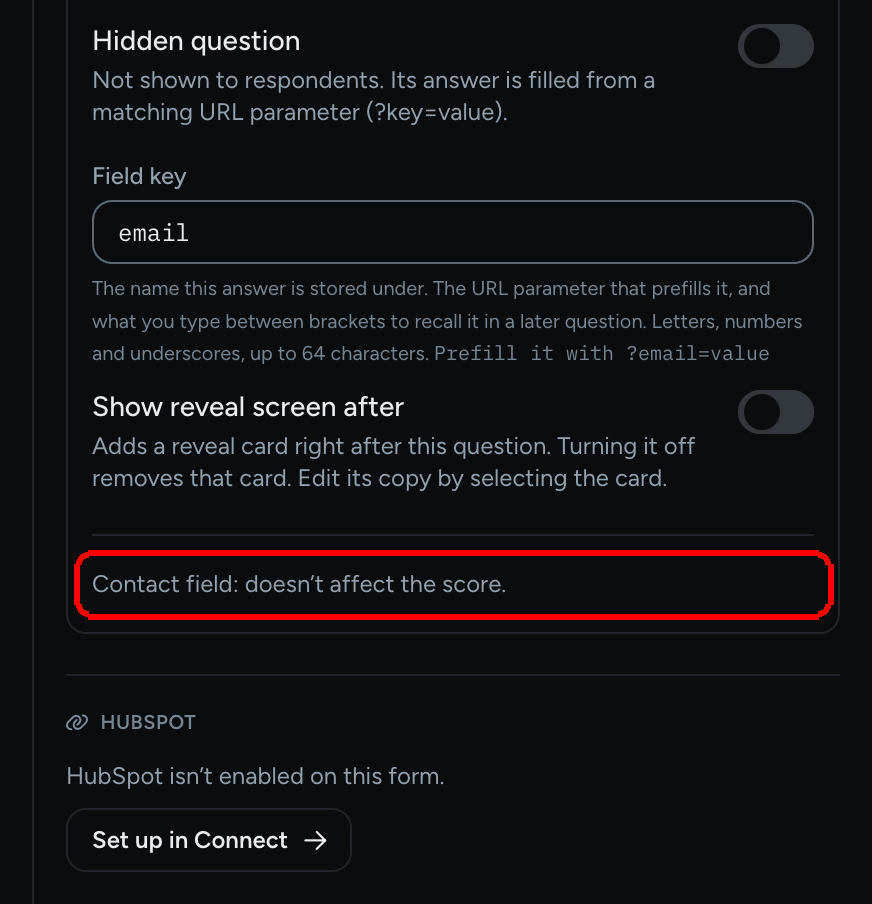
Contact questions show no switch at all, only the note **Contact field: doesn't affect the score.**

<figure><img src="https://3835013762-files.gitbook.io/~/files/v0/b/gitbook-x-prod.appspot.com/o/spaces%2FCy5rSNtQmtqYCGzJlNEB%2Fuploads%2Fgit-blob-85d7b2a1a6774286815715c2aff8b57fdd127099%2Fforms-scoring-04-contact-field.png?alt=media" alt="The Advanced settings of an Email question ending with the note Contact field: doesn&#x27;t affect the score."><figcaption><p>An <strong>Email</strong> question can never add points.</p></figcaption></figure>

***

## Step 4: Review everything in the Scoring dialog

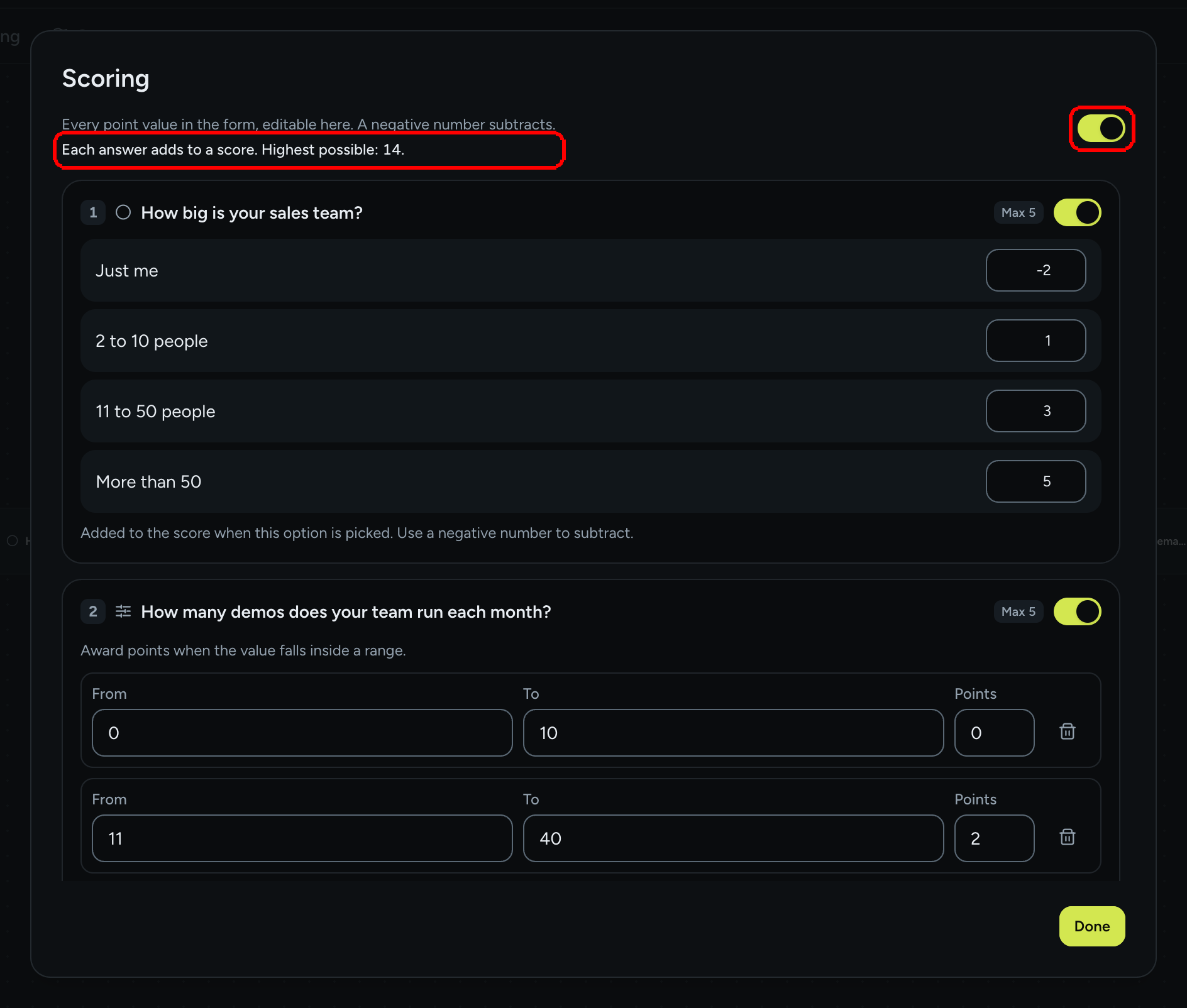
**Step 1:** Open the **Logic** tab and click **Scoring** in the toolbar. The **Scoring** dialog lists every scored question with all of its point values, editable in one place. Its subtitle reads **Every point value in the form, editable here. A negative number subtracts.**

**Step 2:** Check the line **Each answer adds to a score. Highest possible: {n}.** This is the maximum a respondent can reach: the best option of each scored question, or the best slider range, added up. Use it when you set your [Outcomes](/dapta-forms/logic/outcomes.md) ranges.

**Step 3:** The switch in the top right corner is **Enable scoring**, the master switch for the whole form. Each question row shows a **Max {n}** chip (the most that single question can contribute) and its own **Scoring** switch. Click **Done** when you are finished.

<figure><img src="https://3835013762-files.gitbook.io/~/files/v0/b/gitbook-x-prod.appspot.com/o/spaces%2FCy5rSNtQmtqYCGzJlNEB%2Fuploads%2Fgit-blob-e29a74cf4fee2af10e223e592670ca15e08782b2%2Fforms-scoring-02-scoring-dialog.png?alt=media" alt="The Scoring dialog with Enable scoring switched on, the line Highest possible: 14, and the points of every question listed"><figcaption><p>The <strong>Scoring</strong> dialog: master switch, highest possible score and every point value in the form.</p></figcaption></figure>

> **⚠️ Note:** Scoring is on by default for a new form. When you turn **Enable scoring** off, the dialog says **Scoring is off, so none of these points are awarded. They are kept exactly as they are: turn scoring on to use them again.** Every submission then scores 0, no outcome range is resolved and the line at the top reads **Scoring is off. No answer adds to a score right now.**

***

## Where the score shows up

| Place                                                          | What you see                                                                         |
| -------------------------------------------------------------- | ------------------------------------------------------------------------------------ |
| [Outcomes](/dapta-forms/logic/outcomes.md)                     | Score ranges pick the ending a respondent sees.                                      |
| [Show & hide conditions](/dapta-forms/logic/conditions.md)     | A rule can read **Score so far** (the points collected before the current question). |
| [Submissions](/dapta-forms/results/submissions.md)             | A **Score** column per response, also in the CSV export.                             |
| [HubSpot](/dapta-forms/connect/hubspot/form-elements.md)       | The **Score property** mapping receives the total on completed submissions.          |
| [Webhooks](/dapta-forms/connect/webhooks/payload-reference.md) | The payload carries `submission.score`.                                              |
| [Emails](/dapta-forms/connect/emails.md)                       | The `{{score}}` variable in the submission emails.                                   |

Skipped questions (hidden by a condition or jumped over by branching) add nothing. The score is computed from the answers the respondent actually gave.

***

## What's next

* Map score ranges to different endings in [Outcomes](/dapta-forms/logic/outcomes.md).
* Use **Score so far** to show or hide questions in [Show & hide conditions](/dapta-forms/logic/conditions.md).
* See how the editor handles option labels, values and icons in [Choice fields](/dapta-forms/builder/question-types/choice-fields.md).


---

# Agent Instructions
This documentation is published with GitBook. GitBook is the documentation platform designed so that both humans and AI agents can read, navigate, and reason over technical content effectively. Learn more at gitbook.com.

## Querying This Documentation
If you need additional information that is not directly available in this page, you can query the documentation dynamically by asking a question.

Perform an HTTP GET request on the current page URL with the `ask` query parameter, and the optional `goal` query parameter:

```
GET https://docs.dapta.ai/dapta-forms/logic/scoring.md?ask=<question>&goal=<endgoal>
```

`ask` is the immediate question: it should be specific, self-contained, and written in natural language.
`goal` is optional and describes the broader end goal you are ultimately trying to accomplish on behalf of the user. GitBook uses it to tailor the answer towards what is most useful for that goal.

The response will contain a direct answer to the question and relevant excerpts and sources from the documentation.

Use this mechanism when the answer is not explicitly present in the current page, you need clarification or additional context, or you want to retrieve related documentation sections.