> For the complete documentation index, see [llms.txt](https://docs.dapta.ai/llms.txt). Markdown versions of documentation pages are available by appending `.md` to page URLs; this page is available as [Markdown](https://docs.dapta.ai/dapta-forms/results/export-csv.md).
# Export to CSV
Download the responses to a Dapta Form as a CSV file: how the export follows the filter you have on screen, the exact column list, the status values and the timestamp format.
**Download CSV** turns the response table into a spreadsheet file you can open in Excel, Numbers or Google Sheets, or hand to whoever does your reporting. It is the fastest way to read long answers, run a pivot or archive a campaign.
***
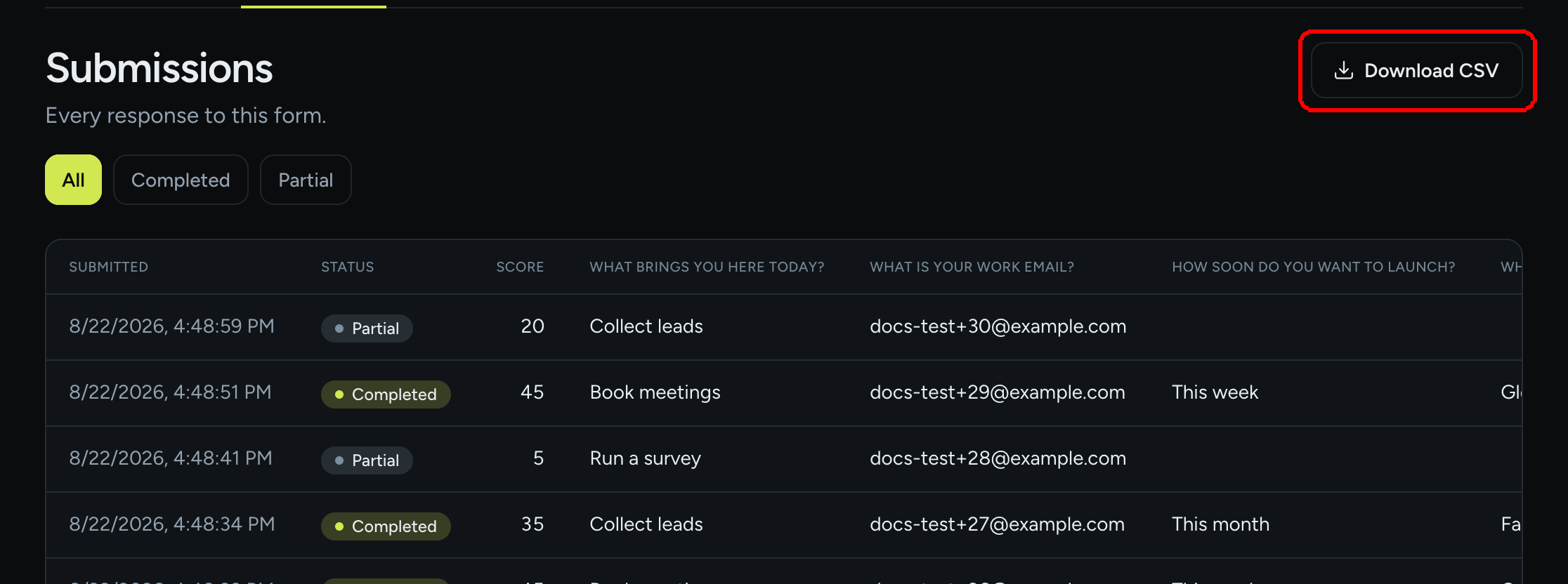
**Step 1:** Open the form, go to the **Submissions** tab and click **Download CSV** in the top right corner.
One click. The file downloads straight away, no export job to wait for.
The file is named after the form, in the shape `{form slug}-submissions.csv`. A form published at `/lead-qualification-quiz` downloads as `lead-qualification-quiz-submissions.csv`.
***
**Step 2:** Set the filter **before** you click. The export honours the chip you have selected: with **Completed** on, the file holds only completed responses; with **Partial** on, only the partial ones; with **All** on, everything.
The chip you pick is the chip you get: Completed here exports completed responses only.
Pagination does not limit the export. Even when you are looking at page 1 of 25 rows, the file contains every response that matches the filter.
***
## What is in the file
The first line is the header. Eight fixed columns come first, then one column per question in the order the questions appear in your form:
```csv
id,session_id,status,score,started_at,completed_at,started_at_local,completed_at_local,multiple_choice_1,email_2,multiple_choice_3,text_4
fcf4d142-2d8b-48db-b046-f702a1776dc7,9c8208a7-cfe3-460b-ae8b-252e33dac804,partial,20,2026-08-22T16:48:59.127Z,,2026-08-22T10:48:59-06:00,,Collect leads,ada@example.com,,
de659e7a-7190-4f74-838f-c750192d9a1f,ee211b35-b425-4cf0-ab11-6fe23d5dbf7c,completed,45,2026-08-22T16:48:47.907Z,2026-08-22T16:48:51.609Z,2026-08-22T10:48:47-06:00,2026-08-22T10:48:51-06:00,Book meetings,grace@example.com,This week,Globex
```
| Column | What it holds |
| -------------------- | ---------------------------------------------------------------------------------------------------------------------------------------------------------------------------------------------------- |
| `id` | The identifier of this response. Unique forever. |
| `session_id` | The identifier of the browser session that produced it. One session gives you one row, so this is how a partial row and the completed row it became stay the same record. |
| `status` | `completed`, `partial` or `in_progress`. See below. |
| `score` | The total points from the answers, or `0` when the form has no scoring. |
| `started_at` | When the person opened the form, in UTC. |
| `completed_at` | When they finished, in UTC. Empty for anything that never reached the end. |
| `started_at_local` | The same moment read in the **Workspace timezone**, with its offset. |
| `completed_at_local` | The same, for the completion. Empty when there is none. |
| One per question | The answer, under the question's field key. The header is the **Field key** from **Advanced settings**, not the question text, so keep those keys readable if the CSV is going to be read by people. |
### The status values
| Value | Meaning |
| ------------- | ----------------------------------------------------------------------------------------------------------------------------------------------- |
| `completed` | The person reached the end of the form and submitted. |
| `partial` | The answers were saved at the **Partial submit point** and the person never finished. |
| `in_progress` | A response was opened and recorded but has neither finished nor passed a capture point yet. On screen these rows are grouped under **Partial**. |
### Formats and small print
* Timestamps are ISO 8601 in UTC, for example `2026-08-22T16:48:51.609Z`. Most spreadsheets read them as text, so convert the column if you want to sort or chart by date.
* A multiple choice answer with several picks is written as one cell with the values separated by a semicolon.
* A **File upload** answer is written as the stored record of the file rather than as a link, because a link to an uploaded file lives only a few minutes and would be dead by the time anyone opened the spreadsheet. The cell holds the filename, its size in bytes, the type the browser reported and the storage key:
```json
{"key":"uploads/…/a4398e1d-….png","mime":"image/png","name":"portfolio-cover.png","size":"66398"}
```
To read the files themselves, open them from **Submissions**. See [Uploaded files](/dapta-forms/results/uploaded-files.md).
* Answers containing commas, quotes or line breaks are quoted, and an internal quote is doubled, following the usual CSV rules.
* An answer that begins with `=`, `+`, `-` or `@` is prefixed with a single quote so your spreadsheet treats it as text instead of running it as a formula. Genuine numbers, including a negative score, are left alone.
* `utm_*` values ride along inside the stored response and reach HubSpot and your webhooks, but they are not columns in this file.
> **⚠️ Note:** The file contains the email addresses and answers people gave you. Treat it like any other list of personal data: share it deliberately and delete the copies you no longer need.
## What's next
* [Submissions](/dapta-forms/results/submissions.md): read the same rows on screen and delete the ones you do not want.
* [Analytics](/dapta-forms/results/analytics.md): the numbers behind the responses.
* [Webhooks](/dapta-forms/connect/webhooks.md): get each response delivered automatically instead of exporting it by hand.
---
# Agent Instructions
This documentation is published with GitBook. GitBook is the documentation platform designed so that both humans and AI agents can read, navigate, and reason over technical content effectively. Learn more at gitbook.com.
## Querying This Documentation
If you need additional information that is not directly available in this page, you can query the documentation dynamically by asking a question.
Perform an HTTP GET request on the current page URL with the `ask` query parameter, and the optional `goal` query parameter:
```
GET https://docs.dapta.ai/dapta-forms/results/export-csv.md?ask=&goal=
```
`ask` is the immediate question: it should be specific, self-contained, and written in natural language.
`goal` is optional and describes the broader end goal you are ultimately trying to accomplish on behalf of the user. GitBook uses it to tailor the answer towards what is most useful for that goal.
The response will contain a direct answer to the question and relevant excerpts and sources from the documentation.
Use this mechanism when the answer is not explicitly present in the current page, you need clarification or additional context, or you want to retrieve related documentation sections.