> For the complete documentation index, see [llms.txt](https://docs.dapta.ai/llms.txt). Markdown versions of documentation pages are available by appending `.md` to page URLs; this page is available as [Markdown](https://docs.dapta.ai/dforms/results/filter-and-sort.md).

# Filter & sort responses

Filter a form's responses by date, status, score or answer from the column headings of the Responses table, sort them by date or score, and see how the same filter drives Summary and the CSV export.

You narrow the **Responses** table the way you narrow a spreadsheet: from the column headings. The same filter also drives [Summary](/dforms/results/summary.md) and **Download CSV**, so the three always describe the same responses.

***

## Which columns filter

A column that filters shows a small funnel after its heading. Click anywhere on the heading to open its menu.

| Column                                                                 | What its menu offers                                                                                                                                           |
| ---------------------------------------------------------------------- | -------------------------------------------------------------------------------------------------------------------------------------------------------------- |
| The first column (**Response** or **Submitted**)                       | **Sort**: **Newest first** or **Oldest first**. **Date**: **Today**, **Last 7 days**, **Last 30 days** or **Custom range**, with a **From** and a **To** date. |
| **Status**                                                             | **Completed** and **Partial**, each with how many responses have it.                                                                                           |
| **Score**                                                              | **Sort**: **Highest first** or **Lowest first**. **Score range**: a **Min** and a **Max**. Only on forms that score.                                           |
| Every **Single choice**, **Multiple choice** and **Dropdown** question | One checkbox per option, with how many responses picked it. A **Search options** box appears when there are more than eight options.                           |

Text, contact, website, slider, file upload and scheduler columns have no heading filter. To look through what people wrote, use the search box instead (next section).

## Search the written answers

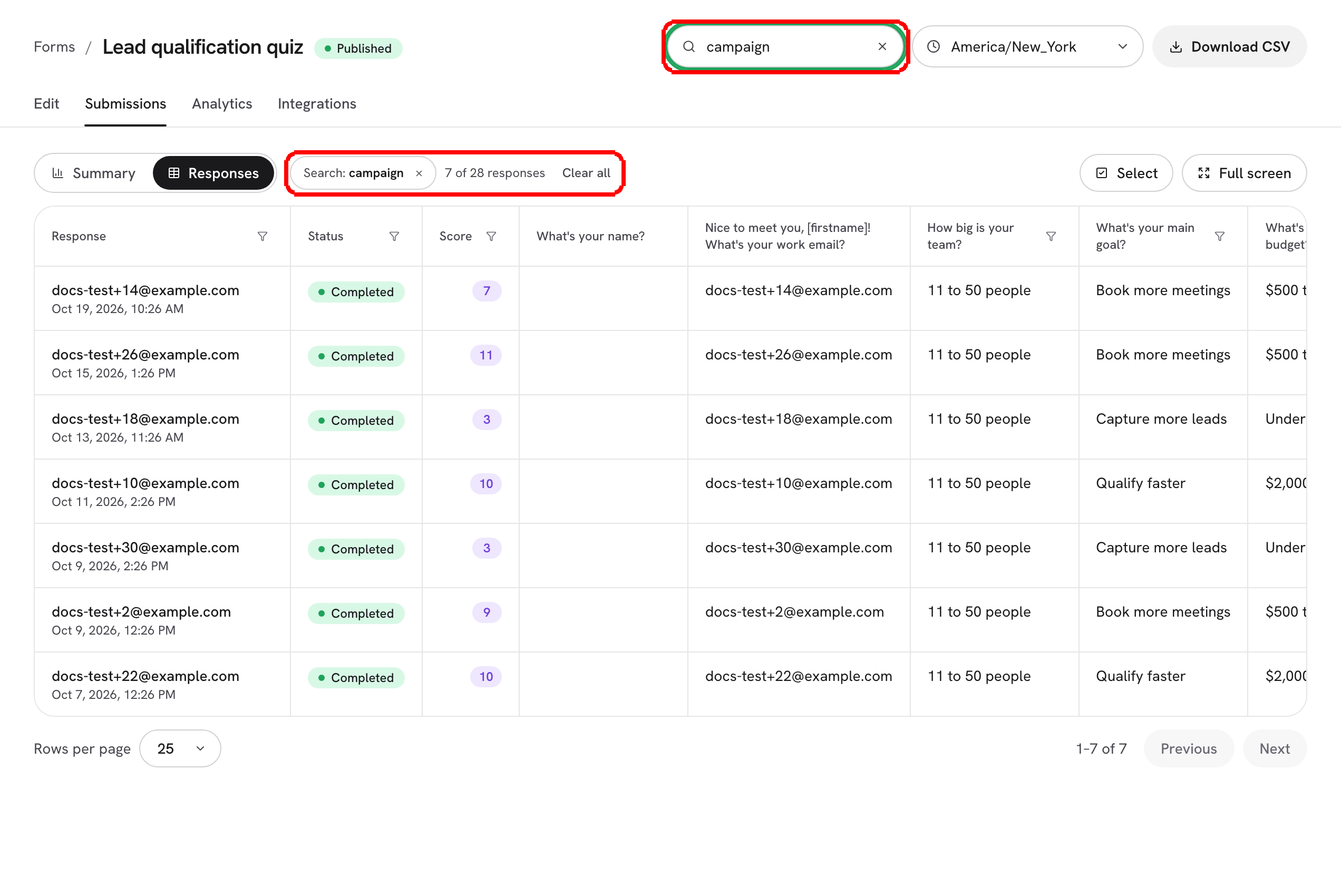
The **Search responses** box sits in the page header, next to **Download CSV**. Type a word and the table keeps only the responses where it appears in a written answer: short and long text, name, email, phone and website. A **Search** chip joins the filter bar, and **Clear search** (the x inside the box) removes it.

The search works with the heading filters, not instead of them, and like them it also drives [Summary](/dforms/results/summary.md) and **Download CSV**. It matches parts of words and ignores case, but not accents: `jose` does not find `José`.

<figure><img src="https://3835013762-files.gitbook.io/~/files/v0/b/gitbook-x-prod.appspot.com/o/spaces%2FCy5rSNtQmtqYCGzJlNEB%2Fuploads%2Fgit-blob-603a326bd629aba4d8f856b2f104c56a73093b3a%2Fforms-filter-and-sort-03-search.png?alt=media" alt="The Search responses box in the page header with a word typed, and the Search chip in the filter bar above the table"><figcaption><p>The search narrows the table, Summary and the CSV at once.</p></figcaption></figure>

***

**Step 1:** Click a heading to open its menu. Here, **Status**.

<figure><img src="https://3835013762-files.gitbook.io/~/files/v0/b/gitbook-x-prod.appspot.com/o/spaces%2FCy5rSNtQmtqYCGzJlNEB%2Fuploads%2Fgit-blob-498e9e023fb81a3220ee80c5aef777749c1fe418%2Fforms-submissions-02-partial-filter.png?alt=media" alt="The Status heading menu open over the table with Partial checked, and the filter bar above the table showing the Status chip, the response count and Clear all"><figcaption><p>A filter applies as soon as you check it. The menu stays open, so you can check more.</p></figcaption></figure>

On a phone, the menu opens as a sheet from the bottom of the screen. Every menu has a **Clear** button at the bottom, which removes that column's filter and its sort.

***

**Step 2:** Check the options you want. On a choice question, the counts next to each option cover every response, before any filter, so you can see at a glance how big each group is.

<figure><img src="https://3835013762-files.gitbook.io/~/files/v0/b/gitbook-x-prod.appspot.com/o/spaces%2FCy5rSNtQmtqYCGzJlNEB%2Fuploads%2Fgit-blob-8b1e8db41c9ee9206e31277bcbcf4c9097a93760%2Fforms-filter-and-sort-01-choice-menu.png?alt=media" alt="A choice question&#x27;s heading menu open with a checkbox per option, a count and a thin bar next to each option, and two options checked"><figcaption><p>Check one or more options. A response matches when it picked any of them.</p></figcaption></figure>

How filters combine:

* Inside one question, any checked option matches. A multiple choice answer matches when any of its picks is checked.
* Across columns, a response has to match every filter you set.
* Checking both **Completed** and **Partial** is the same as no status filter.

***

**Step 3:** Read the filter bar above the table.

<figure><img src="https://3835013762-files.gitbook.io/~/files/v0/b/gitbook-x-prod.appspot.com/o/spaces%2FCy5rSNtQmtqYCGzJlNEB%2Fuploads%2Fgit-blob-6d96b54c44d1767a1fc257e0f3d3e93dea2a9985%2Fforms-filter-and-sort-02-filter-bar.png?alt=media" alt="The filter bar above the table with three chips, one for Status, one for a choice question and one for the date, the text 11 of 27 responses, and Clear all"><figcaption><p>One chip per filtered column, how many responses are left, and <strong>Clear all</strong>.</p></figcaption></figure>

* Each filtered column gets a chip, for example *Status: Partial*. The x on a chip removes that filter.
* A sort other than **Newest first** gets a chip too.
* The count tells you how many responses are left, for example *11 of 27 responses*.
* **Clear all** removes every filter and puts the sort back to **Newest first**.

The funnel of a filtered column turns into a filled badge with the number of active filters, plus an arrow when that column sorts the table.

***

## Dates

* Days are read in your **Workspace timezone**. See [Workspaces](/dforms/account/workspaces.md#workspace-timezone).
* **Today** is today in that timezone. **Last 7 days** is today and the six days before it; **Last 30 days** is today and the 29 before it. A shared link with one of these keeps counting back from the day it is opened.
* **Custom range** takes whole days. You can leave **From** or **To** empty to leave that side open.
* The date filter and the date sort use the moment a response was first saved. A response captured at the partial point on Monday and completed on Wednesday counts as Monday.

***

## Score

* **Min** and **Max** are inclusive. Fill in one of them to set only a floor or only a ceiling.
* The filter applies when you stop typing for a moment, or when you press Enter.
* A score is a whole number, so a decimal bound is rounded inward: a **Min** of 5.5 keeps scores of 6 and up.
* **Highest first** and **Lowest first** sort by score; responses with the same score stay newest first.

Picking the sort that is already on puts the table back to **Newest first**.

***

## Filters live in the address bar

Everything you set is written into the page's address, so you can bookmark a filtered view or send it to a teammate. The filter follows you between **Summary** and **Responses**. Changing a filter takes you back to the first page and closes the response panel.

A link from before the heading filters, with `?status=completed` or `?status=partial`, still opens with that **Status** filter on.

***

## When nothing matches

The table keeps its headings, so you can undo what you did, and reads **No responses match these filters** / **Remove a filter, or clear them all, to see more.** with a **Clear all** button.

***

## What follows the filter

| Where                                 | What it does with the filter                                                                                                              |
| ------------------------------------- | ----------------------------------------------------------------------------------------------------------------------------------------- |
| **Responses**                         | Shows only the matching rows, in the order you picked.                                                                                    |
| [Summary](/dforms/results/summary.md) | Counts only the matching responses and shows the same chips. It has no sort.                                                              |
| **Download CSV**                      | Downloads every matching response, in the order you picked, whatever page you are on. See [Export to CSV](/dforms/results/export-csv.md). |
| **Export CSV** (selection bar)        | Ignores the filter and the sort: it downloads exactly the rows you checked.                                                               |

## What's next

* [Submissions](/dforms/results/submissions.md): the table, the response panel and full screen.
* [Summary](/dforms/results/summary.md): the filtered answers, question by question.
* [Export to CSV](/dforms/results/export-csv.md): take the filtered responses into a spreadsheet.


---

# Agent Instructions
This documentation is published with GitBook. GitBook is the documentation platform designed so that both humans and AI agents can read, navigate, and reason over technical content effectively. Learn more at gitbook.com.

## Querying This Documentation
If you need additional information that is not directly available in this page, you can query the documentation by asking a question.

Perform an HTTP GET request on the following URL with the `ask` and `goal` query parameters:

```
GET https://docs.dapta.ai/dforms/results/filter-and-sort.md?ask=<question>&goal=<user_goal>
```

`ask` is the immediate question: it should be specific, self-contained, and written in natural language.
`goal` is what the user is ultimately trying to achieve, the reason they need the answer. Sharing it helps GitBook give you a better, more relevant answer. A goal is most helpful when it describes the outcome the user wants rather than restating the question. For example, with `ask=how do I create an API token`, a goal like `automate deployments from our CI pipeline` lets GitBook tailor the answer to that use case.

The response will contain a direct answer to the question and relevant excerpts and sources from the documentation.

Use this mechanism when the answer is not explicitly present in the current page, you need clarification or additional context, or you want to retrieve related documentation sections.
