> For the complete documentation index, see [llms.txt](https://docs.dapta.ai/llms.txt). Markdown versions of documentation pages are available by appending `.md` to page URLs; this page is available as [Markdown](https://docs.dapta.ai/dforms/results/summary.md).

# Summary

Read a form's answers question by question in Summary: how many people picked each option, the average of a slider, the latest text answers with a search for each question, and how many files and book

**Summary** reads the answers to one form question by question: how many people picked each option, the average of a slider, the latest things people wrote. It sits next to **Responses** at the top of the form's **Submissions** page, so you no longer need to download the CSV and rebuild those numbers in a spreadsheet.

***

**Step 1:** Open the form's **Submissions** page and click **Summary**.

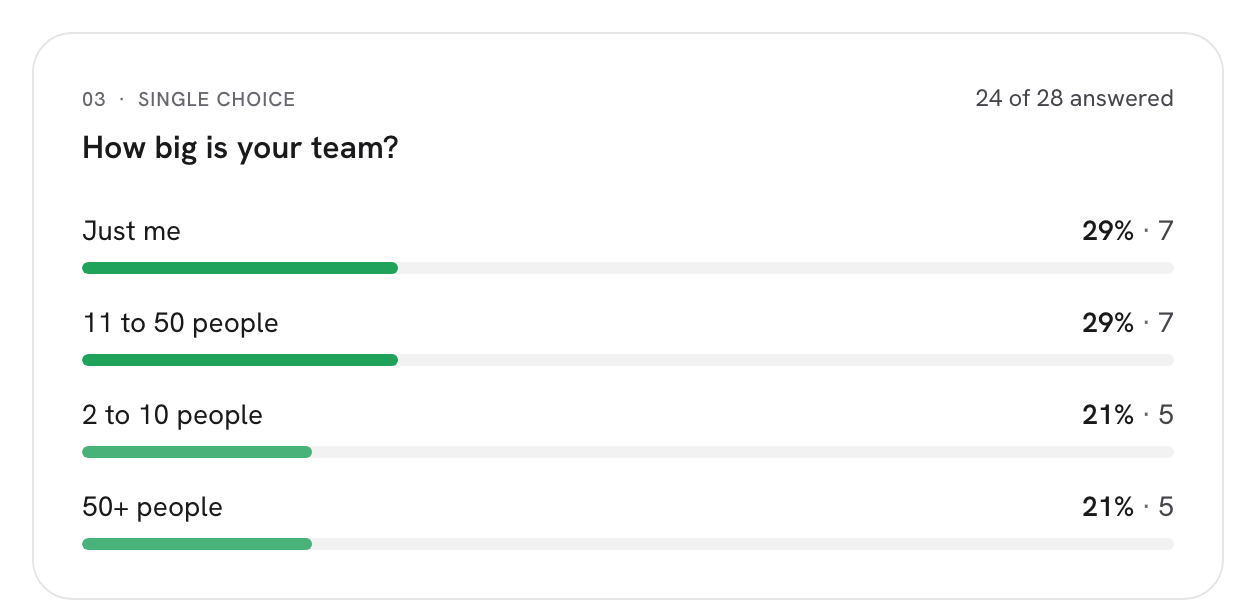
<figure><img src="https://3835013762-files.gitbook.io/~/files/v0/b/gitbook-x-prod.appspot.com/o/spaces%2FCy5rSNtQmtqYCGzJlNEB%2Fuploads%2Fgit-blob-62bb7dcc33abbc9a1809f27ab653584049041df2%2Fforms-summary-01-choice-card.png?alt=media" alt="The Summary view with a choice question card: a bar per option with its percentage and count, the most chosen option first, and 23 of 27 answered in the card heading"><figcaption><p>One card per question. The bar in each heading shows how many responses answered it.</p></figcaption></figure>

What **Summary** counts:

* Every response to the form, completed and partial, until you filter. Filters you set on **Responses** come along (they live in the address bar), show as chips above the cards and can be removed there. See [Filter & sort responses](/dforms/results/filter-and-sort.md).
* One card per question, in the order of your form. Message and Reveal steps collect nothing, so they get no card.
* Each card shows its number, the question and how many responses answered it, for example *23 of 27 answered*. A question nobody answered reads *Nobody has answered this question yet.*

***

## Choice questions

**Single choice**, **Multiple choice** and **Dropdown** questions get a bar per option.

* Each bar shows the share of the people who answered the question, and how many they were.
* The most chosen option comes first. An option nobody picked stays in the list at 0.
* An option you removed from the form still shows, under its stored value, if someone picked it before.
* On a question that allows several picks, a note reminds you that *People could choose more than one option, so the percentages can add up to more than 100%.*

Click a bar to open **Responses** filtered to the people who chose that option.

***

## Slider questions

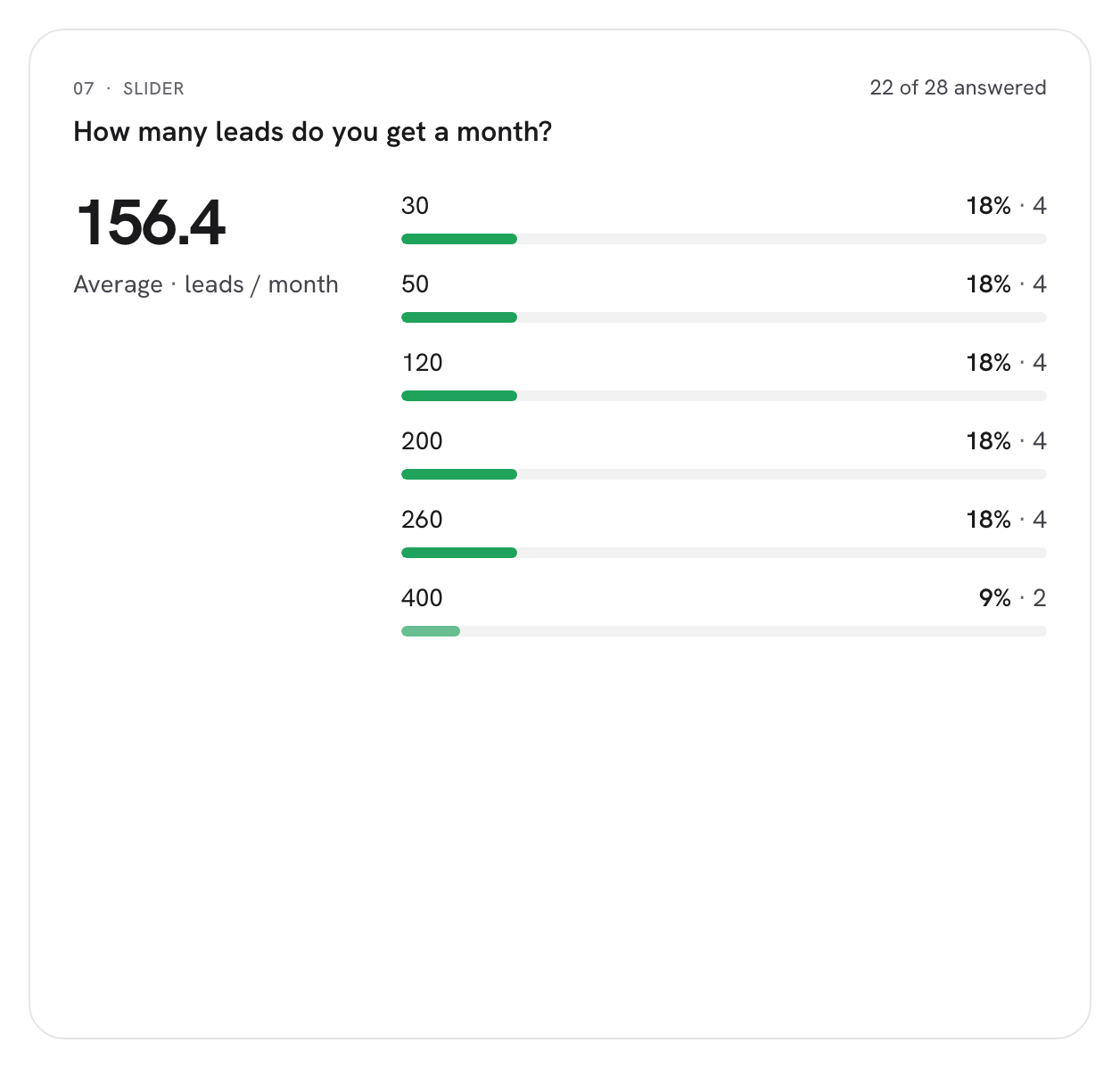
<figure><img src="https://3835013762-files.gitbook.io/~/files/v0/b/gitbook-x-prod.appspot.com/o/spaces%2FCy5rSNtQmtqYCGzJlNEB%2Fuploads%2Fgit-blob-5aecfc962a5cd3889621e799adc9436dbf103726%2Fforms-summary-02-slider-card.png?alt=media" alt="A slider question card with the Average on the left and a bar per value on the right"><figcaption><p>The average on the left, the spread of the answers on the right.</p></figcaption></figure>

* **Average** shows the mean of the answers, with one decimal, and the slider's unit label when it has one.
* The bars show how many people gave each value. When there are more than ten different values, the bars group them into ten equal ranges.

***

## Text and contact questions

<figure><img src="https://3835013762-files.gitbook.io/~/files/v0/b/gitbook-x-prod.appspot.com/o/spaces%2FCy5rSNtQmtqYCGzJlNEB%2Fuploads%2Fgit-blob-6b21f31dcf9b2861d899ad56ef5e1624f29e11a7%2Fforms-summary-03-text-search.png?alt=media" alt="A long text question card with a word typed in Search answers, the matches highlighted in the answers, and the name and date under each answer"><figcaption><p>Search one question's answers, then click an answer to open the whole response.</p></figcaption></figure>

* **Short text**, **Long text** and **Website** questions list the latest five answers under **Latest answers**, each with who answered (their name, email or phone, else **Anonymous**) and when. **Show more** adds ten more.
* **Name**, **Email** and **Phone** questions show only the count and the search box. The answers appear when you search, so a summary never turns into a list of people.
* **Search answers** looks through that one question as you type. It ignores upper and lower case but not accents, so *gomez* does not find *Gómez*. The card then shows *Matches: 3*, or *No answer contains "gomez".* Press Esc to clear the box.

Click an answer to open the whole response in the response panel, at that question. The panel's arrows then walk the answers listed in that card. See [Submissions](/dforms/results/submissions.md) for everything the panel shows.

***

## Files and bookings

* A **File upload** question shows how many responses included a file: **Files uploaded**. To open the files, use **Responses**. See [Uploaded files](/dforms/results/uploaded-files.md).
* A **Scheduler** step shows how many meetings were booked: **Meetings booked**.

***

## When there is nothing to show

A form nobody has answered shows **No submissions yet** / **Responses will show up here as people complete the form.**

When your filters match nothing, you see **No responses match these filters** / **Remove a filter, or clear them all, to see more.**, with a **Clear all** button.

> **💡 Tip:** **Summary** has no **Download CSV** button. Switch to **Responses** to download the same filtered responses. See [Export to CSV](/dforms/results/export-csv.md).

## What's next

* [Submissions](/dforms/results/submissions.md): the same answers, one row per response.
* [Filter & sort responses](/dforms/results/filter-and-sort.md): narrow what **Summary** counts.
* [Analytics](/dforms/results/analytics.md): views, completion and where people drop off.


---

# Agent Instructions
This documentation is published with GitBook. GitBook is the documentation platform designed so that both humans and AI agents can read, navigate, and reason over technical content effectively. Learn more at gitbook.com.

## Querying This Documentation
If you need additional information that is not directly available in this page, you can query the documentation by asking a question.

Perform an HTTP GET request on the following URL with the `ask` and `goal` query parameters:

```
GET https://docs.dapta.ai/dforms/results/summary.md?ask=<question>&goal=<user_goal>
```

`ask` is the immediate question: it should be specific, self-contained, and written in natural language.
`goal` is what the user is ultimately trying to achieve, the reason they need the answer. Sharing it helps GitBook give you a better, more relevant answer. A goal is most helpful when it describes the outcome the user wants rather than restating the question. For example, with `ask=how do I create an API token`, a goal like `automate deployments from our CI pipeline` lets GitBook tailor the answer to that use case.

The response will contain a direct answer to the question and relevant excerpts and sources from the documentation.

Use this mechanism when the answer is not explicitly present in the current page, you need clarification or additional context, or you want to retrieve related documentation sections.