Uploaded files
Open what people uploaded without leaving the response table: which file types preview inside Dapta Forms, which ones download straight away, and why every link is minted at the moment you click it.
When a form has a File upload question, that question's column in Submissions holds the file the respondent sent you. This page explains how to read it, open it and keep it.
Step 1: Find the column. A file answer shows a paperclip and the respondent's own filename, underlined to say it is clickable. Nothing else from the file is shown, and the column reads like any other.

The same file shows in the response panel too: click the row, and the file question's card holds the same clickable name. See Submissions. In Summary, a File upload question only shows how many files came in, under Files uploaded.
Step 2: Click the name. What happens depends on the kind of file.
Images (png, jpg, gif, webp, avif, bmp)
Opens in a dialog, drawn at full size.
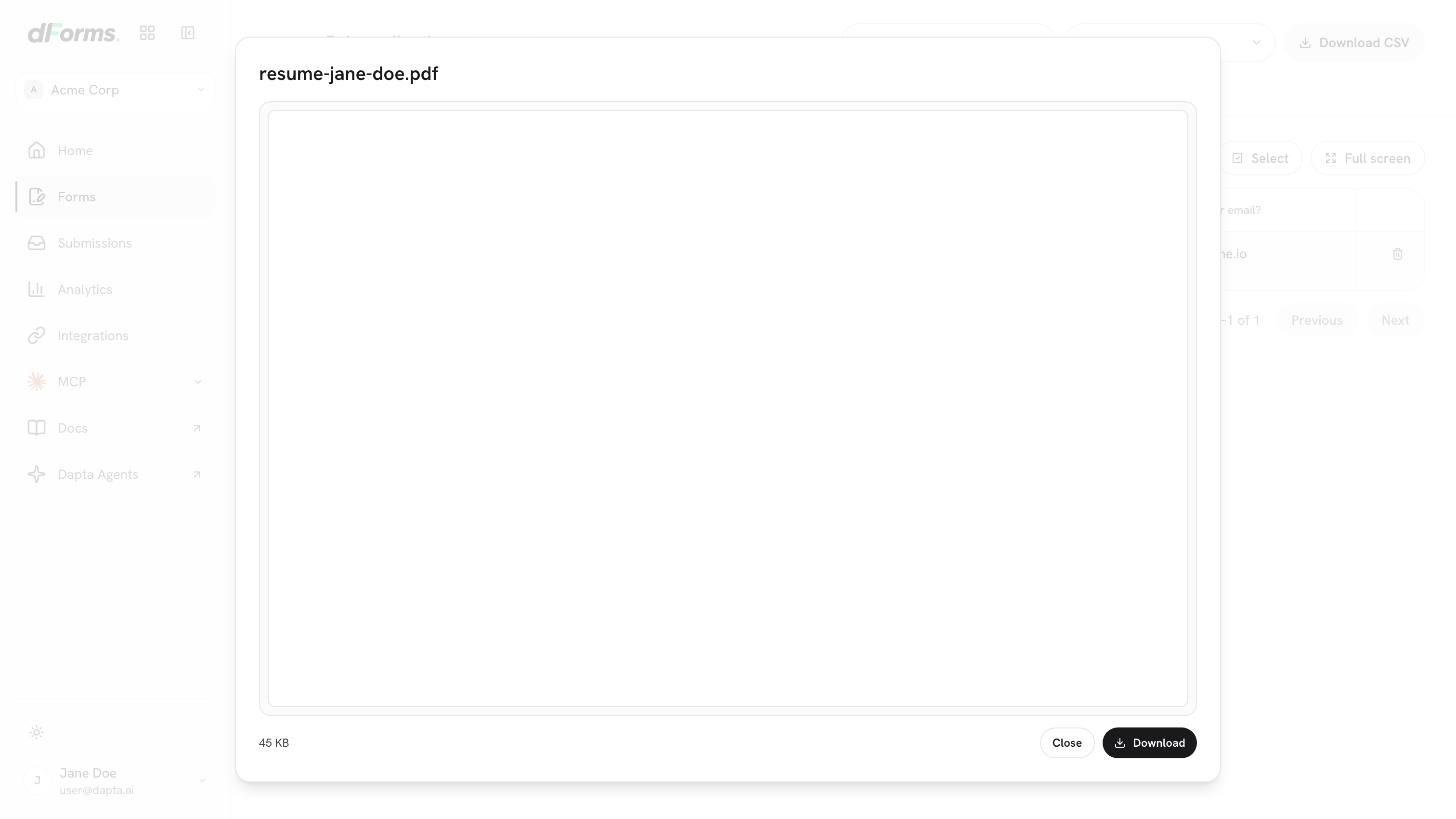
Opens in a dialog with your browser's own PDF reader: pages, zoom and search.
Plain text (txt, csv, tsv, md, log, json, xml, yml)
Opens in a dialog as text.
Word (docx)
Opens in a dialog as an approximate view of the document.
Anything else
Downloads straight away, with no dialog.

Spreadsheets, archives and older .doc files fall into the last row. There is no dialog for them because no browser can draw them, and a dialog whose only content is a download button is a click of ceremony in front of the thing you already asked for.
Step 3: Read the file. A PDF gets your browser's full reader inside the dialog, so long documents are usable without downloading anything.

A Word file is converted for display, so what you see is the text and the structure rather than the exact page. The dialog says so underneath: Approximate view. Download the file to see its exact layout. Use Download whenever the layout matters.
Step 4: Keep it. Download saves the file under its original name. It works from inside the dialog and it is also what a click does for the kinds that never open a dialog.
💡 Tip: You can download from the dialog after reading, as many times as you like. Each click fetches a fresh link, so a dialog left open on a second screen all afternoon still downloads correctly.
Why links are not in the page
Every link to an uploaded file is created at the moment you click, lives a few minutes and is never written into the page, into an email or into the CSV export.
That has one visible consequence. If a dialog stays open longer than the link lives, the next thing it tries to load fails and you get The preview could not load. with a Try again button. Try again gets a new link rather than retrying the dead one, so it works.
It also means there is no link you can copy and pass to someone outside your workspace. To share a file, download it and send the file itself, or invite the person to the workspace. See Members & roles.
Large files
Files over 25 MB never open in a dialog, whatever their type: they download instead. A browser asked to open a very large file in a dialog does not fail, it just sits there while the whole thing arrives, and a download at least shows progress.
On forms.dapta.ai the upload limit is 10 MB, so you will only meet this on a deployment configured to accept more.
In the export and in webhooks
The CSV export and your webhooks carry the file answer too, but neither carries the file.
CSV: the cell holds the file's name and nothing else. See Export to CSV.
Webhooks: the answer arrives inside
dataas an object rather than a string. See Payload & headers reference.Submission emails: the answer is written as the filename and nothing else, because an email is the wrong place for a link that expires in minutes.
Deleting
Deleting a response, on its own or as part of a selection, removes it from Submissions, together with the file answer it showed. Deleting the whole form removes all of its responses. Neither can be undone. The stored file itself is not deleted by either action. See Security & Privacy.
What's next
File upload: set up the question and choose what it accepts.
Submissions: the table, the response panel and deleting rows.
Export to CSV: the same rows as a spreadsheet.
Last updated