πYour public page
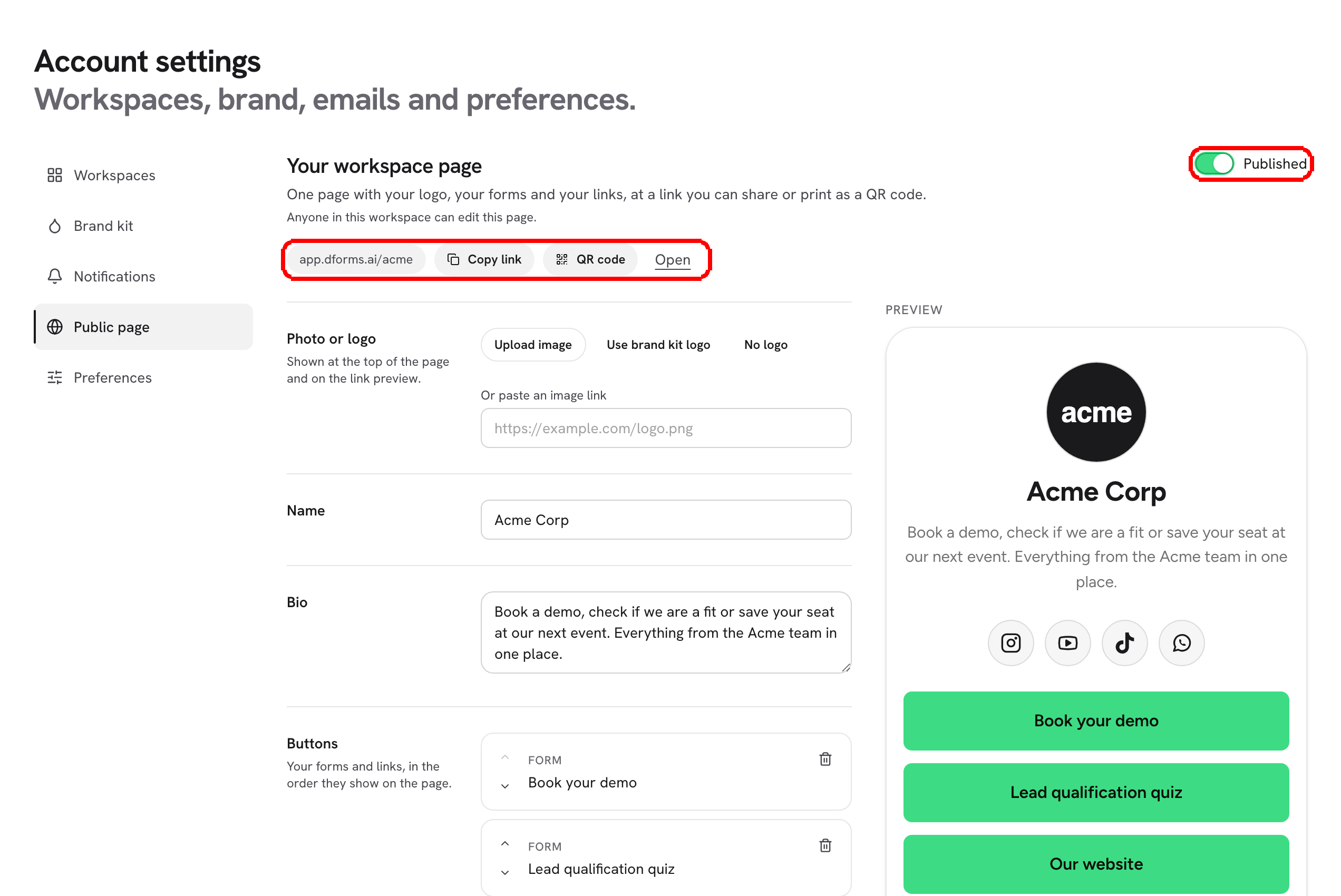
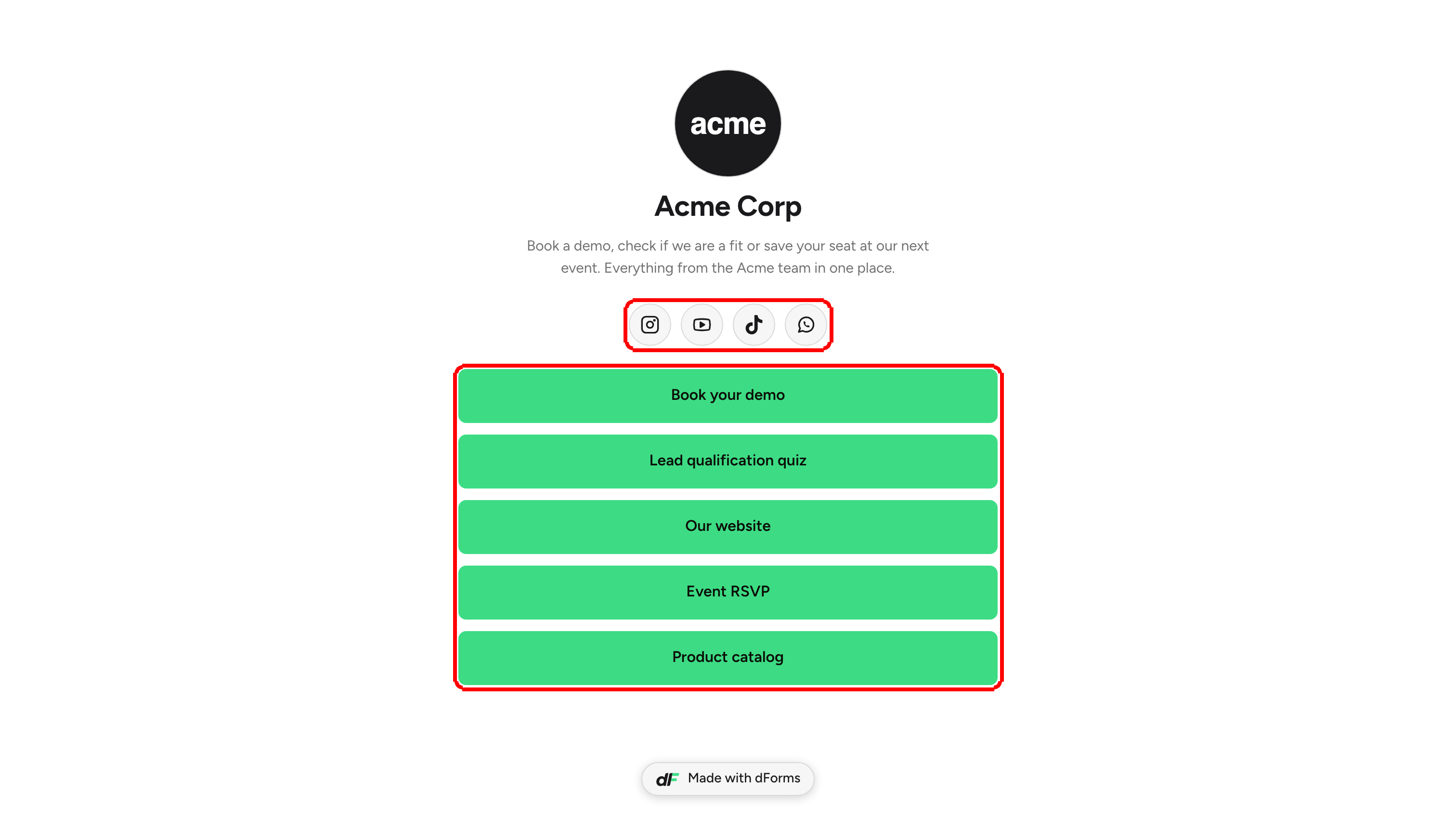
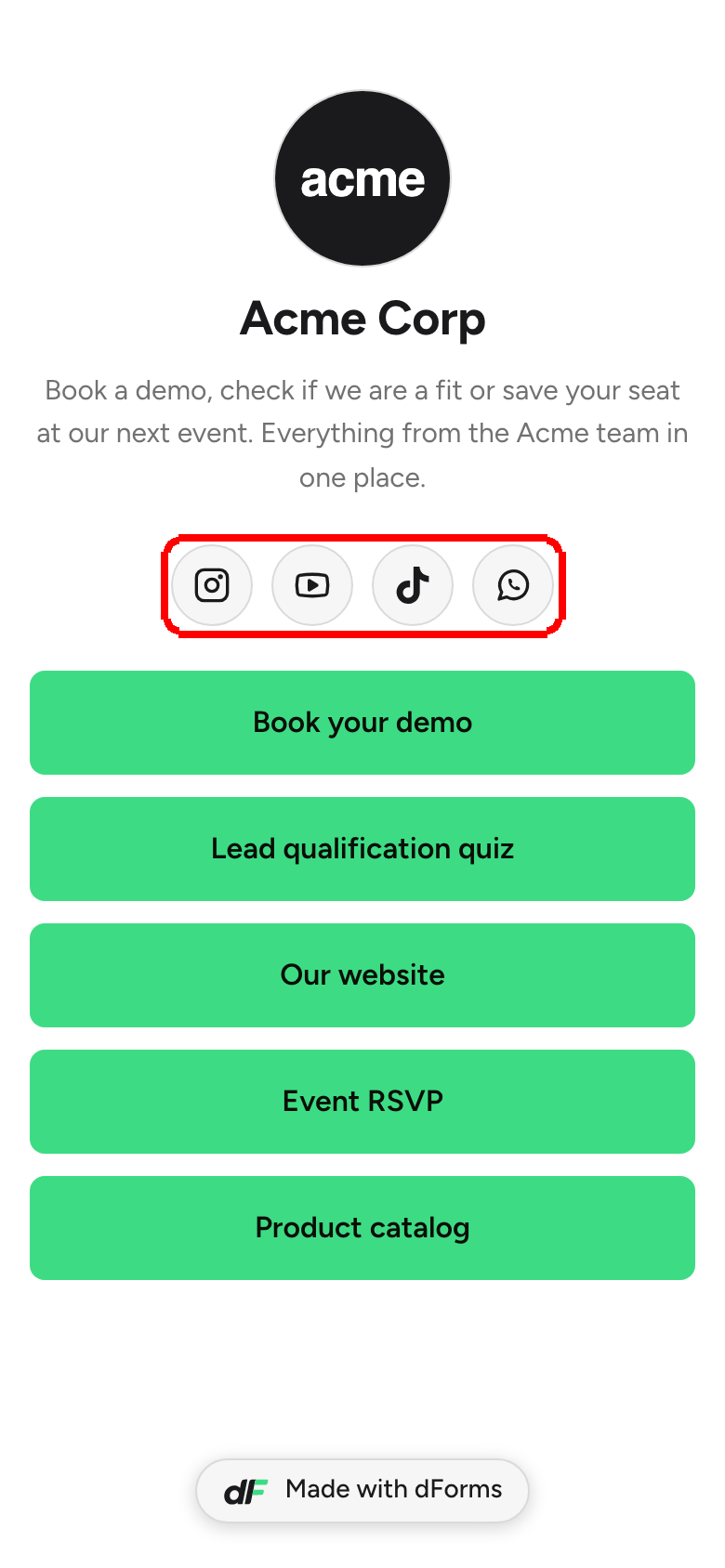
Turn on the page at your handle: a single address that shows your name, a headline, a short about paragraph and a list of every form you have published. Off until you switch it on.
Your account has one address of its own, at your handle:
https://forms.dapta.ai/{account code}/{handle}For example https://forms.dapta.ai/k7m2xq/alex. It is a small page carrying your name, a headline, a paragraph about you and a link to each of your published forms. It is one link to hand out instead of one per form, and it gives anyone who trims a form URL back a real page instead of a dead end.
The page is off until you turn it on. Until then that address is a not found page.
Step 1: Click your name at the bottom of the left menu to open the account menu, then choose Public page. You land on Account settings, in the Public page tab.
Step 2: Turn the Published switch on. The path your page will use, /{account code}/{handle}, is printed right under the description.
Step 3: Fill in Headline (a short line answering "what you help people with") and About (a short paragraph about what you do). Both are optional, and both are worth writing: they are also what shows up when the page is shared.
Step 4: Click Save. The message Public page saved. confirms it, and a View page link appears next to the button.

β οΈ Note: Switching Published on and off is the whole control. There is no way to hide a single form from the list: the page lists everything you have published, in the order the product returns them.
Your identity
Below the settings, the Your identity card shows how you appear on the page. Everything here is read only.

Name
The name shown at the top of your public page. Your email is never shown there.
Your sign in address. It stays private.
Handle
The second part of every public URL. It was created from your name or email the first time you signed in.
Account code
The six character code that starts every public URL.
Vanity slug
A memorable word replacing the account code. Reads Not set until one is claimed. See Your public link.
View public page
Opens the live page in a new tab.
The live page

The page is built with the same visual style as your forms, so a visitor moving from here into a form does not feel a jump.
Under Forms, each published form is a row that opens it. A form you have created but never published does not appear.
With nothing published yet, the list reads Nothing published yet.
Once the page is on, Home also shows a Your public page box at the top with Copy and Open, so the link is always at hand.
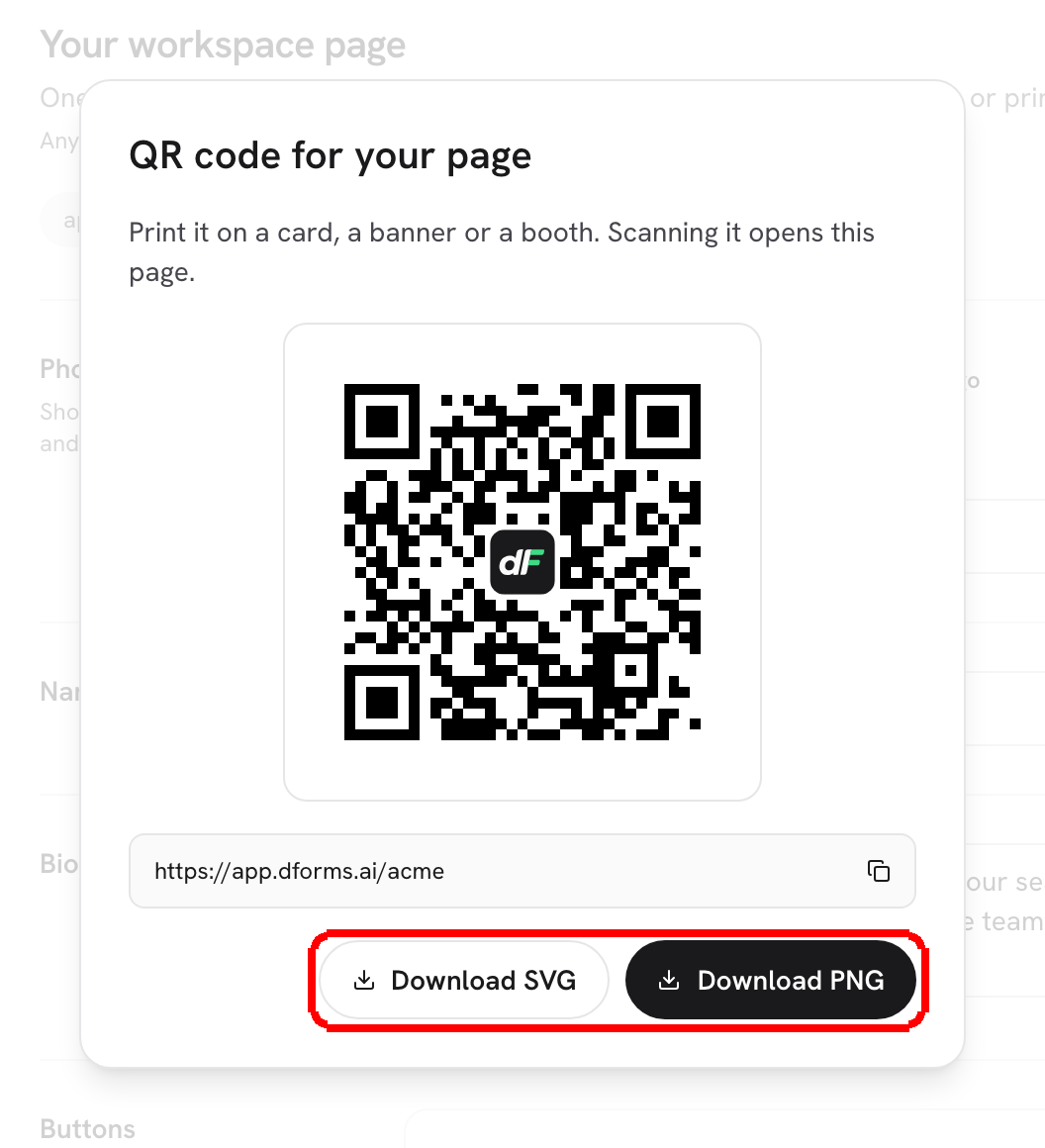
π‘ Tip: Put this link in your email signature, your social profiles or a QR code on a booth. Publishing a new form adds it to the page by itself, so the link you handed out never needs updating.
What's next
Your public link: the address of a single form, and how the slug is built.
Public page & identity: the same settings seen from the account section, next to workspaces and members.
Design & Branding: the colors, typeface and logo the page borrows from your forms.
Last updated