> For the complete documentation index, see [llms.txt](https://docs.dapta.ai/llms.txt). Markdown versions of documentation pages are available by appending `.md` to page URLs; this page is available as [Markdown](https://docs.dapta.ai/dapta-forms/share/public-page.md).

# Your public page

Turn on the page at your handle: a single address that shows your name, a headline, a short about paragraph and a list of every form you have published. Off until you switch it on.

Your account has one address of its own, at your handle:

```
https://forms.dapta.ai/{account code}/{handle}
```

For example `https://forms.dapta.ai/k7m2xq/alex`. It is a small page carrying your name, a headline, a paragraph about you and a link to each of your published forms. It is one link to hand out instead of one per form, and it gives anyone who trims a form URL back a real page instead of a dead end.

The page is off until you turn it on. Until then that address is a not found page.

***

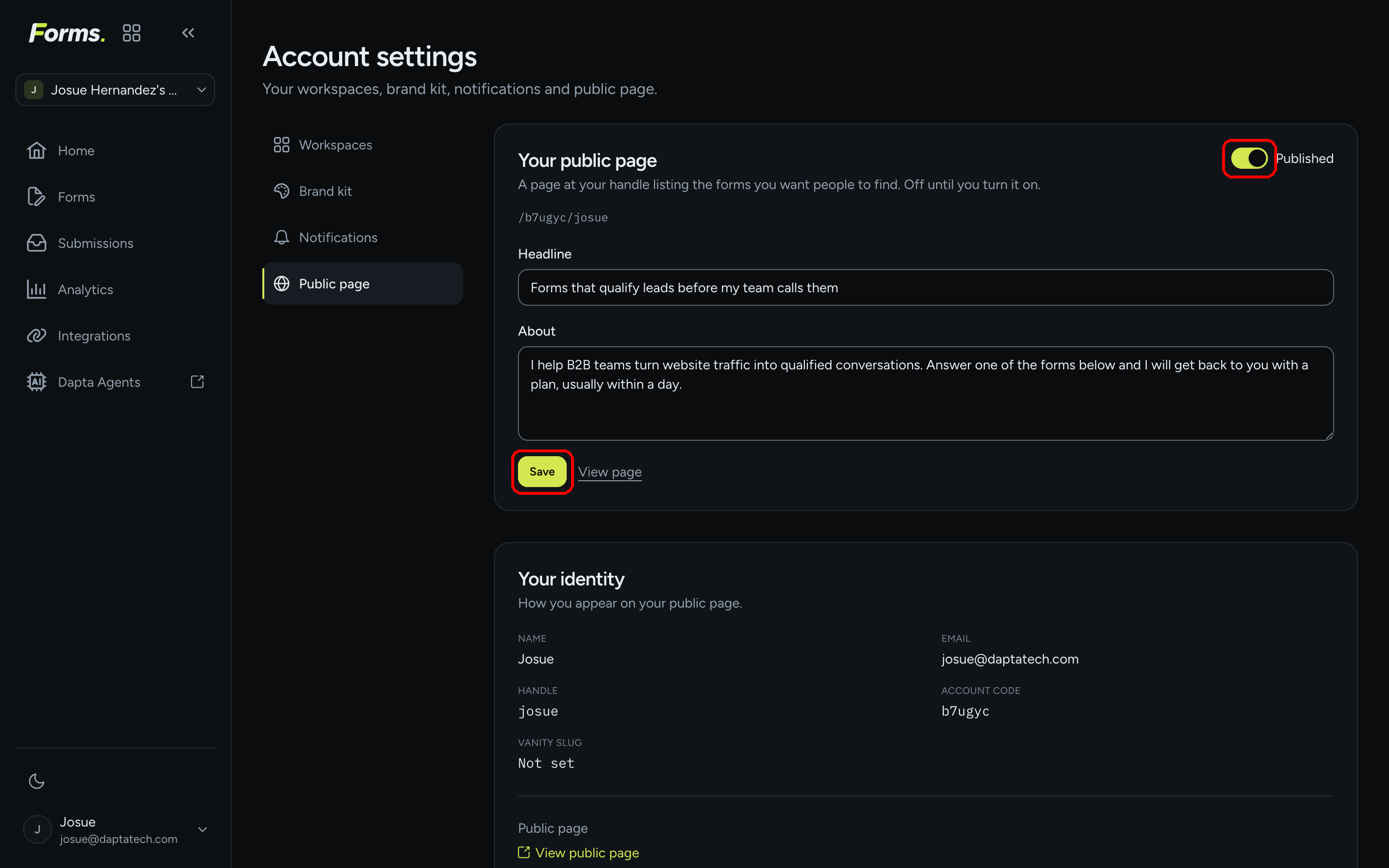
**Step 1:** Click your name at the bottom of the left menu to open the account menu, then choose **Public page**. You land on **Account settings**, in the **Public page** tab.

**Step 2:** Turn the **Published** switch on. The path your page will use, `/{account code}/{handle}`, is printed right under the description.

**Step 3:** Fill in **Headline** (a short line answering "what you help people with") and **About** (a short paragraph about what you do). Both are optional, and both are worth writing: they are also what shows up when the page is shared.

**Step 4:** Click **Save**. The message **Public page saved.** confirms it, and a **View page** link appears next to the button.

<figure><img src="https://3835013762-files.gitbook.io/~/files/v0/b/gitbook-x-prod.appspot.com/o/spaces%2FCy5rSNtQmtqYCGzJlNEB%2Fuploads%2Fgit-blob-265559f5f85e68a5789dad38fa4cd5953c55d7c5%2Fforms-public-page-01-settings.png?alt=media" alt="Account settings on the Public page tab with the Published switch and the Save button highlighted, and the Headline and About fields filled in"><figcaption><p>Switch <strong>Published</strong> on, write a <strong>Headline</strong> and an <strong>About</strong>, then <strong>Save</strong>.</p></figcaption></figure>

> **⚠️ Note:** Switching **Published** on and off is the whole control. There is no way to hide a single form from the list: the page lists everything you have published, in the order the product returns them.

***

## Your identity

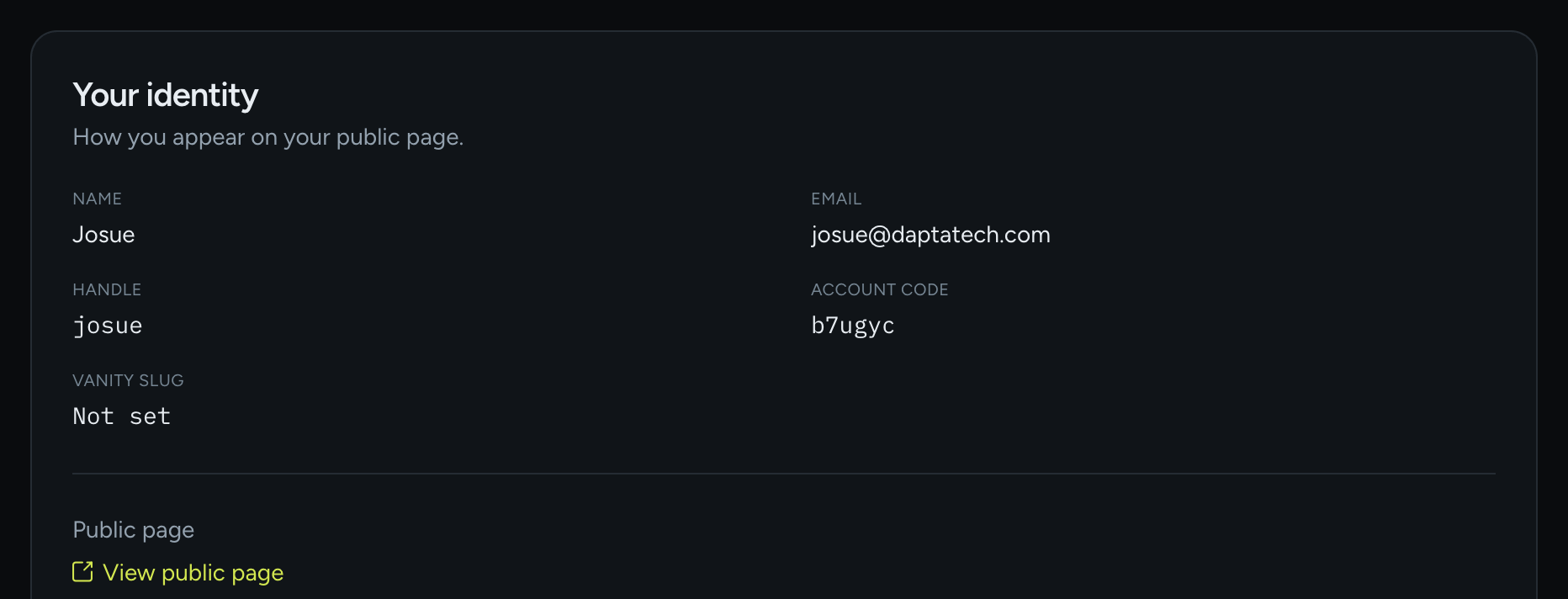
Below the settings, the **Your identity** card shows how you appear on the page. Everything here is read only.

<figure><img src="https://3835013762-files.gitbook.io/~/files/v0/b/gitbook-x-prod.appspot.com/o/spaces%2FCy5rSNtQmtqYCGzJlNEB%2Fuploads%2Fgit-blob-5de14621e4d24c40d127087ffd65db7c68778816%2Fforms-public-page-02-identity.png?alt=media" alt="The Your identity card showing Name, Email, Handle, Account code and Vanity slug, with a View public page link"><figcaption><p><strong>Your identity</strong>: the values that build your URL, plus a shortcut to open the live page.</p></figcaption></figure>

| Field                | What it is                                                                                                                                      |
| -------------------- | ----------------------------------------------------------------------------------------------------------------------------------------------- |
| **Name**             | The name shown at the top of your public page. Your email is never shown there.                                                                 |
| **Email**            | Your sign in address. It stays private.                                                                                                         |
| **Handle**           | The second part of every public URL. It was created from your name or email the first time you signed in.                                       |
| **Account code**     | The six character code that starts every public URL.                                                                                            |
| **Vanity slug**      | A memorable word replacing the account code. Reads **Not set** until one is claimed. See [Your public link](/dapta-forms/share/public-link.md). |
| **View public page** | Opens the live page in a new tab.                                                                                                               |

***

## The live page

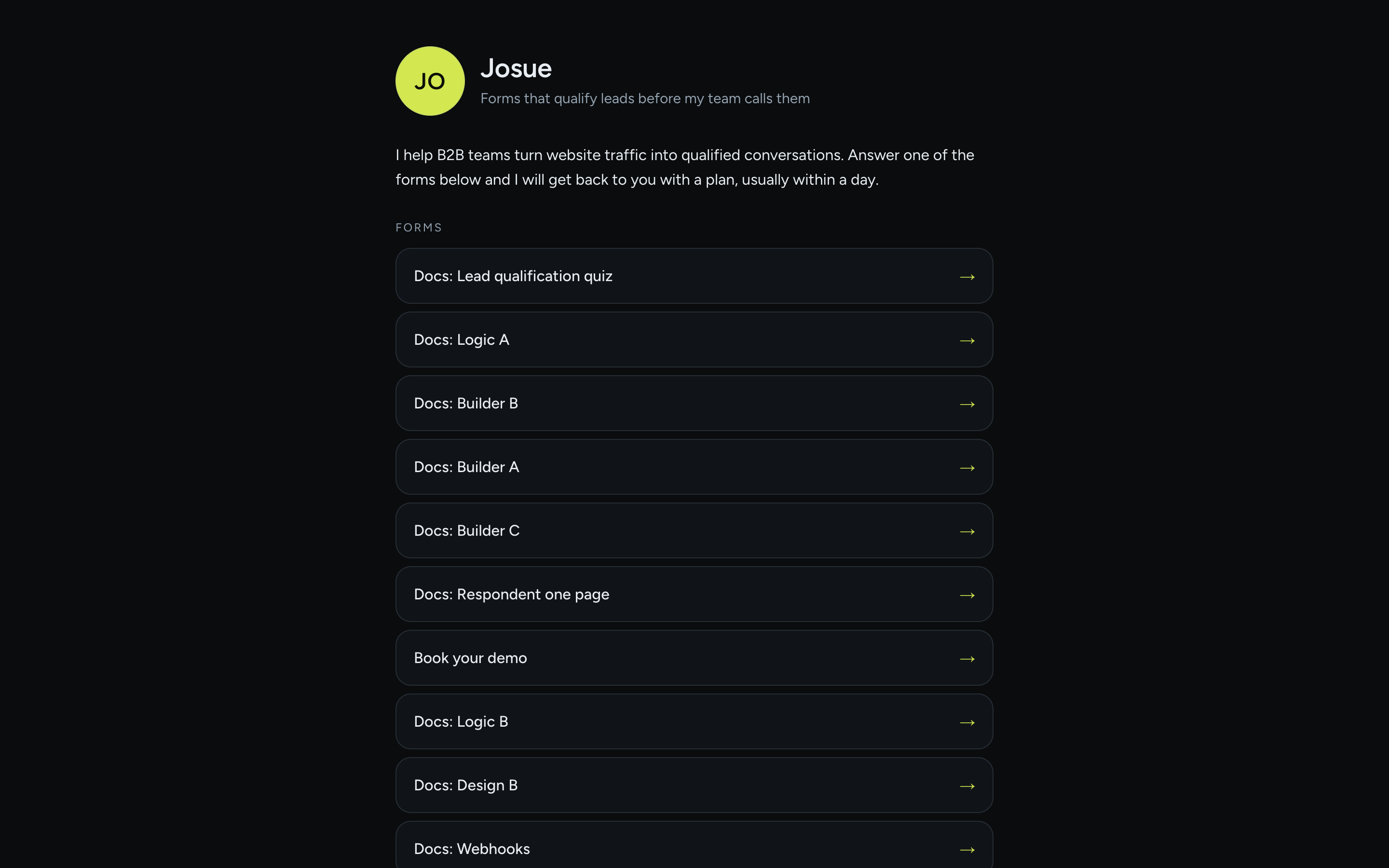
<figure><img src="https://3835013762-files.gitbook.io/~/files/v0/b/gitbook-x-prod.appspot.com/o/spaces%2FCy5rSNtQmtqYCGzJlNEB%2Fuploads%2Fgit-blob-56ae69d5b60dcd51080968d56903f5bb4f31515d%2Fforms-public-page-03-live.png?alt=media" alt="The live public page showing initials, the name, the headline, the about paragraph and a list of published forms"><figcaption><p>The live page. Your initials (or your picture), your headline, your about text and a <strong>Forms</strong> list.</p></figcaption></figure>

* The page is built with the same visual style as your forms, so a visitor moving from here into a form does not feel a jump.
* Under **Forms**, each published form is a row that opens it. A form you have created but never published does not appear.
* With nothing published yet, the list reads **Nothing published yet.**

Once the page is on, **Home** also shows a **Your public page** box at the top with **Copy** and **Open**, so the link is always at hand.

> **💡 Tip:** Put this link in your email signature, your social profiles or a QR code on a booth. Publishing a new form adds it to the page by itself, so the link you handed out never needs updating.

***

## What's next

* [Your public link](/dapta-forms/share/public-link.md): the address of a single form, and how the slug is built.
* [Public page & identity](/dapta-forms/account/public-page-and-identity.md): the same settings seen from the account section, next to workspaces and members.
* [Design & Branding](/dapta-forms/design.md): the colors, typeface and logo the page borrows from your forms.


---

# Agent Instructions
This documentation is published with GitBook. GitBook is the documentation platform designed so that both humans and AI agents can read, navigate, and reason over technical content effectively. Learn more at gitbook.com.

## Querying This Documentation
If you need additional information that is not directly available in this page, you can query the documentation dynamically by asking a question.

Perform an HTTP GET request on the current page URL with the `ask` query parameter, and the optional `goal` query parameter:

```
GET https://docs.dapta.ai/dapta-forms/share/public-page.md?ask=<question>&goal=<endgoal>
```

`ask` is the immediate question: it should be specific, self-contained, and written in natural language.
`goal` is optional and describes the broader end goal you are ultimately trying to accomplish on behalf of the user. GitBook uses it to tailor the answer towards what is most useful for that goal.

The response will contain a direct answer to the question and relevant excerpts and sources from the documentation.

Use this mechanism when the answer is not explicitly present in the current page, you need clarification or additional context, or you want to retrieve related documentation sections.