> For the complete documentation index, see [llms.txt](https://docs.dapta.ai/llms.txt). Markdown versions of documentation pages are available by appending `.md` to page URLs; this page is available as [Markdown](https://docs.dapta.ai/dforms/share/qr-code.md).
# Share with a QR code
Turn a dForms form's public link into a QR code from the editor, copy the link under it, and download the code as SVG or PNG for flyers, badges and slides.
At events and on printed material, people reach a form with their phone camera. The **QR code** button in the editor turns the form's public link into a code you can print or put on a slide, with no other tool.
***
**Step 1:** Open the form in the editor and click the **QR code** icon in the topbar, between **Embed** and **Open form**.
***
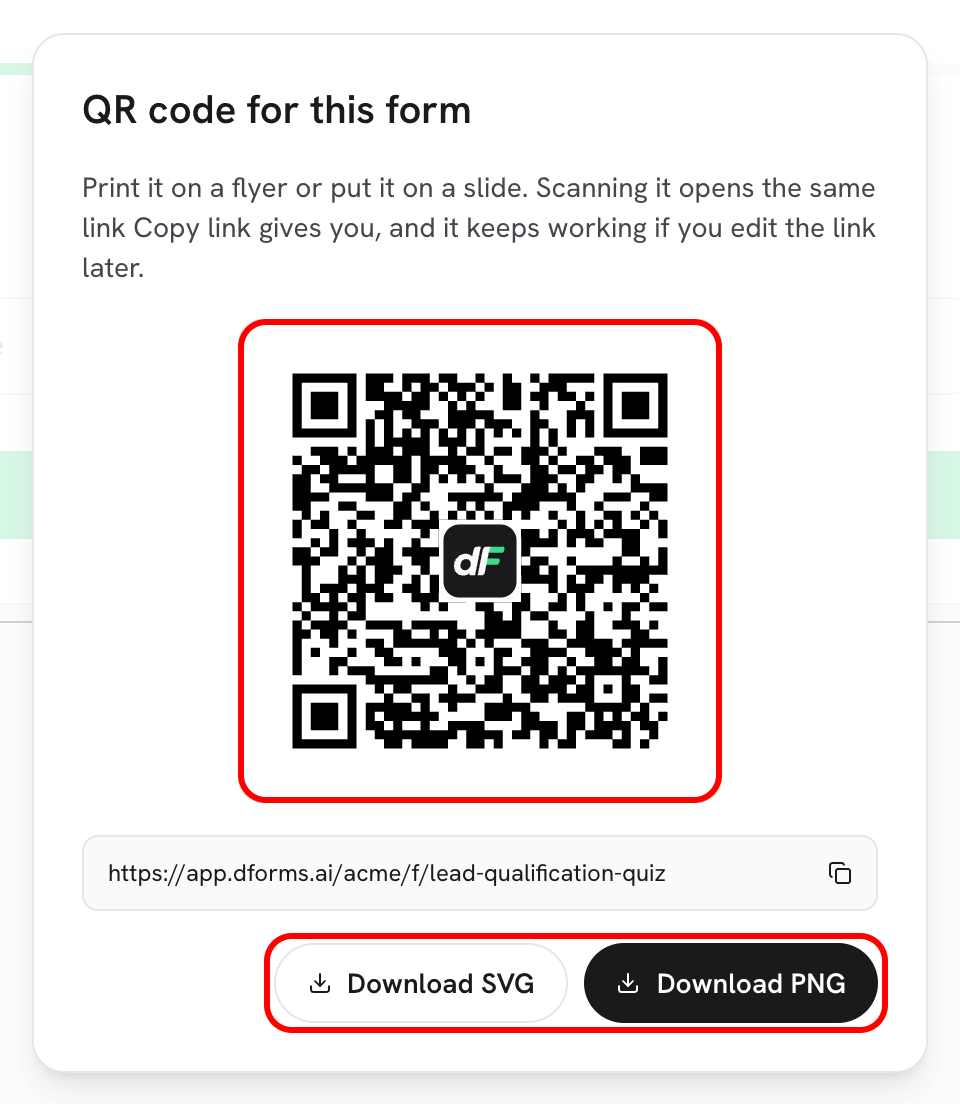
**Step 2:** The dialog **QR code for this form** shows the code on a white tile, even in dark mode, with the public link under it. The copy button next to the link copies it and shows a check mark for two seconds.
The code and the link under it are the same address Copy link gives you.
***
**Step 3:** Click **Download SVG** or **Download PNG**. Both files are named after the form's slug.
| File | Name | Best for |
| ------- | ------------------------------------------------------------- | ----------------------------------------------------------- |
| **SVG** | `{slug}-qr.svg`, for example `lead-qualification-quiz-qr.svg` | Print: flyers, posters, badges. It stays sharp at any size. |
| **PNG** | `{slug}-qr.png`, 1024 × 1024 px on a white background | Slides, social posts and any tool that does not take SVG. |
If your browser cannot create the PNG, the dialog says *Could not create the PNG. Try the SVG instead.*
***
## Good to know
* **It is the same link.** The code opens exactly what **Copy link** copies, `https://app.dforms.ai/{account code}/f/{slug}`, with no campaign parameters. A scan and a click land on the same page.
* **Printed codes survive a new link.** If you change the link later with **Edit link**, a code you already printed keeps working: the old address sends people to the new one. See [Old links keep working](/dforms/share/public-link.md#old-links-keep-working).
* **It opens the live form.** Scanning shows the published version, so publish your latest edits before you print.
* **The dForms logo sits in the middle.** The code carries extra error correction so scanners read it straight through the logo.
* **Keep the white border.** The margin around the code is part of it. Scanners need it to find the code, so do not crop it.
* **One code per form.** The button lives in the editor topbar. The **Forms** list does not have one. For a single code that leads to all your forms, use the **QR code** of [your workspace page](/dforms/share/public-page.md).
## What's next
* [Your public link](/dforms/share/public-link.md): the shape of the link and how to edit it.
* [Embed on your website](/dforms/share/embed.md): run the same form inside your own page.
* [Tracking & pixels](/dforms/connect/tracking-and-pixels.md): measure visits and conversions on the form.
---
# Agent Instructions
This documentation is published with GitBook. GitBook is the documentation platform designed so that both humans and AI agents can read, navigate, and reason over technical content effectively. Learn more at gitbook.com.
## Querying This Documentation
If you need additional information that is not directly available in this page, you can query the documentation by asking a question.
Perform an HTTP GET request on the following URL with the `ask` and `goal` query parameters:
```
GET https://docs.dapta.ai/dforms/share/qr-code.md?ask=&goal=
```
`ask` is the immediate question: it should be specific, self-contained, and written in natural language.
`goal` is what the user is ultimately trying to achieve, the reason they need the answer. Sharing it helps GitBook give you a better, more relevant answer. A goal is most helpful when it describes the outcome the user wants rather than restating the question. For example, with `ask=how do I create an API token`, a goal like `automate deployments from our CI pipeline` lets GitBook tailor the answer to that use case.
The response will contain a direct answer to the question and relevant excerpts and sources from the documentation.
Use this mechanism when the answer is not explicitly present in the current page, you need clarification or additional context, or you want to retrieve related documentation sections.