> For the complete documentation index, see [llms.txt](https://docs.dapta.ai/llms.txt). Markdown versions of documentation pages are available by appending `.md` to page URLs; this page is available as [Markdown](https://docs.dapta.ai/dapta-forms/troubleshooting.md).

# Troubleshooting

Symptom, cause and fix for the problems that come up most in Dapta Forms: changes that are not live, a missing HubSpot contact, a failed webhook, submission emails that never arrive, a scheduler that

Each section below names the symptom, explains what causes it and tells you exactly where in the product to check. If your problem is not here, the [FAQ](/dapta-forms/faq.md) covers the "can I do this at all" questions.

***

## My changes are not live

**Symptom:** you edited a question, changed the colors or fixed a typo, the editor says **Saved**, but the public form still shows the old version.

**Cause:** **Saved** and **published** are two different things. Autosave writes a **draft** roughly a second after you stop typing. Respondents keep seeing the last published version until you say so.

**Fix:** look at the top right of the editor. If the dot reads **Unpublished changes**, click **Publish**. You get the confirmation *Changes published. Your form is live.*

<figure><img src="https://3835013762-files.gitbook.io/~/files/v0/b/gitbook-x-prod.appspot.com/o/spaces%2FCy5rSNtQmtqYCGzJlNEB%2Fuploads%2Fgit-blob-fa928f28634e2d6e494a49cde76a61b85b8f9c67%2Fforms-autosave-and-publishing-03-unpublished-badge.png?alt=media" alt="The editor topbar showing the Unpublished changes dot next to the Publish button"><figcaption><p>The <strong>Unpublished changes</strong> dot means the draft is ahead of the live form. Click <strong>Publish</strong>.</p></figcaption></figure>

Worth knowing:

* When **Publish** is disabled and its tooltip reads **All changes are published**, the live form really is up to date. Reload the public page with a hard refresh before looking further.
* The **Tracking & pixels** IDs on the **Connect** tab are staged with the draft too, so they only start firing after you publish.
* **Connect → Integrations** is the exception: webhook and HubSpot settings save straight to the live form, without publishing.

***

## A HubSpot contact was not created

**Symptom:** the response is in **Submissions**, but no contact shows up in HubSpot.

Work down this list in the form's **Connect** tab, **HubSpot** card.

**Cause 1: the form has no email address to sync.** HubSpot matches a contact by email address, so a submission that carries no address has nothing to identify. The card says so directly.

<figure><img src="https://3835013762-files.gitbook.io/~/files/v0/b/gitbook-x-prod.appspot.com/o/spaces%2FCy5rSNtQmtqYCGzJlNEB%2Fuploads%2Fgit-blob-8d949c0fc9a481c5eedaced92195fe84a0813a19%2Fforms-how-sync-works-02-no-email.png?alt=media" alt="The HubSpot card showing the notice This form has no email address to sync with an explanation of how contacts are matched"><figcaption><p>No email question and no scheduler means no contact. The card explains it before you go looking.</p></figcaption></figure>

**Fix:** click **Add an email question**, or add a **Scheduler** step: Calendly collects the invitee's address when someone books, and that address keys the sync.

**Cause 2: the mapping conflicts with a booking.** On a form where the booking supplies the email, mapping one of your own questions to the `email` property overrides it and breaks the match. The card shows the alert **This mapping stops the sync**.

**Fix:** set that question's **HubSpot property** back to **(none)** and let the booking supply the address.

**Cause 3: the card is switched off, or HubSpot is not connected.** The switch in the top right of the card must read **Enabled**. If the card instead says **Connect HubSpot to map this form**, nobody has connected the account yet: click **Go to Connections** and connect it (an admin or an owner has to do this).

**Cause 4: nothing is mapped to `email`.** Open **Map questions** and check that one question points at the `email` property. **Auto-map** does it for you and reports *Auto-mapped {n} question(s). Review and save.*

**Cause 5: you are looking for something that only complete submissions send.** A partial submission upserts the contact and writes the mapped answers and UTMs. The score, the outcome, static properties, the note and the form submission activity are only written when someone finishes.

**Where to check:** the **HubSpot history** panel at the bottom of the card. Click **View history** to see each delivery, its status pill and, on a failure, the reason and what HubSpot answered.

***

## A webhook shows Failed

**Symptom:** the webhook card shows a red **{n} failed** chip, or a row in **Webhook history** has a **Failed** pill.

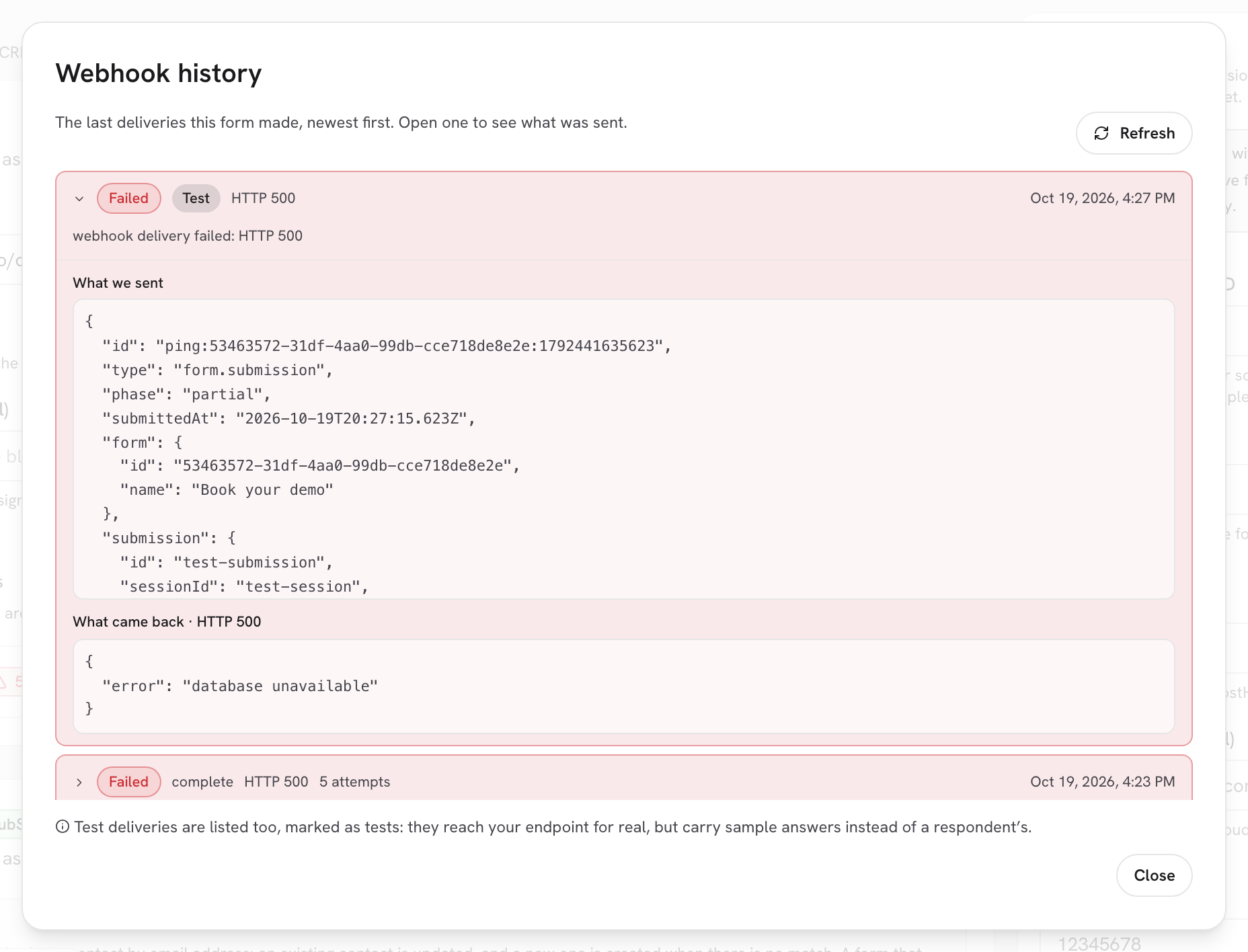
**Cause:** the failure is almost always your endpoint's answer, and Dapta Forms writes that answer down. Open **View history** and expand the row: **What we sent** holds the exact body, **What came back** holds the status and the response.

<figure><img src="https://3835013762-files.gitbook.io/~/files/v0/b/gitbook-x-prod.appspot.com/o/spaces%2FCy5rSNtQmtqYCGzJlNEB%2Fuploads%2Fgit-blob-0cb98abb7b0b1aac3f26d71de2ca8cd8519f6a61%2Fforms-delivery-and-retries-03-failed-row.png?alt=media" alt="The Webhook history dialog with a Failed row expanded, showing 5 attempts, the JSON body under What we sent and the endpoint response under What came back"><figcaption><p>A failed delivery keeps its five attempts, the body that was sent and the answer that came back.</p></figcaption></figure>

**Fix:** match the message to the cause.

| What the message says                                                                                 | What it means                                       | What to do                                                                                                                                       |
| ----------------------------------------------------------------------------------------------------- | --------------------------------------------------- | ------------------------------------------------------------------------------------------------------------------------------------------------ |
| *It does not accept POST on this URL.*                                                                | The endpoint answered 405 or 501.                   | Dapta Forms always delivers with `POST` and a JSON body. Point the webhook at a route that accepts POST.                                         |
| *It refused the content type.*                                                                        | 415.                                                | Accept `application/json`.                                                                                                                       |
| *It read the request and rejected the body.*                                                          | Another 4xx.                                        | Compare **What we sent** with what your endpoint expects. See [Payload & headers reference](/dapta-forms/connect/webhooks/payload-reference.md). |
| *It refused the request as unauthorised. Check any token or secret it expects.*                       | 401 or 403.                                         | Your endpoint wants credentials Dapta Forms is not sending. Verify the request with the signature instead.                                       |
| *There is nothing at that URL.*                                                                       | 404 or 410.                                         | The path is wrong or the endpoint was removed.                                                                                                   |
| *It is rate-limiting us. Try again shortly.*                                                          | 429.                                                | Raise the limit on your side, or accept the retries.                                                                                             |
| *It failed on its side.*                                                                              | 5xx.                                                | Your endpoint crashed on the request. Check its own logs.                                                                                        |
| *It answered with a redirect, which we never follow. Use the final URL directly.*                     | 3xx.                                                | Put the final URL in **Endpoint URL**.                                                                                                           |
| *Blocked before sending: that address is private, reserved, or internal, and we never post to those.* | The host resolves to a private or internal address. | Use a publicly reachable HTTPS URL. Tunnel your local server if you are testing.                                                                 |
| *Nothing answered at that URL. Check the host is reachable and not timing out.*                       | Connection refused or timed out.                    | Each attempt is dropped after 10 seconds. Make the endpoint answer faster, and reply before you do the slow work.                                |

Then click **Send test** to confirm the fix. A success shows *Test delivered. Your endpoint accepted it.* If the button says *Save a webhook URL first.*, the **Endpoint URL** field is still empty.

> **💡 Tip:** Failures retry on their own, up to five attempts with a growing gap between them. There is no resend button, so once a delivery is marked **Failed** it stays a log entry: fix the endpoint and the next submission goes through.

***

## Submission emails do not arrive

**Symptom:** someone completed the form and neither you nor the respondent got an email.

Check these in order:

1. **The submission was only partial.** Emails are sent on completed submissions only. Confirm the row says **Completed** in **Submissions**.
2. **The email is switched off.** Open **Connect → Emails** in the form, or **Account settings → Notifications** for the whole workspace, and check that **Send this email** is on for **New submission notice** and **Respondent confirmation**.
3. **The response has no email address in it.** The **Respondent confirmation** is skipped when no answer looks like an email address. There is nobody to write to.
4. **You are checking the wrong inbox.** The **New submission notice** goes to the workspace owner's address, not to whoever built the form.
5. **It landed in spam.** The sending address is set by the deployment and cannot be changed per form, so a first message from it may be filtered. Check spam and promotions, and allow the sender.

**Where to check:** the **Email history** panel in **Connect → Emails** lists the last deliveries with a status pill, the same way webhooks do. A row that is **Delivered** means the message left Dapta Forms and the problem is on the receiving side.

> **⚠️ Note:** Editing the account templates requires an admin or an owner. A member sees *Only admins and owners of this workspace can edit its notification emails.*

***

## The Calendly step does not load

**Symptom:** the scheduler shows nothing on the canvas, or respondents see a spinner instead of a calendar.

| What you see                                                 | Cause                                                                                                                                 | Fix                                                                                                                                                                                                                         |
| ------------------------------------------------------------ | ------------------------------------------------------------------------------------------------------------------------------------- | --------------------------------------------------------------------------------------------------------------------------------------------------------------------------------------------------------------------------- |
| **Connect Calendly in Integrations to pick an event type.**  | Calendly is not connected for the workspace.                                                                                          | Click **Go to Integrations** and connect it. Only an admin or an owner can.                                                                                                                                                 |
| **No event type picked yet**                                 | The step exists but no event type is selected.                                                                                        | Open the question settings and pick one under **Event type**.                                                                                                                                                               |
| Your event type is missing from the picker                   | Only active event types are listed, up to 100, sorted by name.                                                                        | Activate the event type in Calendly, then reopen the picker.                                                                                                                                                                |
| The respondent is stuck on **Loading the calendar…**         | The embed could not load in that browser, usually a blocker, a strict privacy extension, or a site policy where the form is embedded. | The step falls back to an **Open the scheduling page** link, which always works. Turn **Required** off in the question settings if you do not want the step to be a dead end: the public form then offers **Skip for now**. |
| The step is right in the editor but missing on the live form | The scheduler was added or changed in the draft.                                                                                      | Click **Publish**.                                                                                                                                                                                                          |

If somebody books but nothing lands in HubSpot, the booking itself still succeeded: the enrichment is what needs the Calendly connection. Check the **HubSpot history** panel and see [Booking sync](/dapta-forms/connect/hubspot/booking-sync.md).

***

## A file will not upload

**Symptom:** the respondent picks a file and the question refuses it, or the upload starts and never finishes.

| What they see                                           | Cause                                                                                       | Fix                                                                                                                                        |
| ------------------------------------------------------- | ------------------------------------------------------------------------------------------- | ------------------------------------------------------------------------------------------------------------------------------------------ |
| *That kind of file is not accepted here.*               | The extension is not in **Accepted files**, or it is one of the types no form ever accepts. | Widen **Accepted files** in the question settings, then **Publish**. Programs and web pages cannot be allowed.                             |
| *That file is bigger than 10 MB.*                       | The file is over the limit for that question.                                               | Raise **Largest file (MB)**, up to the ceiling the hint names, then **Publish**. Ask for a smaller file if you are already at the ceiling. |
| *That upload did not finish.*                           | The connection dropped mid-upload, or the upload address expired on a very slow link.       | **Try again** gets a fresh address. A repeat on the same file usually means the connection, not the file.                                  |
| The whole submission fails after the file uploaded fine | The file's contents do not match its extension, for example a program renamed to `.pdf`.    | Ask for the real file. This check cannot be turned off.                                                                                    |

**Where to check:** the question's own **File upload** section in **Question settings** holds both rules, and the line under **Choose a file** on the live form shows respondents exactly what they are. If they disagree, the form has unpublished changes: click **Publish**.

***

## An uploaded file will not open

**Symptom:** clicking a filename in **Submissions** shows *The preview could not load.*

Links to uploaded files live a few minutes. A dialog left open longer than that fails on its next load, which is what this message means. Click **Try again**: it fetches a new link rather than retrying the dead one.

Two other behaviours are not faults. A file type that no browser can draw, such as a spreadsheet or an archive, downloads instead of opening a dialog. So does any file over 25 MB. See [Uploaded files](/dapta-forms/results/uploaded-files.md).

***

## I cannot see a workspace

**Symptom:** a colleague says you were added, but the workspace is not in your switcher or in **Account settings → Workspaces**.

**Causes and fixes:**

* **The invitation has not been accepted.** An invited workspace shows with an **Invited** badge. Accepting means opening it: click **Open** on the card and you are in.
* **You are signed in with a different account.** Workspaces follow your Dapta account. Check the email under the profile button in the rail footer and sign in with the account the invitation went to.
* **The invitation went to another address.** Ask an admin of that workspace to open **Account settings → Workspaces**, pick it, and use **Add a member** with the right address. Pending invites live on the **Invitations** tab, where **Resend** sends the email again.
* **You opened a link to a workspace you are not in.** The page answers *That workspace is not among yours.* Nothing is wrong with your account: you simply are not a member.
* **You have a lot of workspaces.** From six upwards the switcher shows a **Find a workspace** search box. Type part of the name.

***

## I cannot change an owner

**Symptom:** the kebab menu on a member row is missing, or an action comes back with an error.

| Message                                                            | Why                                                                          | What to do                                                                                                                                    |
| ------------------------------------------------------------------ | ---------------------------------------------------------------------------- | --------------------------------------------------------------------------------------------------------------------------------------------- |
| No **Member actions** menu on that row                             | Only an owner can act on another owner, and nobody can act on their own row. | Ask an owner of the workspace to make the change.                                                                                             |
| *A workspace must keep at least one owner.*                        | You are demoting, deactivating or removing the last active owner.            | Promote somebody to owner first, in the Dapta app, then repeat the change.                                                                    |
| *Ownership is transferred from the Dapta app.*                     | Ownership is not something Dapta Forms hands over.                           | Do it in the Dapta app. The change shows here the next time the workspace loads.                                                              |
| *You do not have permission to do that.*                           | You are a member, or an admin acting on an owner.                            | Admins can invite, promote, demote, activate and deactivate everyone except owners. Removing somebody who has already accepted is owner only. |
| *Only admins and owners of this workspace can manage its members.* | You are a member on the workspace detail page.                               | Ask an admin or an owner.                                                                                                                     |

Removing a member never deletes their forms or the responses those forms collected: the work stays in the workspace.

***

## The public link shows a 404

**Symptom:** you open the public URL and get a not found page.

**Cause 1: the form was never published.** The public address only ever serves the published version, so a form that has only ever been a draft has nothing to show. **Fix:** open the form and click **Publish**.

**Cause 2: the link is not the current one.** The slug is built from the name the form was created with and does not change when you rename the form later. **Fix:** never retype the URL. Use **Copy link** in the editor topbar, or the copy icon on the form's row in the **Forms** list.

**Cause 3: the form was deleted.** Deleting a form removes its public page along with its submissions, and the link cannot be restored.

**Cause 4: you are looking at a public page, not a form.** The address `forms.dapta.ai/{account code}/{handle}` is your personal page, and it stays a 404 until you turn it on. **Fix:** open **Account settings → Public page**, switch **Published** on and save. You also need a handle: without one the page says *You need a handle before this page can have a URL.*

> **💡 Tip:** Your account code keeps working forever, including after you claim a vanity slug, so links you shared in the past never break.

***

## Where each thing is checked

| Problem                     | Where to look                                                                                                    |
| --------------------------- | ---------------------------------------------------------------------------------------------------------------- |
| Changes not live            | Editor topbar: the save status pill and the **Unpublished changes** dot                                          |
| HubSpot contact missing     | Form → **Connect** → **HubSpot** card, then **HubSpot history**                                                  |
| Webhook failing             | Form → **Connect** → **Webhook** card → **View history**, or the **Webhooks** table on the **Integrations** page |
| Emails missing              | Form → **Connect** → **Emails** → **Email history**, and **Account settings → Notifications**                    |
| Scheduler not loading       | The scheduler question's settings, and the **Connections** page for Calendly                                     |
| File refused or not opening | The question's **File upload** settings, and the line under **Choose a file** on the live form                   |
| Workspace missing           | Rail workspace switcher, and **Account settings → Workspaces**                                                   |
| Roles and owners            | **Account settings → Workspaces** → the workspace → **Members**                                                  |
| Public link 404             | Editor **Copy link**, and **Account settings → Public page**                                                     |

***

## What's next

* [FAQ](/dapta-forms/faq.md): the questions people ask before they hit a problem.
* [Delivery, retries & history](/dapta-forms/connect/delivery-and-retries.md): how a delivery is attempted, retried and logged.
* [How the sync works & troubleshooting](/dapta-forms/connect/hubspot/how-sync-works.md): the HubSpot matching rules in detail.
* [Autosave, drafts & publishing](/dapta-forms/builder/autosave-and-publishing.md): the full draft to live lifecycle.
* [Members & roles](/dapta-forms/account/members-and-roles.md): who is allowed to do what.
* [File upload](/dapta-forms/builder/question-types/file-upload.md): the accepted types and the size limit in full.


---

# Agent Instructions
This documentation is published with GitBook. GitBook is the documentation platform designed so that both humans and AI agents can read, navigate, and reason over technical content effectively. Learn more at gitbook.com.

## Querying This Documentation
If you need additional information that is not directly available in this page, you can query the documentation dynamically by asking a question.

Perform an HTTP GET request on the current page URL with the `ask` query parameter, and the optional `goal` query parameter:

```
GET https://docs.dapta.ai/dapta-forms/troubleshooting.md?ask=<question>&goal=<endgoal>
```

`ask` is the immediate question: it should be specific, self-contained, and written in natural language.
`goal` is optional and describes the broader end goal you are ultimately trying to accomplish on behalf of the user. GitBook uses it to tailor the answer towards what is most useful for that goal.

The response will contain a direct answer to the question and relevant excerpts and sources from the documentation.

Use this mechanism when the answer is not explicitly present in the current page, you need clarification or additional context, or you want to retrieve related documentation sections.