> For the complete documentation index, see [llms.txt](https://docs.dapta.ai/llms.txt). Markdown versions of documentation pages are available by appending `.md` to page URLs; this page is available as [Markdown](https://docs.dapta.ai/dapti/interface-guide.md).

# Interface Guide

This page is a quick reference to every element of the Dapti interface. If you are new to Dapti, start with the [Getting Started](/dapti/getting-started.md) page first.

***

## The Home Page

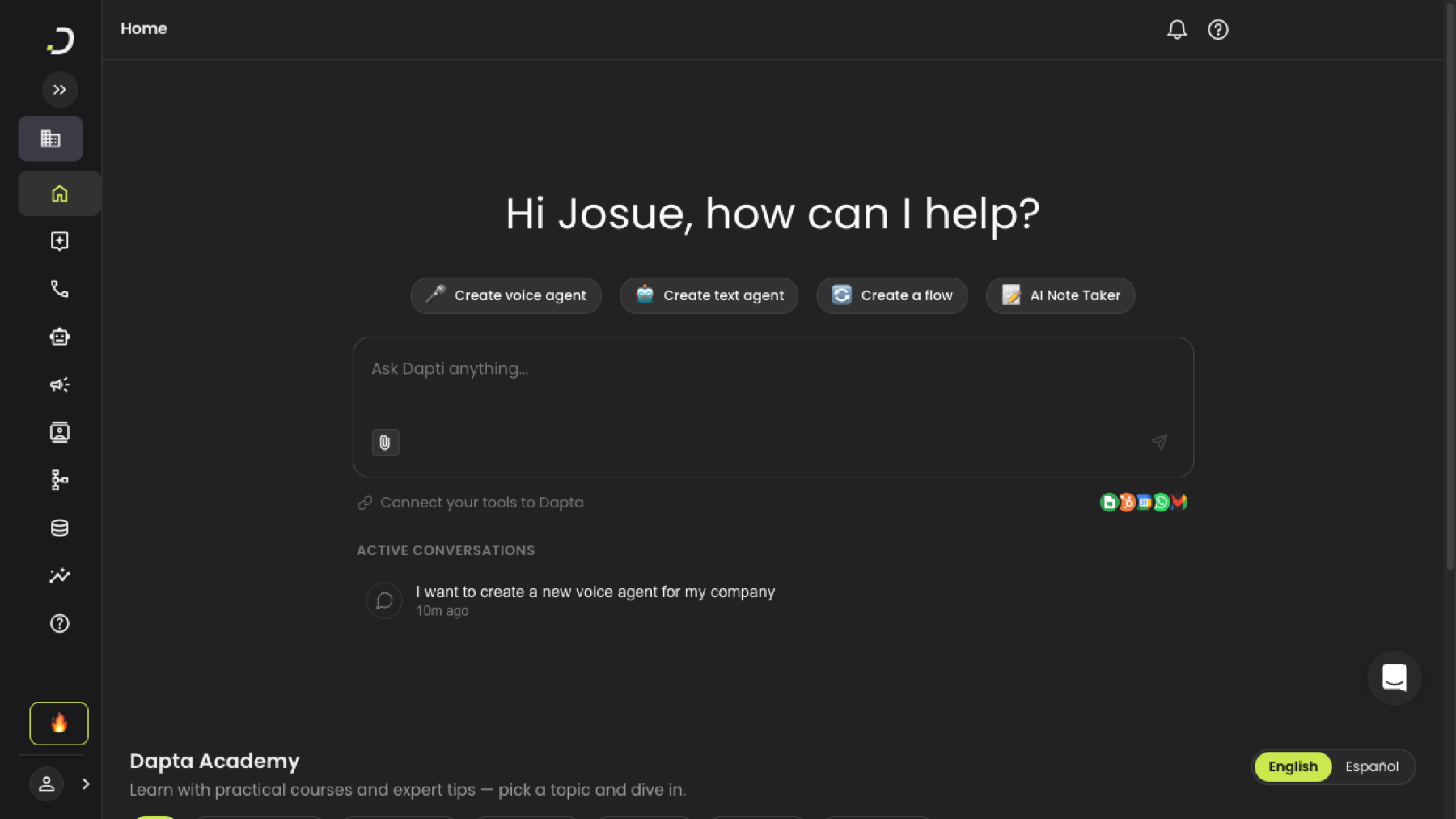
When you log in to Dapta, you land on the Home page. The Home page **is** Dapti: a personalized greeting, quick-action buttons, the chat input, your active conversations, and shortcuts to connected tools.

<figure><img src="/files/LNP901CA8U2k9cm5Kt6Q" alt="The Dapti home page showing the greeting, four quick action buttons, the chat input, integration shortcuts, and a list of active conversations"><figcaption><p>The Dapti home page.</p></figcaption></figure>

### Quick action buttons

Four shortcuts to the most common tasks. Each one starts a Dapti conversation pre-filled for that workflow.

| Button                     | What it does                                                    |
| -------------------------- | --------------------------------------------------------------- |
| **🎙️ Create voice agent** | Walks you through creating a new voice agent with Dapti's help. |
| **💬 Create text agent**   | Walks you through creating a new text or chat agent.            |
| **🔀 Create a flow**       | Opens the Flow Studio creation flow inside Dapti.               |
| **📝 AI Note Taker**       | Sets up the AI Note Taker to join your calendar meetings.       |

### Active conversations

Your recent Dapti chats, listed by date. Click any item to resume the conversation with full history.

### Connect your tools to Dapta

A row of integration shortcuts (Google Sheets, HubSpot, Google Calendar, WhatsApp, Gmail, and more) for linking external services to Dapta. Click any icon to start connecting that tool.

***

## The Chat Input

The chat input is where you talk to Dapti. It is present on both the Home page and inside any conversation.

It has two controls:

* **Paperclip** (left): attach an image to your message. Dapti can analyze screenshots, charts, dashboards, and configurations.
* **Send icon** (right): send your message. You can also press **Enter**.

While Dapti is responding, the send icon turns into a **stop button** (a square). Click it to interrupt the response.

***

## Inside a Conversation

Once you send a message from the Home page, Dapti moves you to the dedicated conversation view at `/dapti`. A new top bar appears.

<figure><img src="/files/b2cTYu1XVw3zeZAHZMCk" alt="Top bar of a Dapti conversation showing the Dapti BETA title on the left and New Chat plus History buttons on the right"><figcaption><p>The conversation top bar.</p></figcaption></figure>

* **New Chat**: start a fresh conversation. The current chat is saved automatically in **History**.
* **History**: open the conversation history popover.

***

## Chat History

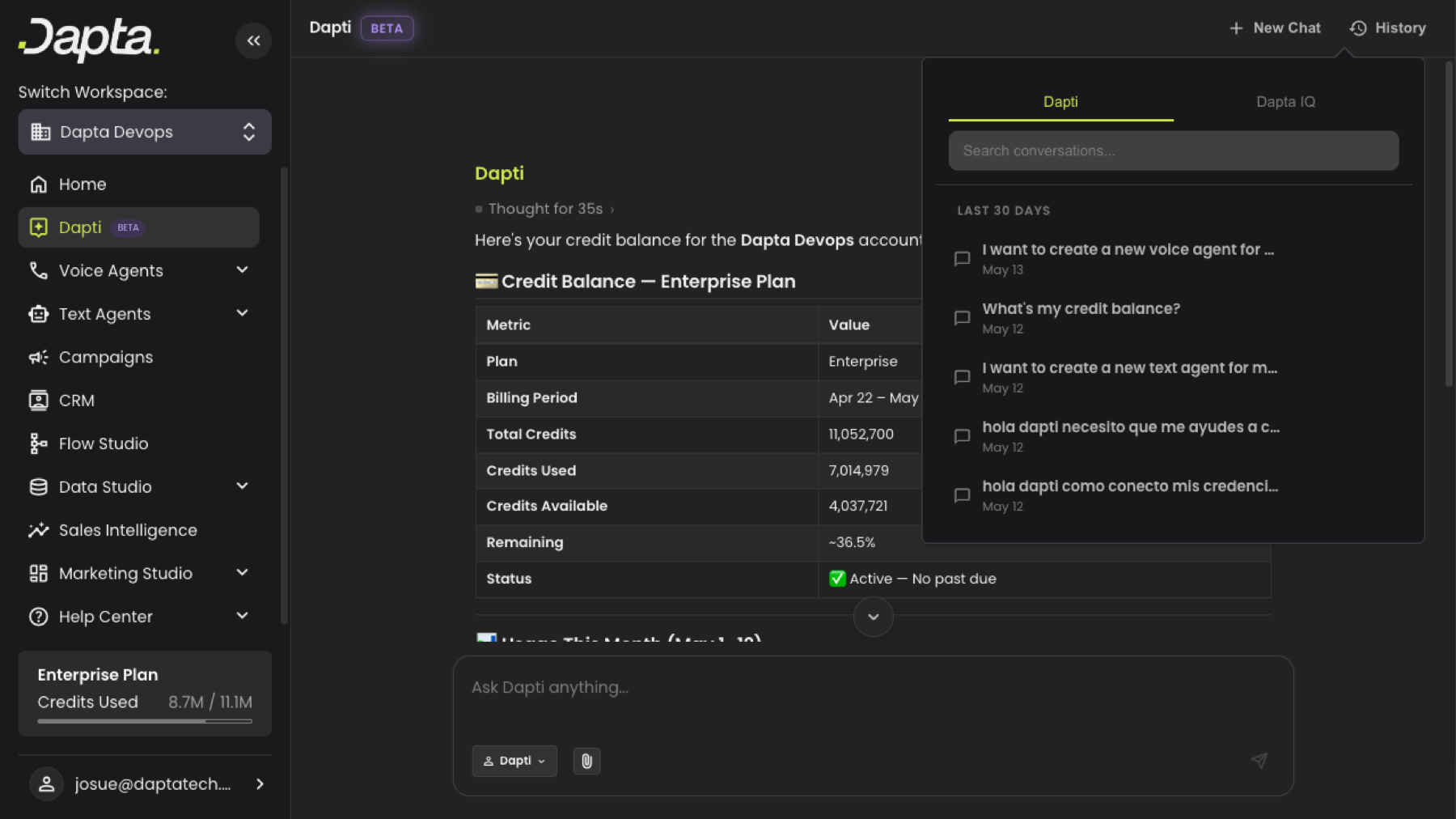
Click **History** in the top right to open the history popover. It is a floating panel anchored to the History button.

<figure><img src="/files/il5DZx9eaE4jItF5oy63" alt="The Dapti history popover showing a search bar and a list of past conversations grouped by date"><figcaption><p>The conversation history popover.</p></figcaption></figure>

The popover has:

* **A search bar** for finding past conversations by keyword.
* **Date-grouped sections** (Last 30 days, Older) listing your conversations.
* **Tabs at the top** if your account has access to more than one assistant. Each tab shows the conversations for that assistant.

Click any conversation to load it and continue chatting.

***

## The Activity Panel

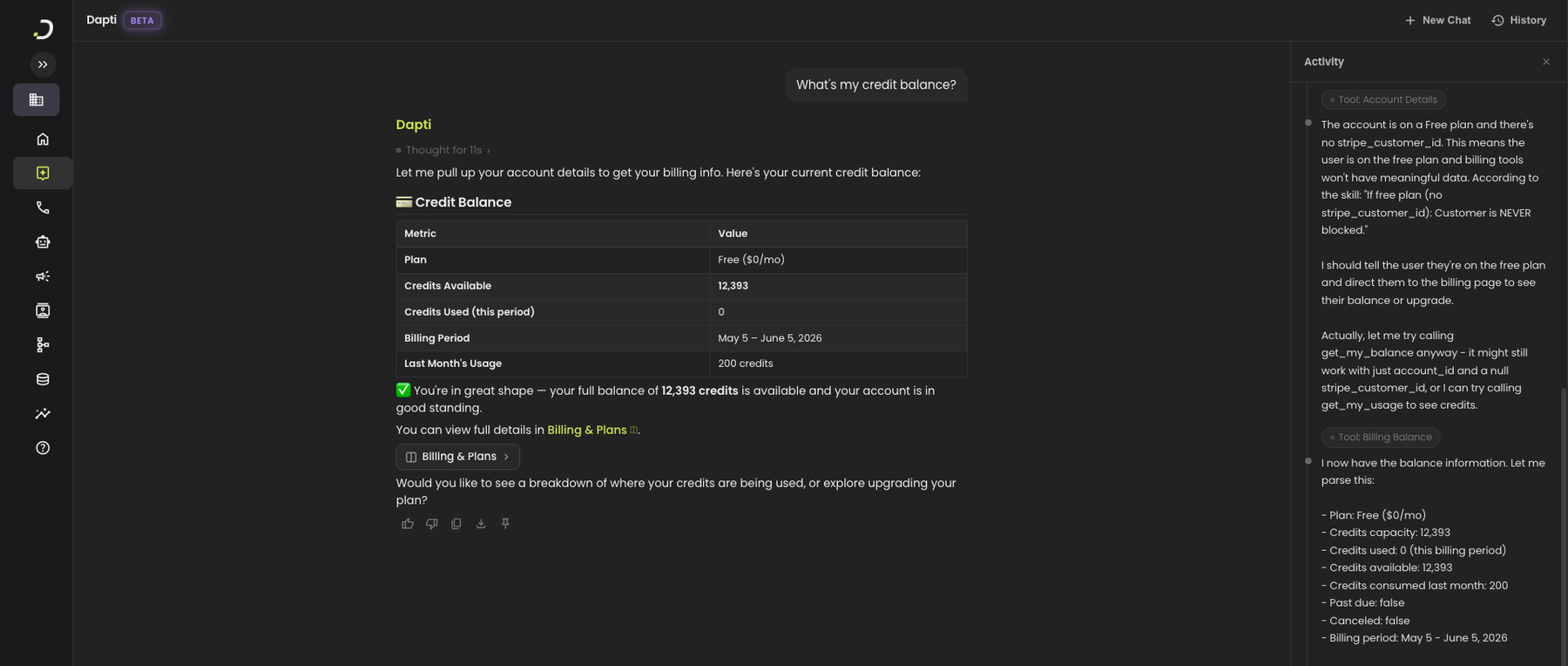
While Dapti is reasoning through your question, the conversation shows a **thinking indicator** above the response. Once Dapti is done, the indicator collapses to a single line: **Thought for Ns ›**.

Click that line to open the **Activity panel** on the right side of the screen. The panel shows Dapti's plain-English reasoning, step by step, with a green check next to each completed step.

<figure><img src="/files/RddXNyAbxSAhrHexPmoF" alt="A Dapti conversation with the Activity panel open on the right, showing step-by-step plain-English reasoning ending with Thought for 35s Done"><figcaption><p>The Activity panel showing Dapti's reasoning.</p></figcaption></figure>

The Activity panel is read-only. Close it by clicking the **X** in the top-right corner of the panel.

{% hint style="info" %}
The Activity panel never shows internal tool names, database queries, or technical implementation details. It is written for non-technical readers.
{% endhint %}

***

## Message Actions

At the bottom of every Dapti response, you will see a row of icons.

<figure><img src="/files/rVuwdCvkJiigwkmrwYBd" alt="A close-up of the message action icons: thumbs down highlighted in red, copy, download, and pin"><figcaption><p>Message actions appear under every response.</p></figcaption></figure>

| Icon               | What it does                                               |
| ------------------ | ---------------------------------------------------------- |
| **👍 Thumbs up**   | Mark the response as helpful.                              |
| **👎 Thumbs down** | Mark the response as not helpful. Opens the feedback form. |
| **📋 Copy**        | Copy the response to your clipboard.                       |
| **⬇️ Download**    | Save the response as a file.                               |
| **📌 Pin**         | Pin the message for later reference.                       |

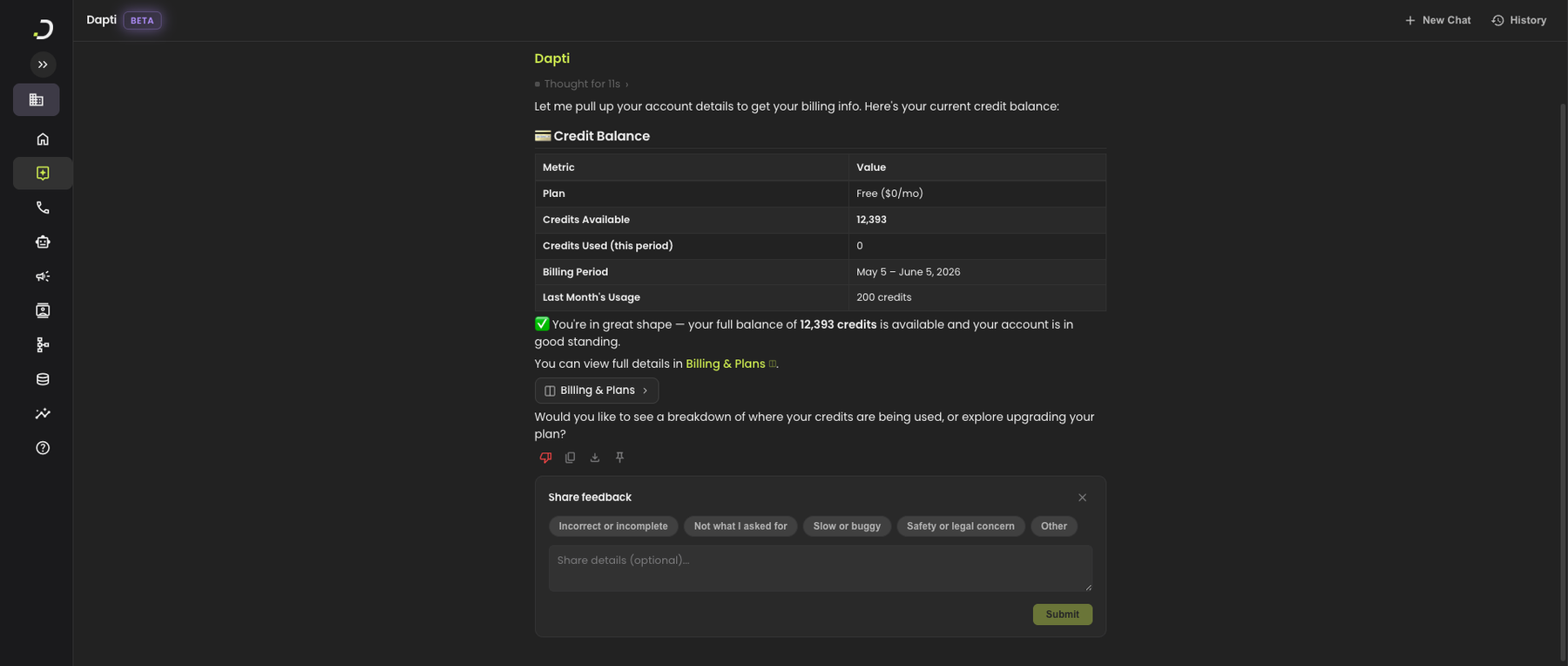
Selecting **👍** or **👎** highlights the icon to confirm your selection. You can change your mind by clicking the other option.

***

## The Feedback Form

When you click **👎**, a **Share feedback** panel appears under the response.

<figure><img src="/files/ZHo3kxrqlMg7pul6TxPz" alt="The Share feedback panel showing five reason chips (Incorrect or incomplete, Not what I asked for, Slow or buggy, Safety or legal concern, Other), an optional text area, and a Submit button"><figcaption><p>The feedback panel that appears when you click thumbs down.</p></figcaption></figure>

The panel offers five reason chips:

* **Incorrect or incomplete**
* **Not what I asked for**
* **Slow or buggy**
* **Safety or legal concern**
* **Other**

You can also add free-form details in the optional text area. Click **Submit** to send your feedback to the Dapta team.

{% hint style="success" %}
Your feedback directly shapes how Dapti improves. Even a quick reason chip without details is helpful.
{% endhint %}

***

## Sidebar Navigation

The left sidebar provides access to every area of the Dapta platform. Click the toggle at the top to expand or collapse it.

When expanded, you will see:

* **Home** (Dapti)
* **Dapti** (with a `BETA` badge)
* **Voice Agents**
* **Text Agents**
* **Campaigns**
* **CRM**
* **Flow Studio**
* **Data Studio**
* **Sales Intelligence**
* **Marketing Studio**
* **Help Center**

At the bottom of the sidebar, you can switch workspaces, see your plan and credits used, and access your account.

***

## Next Steps

Now that you know your way around the interface, explore what Dapti can do.

{% content-ref url="/pages/tGdZKRq1oCqpksmxm3rK" %}
[Capabilities](/dapti/capabilities.md)
{% endcontent-ref %}

{% content-ref url="/pages/z2MqYMcg82nfTMVD8SSU" %}
[Use Cases](/dapti/use-cases.md)
{% endcontent-ref %}

{% content-ref url="/pages/XgNL8X3CGabWk1aDE5X4" %}
[Tips & Prompting](/dapti/tips-and-prompting.md)
{% endcontent-ref %}


---

# Agent Instructions
This documentation is published with GitBook. GitBook is the documentation platform designed so that both humans and AI agents can read, navigate, and reason over technical content effectively. Learn more at gitbook.com.

## Querying This Documentation
If you need additional information that is not directly available in this page, you can query the documentation dynamically by asking a question.

Perform an HTTP GET request on the current page URL with the `ask` query parameter:

```
GET https://docs.dapta.ai/dapti/interface-guide.md?ask=<question>
```

The question should be specific, self-contained, and written in natural language.
The response will contain a direct answer to the question and relevant excerpts and sources from the documentation.

Use this mechanism when the answer is not explicitly present in the current page, you need clarification or additional context, or you want to retrieve related documentation sections.