> For the complete documentation index, see [llms.txt](https://docs.dapta.ai/llms.txt). Markdown versions of documentation pages are available by appending `.md` to page URLs; this page is available as [Markdown](https://docs.dapta.ai/dforms/builder/question-types/content-steps.md).
# Content steps: Message, Reveal screen, Scheduler
The three content steps in dForms: Message (text with no input), Reveal screen (a short timed pause with a loader) and Scheduler (a dCal or Calendly booking embedded in the form). Every setting explai
Not every step in a form is a question. The **Content** group of the question gallery holds three steps that show something instead of asking something: a **Message** the respondent reads and clicks through, a **Reveal screen** that plays for a moment and moves on by itself, and a **Scheduler** that lets the respondent book a meeting on your calendar without leaving the form.
All three are added like any other question (**Add question** > **Content**), appear as cards in the **Questions** list, and can be dragged anywhere in the order. On a **Slides** form a **Message** can share a screen with other questions, while a **Reveal screen** and a **Scheduler** always get a screen of their own (see [Several questions on one screen](https://docs.dapta.ai/dforms/builder/screens.md)).
***
## Message
A **Message** step shows a title, an optional description, a paragraph of text and a button. It has no input, no field key and no answer; it never affects the score. Use it to welcome people, explain what comes next or close a section.
**Step 1:** Click **Add question**, then **Message** (Text, no input). On the canvas, type the title in **Type your question…** and write the body in **Write your message…**. The button under the text reads **Continue**. The word is saved with the step when you add it, so it stays **Continue** in every form language, and what you type in **Design** → **Button text** does not replace it. There is no field to change it.
Because a Message has nothing to answer, **Question settings** is short: **Question type**, **Logic** (**Edit logic**, plus **Personal email only** when the form has an email question), **Show on the same screen as the question above** on a **Slides** form, and **Advanced settings** with **Dynamic question**, **Ends the form** and **Show reveal screen after**. There is no **Required** toggle, no **Placeholder** and no **Field key**.
What respondents see. They read and click Continue.
> **💡 Tip:** A Message with **Ends the form** turned on is the classic way to disqualify: send people who do not fit to a polite "Thanks, this is not for you right now" step that closes the form. Combine it with a branching rule on an earlier question. See [Branching & jumps](https://docs.dapta.ai/dforms/logic/branching.md).
***
## Reveal screen
A **Reveal screen** is a short interstitial: a headline, a subtitle and an animation that play for a set time, after which the form continues on its own. It is typically placed right before a result or a booking step, so the form feels like it is "processing" the answers. A form can hold several reveal screens, each with its own copy.
**Step 2:** Click **Add question**, then **Reveal screen** (A short processing pause). On the canvas, fill in the headline (**Reviewing your answers…** is the default) and the reassurance line. The caption under the preview tells you how long it plays: **Plays for 2200 ms, then the form continues on its own.**
**Step 3:** In **Question settings**, under **Reveal screen**, set the copy and timing:
| Setting | What it does |
| ------------------------------ | ---------------------------------------------------------------------------------------------------------------------- |
| **Headline** | The big line. Accepts `[field]` tokens to insert an earlier answer. Empty shows the default "Reviewing your answers…". |
| **Subtitle** | The smaller line under it. Also accepts `[field]` tokens. |
| **Duration (ms)** | How long it plays, 500 to 30000 ms. Default: 2200. |
| **Pre-warm the booking embed** | Loads the outcome's booking calendar while this screen plays, so a Scheduler that follows appears faster. |
**Step 4:** Under **Look**, choose how the screen animates and how big it reads:
| Setting | Options | What it does |
| ------------------------- | ----------------------------------------------------------------- | ------------------------------------------------------------------------------------------------------------------------------------------------------------------------------------------------------------------------- |
| **Loader** | **Spinner** / **Bar only** / **You vs. match** / **No animation** | What animates while the screen plays. **Spinner** shows a ring above a progress bar. **Bar only** drops the ring. **You vs. match** shows two marks with a percentage between them. **No animation** shows the copy only. |
| **Loader size** | **Small** / **Medium** / **Large** / **Huge** | Scale of the animation. |
| **Text size** | **Small** / **Medium** / **Large** / **Huge** | Scale of the headline and subtitle. |
| **Flood with the accent** | On / Off | Paints the whole screen in the form's accent color, so the pause reads as a moment of its own. |
When **You vs. match** is selected, three extra fields appear: **Your side's label**, **The match's label** and **Status line** (the text shown under the match while it plays). All three accept `[field]` tokens; leave them empty to use the default wording.
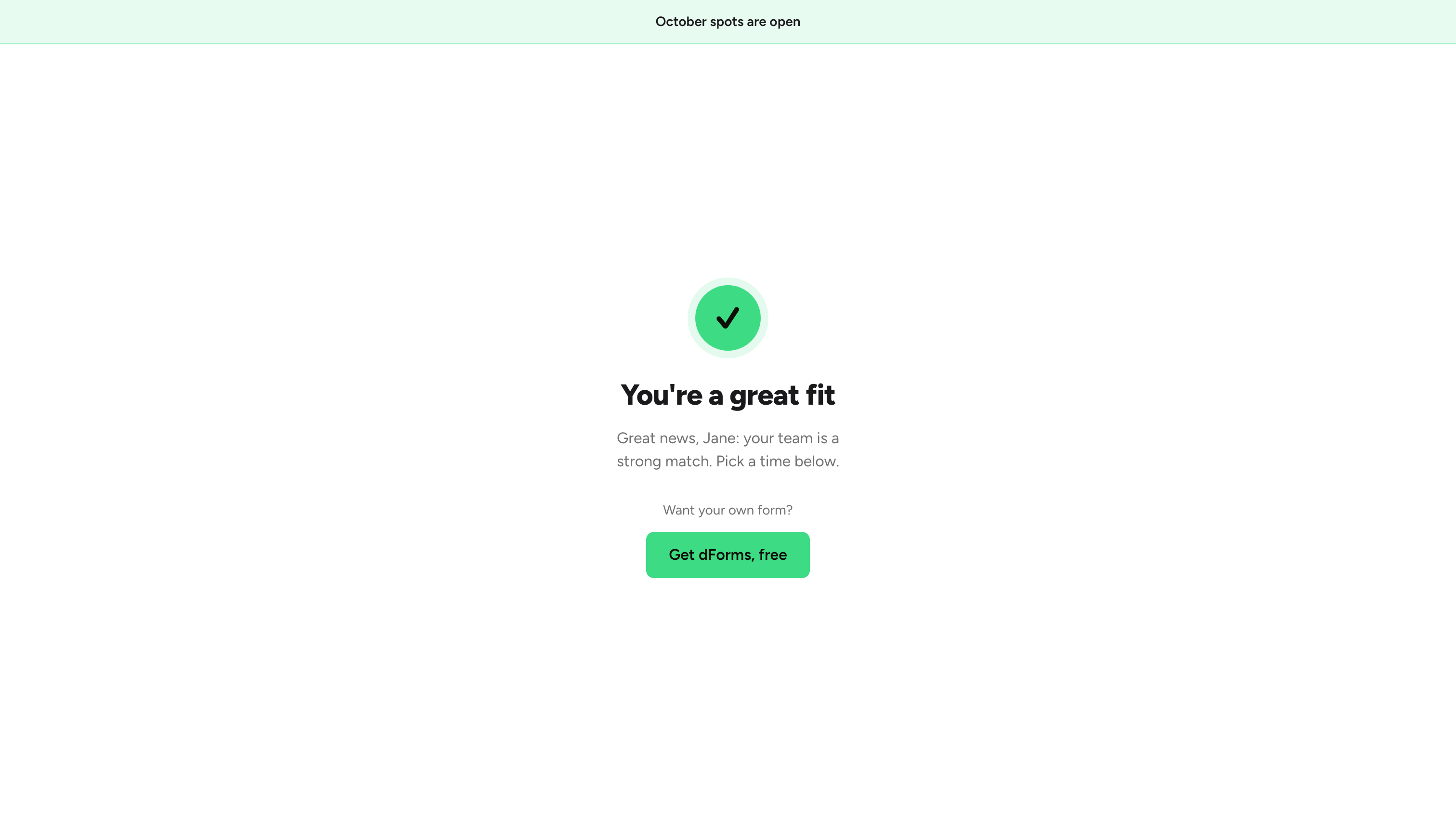
A reveal screen playing in the live form with the Spinner loader.
Good to know:
* A reveal screen has no **Required** toggle, no field key and cannot end the form.
* Respondents cannot click through it; it always plays for the full **Duration (ms)**.
* It always gets a screen of its own. Dropped between two questions that share a screen, it lands right after that screen.
* Shortcut: on any question, **Advanced settings** > **Show reveal screen after** inserts a reveal card right after that question. Turning it off removes the card again. On a question that shares a screen, the switch reads **Show a reveal screen after this screen** and adds the card after the last question of the screen.
* The default headline and the other built-in copy follow the form's language. Your own copy is shown as you wrote it.
* On a **One page** form, reveal screens work differently: a single one plays after **Submit** and before the result. See [One-page layout](https://docs.dapta.ai/dforms/builder/one-page-layout.md).
* For design tips and more examples, see [Reveal screens](https://docs.dapta.ai/dforms/logic/reveal-screens.md).
***
## Scheduler
A **Scheduler** step embeds a booking page inside the form. Respondents pick a time right there; the booking counts as their answer and the form moves on. It always gets a screen of its own.
A Scheduler books through one of two schedulers, picked in its **Scheduler** setting:
* **dCal**, Dapta's own scheduler and the default for every new Scheduler step. There is nothing to connect: **Event type** lists your own dCal event types and your teams', with a **Workspace** picker when you belong to more than one dCal workspace. If a workspace has no event type yet, **Create one in dCal** opens dCal in a new tab and **I created it, load the list** reads the list again.
* **Calendly**. Connect Calendly first (**Integrations** in the left menu), then pick from the event types the connected account owns or hosts, or choose **Other event: paste its link** and paste the event page link or the whole embed code into **Calendly event link**. A pasted link works without a connection too.
A Scheduler saved before dCal existed keeps booking through Calendly. Switching the **Scheduler** clears the picked event and its autofill rows.
**Step 5:** Click **Add question**, then **Scheduler** (Book a meeting on your calendar). Type the question title on the canvas. In **Question settings**, under **Scheduler**, open **Event type** and pick the event type to embed (or, on Calendly, paste its link). Until you do, a new step shows the dCal setup card on the canvas; the real booking page replaces it as soon as you pick one.
**Step 6:** Decide what happens after the booking and which answers should pre-fill the booking form:
| Setting | What it does |
| ----------------------------- | -------------------------------------------------------------------------------------------------------------------------------------------------------------------------------------------------------------------------------------------------------------------------------------------------------------------------------------------------------------------------- |
| **Required** | On by default. When off, respondents get a **Skip for now** link under the calendar. |
| **Scheduler** | **dCal** (the default for new steps) or **Calendly**. |
| **Workspace** | dCal only, and only when you belong to more than one dCal workspace: whose event types the list shows. |
| **Event type** | The event type embedded in this step. On dCal, a team event reads **{event} · Team: {team}**. On Calendly, the list is searchable and ends with **Other event: paste its link**. |
| **Calendly event link** | Calendly only. Shown when you paste a link instead of picking from the list. Takes a link such as `https://calendly.com/team/event`, or the embed code. |
| **Show event details** | Calendly only. Shows or hides the event's details panel (name, duration) above the calendar. |
| **After booking** | What happens once the respondent picks a time: **Continue to the next question**, **Submit the form and show the ending**, or jump straight to a later question. On a **Slides** form only the first question of each later screen is listed, because a jump opens a whole screen. A question with no title is listed by its position, for example "Question 5". |
| **Autofill the booking form** | Rows for **Name**, **Email** (and **Notes** on dCal) and every question the event type adds. For each one, pick the earlier question whose answer should fill it, or leave **Automatic** to use the form's own name and email answers. With a pasted Calendly link, name and email are autofilled; to map the event's own questions, pick the event from the list instead. |
> **💡 Tip:** Place the **Email** and **Name** questions before the Scheduler and map them under **Autofill the booking form**. The respondent lands on the calendar with the booking form already filled in, which noticeably increases bookings.
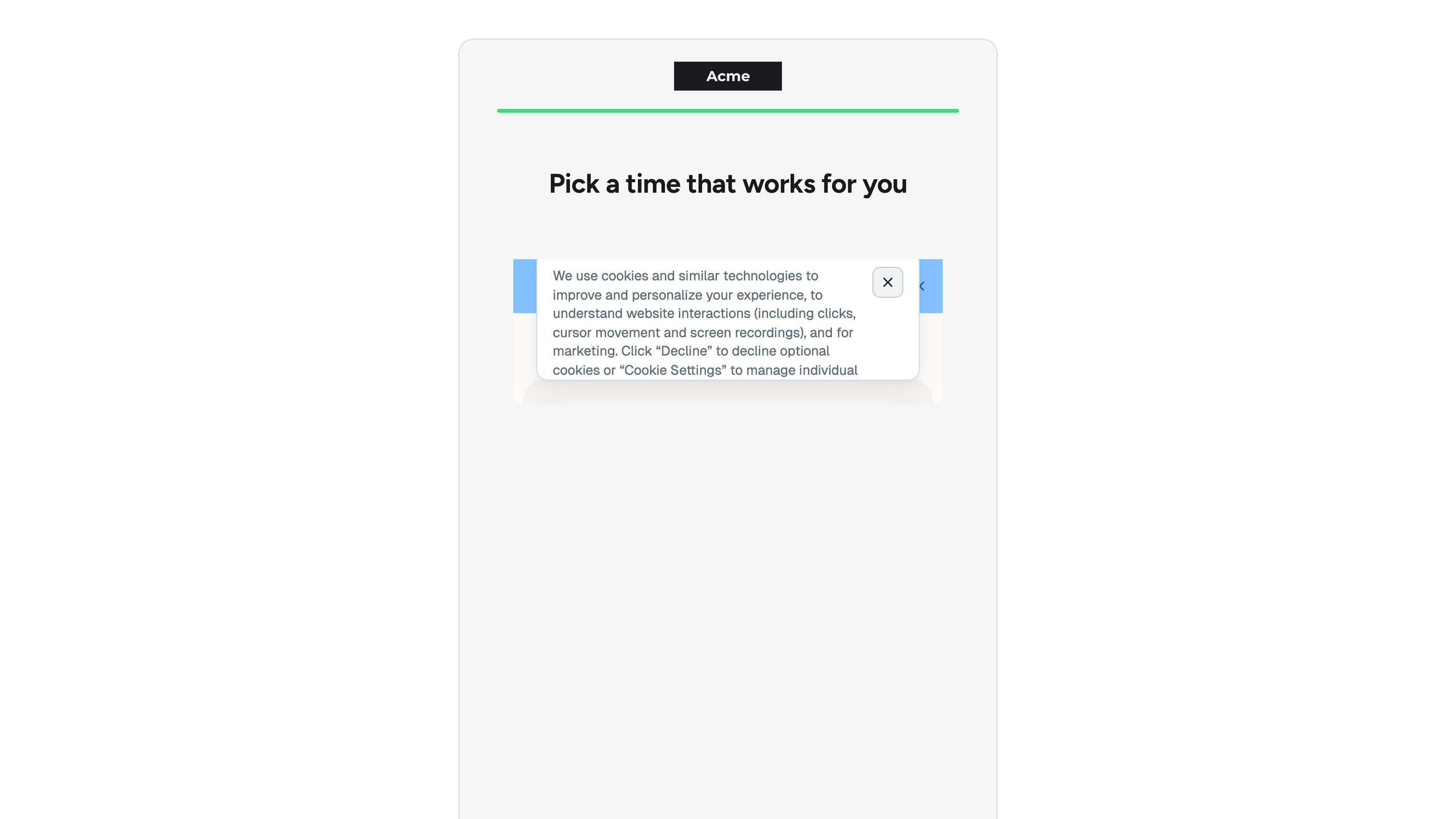
What respondents see: the booking calendar inside the form.
Good to know:
* The scheduler stores the booking time as the answer. There is no option value, so branching after a scheduler uses the catch-all **After booking** setting rather than per-answer rules. See [Branching & jumps](https://docs.dapta.ai/dforms/logic/branching.md).
* If the calendar cannot load, respondents see **The calendar could not load.** with an **Open the scheduling page** link that opens the event type in a new tab.
* A Scheduler cannot be hidden, cannot end the form by itself and cannot be prefilled from the URL.
* A dCal booking does not give the form the respondent's email. If the form syncs to HubSpot, ask for the email in an **Email** question before the Scheduler.
* To see bookings next to submissions and sync them to HubSpot, read [Scheduler: dCal and Calendly](https://docs.dapta.ai/dforms/connect/scheduler-and-calendly.md) and [Booking sync](https://docs.dapta.ai/dforms/connect/hubspot/booking-sync.md).
***
## What's next
* [Reveal screens](https://docs.dapta.ai/dforms/logic/reveal-screens.md): design patterns for the processing pause.
* [Scheduler: dCal and Calendly](https://docs.dapta.ai/dforms/connect/scheduler-and-calendly.md): dCal and Calendly step by step, and how bookings are recorded.
* [Ending screen](https://docs.dapta.ai/dforms/logic/ending-screen.md): what respondents see when the form ends.
* [Question settings](https://docs.dapta.ai/dforms/builder/question-settings.md): the settings shared by every step.
---
# Agent Instructions
This documentation is published with GitBook. GitBook is the documentation platform designed so that both humans and AI agents can read, navigate, and reason over technical content effectively. Learn more at gitbook.com.
## Querying This Documentation
If you need additional information that is not directly available in this page, you can query the documentation by asking a question.
Perform an HTTP GET request on the following URL with the `ask` and `goal` query parameters:
```
GET https://docs.dapta.ai/dforms/builder/question-types/content-steps.md?ask=&goal=
```
`ask` is the immediate question: it should be specific, self-contained, and written in natural language.
`goal` is what the user is ultimately trying to achieve, the reason they need the answer. Sharing it helps GitBook give you a better, more relevant answer. A goal is most helpful when it describes the outcome the user wants rather than restating the question. For example, with `ask=how do I create an API token`, a goal like `automate deployments from our CI pipeline` lets GitBook tailor the answer to that use case.
The response will contain a direct answer to the question and relevant excerpts and sources from the documentation.
Use this mechanism when the answer is not explicitly present in the current page, you need clarification or additional context, or you want to retrieve related documentation sections.