> For the complete documentation index, see [llms.txt](https://docs.dapta.ai/llms.txt). Markdown versions of documentation pages are available by appending `.md` to page URLs; this page is available as [Markdown](https://docs.dapta.ai/integrations/smtp.md).

# SMTP

#### 📧 Send emails from your own SMTP server — keep your sender, your domain, your deliverability.

This is the right node when you want emails to be sent **from your own address** and tracked on your own outbound infrastructure — instead of going through Dapta's shared sender.

***

**📘 What you'll learn in this document:**

* **Step 1:** Add your SMTP credential
* **Step 2:** Add the SMTP node to a flow
* **Step 3:** Configure parameters and run

***

#### 🔐 Step 1: Add your SMTP credential

Credentials are stored at the workspace level, so once you add one, every flow in the same workspace can reuse it.

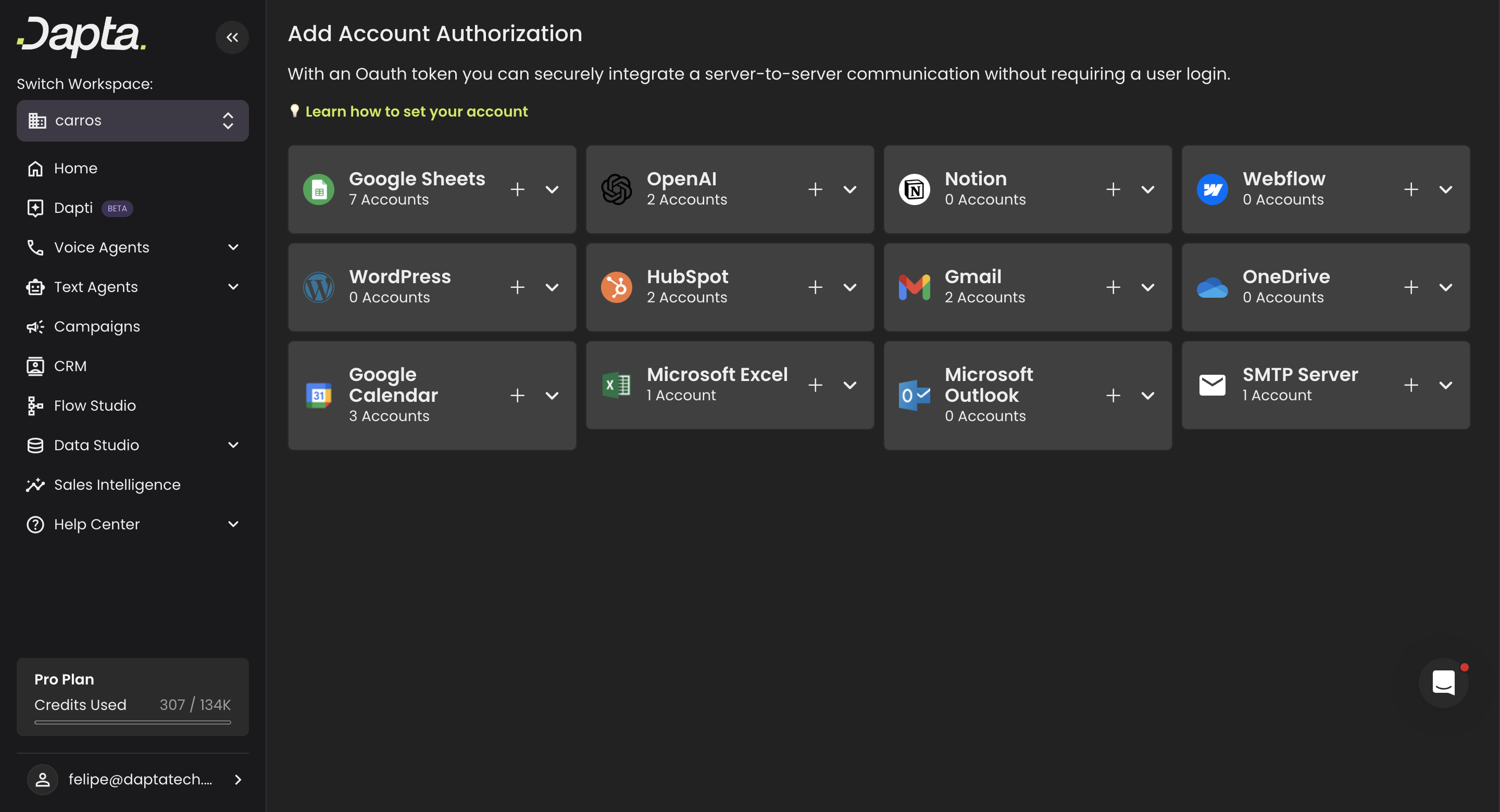
Open the user menu at the bottom of the left sidebar (your avatar / workspace plan) and click **Credentials**. You'll land at [`/settings/oauth`](https://app.dapta.ai/settings/oauth).

<figure><img src="/files/JCoigRLPzQdL1BGFQsO2" alt=""><figcaption><p>Find the SMTP Server tile in the credentials list.</p></figcaption></figure>

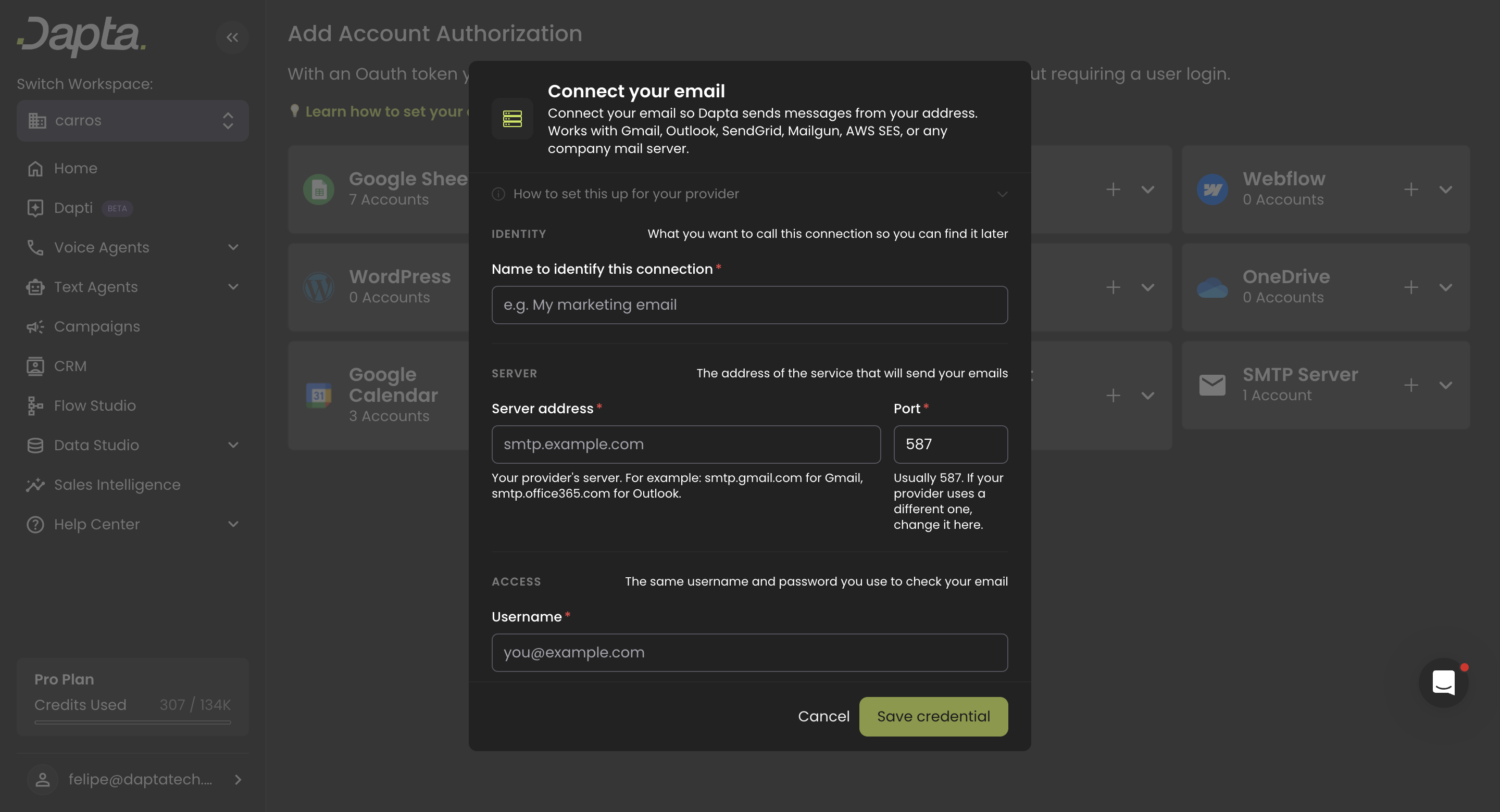
Click the `+` on the **SMTP Server** tile. The **Connect your email** popup opens.

<figure><img src="/files/TviRe5lhWMRh3verCMca" alt=""><figcaption><p>Connect your email — empty form.</p></figcaption></figure>

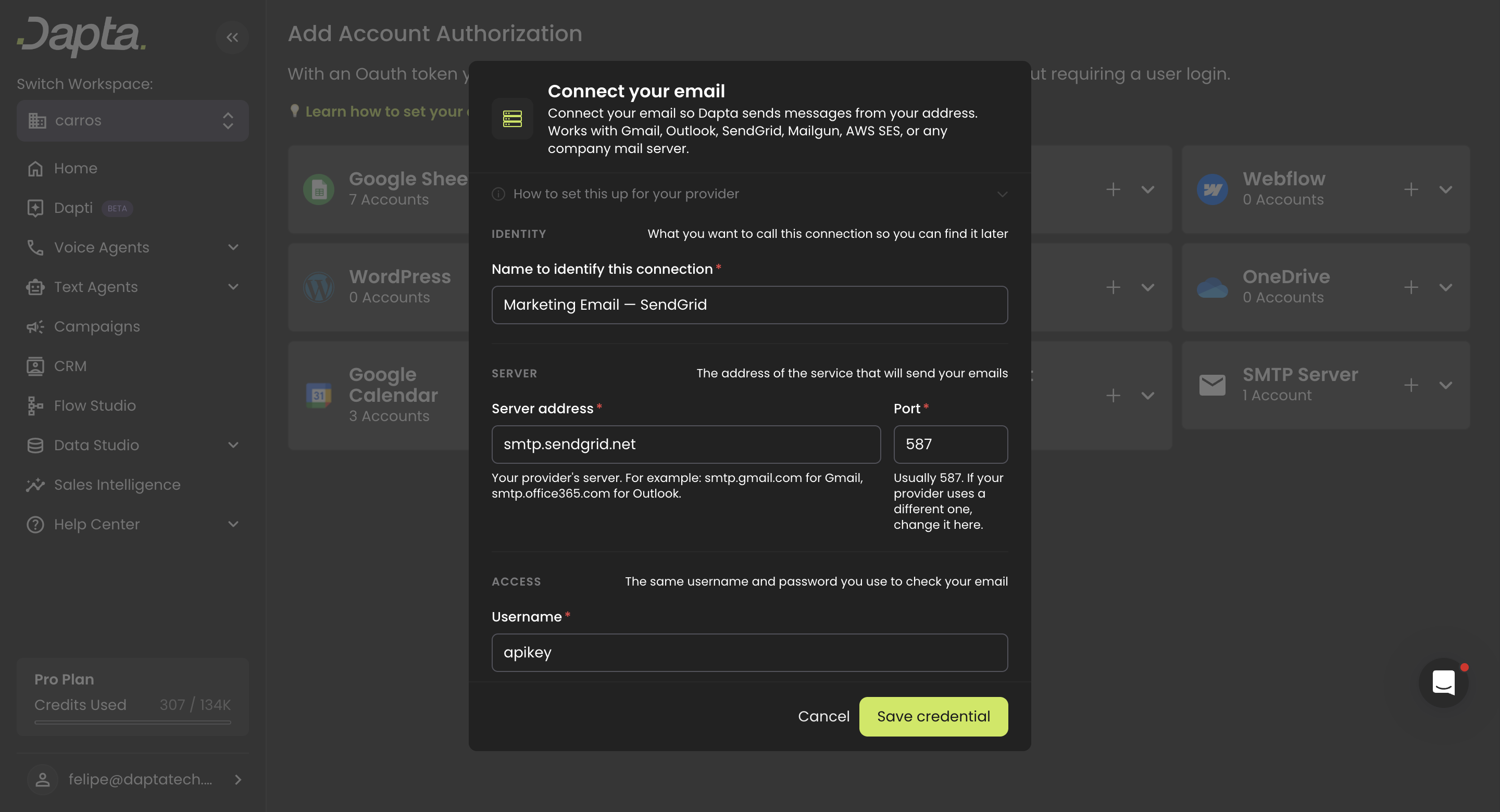
Fill the form in three short sections:

<figure><img src="/files/JbKuaMKHwQ6d9bgc5UEx" alt=""><figcaption><p>IDENTITY / SERVER / ACCESS — the only fields most users need to touch.</p></figcaption></figure>

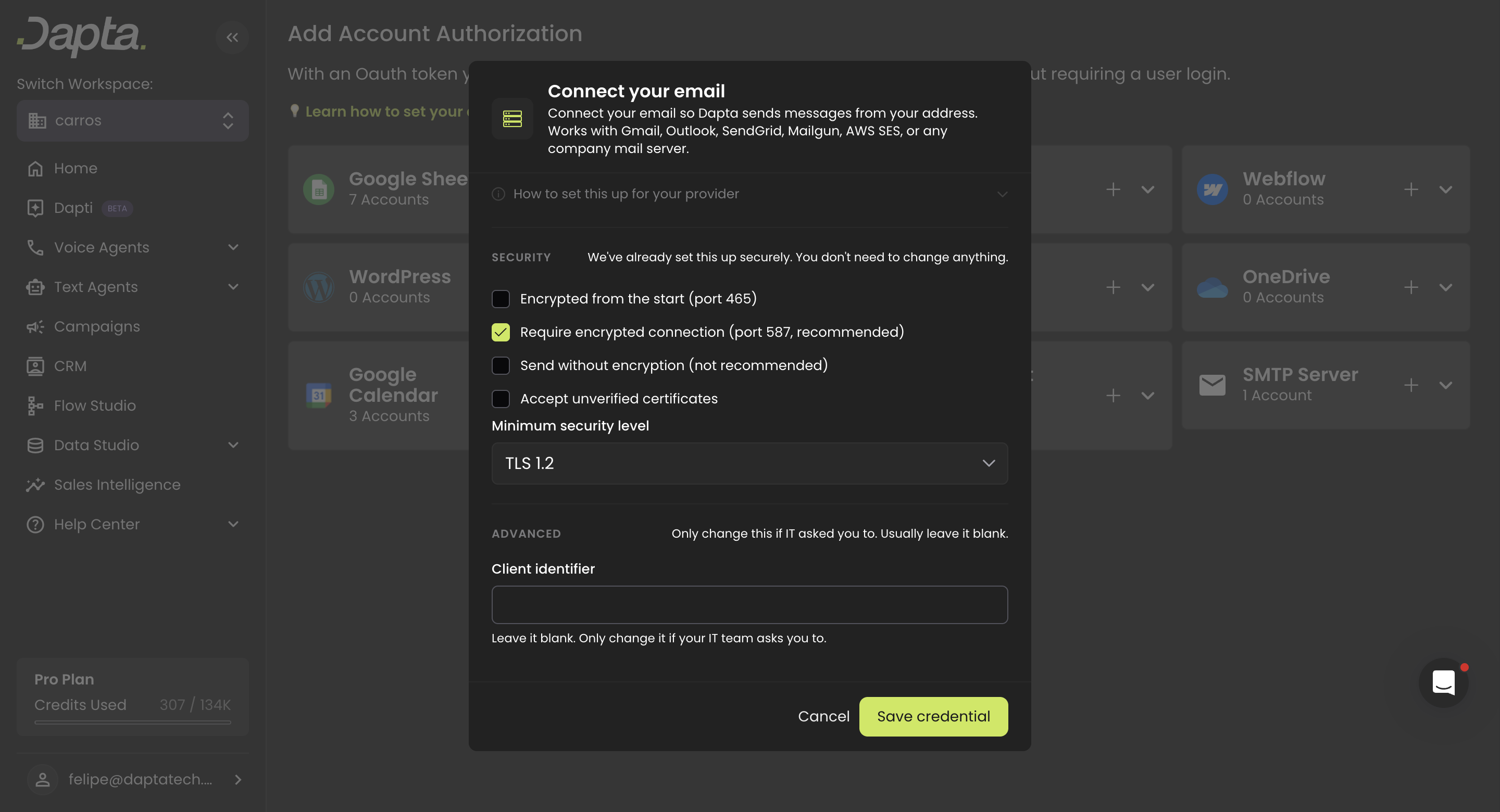
Scroll down to review **SECURITY** and **ADVANCED**. The defaults are already correct for the vast majority of providers — you only need to touch these if your IT team gave you specific instructions.

<figure><img src="/files/QcJK4EIXDr428s2kbbga" alt=""><figcaption><p>Security defaults to TLS 1.2 + STARTTLS on port 587 — leave it.</p></figcaption></figure>

Click **Save credential**. The new credential appears under the SMTP Server tile.

**Field reference**

| Section  | Field                                   | Required | Notes                                                                               |
| -------- | --------------------------------------- | :------: | ----------------------------------------------------------------------------------- |
| Identity | Name to identify this connection        |     ✓    | Internal label, e.g. *Marketing — SendGrid*.                                        |
| Server   | Server address                          |     ✓    | The hostname of your SMTP server.                                                   |
| Server   | Port                                    |     ✓    | `587` (STARTTLS) or `465` (TLS). Port 25 is blocked.                                |
| Access   | Username                                |     ✓    | Same login you use to read mail. For SendGrid the username is the literal `apikey`. |
| Access   | Password                                |     ✓    | For Gmail or Microsoft 365 use an **App Password**, not your account password.      |
| Security | Encrypted from the start (port 465)     |     –    | Tick when the provider uses implicit TLS.                                           |
| Security | Require encrypted connection (port 587) |     –    | Default. STARTTLS upgrade required.                                                 |
| Security | Send without encryption                 |     –    | Discouraged. Only legacy corporate relays.                                          |
| Security | Accept unverified certificates          |     –    | Self-signed or hostname-mismatched certs. Off by default.                           |
| Security | Minimum security level                  |     –    | TLS 1.2 (default) or TLS 1.3.                                                       |
| Advanced | Client identifier                       |     –    | Custom EHLO/HELO. Leave blank unless IT asks.                                       |

**Common providers — quick settings**

| Provider                 | Server                              | Port | Encryption | Auth notes                                                                                                                                   |
| ------------------------ | ----------------------------------- | :--: | ---------- | -------------------------------------------------------------------------------------------------------------------------------------------- |
| Gmail / Google Workspace | `smtp.gmail.com`                    |  587 | STARTTLS   | Username = your address. Password = [App Password](https://myaccount.google.com/apppasswords). 2FA required to generate one.                 |
| Microsoft 365 / Outlook  | `smtp.office365.com`                |  587 | STARTTLS   | App Password or SMTP-AUTH-enabled mailbox. Microsoft is deprecating basic auth — modern tenants will need OAuth (coming in a later release). |
| SendGrid                 | `smtp.sendgrid.net`                 |  587 | STARTTLS   | Username = `apikey`. Password = your SendGrid API key.                                                                                       |
| Mailgun                  | `smtp.mailgun.org`                  |  587 | STARTTLS   | Domain-specific SMTP credentials from the Mailgun dashboard.                                                                                 |
| AWS SES                  | `email-smtp.<region>.amazonaws.com` |  587 | STARTTLS   | SMTP credentials generated from the SES console (not your IAM keys).                                                                         |

***

#### 🪄 Step 2: Add the SMTP node to a flow

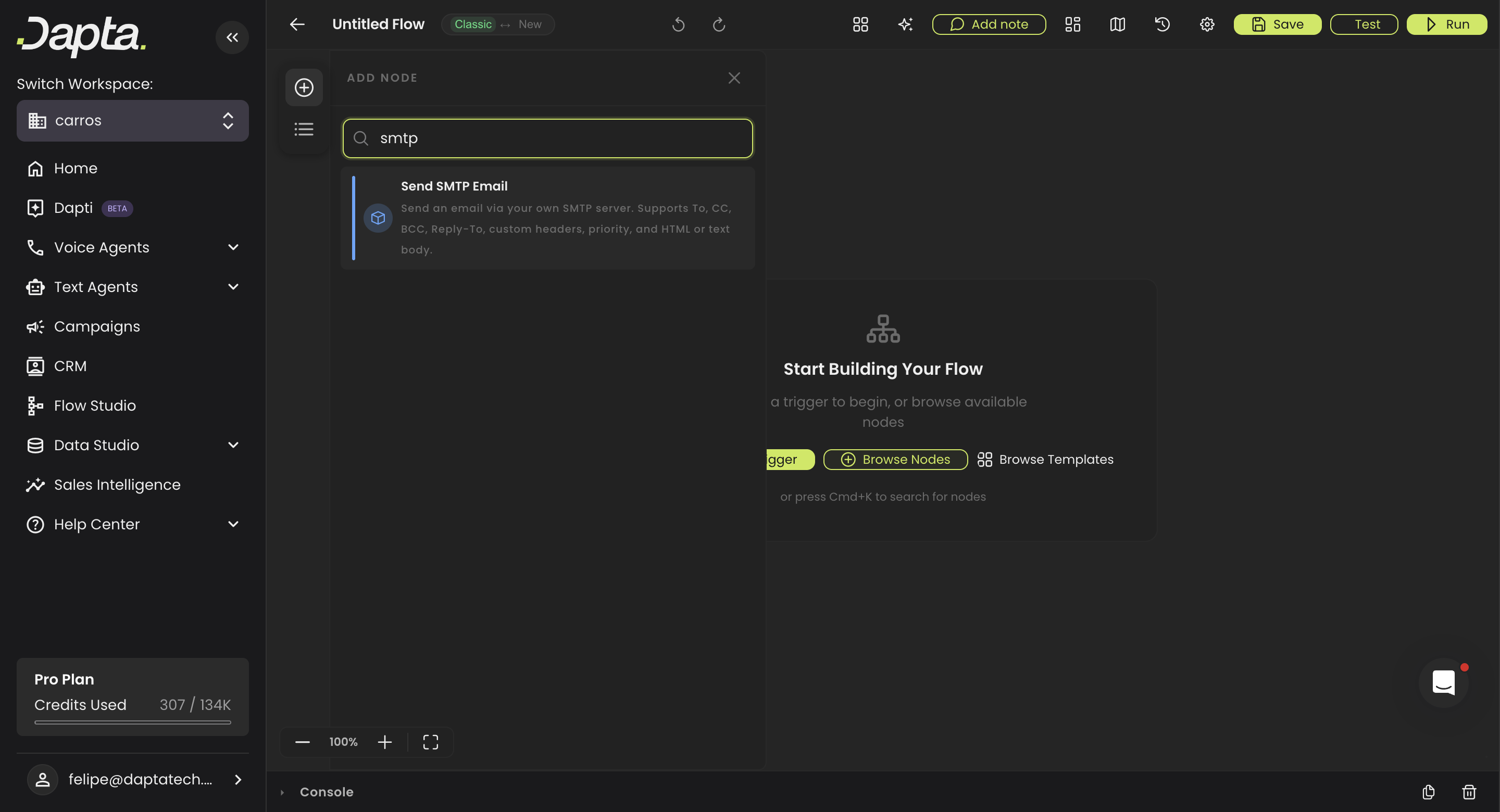
Open **Flow Studio** and create a new flow (or open an existing one). Press `⌘K` / `Ctrl+K` or click **Browse Nodes** and type **smtp**.

<figure><img src="/files/pn2eN5HpQoTVQpGq0R16" alt=""><figcaption><p>Search "smtp" in the node picker to find "Send SMTP Email".</p></figcaption></figure>

Pick **Send SMTP Email**. The node drops onto the canvas.

In the right panel:

* Pick the credential you just created from the **Credential** dropdown.
* If you forgot to create one, choose **+ Add new credential** from the dropdown — the popup opens inline and the credential is auto-selected once you save.
* Fill the rest of the parameters (see [reference](#parameter-reference) below).

Click **Save**. Run the flow to send a test message.

{% hint style="info" %}
**Variables.** Any text field in the node accepts `{{trigger.body.fieldName}}` references and other variables from upstream nodes — useful for personalising the subject or the body.
{% endhint %}

***

#### 📋 Parameter reference

| Parameter          |   Required  | Type                      | Notes                                                                                |
| ------------------ | :---------: | ------------------------- | ------------------------------------------------------------------------------------ |
| **Credential**     |      ✓      | dropdown                  | The SMTP credential to use. Workspace-scoped.                                        |
| **To**             |      ✓      | string                    | One or more recipients, comma-separated. Supports `Name <addr@example.com>`.         |
| **From**           |      –      | string                    | Override the From address. Must match an address the SMTP server allows.             |
| **CC**             |      –      | string                    | Same syntax as To.                                                                   |
| **BCC**            |      –      | string                    | Same syntax as To. Hidden in delivered headers.                                      |
| **Reply-To**       |      –      | string                    | Single address.                                                                      |
| **Subject**        |      ✓      | string                    | RFC limit: 998 characters.                                                           |
| **Body format**    |      ✓      | `text` / `html`           | Picks which body field is sent.                                                      |
| **Body**           | conditional | string                    | Used when *Body format = text*. Also used as HTML fallback if *html\_body* is empty. |
| **HTML body**      | conditional | string                    | Used when *Body format = html*.                                                      |
| **Priority**       |      –      | `low` / `normal` / `high` | Sets the `X-Priority` header.                                                        |
| **Custom headers** |      –      | list of key/value         | Up to 50 entries. Newlines and reserved headers are rejected (see below).            |
| **Attachments**    |      –      | URL / Base64 / Buffer     | URL attachments are fetched with DNS pinning and a 2xx-only redirect policy.         |
| **On error**       |      –      | `stop` / `continue`       | Default for new nodes is **stop** — fail fast instead of swallowing send errors.     |

**Reserved headers — not allowed**

The following header names are blocked because they would let a malicious flow override security-critical fields or break the envelope: `from, sender, to, cc, bcc, reply-to, return-path, message-id, in-reply-to, references, date, content-type, content-transfer-encoding, mime-version, dkim-signature, received, authentication-results, x-original-to, delivered-to, __proto__, constructor, prototype` (case-insensitive). Use the dedicated parameters for From / To / Reply-To.

***

#### 💡 Use cases

* **Welcome emails** after a CRM contact is created.
* **Lead-confirmation** emails after a voice agent qualifies a prospect.
* **Daily digest** emails fired by a Cron trigger that summarises the previous day's activity.
* **Internal alerts** to your ops team when a flow lands on a fallback branch.
* **Customer-facing notifications** that need to come from your own domain for deliverability and brand trust.

***

#### 🛠 Troubleshooting

| Symptom                                         | Likely cause                                                                     | Fix                                                                                                |
| ----------------------------------------------- | -------------------------------------------------------------------------------- | -------------------------------------------------------------------------------------------------- |
| `EAUTH` / authentication failure                | Wrong password, or normal password being used where an App Password is required. | Generate an App Password in your Google/Microsoft account and paste it into the credential.        |
| `ECONNECTION` / `ETIMEDOUT`                     | Wrong host or port, firewall blocking outbound SMTP.                             | Confirm host & port from the providers table. Verify outbound 587/465 is open from the runner.     |
| `Self-signed certificate` / `Hostname mismatch` | The server certificate isn't trusted by default.                                 | Re-issue the cert with a proper CA, or tick *Accept unverified certificates* (security trade-off). |
| `Port 25 is not allowed`                        | Credential uses port 25.                                                         | Switch to 587 or 465. Port 25 is blocked at credential load.                                       |
| `Header value contains forbidden characters`    | A `\r` or `\n` slipped into a header / subject / address.                        | Strip newlines from the input variable before passing it to the node.                              |
| `Reserved header is not allowed`                | You added a custom header that's on the denylist.                                | Use the dedicated parameter (e.g. set *From* instead of a `From:` header).                         |
| Email lands in spam                             | Missing SPF / DKIM / DMARC on your domain.                                       | Configure DNS records at your domain registrar. The node itself signs nothing on your behalf.      |
| Pool warm-up takes a few seconds on first send  | Cold transport pool.                                                             | Expected. Subsequent sends within the workspace reuse the pooled connection.                       |

***

#### 🔒 Security & limits

* Credentials are **encrypted at rest** with AES-256.
* Passwords are **never echoed** in logs, errors, metrics, or workflow history.
* Connections are **pooled per workspace × credential × password-fingerprint** — credentials cannot leak across workspaces.
* TLS 1.2+ is enforced. Port 25 is banned. Outbound is allowed only to public IPs (SSRF guard: RFC1918, link-local, AWS IMDS, GCP metadata, etc. are blocked).
* Attachment URLs are fetched with DNS pinning, `maxRedirects: 0`, and a 2xx-only status check.
* Body / HTML body cap: **10 MB UTF-8**. Subject cap: **998 chars**. Custom headers: **50 entries max**.

***

#### ℹ️ Known limitations

* **OAuth (XOAUTH2)** for Gmail / Microsoft 365 is not yet supported — use App Passwords for now. OAuth support is on the roadmap.
* **Bounce / DSN handling** is not surfaced — a 5xx response is recorded but hard bounces do not automatically notify the flow author.
* **No per-workspace outbound rate-limit gate**. Be mindful of your provider's daily limit (Gmail 500/day, SES sandbox 200/day, SendGrid varies).


---

# Agent Instructions
This documentation is published with GitBook. GitBook is the documentation platform designed so that both humans and AI agents can read, navigate, and reason over technical content effectively. Learn more at gitbook.com.

## Querying This Documentation
If you need additional information that is not directly available in this page, you can query the documentation dynamically by asking a question.

Perform an HTTP GET request on the current page URL with the `ask` query parameter:

```
GET https://docs.dapta.ai/integrations/smtp.md?ask=<question>
```

The question should be specific, self-contained, and written in natural language.
The response will contain a direct answer to the question and relevant excerpts and sources from the documentation.

Use this mechanism when the answer is not explicitly present in the current page, you need clarification or additional context, or you want to retrieve related documentation sections.